
In the modern era of computing, we often marvel at the sleek design of our laptops, the vivid colors of our monitors, and the lightning-fast response times of our gaming peripherals. We focus on the physical hardware and the polished user interfaces of our operating systems. However, between these two layers lies a critical, yet often invisible, component that makes digital interaction possible: the device driver.
Without drivers, your computer would essentially be a collection of expensive parts that have no idea how to communicate with one another. A high-end graphics card would be unable to render a single pixel, and your printer would be nothing more than a bulky paperweight. Understanding what a driver is, how it functions, and why it is vital for system health is fundamental for anyone looking to master their technological environment.
Understanding the Role of Device Drivers
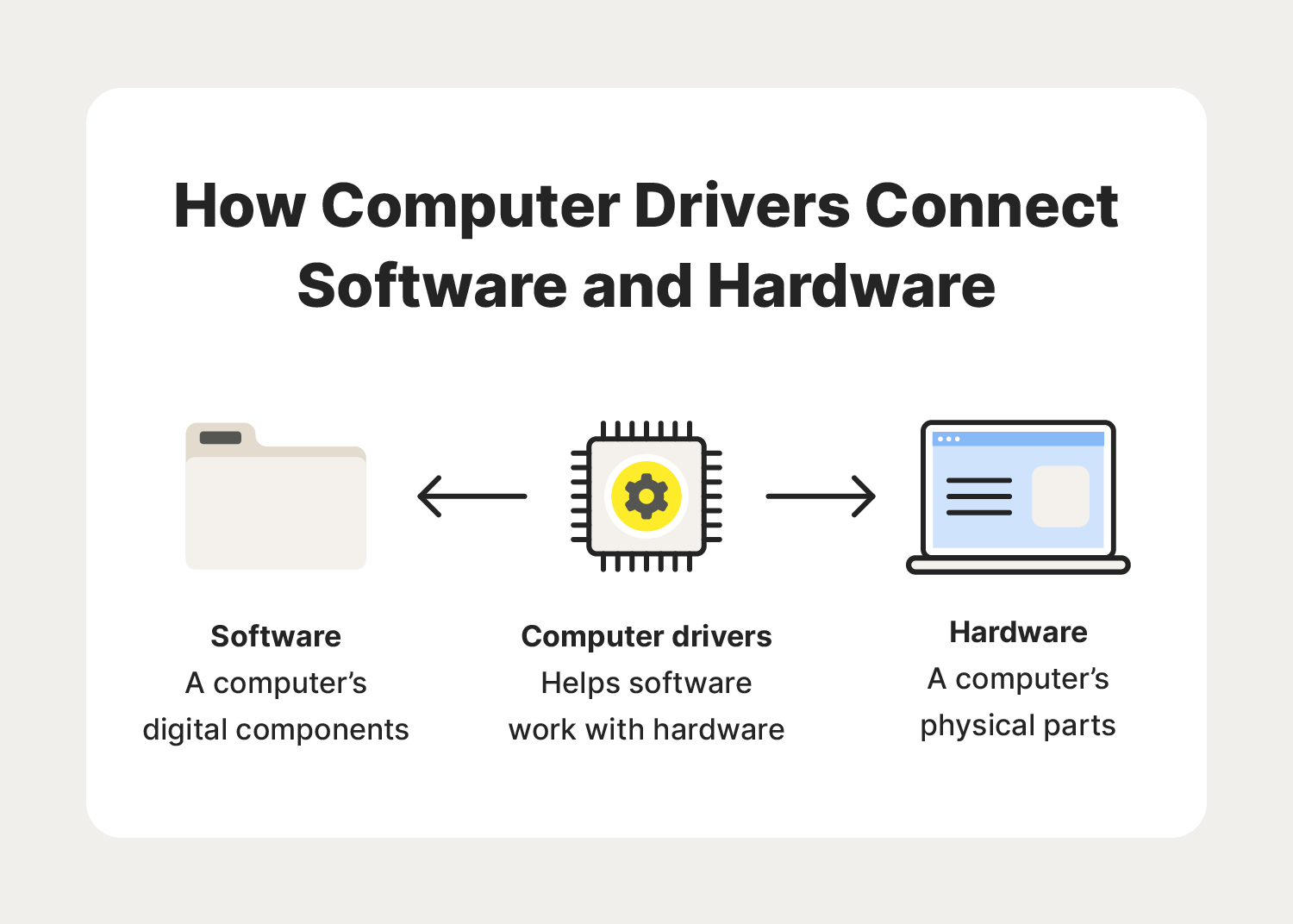
At its core, a device driver is a specialized type of software program that controls a particular hardware device attached to a computer. It acts as a translator between the hardware device and the applications or operating system that use it. To understand this, one must consider the sheer diversity of hardware available today. There are thousands of manufacturers producing mice, keyboards, printers, and internal components, each with unique specifications and internal logic.
The Translator Analogy
Imagine the operating system (OS), such as Windows, macOS, or Linux, as a high-level executive. This executive speaks a specific “language” and issues broad commands like “Print this document” or “Play this sound.” However, the hardware—the printer or the sound card—speaks a completely different, lower-level technical language.
The driver serves as the professional translator sitting between them. When the OS wants to perform a task, it sends a generic request to the driver. The driver then translates that request into specific instructions that the hardware can understand and execute. This abstraction allows operating systems to support a vast array of hardware without needing to know the intimate technical details of every single device ever manufactured.
How Drivers Facilitate Hardware-OS Communication
Drivers operate within the kernel of the operating system. The kernel is the most protected and central part of the OS, managing the communication between software and hardware. Because drivers reside here, they have “high-level privileges.” This is necessary because they must manipulate hardware registers and manage memory directly.
When you plug in a new device, the OS looks for a compatible driver. Once found and loaded, the driver provides a software interface to the hardware. This interface is standardized, meaning that as far as your web browser is concerned, it doesn’t matter if your mouse is a budget office model or a high-end laser gaming mouse; the driver ensures the “click” signal is interpreted correctly regardless of the hardware’s internal complexity.
Common Types of Computer Drivers
While there are drivers for almost every component of a computer, they generally fall into three main categories: peripheral drivers, system drivers, and virtual drivers.
Peripheral Drivers
These are the drivers most users are familiar with because they often involve external devices.
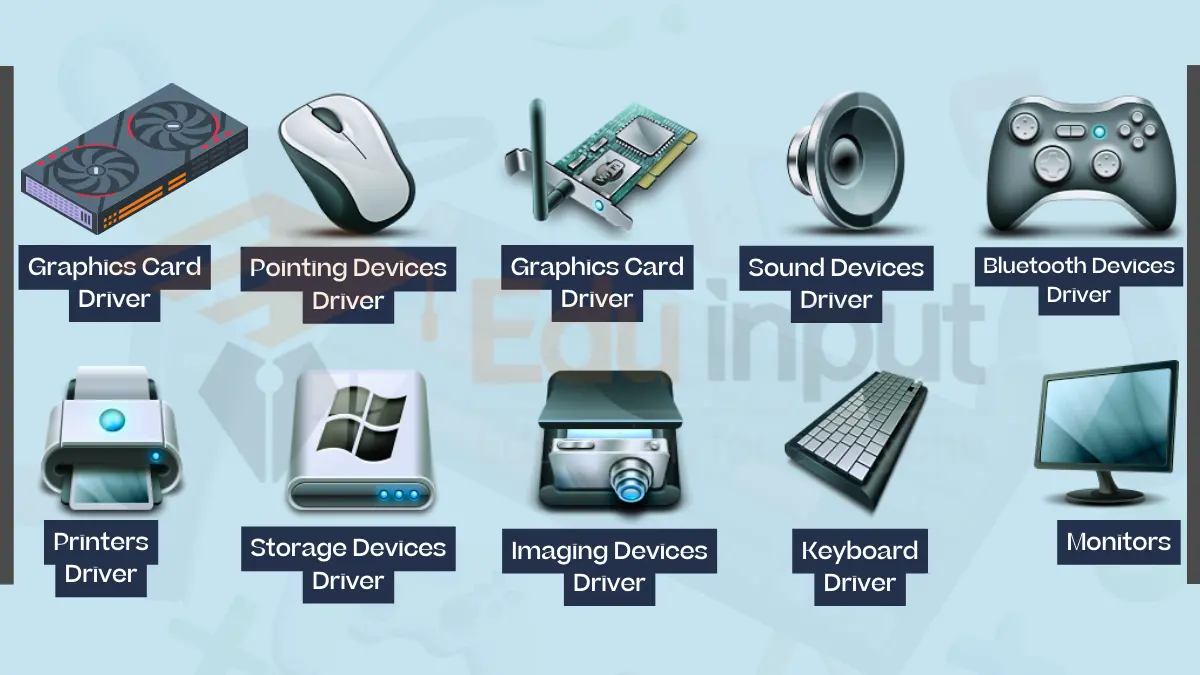
- Input Drivers: These manage devices like keyboards, mice, and touchpads. While basic functionality is often handled by “generic” drivers provided by the OS, specialized drivers enable features like programmable macro keys or adjustable DPI settings.
- Output Drivers: Printers and monitors fall into this category. A printer driver, for instance, tells the printer exactly how to lay down ink on a page to replicate the digital image on your screen.
- Storage Drivers: Devices like external hard drives and USB flash drives require drivers to manage data transfer protocols, ensuring that files are moved quickly and without corruption.
System and Component Drivers
These drivers manage the internal organs of the computer and are essential for the machine to boot and function.
- Chipset Drivers: These are perhaps the most important. They tell the OS how to interact with the motherboard’s motherboard, which houses the CPU and coordinates data flow between all other components.
- Graphics Drivers (GPU): In the tech world, graphics drivers are famous for their complexity. Companies like NVIDIA and AMD release frequent updates to ensure that their hardware can handle the latest video games and professional rendering software.
- Network Drivers (NIC): These manage your Wi-Fi and Ethernet connections. They handle the complex task of packet switching and signal processing that allows you to access the internet.
Virtual Drivers
Not all drivers correspond to physical hardware. Virtual drivers are used to emulate hardware. For example, if you use a Virtual Private Network (VPN), it may install a virtual network adapter driver. Similarly, software that allows you to mount a disc image (like an ISO file) as if it were a physical DVD-ROM uses a virtual driver to trick the OS into thinking a physical drive exists.
The Importance of Keeping Drivers Updated
For many users, drivers are a “set it and forget it” component. However, in the rapidly evolving landscape of technology, maintaining up-to-date drivers is a cornerstone of digital security and system performance.
Performance Optimization and Stability
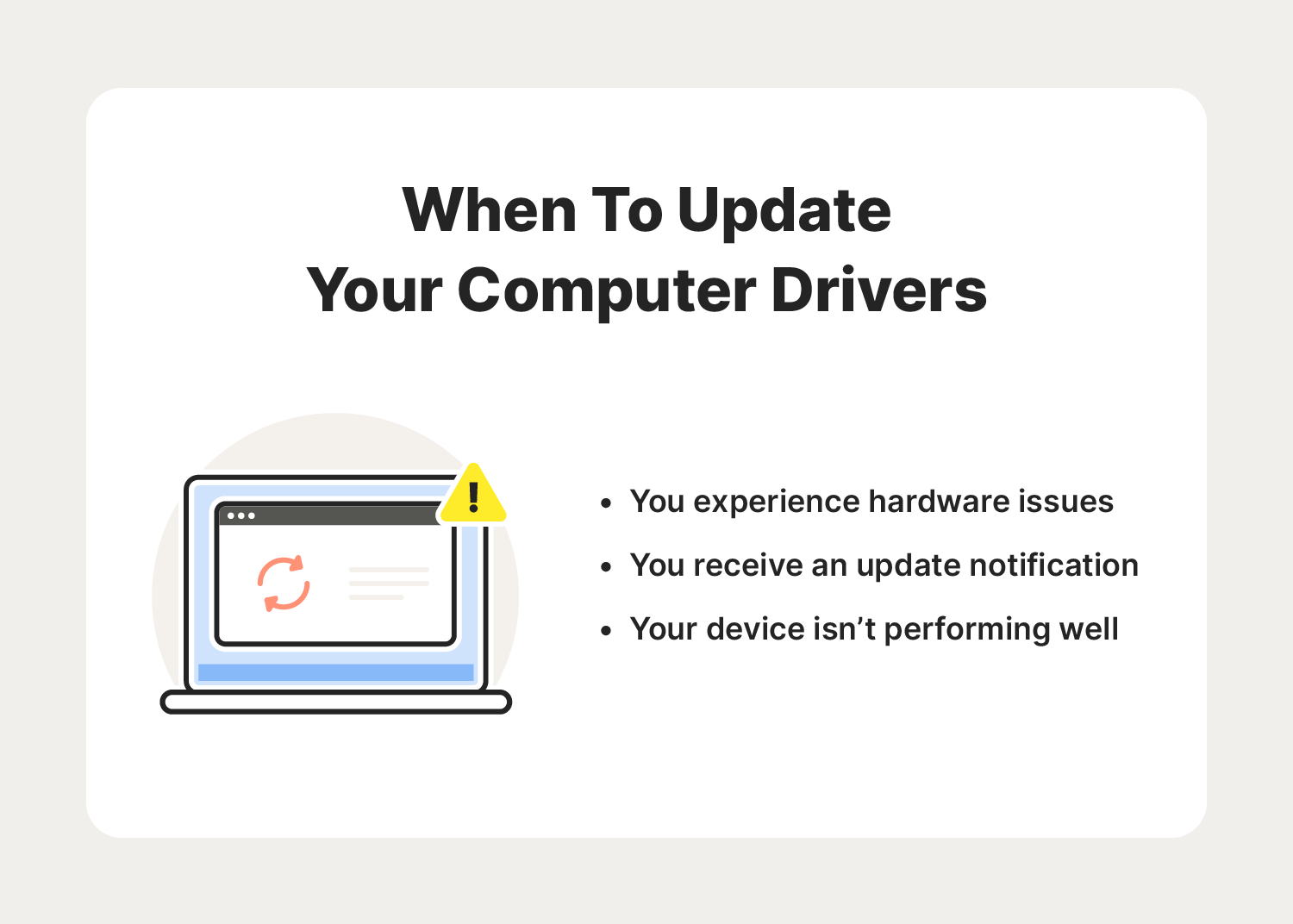
Hardware manufacturers constantly discover more efficient ways for their devices to operate. A driver update for a graphics card can sometimes result in a 10% to 20% increase in frame rates for specific games. Beyond speed, updates often include bug fixes. If your computer is experiencing the “Blue Screen of Death” (BSOD) or frequent crashes, the culprit is often a “leaky” or poorly coded driver that is mismanaging system memory.
Security Patching and Vulnerability Management
Because drivers operate with kernel-level privileges, they are prime targets for cyberattacks. If a hacker finds a vulnerability in a driver, they can potentially gain total control over a system, bypassing the security measures of the operating system itself. Tech companies and hardware vendors frequently release security patches via driver updates to close these loopholes. Failing to update a driver is akin to leaving a back door to your computer unlocked.
New Feature Support
Sometimes, hardware is released with “dormant” capabilities that are only unlocked later through software. For instance, a monitor might receive an update that allows it to support a new HDR standard, or a motherboard driver might be updated to support a newer, faster generation of CPUs. Without the updated driver, the hardware remains limited to its launch-day capabilities.
Managing and Troubleshooting Drivers
Managing drivers has become significantly easier over the last decade, but it still requires a proactive approach when things go wrong.
How to Find and Install Drivers
In modern operating systems like Windows 10 and 11, “Windows Update” handles the majority of driver installations automatically. It pulls verified drivers from a central database and installs them in the background. However, for specialized hardware—like high-fidelity audio interfaces or professional GPUs—it is often better to visit the manufacturer’s website directly. This ensures you get the “full” driver package, which often includes control software that the basic Windows version lacks.
Identifying Driver-Related Errors
When a computer malfunctions, how do you know if it’s a driver issue? Common signs include:
- Hardware not being recognized: You plug in a device, and nothing happens.
- Stuttering or Lag: Audio crackling or visual “artifacts” on the screen.
- System Crashes: As mentioned, the BSOD often lists a specific file (e.g.,
nvlddmkm.sysfor NVIDIA) that points directly to the failing driver. - Device Manager Warnings: In Windows, the Device Manager will display a yellow exclamation mark next to any hardware component that is missing a driver or experiencing an error.
Rolling Back Drivers
Ironically, sometimes a new driver can cause problems. If an update leads to instability, most operating systems allow for a “Driver Rollback.” This feature reverts the hardware to the previously installed version of the driver, providing a quick fix while the manufacturer works on a more stable patch.
The Future of Drivers: Automation and Universal Compatibility
As we look toward the future of technology, the way we interact with drivers is shifting. The industry is moving toward “Universal Drivers”—software frameworks that work across different versions of an OS and even different types of devices (like tablets and PCs).
Furthermore, the rise of Artificial Intelligence and cloud computing is changing the landscape. We are seeing more “cloud-aware” drivers that can diagnose their own failures and report them back to the manufacturer in real-time, allowing for faster patch cycles. In many ways, the “perfect” driver is one the user never has to think about.
While the average user may never need to read a line of driver code, respecting the role these programs play is essential. They are the silent diplomats of the computing world, ensuring that our software dreams can be realized by our hardware reality. By keeping them updated and understanding their function, you ensure that your technology remains fast, secure, and reliable for years to come.
aViewFromTheCave is a participant in the Amazon Services LLC Associates Program, an affiliate advertising program designed to provide a means for sites to earn advertising fees by advertising and linking to Amazon.com. Amazon, the Amazon logo, AmazonSupply, and the AmazonSupply logo are trademarks of Amazon.com, Inc. or its affiliates. As an Amazon Associate we earn affiliate commissions from qualifying purchases.