
In the dynamic world of data management and analysis, spreadsheet software like Microsoft Excel and Google Sheets stands as an indispensable tool for professionals across every industry. At the heart of many sophisticated data operations lies the ability to efficiently retrieve specific pieces of information from large datasets. For years, the VLOOKUP function was the undisputed champion of this task, a familiar cornerstone for anyone serious about spreadsheet mastery. However, with the evolution of Excel, a powerful new contender emerged: XLOOKUP. While both functions serve the primary purpose of looking up data, they approach the task with distinct methodologies and offer varying levels of flexibility, robustness, and ease of use. Understanding these differences is not just a matter of technical curiosity; it’s crucial for optimizing your data workflows, enhancing formula reliability, and ultimately, boosting productivity in an increasingly data-driven professional landscape. This article will dissect the nuances between VLOOKUP and XLOOKUP, revealing why the latter is rapidly becoming the preferred standard for modern spreadsheet users.
Understanding VLOOKUP: The Venerable Vertical Lookup
For decades, VLOOKUP has been the go-to function for retrieving data in Excel. Its straightforward premise—to “vertically look up” a value in the leftmost column of a table and return a corresponding value from a specified column to the right—made it a fundamental skill for anyone working with structured data. VLOOKUP’s widespread adoption cemented its place in countless reports, dashboards, and analytical models, becoming a staple in the repertoire of finance professionals, data analysts, and project managers alike.
How VLOOKUP Works
The VLOOKUP function operates with a specific syntax:
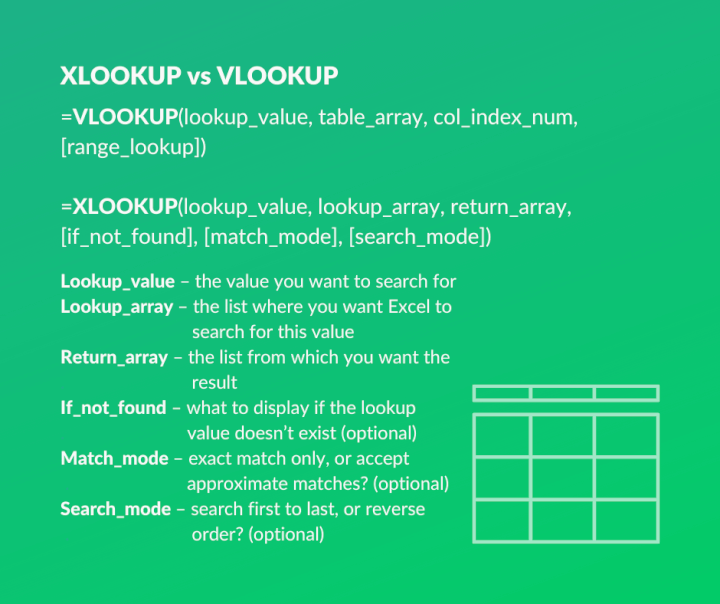
VLOOKUP(lookup_value, table_array, col_index_num, [range_lookup])
lookup_value: This is the value you want to find. It could be a product ID, an employee name, a date, or any unique identifier.table_array: This is the range of cells where the data you want to search and retrieve from is located. Crucially,VLOOKUPalways looks for thelookup_valuein the first column of thistable_array.col_index_num: OnceVLOOKUPfinds thelookup_valuein the first column, this number tells it which column (within thetable_array) to retrieve the corresponding value from. For example, if yourtable_arraycovers columns A through D, and you want a value from column C, yourcol_index_numwould be 3.[range_lookup]: This is an optional argument that determines whetherVLOOKUPshould perform an exact match or an approximate match.TRUEor omitted: Performs an approximate match. This requires the first column of yourtable_arrayto be sorted in ascending order. If an exact match isn’t found, it returns the next smallest value. This can be a source of error if not handled carefully.FALSE: Performs an exact match. This is generally preferred for precise data retrieval and does not require sorted data.
Key Constraints and Frustrations
Despite its utility, VLOOKUP comes with several inherent limitations that have historically frustrated users and led to less robust spreadsheet solutions:
- Left-to-Right Restriction:
VLOOKUPcan only search in the first column of thetable_arrayand return a value from a column to its right. This “left-only” lookup direction often necessitated reorganizing data or using more complex functions likeINDEX-MATCHto overcome. - Column Index Fragility: The
col_index_numargument, while seemingly straightforward, is a major vulnerability. If you insert or delete a column within thetable_array, thecol_index_numin yourVLOOKUPformula will no longer be accurate, leading to incorrect results or errors. This requires manual adjustment of formulas, a tedious and error-prone task in large workbooks. - Default Approximate Match: The default behavior for
range_lookup(when omitted or set toTRUE) is an approximate match. This means if you forget to specifyFALSEfor an exact match,VLOOKUPmight return an incorrect value without explicitly warning you, especially if your data is not perfectly sorted or if there are no exact matches. - Limited Error Handling: If
VLOOKUPcannot find thelookup_value, it returns a#N/Aerror. While descriptive, handling these errors gracefully often requires nestingVLOOKUPwithin other functions likeIFERROR, adding complexity to the formula. - Performance on Large Datasets: For very large datasets, especially with multiple
VLOOKUPformulas, performance can sometimes be an issue due to how Excel processes these lookups.
These limitations, while manageable with workarounds, clearly indicated a need for a more versatile and resilient lookup function.
Introducing XLOOKUP: The Modern Lookup Solution
Responding to decades of user feedback and the increasing complexity of data analysis, Microsoft introduced XLOOKUP in Excel 365. Designed to be a more flexible, robust, and intuitive replacement for VLOOKUP (and HLOOKUP, and even many INDEX-MATCH scenarios), XLOOKUP quickly gained traction as a superior alternative, fundamentally changing how users approach data retrieval in spreadsheets.
Enhanced Functionality and Flexibility
XLOOKUP’s syntax immediately reveals its expanded capabilities:
XLOOKUP(lookup_value, lookup_array, return_array, [if_not_found], [match_mode], [search_mode])
lookup_value: Similar toVLOOKUP, this is the value you want to find.lookup_array: This is the single column or row where you expect to find thelookup_value. This separation from thereturn_arrayis a critical improvement.return_array: This is the single column or row from which you want to retrieve the result. Crucially, thereturn_arraycan be located anywhere relative to thelookup_array—to its left, right, above, or below. This eliminates the “left-only” restriction.[if_not_found]: A built-in argument that allows you to specify a custom message or value to return ifXLOOKUPcannot find thelookup_value. This eliminates the need forIFERROR.[match_mode]: This optional argument controls the type of match:0(default): Exact match (most common and safest).-1: Exact match or next smaller item.1: Exact match or next larger item.2: Wildcard character match (e.g.,*for any sequence of characters,?for any single character).
[search_mode]: This optional argument controls the search direction:1(default): Search from the first item to the last.-1: Search from the last item to the first (useful for finding the most recent entry).2: Binary search, ascending sort order (faster for sorted data).-2: Binary search, descending sort order (faster for sorted data).
This comprehensive set of arguments empowers users with unprecedented control over their lookup operations, making XLOOKUP remarkably adaptable to various data scenarios.
Improved Error Handling and Readability
One of XLOOKUP’s most user-friendly features is its native if_not_found argument. Instead of wrapping the formula in IFERROR or IFNA to handle instances where the lookup value isn’t found, you can simply specify what XLOOKUP should return directly within the function. For example, XLOOKUP("Apple", A:A, B:B, "Product Not Found") will return “Product Not Found” if “Apple” isn’t in column A, enhancing both the readability and conciseness of your formulas.
Furthermore, by clearly separating the lookup_array and return_array, XLOOKUP formulas become much easier to understand at a glance. You don’t need to count columns or mentally map index numbers; you simply define where to look and where to retrieve from. This makes troubleshooting easier and reduces the cognitive load when building complex spreadsheets.
Direct Comparison: VLOOKUP vs. XLOOKUP

When placed side-by-side, the advantages of XLOOKUP over VLOOKUP become strikingly clear, addressing almost every historical pain point and introducing new capabilities.
Directional Lookup: A Major Game-Changer
The most significant functional difference lies in their directional capabilities. VLOOKUP is restricted to searching in the leftmost column of a table and returning a value from a column to its right. This limitation often forces users to rearrange their data or resort to more complex INDEX-MATCH combinations.
XLOOKUP, by contrast, removes this restriction entirely. With separate lookup_array and return_array arguments, you can search for a value in any column and retrieve a corresponding value from any other column, regardless of its position relative to the search column. This flexibility is invaluable in real-world datasets where the identifier column might not always be conveniently positioned as the leftmost.
Exact Match as Default and Approximate Matching
VLOOKUP‘s default behavior for range_lookup is an approximate match (TRUE), which, if not explicitly changed to FALSE for an exact match, can lead to subtle and potentially critical errors, especially if the data in the lookup column is not sorted or if there are no exact matches.
XLOOKUP wisely defaults to an exact match (match_mode = 0). This is a critical design choice that significantly reduces the risk of incorrect data retrieval. For scenarios requiring approximate matches, XLOOKUP provides more granular control with match_mode arguments (-1 for next smaller, 1 for next larger), eliminating the need for strict ascending sort order for the lookup array in approximate match scenarios (though sorting still helps performance).
Handling Multiple Criteria
While neither VLOOKUP nor XLOOKUP inherently handles multiple criteria directly in a single lookup_value argument, XLOOKUP is far easier to combine with other functions to achieve this. For instance, concatenating criteria within the lookup_value and lookup_array for XLOOKUP is more straightforward than with VLOOKUP due to its array parameters. More advanced users often combine XLOOKUP with helper columns or array formulas to solve complex multi-criteria lookup challenges efficiently.
Insert/Delete Column Robustness
One of VLOOKUP’s most notorious weaknesses is its fragility to structural changes in the table_array. If you insert or delete a column that falls before the col_index_num in your VLOOKUP formula, the formula will break or return an incorrect value because the column index number no longer points to the intended column.
XLOOKUP completely eliminates this issue. Because its lookup_array and return_array arguments refer to entire ranges (e.g., B:B and D:D) rather than a hard-coded column index number, the formula remains perfectly intact and accurate even if columns are inserted or deleted between those ranges. This robustness is a monumental improvement for maintaining large, dynamic spreadsheets.
When to Use Which (Practical Scenarios)
While XLOOKUP is clearly the superior function in most modern contexts, there are specific scenarios where VLOOKUP might still be encountered or even chosen.
Scenarios Where VLOOKUP Still Holds Its Own (Legacy, Simple Cases)
- Legacy Systems and Compatibility: If you’re working with older versions of Excel (pre-Office 365) or sharing workbooks with users who only have older versions,
VLOOKUPremains the only option. Compatibility is a key consideration in collaborative environments. - Simple, Static Lookups: For very basic, one-off lookups in small, static datasets where the lookup column is always the leftmost and there’s no risk of column rearrangement,
VLOOKUPcan still get the job done quickly. Many users are so accustomed to it that they might default to it for quick tasks. - Learning Fundamentals: As a pedagogical tool,
VLOOKUPintroduces fundamental lookup concepts in a slightly more constrained manner, which can be useful before moving on toXLOOKUP‘s broader capabilities.

Why XLOOKUP is the Preferred Choice for Most New Work
For virtually all new spreadsheet development and for updating existing workbooks, XLOOKUP is the unequivocal recommendation due to its unparalleled advantages:
- Data Integrity and Robustness: The resilience against column insertions/deletions and the default exact match behavior significantly reduce the likelihood of errors and make your spreadsheets more reliable and maintainable over time.
- Flexibility and Efficiency: The ability to look left or right, perform exact or various approximate matches, and search in different directions drastically simplifies complex lookup tasks that would otherwise require convoluted workarounds or multiple nested functions.
- Readability and Maintainability:
XLOOKUP’s clear syntax and built-in error handling (if_not_found) make formulas easier to understand, debug, and manage, particularly for team collaborations or when revisiting old work. - Future-Proofing: As the newer, more powerful function,
XLOOKUPis the direction Excel development is heading. Embracing it ensures your skills and spreadsheets remain current with the latest software capabilities. - Performance: While often a minor concern for typical datasets,
XLOOKUPcan be more performant thanVLOOKUPon very large datasets, especially when using binary search modes for sorted data.
In essence, XLOOKUP is VLOOKUP reimagined—a more intelligent, resilient, and user-friendly function designed for the demands of modern data analysis.
The transition from VLOOKUP to XLOOKUP marks a significant leap forward in spreadsheet functionality. While VLOOKUP served its purpose valiantly for many years and remains important for backward compatibility, XLOOKUP offers a superior, more robust, and intuitive solution for nearly all lookup tasks. By embracing XLOOKUP, professionals can create more accurate, flexible, and maintainable spreadsheets, ultimately enhancing their productivity and confidence in their data analysis. For anyone serious about spreadsheet mastery, understanding and utilizing XLOOKUP is not just an option—it’s a necessity.