
In the realm of digital data management and analysis, spreadsheet software stands as an indispensable tool for countless professionals and organizations worldwide. From financial modeling to project tracking, inventory management to statistical analysis, applications like Microsoft Excel, Google Sheets, and LibreOffice Calc are the bedrock. Central to understanding and efficiently utilizing these powerful programs are two fundamental, often conflated, terms: “worksheet” and “workbook.” While seemingly similar, grasping the distinct roles and hierarchical relationship between these two components is crucial for effective data organization, manipulation, and sharing.
This article will meticulously demystify the difference between a worksheet and a workbook, shedding light on their individual characteristics, functions, and the symbiotic relationship that underpins modern data processing. By the end, you’ll not only understand their definitions but also appreciate how their proper application can streamline your workflow and enhance your analytical capabilities within any spreadsheet environment.
Understanding the Workbook: The Digital Binder
To truly grasp the distinction, it’s best to start with the broader container: the workbook. Think of a workbook as the overarching file, the primary document you open and save. It’s the digital equivalent of a physical binder or a folder that holds together various related sheets of paper.
Definition and Analogy
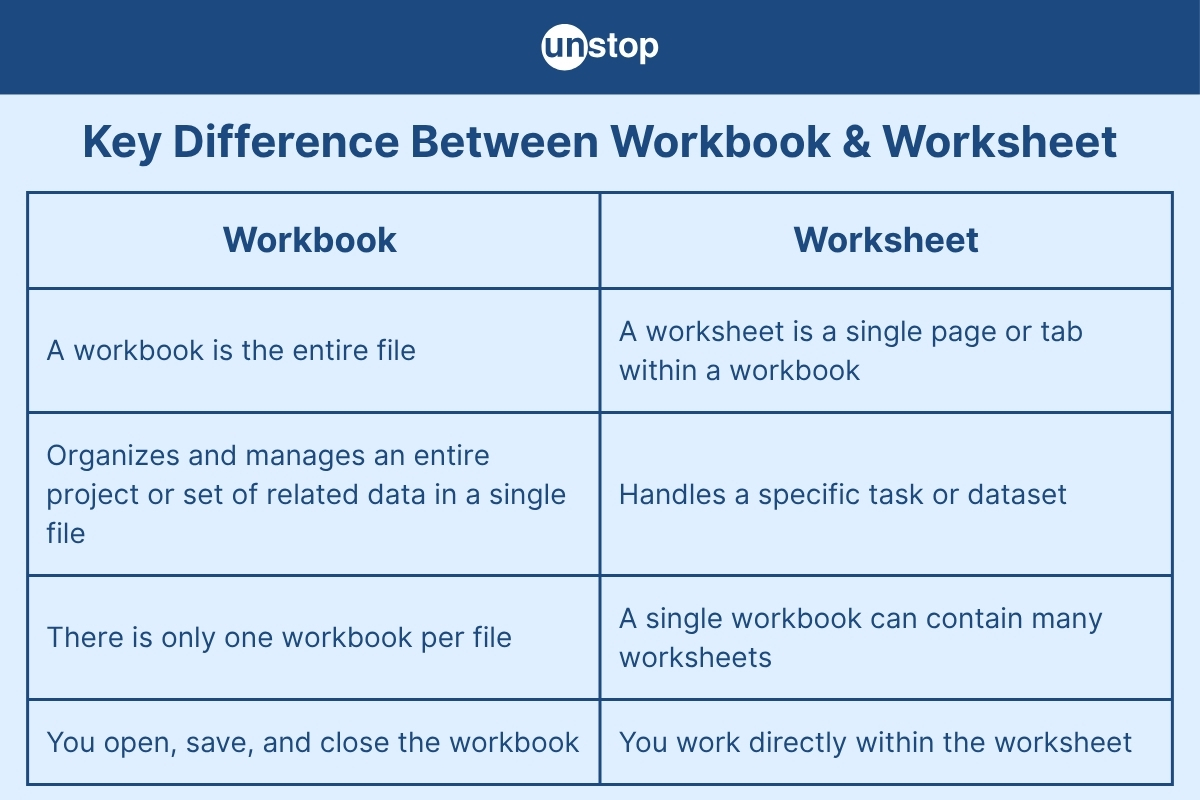
A workbook is the entire spreadsheet file. When you launch Excel and create a new document, you’re creating a new workbook. When you save your work, you are saving a workbook, typically with extensions like .xlsx (for Excel), .ods (for OpenDocument Spreadsheet), or .gsheet (for Google Sheets). It is the single, self-contained file that houses all your data, formulas, charts, and, crucially, one or more individual worksheets.
Consider the analogy of a comprehensive project binder. This binder (the workbook) contains everything pertinent to a single project. Inside, you might find separate sections or pages for different aspects of the project: a budget, a timeline, contact lists, and status reports. All these individual sections are related and housed within that one binder. Similarly, a digital workbook acts as a unified repository for all the data components of a particular task or project.
Key Characteristics of a Workbook
The workbook possesses several defining characteristics that establish its role as the foundational element:
- File Container: It is the actual file saved on your computer or cloud storage. This means it has a file name (e.g., “Annual Budget Report.xlsx”) and a specific file extension.
- Collection of Worksheets: A workbook can, and typically does, contain multiple worksheets. While it’s possible for a workbook to have only one worksheet, its strength lies in its ability to consolidate many related sheets.
- Global Settings: Settings that apply across the entire file, such as macros, custom views, named ranges (that span multiple sheets), and workbook-level protection (e.g., password to open the file, protection of workbook structure), are all attributes of the workbook.
- Inter-Worksheet Relationships: The workbook facilitates the referencing of data and formulas between its various worksheets, enabling complex calculations and interconnected reports.
- Sharing and Collaboration Unit: When you share your work with others, you share the entire workbook file. This ensures that all related data and analyses are transmitted together, maintaining context and integrity.
Workbook Management
Effective workbook management is key to organizing your digital workspace. This involves:
- Creating: Starting new workbooks for new projects or tasks.
- Saving: Regularly saving your work to prevent data loss, using descriptive file names.
- Opening: Accessing existing workbooks to continue working or review data.
- Security: Applying password protection to restrict access to sensitive data contained within the entire file.
- Templates: Saving workbooks as templates (
.xltxin Excel) to create standardized starting points for recurring tasks, pre-filled with formatting, formulas, and even some data.
Delving into the Worksheet: The Data Canvas
Nested within the workbook is its primary functional component: the worksheet. This is where the actual data resides and where most of your direct interaction with the spreadsheet software occurs.
Definition and Analogy
A worksheet (often simply called a “sheet”) is a single page or tab within a workbook. It is the grid of rows and columns where you input, store, and manipulate your raw data, formulas, and charts. Each worksheet in a workbook typically has a unique name displayed on a tab at the bottom of the spreadsheet interface (e.g., “Sheet1,” “Sales Data,” “Q1 Report”).
Continuing with our project binder analogy, if the workbook is the binder itself, then each worksheet is an individual piece of paper within that binder. One piece of paper might be your budget, another your project timeline, and a third your meeting notes. Each sheet serves a distinct purpose but is part of the larger project. In a digital spreadsheet, each worksheet provides a fresh, organized canvas for specific sets of data or analyses.
Key Characteristics of a Worksheet
Worksheets are characterized by their grid-like structure and dedicated functionality:
- Grid of Cells: The most distinctive feature is the vast grid formed by intersecting rows (numbered) and columns (lettered), creating individual cells (e.g., A1, B5) where data is entered.
- Data Entry and Manipulation: This is the primary space for typing in numbers, text, dates, formulas, and functions. All calculations, sorting, filtering, and data visualization (charts) are performed on a worksheet.
- Independent Content: Each worksheet typically contains its own distinct set of data and formatting, though it can reference data from other sheets within the same workbook.
- Unique Naming: To aid in organization and navigation, each worksheet within a workbook should have a unique, descriptive name (e.g., “January Sales,” “Product Inventory,” “Expense Tracker”).
- Local Settings: Specific formatting (cell colors, fonts), conditional formatting rules, data validation rules, and worksheet-level protection (e.g., preventing changes to specific cells or ranges) are applied to individual worksheets.
Worksheet Operations
Managing worksheets efficiently is key to maintaining clear and actionable data:
- Adding/Deleting Sheets: Users can easily add new blank sheets to expand their workbook or delete unnecessary ones.
- Renaming: Changing the default “Sheet1,” “Sheet2” names to descriptive titles like “Q1 Sales,” “Raw Data,” or “Summary.”
- Reordering: Dragging and dropping tabs to change the sequence of worksheets within the workbook.
- Hiding/Unhiding: Temporarily concealing worksheets that are not currently relevant but still need to be part of the workbook for data integrity or later use.
- Tab Color: Assigning different colors to worksheet tabs can visually group related sheets or highlight important ones.
- Moving/Copying: Worksheets can be moved between different positions within the same workbook, or copied to another workbook entirely.
The Synergistic Relationship: Why They Work Together
The true power of spreadsheet software emerges from the seamless interaction between worksheets and workbooks. They are not independent entities but rather components of a cohesive system designed for comprehensive data management.
Data Organization and Structure
The workbook acts as a structural framework, allowing you to logically segment large or complex datasets into manageable parts. Instead of cramming all your information onto a single, unwieldy sheet, you can dedicate separate worksheets to different categories, time periods, or aspects of a project.
For example, a business might have a “Sales” workbook containing worksheets like “Q1 Sales Data,” “Q2 Sales Data,” “Annual Summary,” and “Sales Charts.” Each worksheet holds specific information, but they are all united under the umbrella of “Sales.” This organized structure enhances readability, simplifies navigation, and reduces the likelihood of errors.
Inter-Worksheet Communication

One of the most powerful features enabled by the workbook structure is the ability to reference data across different worksheets. This is often called a “3D reference” or “sheet reference.” For instance, you could have a summary sheet that pulls totals directly from individual monthly sales sheets. If the data on a monthly sheet changes, the summary sheet automatically updates, ensuring data consistency and reducing manual effort.
=SUM('January Sales'!B2:B10) is an example of a formula that sums values from a range on the ‘January Sales’ worksheet, demonstrating this vital inter-sheet communication. This capability is fundamental for building complex models, financial statements, and dashboards where various components need to interact dynamically.
Reporting and Analysis
Workbooks are ideally suited for creating comprehensive reports and analytical tools. You can dedicate one worksheet to raw data, another to pivot tables summarizing that data, a third to charts visualizing the insights, and a fourth to a final executive summary. All these elements, while distinct in their presentation and purpose, draw from the same underlying data, maintaining consistency and providing a holistic view within a single file. This integrated approach makes it easier to present complex information clearly and to trace data back to its source.
Practical Applications and Best Practices
Understanding the worksheet-workbook paradigm isn’t just theoretical; it has significant practical implications for efficiency and data integrity.
Real-world Scenarios
Consider various professional applications:
- Budgeting: A “Budget 2024” workbook might contain worksheets for “Income,” “Fixed Expenses,” “Variable Expenses,” “Savings Goals,” and “Actual vs. Budget Summary.”
- Project Tracking: A “Project Alpha” workbook could have sheets for “Task List,” “Team Members,” “Timeline (Gantt Chart),” “Resource Allocation,” and “Risk Log.”
- Financial Modeling: Complex models often use separate sheets for “Assumptions,” “Inputs,” “Calculations,” “Outputs,” and “Sensitivity Analysis” to keep the model transparent and manageable.
- Inventory Management: A “Warehouse Inventory” workbook could separate sheets by “Product Categories,” “Suppliers,” “Stock Levels,” and “Order History.”
Naming Conventions
One of the simplest yet most effective best practices is to adopt clear, consistent naming conventions for both your workbooks and worksheets.
- Workbook Names: Should be descriptive and indicate the file’s primary content (e.g., “Q4 2023 Sales Report.xlsx,” “Marketing Campaign Analysis_Jan-Mar.xlsx”).
- Worksheet Names: Should be concise and accurately reflect the content of that specific sheet (e.g., “Raw Data,” “Pivot Table – Product Sales,” “Chart – Revenue by Region,” “Assumptions,” “Summary Dashboard”). Avoid generic names like “Sheet1” and “Sheet2.”
Good naming practices significantly improve navigation, collaboration, and long-term usability, making it easier for you and others to understand the structure and locate specific information quickly.
Efficient Navigation and Management
For workbooks with numerous worksheets, efficient navigation is crucial:
- Keyboard Shortcuts: Learn shortcuts to move between sheets (e.g.,
Ctrl + Page Up/Page Downin Excel). - Worksheet Index: For very large workbooks, consider creating a dedicated “Table of Contents” worksheet with hyperlinks to other sheets.
- Grouping Sheets: When applying the same formatting or data entry to multiple sheets (e.g., adding a header to all monthly reports), group them to perform the action simultaneously.
Data Integrity and Version Control
By structuring your data across worksheets within a workbook, you enhance data integrity. Each sheet can be focused on a specific data subset, reducing clutter and the risk of accidental overwrites. When managing versions, saving a new iteration of the entire workbook (e.g., “Project Alpha v1.0.xlsx,” “Project Alpha v1.1.xlsx”) ensures that all related sheets are saved together, maintaining consistency across versions.
Beyond the Basics: Advanced Considerations
As you become more proficient, you’ll encounter more advanced features that leverage the workbook-worksheet architecture.
Workbook vs. Worksheet Protection
Spreadsheet software offers various levels of protection:
- Workbook Protection: This typically refers to protecting the structure of the workbook, preventing users from adding, deleting, renaming, hiding, or moving worksheets. It can also refer to password protecting the entire file to prevent unauthorized opening.
- Worksheet Protection: This focuses on protecting the content within a specific worksheet. You can prevent users from selecting cells, entering data, formatting cells, deleting rows/columns, or modifying charts. This is often used to protect formulas or critical data while allowing input into designated cells.
Understanding which level of protection to apply is essential for securing your data and ensuring data entry integrity.
Grouping Worksheets
When you need to perform the same action on multiple worksheets, you can “group” them. For instance, if you want to apply a specific font size, insert a common header, or even enter the same data into the same cell across several monthly budget sheets, grouping them allows you to do it once, and the change reflects on all selected sheets. This is a massive time-saver for repetitive tasks.
Templates and Reusability
Creating templates (.xltx files in Excel) from well-structured workbooks is a powerful way to standardize operations. A template can come pre-loaded with specific worksheets, headers, formulas, and formatting, ready for new data input. For example, a “Monthly Report Template” could have dedicated sheets for “Revenue,” “Expenses,” and “Summary,” ensuring every report starts with the same structure and calculations.

Conclusion
The distinction between a worksheet and a workbook is fundamental to mastering spreadsheet software and unleashing its full potential. A workbook is the complete file, serving as a comprehensive container—the digital binder—that holds all related data and components for a specific project or task. Within this workbook, individual worksheets act as distinct pages or tabs—the data canvases—where you organize, input, calculate, and visualize your information.
By understanding their hierarchical relationship and individual capabilities, users can organize their data more logically, perform complex analyses more efficiently, and collaborate with greater ease. Embracing best practices in naming, navigation, and protection, grounded in a clear comprehension of worksheets and workbooks, will undoubtedly elevate your data management skills, leading to clearer insights and greater productivity in the digital landscape.
aViewFromTheCave is a participant in the Amazon Services LLC Associates Program, an affiliate advertising program designed to provide a means for sites to earn advertising fees by advertising and linking to Amazon.com. Amazon, the Amazon logo, AmazonSupply, and the AmazonSupply logo are trademarks of Amazon.com, Inc. or its affiliates. As an Amazon Associate we earn affiliate commissions from qualifying purchases.