
The Nintendo Switch has revolutionized portable gaming, offering a vast library of titles ranging from expansive RPGs to fast-paced action adventures. However, one of the most common challenges Switch owners face is managing its internal storage. With a mere 32GB (or 64GB for the OLED model) of built-in storage, a significant portion of which is occupied by the system software, it doesn’t take long for the “storage full” notification to appear, especially for those who primarily download digital games. This is where an external storage solution becomes not just a convenience, but a necessity. Choosing the right SD card is crucial, as it directly impacts game loading times, installation speed, and overall user experience. This comprehensive guide will dissect the specifications, offer practical recommendations, and provide best practices to ensure your Nintendo Switch performs optimally with its expanded storage.

Understanding the Nintendo Switch’s Storage Needs
Before diving into the specifics of SD card types, it’s important to grasp why external storage is so vital for the Nintendo Switch. The console’s design philosophy prioritizes portability and versatility, but this comes with certain trade-offs regarding internal hardware.
Why an SD Card is Essential
The Nintendo Switch supports microSD cards, which are tiny, high-capacity storage devices. Unlike older consoles that might have used proprietary memory units or external hard drives, the Switch leverages the widespread and cost-effective microSD format. For anyone planning to build a digital game library, download game updates, or capture numerous screenshots and video clips, an SD card is indispensable. Without one, you’ll constantly be deleting games to make space for new ones, a frustrating and time-consuming process.
Native Storage Limitations
The original Nintendo Switch and the Switch Lite come with 32GB of internal NAND flash memory. The newer Nintendo Switch OLED model doubles this to 64GB. While 32GB might sound adequate for some, system software typically consumes around 6-8GB, leaving you with roughly 24-26GB of usable space. Even 64GB on the OLED model quickly fills up. Many modern Switch games easily exceed 5GB, with some like The Legend of Zelda: Tears of the Kingdom or DOOM Eternal pushing past 15GB or even 20GB. Installing just a couple of these large titles can exhaust the internal storage, rendering further digital downloads impossible without an SD card.
Game Sizes and Digital Downloads
The trend in gaming is towards larger and more graphically intensive titles, which naturally require more storage. While physical game cartridges exist, they still often require significant data downloads for updates, patches, and additional content (DLC). For example, a physical game might only contain the base game, but day-one patches and subsequent updates can add several gigabytes to its footprint. Furthermore, many indie games and Nintendo eShop exclusives are only available digitally, making an SD card a non-negotiable requirement for expanding your game collection beyond a handful of titles.
Deciphering SD Card Specifications for Your Switch
Selecting the right SD card isn’t just about picking the largest capacity; it’s about understanding the specific technical requirements and performance metrics that ensure compatibility and optimal performance with your Switch.
The “MicroSD” Requirement
First and foremost, the Nintendo Switch exclusively uses microSD cards. Standard SD cards or miniSD cards will not fit. Specifically, the Switch is compatible with microSD, microSDHC (High Capacity), and microSDXC (eXtended Capacity) cards.
- microSDHC cards range from 4GB to 32GB.
- microSDXC cards range from 64GB up to 2TB (though 1TB is currently the practical maximum widely available and affordable).
For most users, microSDXC cards are the way to go due to their much higher capacities.
Capacity: How Much Do You Really Need?
Capacity is often the first metric users look at, and for good reason. It dictates how many games, updates, and media files you can store.
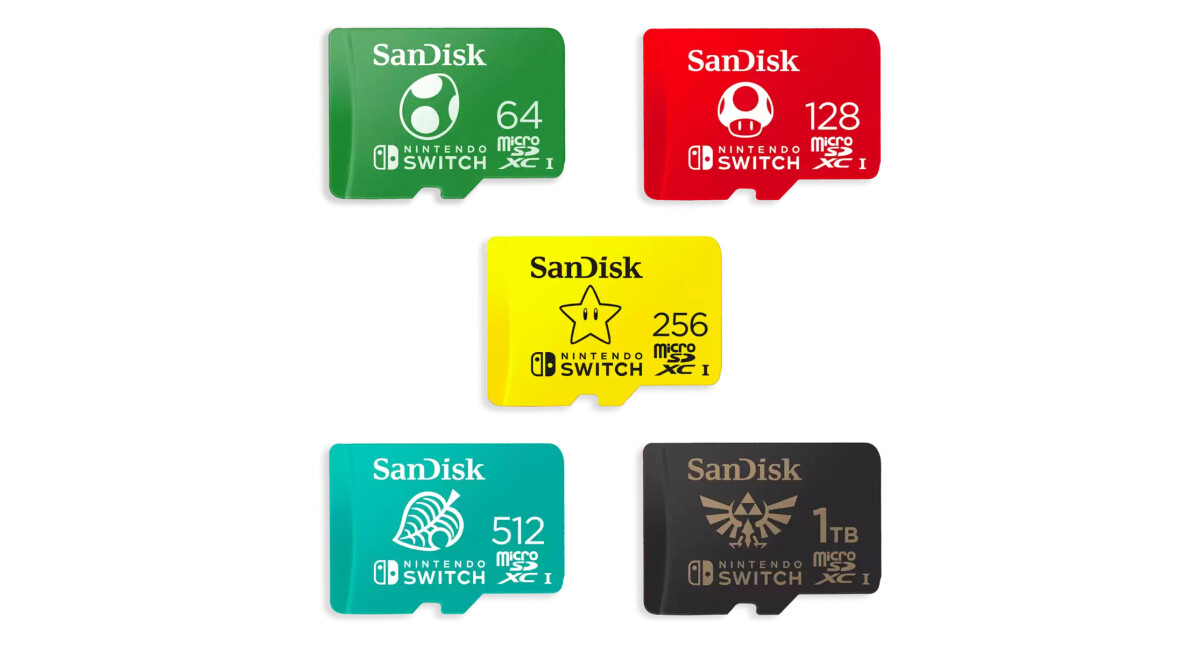
- 64GB – 128GB: Suitable for casual gamers who primarily buy physical cartridges and only download a few digital titles or frequent eShop sales. This might hold 5-10 large digital games.
- 256GB – 512GB: The sweet spot for most users. This range offers a good balance of capacity and cost-effectiveness. It can comfortably hold dozens of digital games and plenty of updates, making it ideal for a growing digital library.
- 1TB and Above: For avid digital collectors, those who want to future-proof their console, or users who download every major digital release. While more expensive, a 1TB card virtually eliminates storage concerns for the foreseeable future, allowing you to install hundreds of games.
Remember that while the Switch theoretically supports up to 2TB, 1TB cards are currently the largest widely available options and offer massive storage for even the most extensive game collections.
Speed Classes: UHS-I, U1, U3, and A1/A2 Ratings Explained
Capacity is important, but speed is paramount for a smooth gaming experience. The speed of an SD card determines how quickly games load, how fast data transfers (e.g., game installations, updates), and how responsive the system feels when accessing files. The Nintendo Switch primarily benefits from cards that adhere to certain speed classes.
- UHS-I (Ultra High Speed Phase I): This is the fundamental speed class supported by the Switch. All compatible cards should be UHS-I.
- Speed Class (U1 vs. U3):
- UHS Speed Class 1 (U1): Guarantees a minimum sequential write speed of 10 MB/s. This is the minimum recommended for the Switch.
- UHS Speed Class 3 (U3): Guarantees a minimum sequential write speed of 30 MB/s. While the Switch doesn’t fully saturate U3 speeds for typical game loading, U3 cards often have better overall read/write performance, leading to slightly faster load times and smoother operation. U3 is generally preferred if the price difference is negligible.
- Application Performance Class (A1 vs. A2): These ratings are designed for devices that run applications directly from the SD card, like smartphones.
- A1: Guarantees a minimum random read of 1500 IOPS and random write of 500 IOPS, plus a sustained sequential write speed of 10 MB/s.
- A2: Guarantees a minimum random read of 4000 IOPS and random write of 2000 IOPS, plus a sustained sequential write speed of 10 MB/s.
While the Switch itself doesn’t explicitly leverage the random IOPS benefits of A2 cards as much as a smartphone would, A2 cards are generally newer, higher-performing cards. A1 or A2 cards are highly recommended for the Switch, as they indicate better overall performance which can contribute to snappier game loading and system responsiveness. Look for “UHS-I U3 A1” or “UHS-I U3 A2” for the best results.
Brands: Reliability and Reputation

Investing in a reputable brand is crucial to avoid counterfeit cards and ensure data integrity. Cheap, no-name cards often fail prematurely, have advertised capacities or speeds that don’t match reality, or corrupt data, leading to lost game saves. Stick with well-known manufacturers like:
- SanDisk: Often considered the gold standard for microSD cards, particularly their “Extreme” or “Ultra” lines. They even produce officially licensed Nintendo Switch microSD cards, which are visually distinctive but functionally identical to their standard high-performance cards.
- Samsung: Their “EVO Plus” and “PRO Plus” lines are excellent, offering great speed and reliability.
- Lexar: Another strong contender, offering competitive performance and value.
- PNY: Offers reliable options, often at competitive prices.
Purchasing from authorized retailers (like Amazon directly, Best Buy, or reputable electronics stores) significantly reduces the risk of buying a fake card.
Recommended SD Card Capacity Tiers and Use Cases
Choosing the perfect SD card involves matching its capacity and speed to your specific gaming habits and budget. Here’s a breakdown of common user profiles:
Casual Gamer (64GB-128GB)
If you mostly play physical game cartridges, enjoy a few digital indie titles, and don’t plan on downloading every major release, a 64GB or 128GB card will suffice. It provides ample room for system updates, game patches, DLC, and a handful of smaller eShop games without breaking the bank. Look for a UHS-I U3 A1 card for good performance without overspending.
Moderate Digital Collector (256GB-512GB)
This is the sweet spot for the majority of Switch owners who frequently buy digital games, subscribe to Nintendo Switch Online (with its classic game libraries), and appreciate having a wide selection of titles readily available. A 256GB card can hold a substantial collection, while a 512GB card offers even more breathing room, accommodating numerous large AAA titles and hundreds of smaller games. These capacities strike an excellent balance between cost and utility. Prioritize UHS-I U3 A1 or A2 cards here to ensure smooth performance across your growing library.
Avid Digital Hoarder/Future-Proofing (512GB-1TB+)
For the ultimate digital library, where virtually every digital game you own is installed and ready to play, a 512GB or 1TB (or even larger, if available) card is the way to go. This tier is for those who never want to worry about deleting games, frequently jump between titles, or want to future-proof their console against increasingly larger game sizes. While these cards represent a larger initial investment, the convenience and freedom they offer are unparalleled. For these high capacities, always opt for the fastest available UHS-I U3 A2 cards from reputable brands to maximize performance and reliability for your extensive collection.
Best Practices for SD Card Management on Your Switch
Once you have your SD card, knowing how to properly set it up and maintain it is key to a hassle-free experience.
Initial Setup and Formatting
When you insert a new microSD card into your Nintendo Switch, the system will prompt you to format it. Always allow the Switch to do this. It will format the card to its proprietary file system (FAT32 for smaller cards, exFAT for larger ones, though exFAT is usually preferred) to ensure full compatibility. If you’ve used the card in another device, ensure you back up any data before inserting it into the Switch, as formatting will erase everything.
Transferring Data (Games, Saves, Screenshots)
- Game Data: Once an SD card is inserted, all new game downloads and updates will automatically go to the SD card by default, assuming there’s space. You can manually move some game data between the internal storage and the SD card via the System Settings -> Data Management menu. However, keep in mind that game save data is always stored on the console’s internal memory and cannot be moved to an SD card. This is a critical point for backing up save data (which requires a Nintendo Switch Online subscription for cloud saves).
- Screenshots and Videos: By default, screenshots and captured video clips are saved to the internal memory. You can change this setting in System Settings -> Data Management -> Save Data/Screenshots and Videos -> Manage Screenshots and Videos -> Save Location, to have them save directly to the SD card. You can also transfer existing media from internal memory to the SD card from this same menu.
Health and Maintenance Tips
- Avoid Hot Swapping: Never remove the SD card while the Switch is powered on or in sleep mode. Always power off the console completely before inserting or removing the microSD card to prevent data corruption.
- Keep it Clean: While not frequently handled, ensure the SD card and the Switch’s SD card slot are free of dust and debris.
- Monitor Storage: Periodically check your storage usage in System Settings -> Data Management to understand what’s taking up space and plan for future purchases.
- Backup (for Media): While game saves are cloud-backed with NSO, consider occasionally backing up your screenshots and video clips to a computer, especially if they hold sentimental value.
What to Avoid: Counterfeit Cards and Slow Speeds
The market is unfortunately rife with counterfeit microSD cards, especially from unofficial sellers. These cards often report a much higher capacity than they actually possess, leading to data corruption when you try to write beyond their true limit. They also often have abysmal read/write speeds. Always buy from reputable sources and be wary of “too good to be true” deals. Similarly, avoid cards with low speed ratings (e.g., Class 4 or 6) as they will lead to noticeably longer loading times and a frustrating user experience. Stick to UHS-I U3 A1/A2 cards for optimal performance.
By carefully considering capacity, prioritizing speed with A1/A2 and U3 ratings, choosing reliable brands, and following best practices for management, you can ensure your Nintendo Switch has all the storage it needs to keep you gaming without interruption for years to come.
aViewFromTheCave is a participant in the Amazon Services LLC Associates Program, an affiliate advertising program designed to provide a means for sites to earn advertising fees by advertising and linking to Amazon.com. Amazon, the Amazon logo, AmazonSupply, and the AmazonSupply logo are trademarks of Amazon.com, Inc. or its affiliates. As an Amazon Associate we earn affiliate commissions from qualifying purchases.