
The scientific calculator remains one of the most resilient pieces of hardware in the digital age. Despite the ubiquity of smartphones and high-powered laptops, these specialized devices—and their modern software counterparts—continue to be the backbone of engineering, physics, and data science. Understanding how to use a scientific calculator effectively is not merely about knowing which buttons to press; it is about understanding the logic of computational technology and how to interface with hardware designed for precision.
In the contemporary tech landscape, the definition of a “scientific calculator” has expanded from the classic handheld plastic brick to include sophisticated mobile applications, browser-based engines like Desmos, and AI-integrated tools like WolframAlpha. Regardless of the medium, the underlying logic remains consistent. This guide explores the architecture of these tools, the nuances of their operation, and how to leverage their advanced features for professional and academic success.

Understanding the Interface: Physical Buttons and Digital Logic
The primary hurdle for most users is the multi-layered interface of the scientific calculator. Unlike a standard calculator that performs basic arithmetic, a scientific model utilizes a “layer” system to fit dozens of functions onto a limited number of keys.
Primary, Secondary, and Tertiary Functions
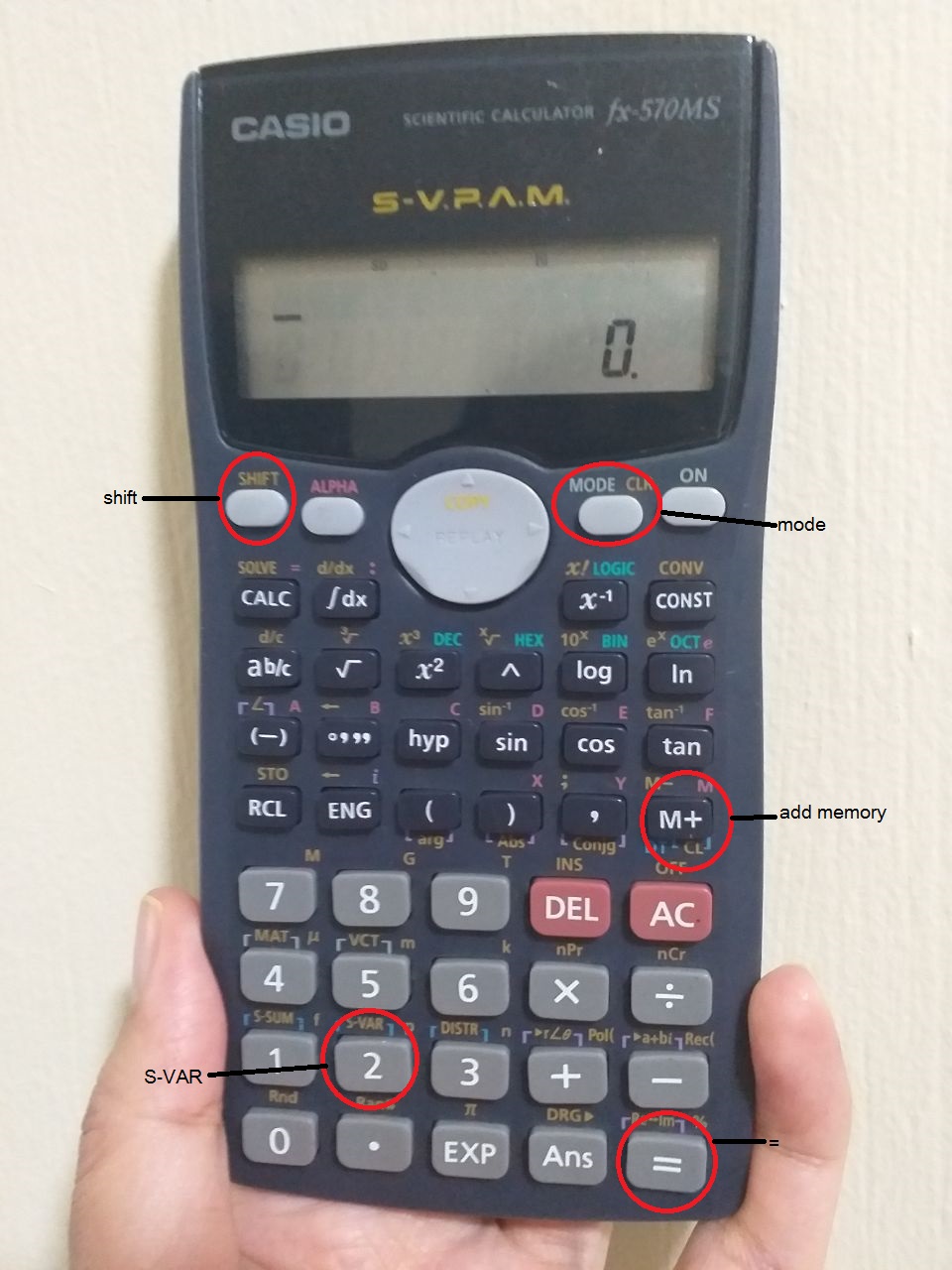
Every scientific calculator uses color-coded modifiers, typically labeled as “Shift,” “2nd,” or “Alpha.”
-
Primary Functions: These are printed directly on the buttons (e.g., sin, cos, log, square root).
-
Secondary Functions: Usually printed in yellow or gold above the key, accessed by pressing the “Shift” or “2nd” button first. These often include the inverse of the primary function (e.g., sin⁻¹ or the cube root).
-
Alpha Functions: Often printed in red or blue, these allow the user to input letters or access memory variables (A, B, C, X, Y). In modern tech-heavy models, the Alpha key is also used to access specialized menus for constants or unit conversions.
The Display Architecture: Linear vs. Natural Textbook
Modern high-end calculators and apps use “Natural Display” or “WriteView” technology. This allows the screen to render fractions, radicals, and exponents exactly as they appear in a textbook. Older or entry-level digital models use “Linear” input, where a fraction is shown as 3/4 rather than a stacked numerator and denominator. Understanding your device’s display mode is crucial for verifying that your input matches your intended equation.
Core Mathematical Operations and Scientific Notation
The “scientific” part of the calculator refers to its ability to handle extremely large or small numbers using scientific notation and to process transcendental functions like logarithms and trigonometry.
Mastering Scientific Notation (EXP and EE)
One of the most common mistakes in tech-heavy fields is the manual entry of powers of ten. Using the 10^x key is often less efficient than using the dedicated EXP or EE key.
When you type 6.02 EE 23, the calculator treats this as a single numerical entity (Avogadro’s number). If you type 6.02 x 10^23, the calculator may treat it as two separate terms depending on its internal logic, which can lead to errors during division if parentheses are not used correctly. The EE key is the professional standard for inputting values in scientific notation.
Powers, Roots, and Reciprocals
While the square and square root keys are prominent, the general power key (often labeled ^, x^y, or y^x) is the most versatile tool in your arsenal. In the context of software-based calculators, the ^ symbol is the universal “caret” for exponentiation. Similarly, the reciprocal key (x⁻¹ or 1/x) is vital for electrical engineering (calculating parallel resistance) and physics, allowing you to flip values instantly without re-typing.
Advanced Functions: From Trigonometry to Statistics
The true power of a scientific calculator lies in its specialized libraries. For those working in tech, software development, or hardware engineering, these functions are non-negotiable.

Navigating Angle Modes: Degrees vs. Radians
The most frequent cause of “incorrect” answers in technical calculations is an incorrect angle mode.
-
Degrees (DEG): Used primarily in basic geometry and structural engineering.
-
Radians (RAD): The standard in calculus, computer graphics programming, and theoretical physics.
-
Gradians (GRA): Rarely used, but often accidentally toggled, leading to significant errors.
Always check the top of your screen for a small “D” or “R” indicator. In software calculators, these are often found in the “Settings” or “Mode” menu.
Logarithms and Exponentials
Scientific calculators typically feature two types of logarithms: log (Base 10) and ln (Natural Log, Base e). In data science and software engineering (specifically in algorithm analysis), the natural log is the most prevalent. Understanding the relationship between ln and its inverse e^x is essential for modeling growth, decay, and computational complexity.
Statistical Distributions and Data Entry
Many modern scientific calculators include a “STAT” mode. This allows users to input a list of data points to automatically calculate the mean, standard deviation, and variance. In professional tech environments, while Excel or Python are preferred for large datasets, the STAT mode on a calculator is an invaluable “sanity check” tool for quick field calculations or verifying sensor data integrity.
The Evolution of the Calculator: Software and AI Integration
We are currently witnessing a shift from standalone hardware to integrated software ecosystems. The modern “calculator” is now often a sophisticated application that blends traditional button layouts with symbolic logic.
Graphing Apps and Web Engines
Tools like Desmos and GeoGebra have revolutionized how we visualize data. These are essentially “Graphing Scientific Calculators.” They allow for dynamic adjustments—moving a slider to see how a variable change affects a sine wave in real-time. This visual feedback is something a traditional plastic calculator struggle to provide. For tech professionals, these tools are often used for rapid prototyping of mathematical models before they are hard-coded into software.
Symbolic Manipulation (CAS)
Higher-end devices and software (like the TI-Nspire or WolframAlpha) feature a Computer Algebra System (CAS). Unlike a standard scientific calculator that provides a numerical answer (e.g., 0.707), a CAS can provide a symbolic answer (e.g., √2/2). They can simplify algebraic expressions, perform symbolic differentiation, and solve for variables. This moves the tool from a “calculator” into the realm of a “computational engine.”
AI and OCR in Modern Calculators
The latest trend in calculator technology is the integration of Optical Character Recognition (OCR) and Artificial Intelligence. Apps like Photomath allow users to point a camera at a handwritten equation. The software identifies the symbols, parses the logic, and provides a step-by-step solution. While some fear this detracts from learning, in a professional tech context, it serves as a powerful tool for digitizing analog notes and quickly verifying complex derivation steps.
Best Practices for Computational Accuracy
To use a scientific calculator like a professional, one must understand its limitations and the logic of its operating system.
Order of Operations (PEMDAS/BODMAS)
All modern scientific calculators follow the standard order of operations: Parentheses, Exponents, Multiplication/Division, and Addition/Subtraction. However, the way a calculator handles a long string of operations can vary. The best practice is to use parentheses liberally. Instead of typing 5 + 3 / 2 + 4, which the calculator reads as 5 + 1.5 + 4, use parentheses to define your groups clearly: (5 + 3) / (2 + 4).
Memory Management
The M+, M-, and MR (Memory Recall) keys are the precursors to modern “variables” in programming. They allow you to store an intermediate result and bring it back later, preventing rounding errors. If you are calculating a multi-step engineering problem, never write down a rounded number and re-type it. Use the ANS (Answer) key, which stores the exact result of the previous calculation, or assign the value to a variable like A or B.
Troubleshooting and Resets
If your calculator is producing bizarre results—such as negative values for distances or impossible trigonometric outputs—the first step is a hard reset. On hardware, this is often a button on the back or a “Shift + 9 (Reset)” command. In apps, clearing the cache or hitting the “Clear All” button is vital. Over time, stored variables and obscure mode settings (like “Fixed” decimal points or “Scientific” notation mode) can interfere with daily tasks.
Conclusion
The scientific calculator is a bridge between pure mathematics and applied technology. Whether you are using a physical Casio on a construction site, a TI-84 in a lab, or a smartphone app in a coding bootcamp, the principles of operation remain the same. By mastering the layers of the interface, understanding the nuances of scientific notation, and embracing the transition to symbolic and AI-driven software, you transform a simple tool into a powerful extension of your own analytical capabilities. Technology evolves, but the logic of the scientific calculator remains a fundamental skill for anyone navigating the modern technical world.
aViewFromTheCave is a participant in the Amazon Services LLC Associates Program, an affiliate advertising program designed to provide a means for sites to earn advertising fees by advertising and linking to Amazon.com. Amazon, the Amazon logo, AmazonSupply, and the AmazonSupply logo are trademarks of Amazon.com, Inc. or its affiliates. As an Amazon Associate we earn affiliate commissions from qualifying purchases.