
In the ecosystem of modern enterprise resource planning and accounting software, keeping your tools current is not merely a matter of convenience; it is a critical requirement for security, compliance, and operational efficiency. QuickBooks, as a cornerstone of financial management for millions of businesses, undergoes frequent revisions ranging from minor bug fixes to major architectural overhauls. Understanding the technical nuances of how to update QuickBooks—whether you are running the Desktop version or utilizing the Online software-as-a-service (SaaS) model—is essential for any IT professional or business owner managing a digital financial stack.
Understanding the Importance of QuickBooks Software Updates
Software updates are often viewed as disruptive interruptions to a busy workday, but in the context of financial software, they represent the front line of defense and functionality. When you update QuickBooks, you are performing a multi-faceted maintenance routine that affects the core stability of your financial database.
Security Patches and Data Integrity
Financial data is among the most sensitive information any organization possesses. Cyber threats, including ransomware and SQL injection attacks, specifically target software vulnerabilities to gain access to banking details, payroll information, and tax records. Intuit, the developer of QuickBooks, frequently releases patches that address discovered security loopholes. Failing to update leaves your local server or workstation exposed to exploits that have already been publicized and remediated in newer versions.
Furthermore, data integrity is a significant concern. Database corruption can occur due to unexpected system shutdowns or conflicts with other software. Updates often include “under-the-hood” improvements to the database engine, ensuring that as your file grows in size, it remains stable and less prone to the dreaded “L200” or “C-series” errors that signify internal data structural failure.
Performance Enhancements and Bug Fixes
As operating systems like Windows 10 and 11 evolve, the interaction between the OS and third-party software changes. An update to the Windows kernel or a change in how .NET Framework handles memory can lead to performance degradation in older versions of QuickBooks. Regular updates ensure that the software remains optimized for the current hardware and operating system environment, reducing latency during heavy reporting cycles or complex inventory reconciliations.
New Feature Integration and Regulatory Compliance
Tax laws and financial reporting standards are in a constant state of flux. QuickBooks updates often include the latest tax tables, payroll calculation logic, and forms required by federal and state agencies. For businesses utilizing QuickBooks Payroll or those tracking sales tax across multiple jurisdictions, running an outdated version can lead to significant compliance errors, resulting in financial penalties.
Step-by-Step Manual Update Process for QuickBooks Desktop
For users on QuickBooks Pro, Premier, or Enterprise, updates are typically managed through the local installation on a workstation or a central server. While there are automated ways to handle this, the manual “Update Now” method provides the most control, allowing IT administrators to verify the integrity of the update before it rolls out to all users.
Preparing Your System for Update
Before initiating an update, it is a technical best practice to create a verified backup of your company file (.QBW). While updates usually modify the application files rather than the data file itself, major “Release” (R) updates may require a database schema conversion. To begin, ensure that all other users are logged out of the company file and that the software is running in single-user mode.
The Immediate Update Method
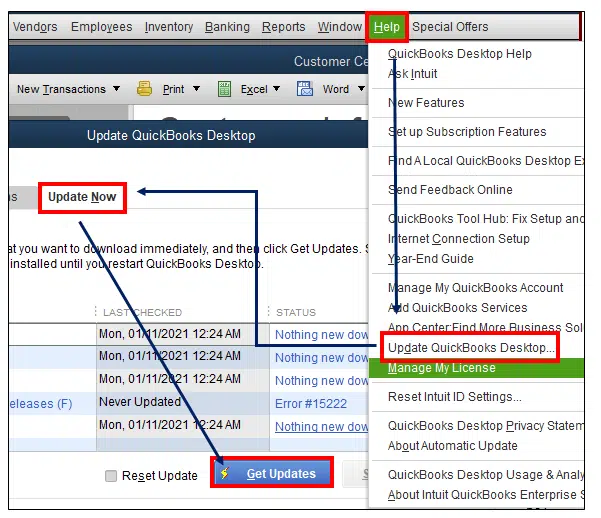
To trigger a manual update within the software interface:
-
Navigate to the Help menu located in the top navigation bar.
-
Select Update QuickBooks Desktop.
-
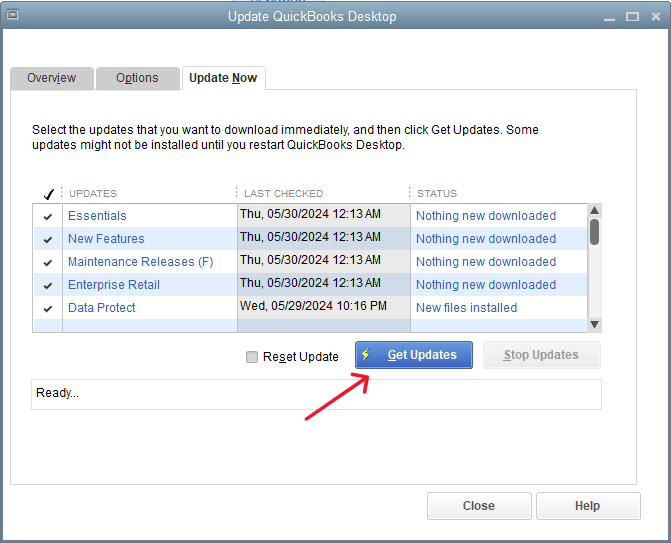
In the window that appears, navigate to the Update Now tab.
-
It is highly recommended to check the Reset Update checkbox. This action clears all previous update downloads that may have been partially completed or corrupted, ensuring a “clean” download of the newest files.
-
Click Get Updates.
Once the download completes, you must restart QuickBooks. Upon restarting, a prompt will appear asking to install the update. Selecting “Yes” initiates the actual installation process where files are replaced and the registry is updated.
Verifying the Update Version
In the world of software troubleshooting, “the latest version” is an ambiguous term. To verify exactly which build you are running, press the F2 key (or Ctrl+1) while QuickBooks is open. This opens the Product Information window. Look at the top line for the “Product” field, which will display the year and the release version (e.g., QuickBooks Desktop Pro 2024 Release R3_22). Comparing this against the official Intuit release notes helps determine if specific patches have been successfully applied.
Configuring Automatic Updates for Seamless Maintenance
Manually checking for updates is prone to human error and oversight. For most organizations, configuring the software to handle these tasks in the background is the preferred technical strategy.
Enabling Background Downloads
QuickBooks features an internal delivery service that can download update files while the software is idle. To enable this:
-
Go to the Help menu and select Update QuickBooks Desktop.
-
Navigate to the Options tab.
-
Select the radio button for Yes next to “Automatic Update.”
-
Below that, you can select which specific update components you wish to receive. It is generally advised to select all components to ensure the software remains fully synchronized with Intuit’s servers.
Shared Updates in a Multi-User Environment
In a networked environment where multiple workstations access a single company file hosted on a server, managing updates can become complex. QuickBooks offers a “Shared Download” feature. By setting “Share Download” to Yes on the host computer, the update files are stored in a central location on the network. This prevents every single workstation from having to download the same multi-hundred-megabyte file, saving significant bandwidth and ensuring that every user is prompted to install the same version simultaneously, which prevents version-mismatch errors when opening the company file.
Transitioning to QuickBooks Online: The Cloud Update Model
The technical landscape of “updating” changes entirely when moving from Desktop to QuickBooks Online (QBO). In a SaaS environment, the burden of software maintenance shifts from the end-user to the service provider.
How Cloud Updates Differ from On-Premise
When you use QuickBooks Online, you are accessing a web application hosted on Intuit’s servers. There is no “update” button because the software is updated server-side. Every time you log in, you are automatically using the most current version of the platform. This “continuous delivery” model allows for incremental updates that are often rolled out in phases.
However, “updating” in this context refers more to the local environment. Users must ensure that their web browsers (Chrome, Firefox, or Safari) are updated to the latest versions to support the modern JavaScript and CSS frameworks that QBO utilizes. Furthermore, if you use the QuickBooks Online Desktop App (a wrapper for the web interface), you must periodically update the application shell to maintain compatibility with the underlying web engine.
Managing App Integrations and API Updates
For businesses using a “Best of Breed” tech stack, QuickBooks Online often serves as the hub for various third-party integrations (e.g., Bill.com, Expensify, or Shopify). While QBO itself updates automatically, the APIs (Application Programming Interfaces) that connect these tools may undergo version changes. IT managers should periodically review the “Apps” tab within QBO to ensure that permissions are still valid and that the data bridges between the software tools are functioning correctly following major platform updates.
Troubleshooting Common Update Errors and Technical Glitches
Even with a robust process, software updates can fail. Technical conflicts often arise from environmental factors such as aggressive firewall settings, restricted user permissions, or system file conflicts.
Resolving Error 15xxx Series
One of the most common categories of update failures is the 15xxx series (e.g., Error 15215 or 15240). These are typically related to digital signature verification or server connectivity.
-
Digital Certificates: If the update fails, navigate to the QuickBooks program files in Windows Explorer, right-click the executable, and check the “Digital Signatures” tab. If the certificate is not recognized, you may need to manually install it to allow the update to proceed.
-
Internet Explorer Settings: Despite being deprecated, QuickBooks still relies on certain underlying Windows internet components. Ensure that TLS 1.2 is enabled in your Internet Properties, as modern Intuit servers require this protocol for secure communication.
Handling Connection Failures and Firewall Conflicts
Update downloads often fail because a firewall or antivirus program flags the background downloader as a suspicious process. To resolve this, you must add exceptions for QuickBooks executable files (such as AutoUpdate.exe and QBUpdate.exe) and ensure that ports 80 and 443 are open. Additionally, the following domains should be whitelisted in any network-level filtering:
-
*.intuit.com
-
*.quickbooks.com
-
*.payload.intuit.com

Best Practices for Data Backups Before Updating
Regardless of the update method used, the “gold standard” of software management is to never perform an update without a recovery plan. Before clicking “Install Now,” ensure you have a local backup and, ideally, an off-site or cloud backup of your .QBW and .TLG (Transaction Log) files. In the rare event that an update causes a database collision, the ability to roll back to a pre-update state is the difference between a minor inconvenience and a catastrophic data loss event.
By maintaining a disciplined approach to software updates, leveraging automatic download features, and understanding the technical requirements of the host environment, organizations can ensure that their financial tools remain secure, performant, and ready to meet the demands of modern business.
aViewFromTheCave is a participant in the Amazon Services LLC Associates Program, an affiliate advertising program designed to provide a means for sites to earn advertising fees by advertising and linking to Amazon.com. Amazon, the Amazon logo, AmazonSupply, and the AmazonSupply logo are trademarks of Amazon.com, Inc. or its affiliates. As an Amazon Associate we earn affiliate commissions from qualifying purchases.