
The modern digital landscape is defined by the “subscription economy,” a model that offers unprecedented access to vast libraries of content at the touch of a button. Paramount Plus, as a major player in the streaming wars, hosts a massive repository of legacy media, original programming, and live sports. However, the ease of signing up for these services is often contrasted by the technical complexities involved in canceling them. Whether you are streamlining your digital expenses, switching to a different platform, or simply taking a break from the screen, knowing how to effectively navigate the deactivation process is a crucial digital literacy skill.
Unsubscribing is rarely a one-size-fits-all process. Because Paramount Plus integrates with various software ecosystems—including Apple’s iOS, Google’s Android, Amazon’s Prime Video, and hardware like Roku—the “unsubscribe” path depends entirely on the technical gateway you used to sign up. This guide provides a comprehensive technical breakdown of how to sever your subscription across all major platforms and ensures you maintain control over your digital footprint.
Mastering the Direct Cancellation Process via the Web Interface
For users who signed up directly through the Paramount Plus website, the browser-based dashboard is the primary tool for account management. This is the most straightforward method, as it bypasses third-party billing layers and communicates directly with Paramount’s backend servers.
Navigating the Account Dashboard
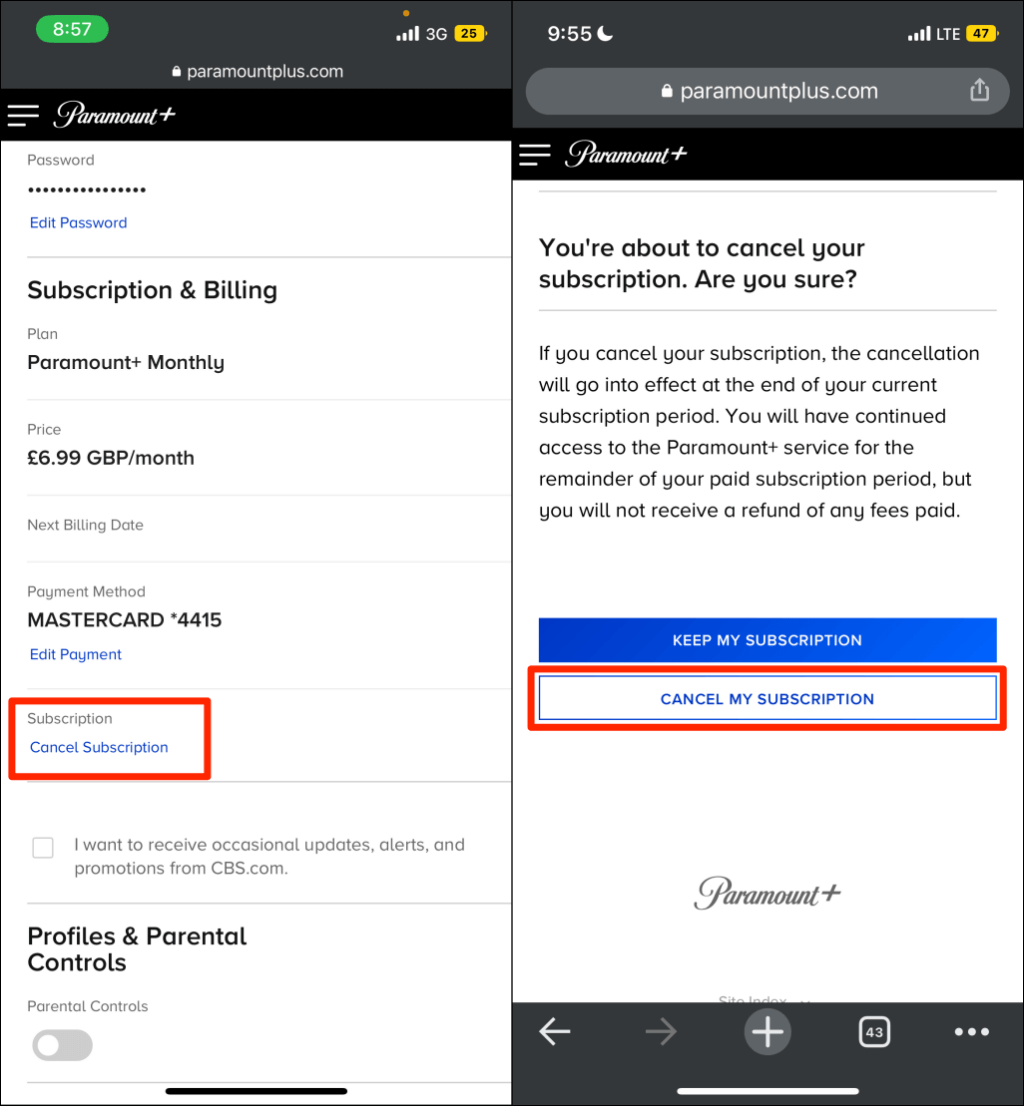
To begin, navigate to the official Paramount Plus website using a desktop browser. Log in with your credentials and hover over your profile icon in the upper right-hand corner. From the dropdown menu, select “Account.” This page serves as the central hub for your subscription data, including your billing cycle, payment method, and plan type.
Under the “Subscription & Billing” section, you will find the “Cancel Subscription” link. Modern UI design often hides these options in plain sight or uses “dark patterns”—subtle design choices that make it harder to leave a service. You may be prompted with a series of retention offers, such as a discounted rate for three months or a free month of service. If your goal is a total cancellation, you must navigate through these prompts by clicking “No Thanks” or “Continue to Cancel.”
Finalizing the Server-Side Request
The process is not complete until you reach a confirmation screen. Upon clicking the final cancellation button, the platform’s API sends a request to update your status in their user database. It is a technical best practice to wait for the confirmation email. This email serves as a digital receipt and a point of reference should a billing error occur in the future. Once canceled, your account status will typically change from “Active” to “Pending Cancellation,” meaning you retain access until the end of the current billing period.
Decoupling Third-Party Subscriptions: The Ecosystem Challenge
One of the most common points of confusion in the streaming world arises when a user tries to cancel a subscription on the website, only to find the option missing. This happens because the subscription is managed by a third-party “billing partner.” In these instances, Paramount Plus acts as the content provider, but Apple, Google, Amazon, or Roku acts as the financial intermediary. To unsubscribe, you must interact with the partner’s software ecosystem.
Managing Subscriptions on Apple Devices (iOS, iPadOS, and tvOS)
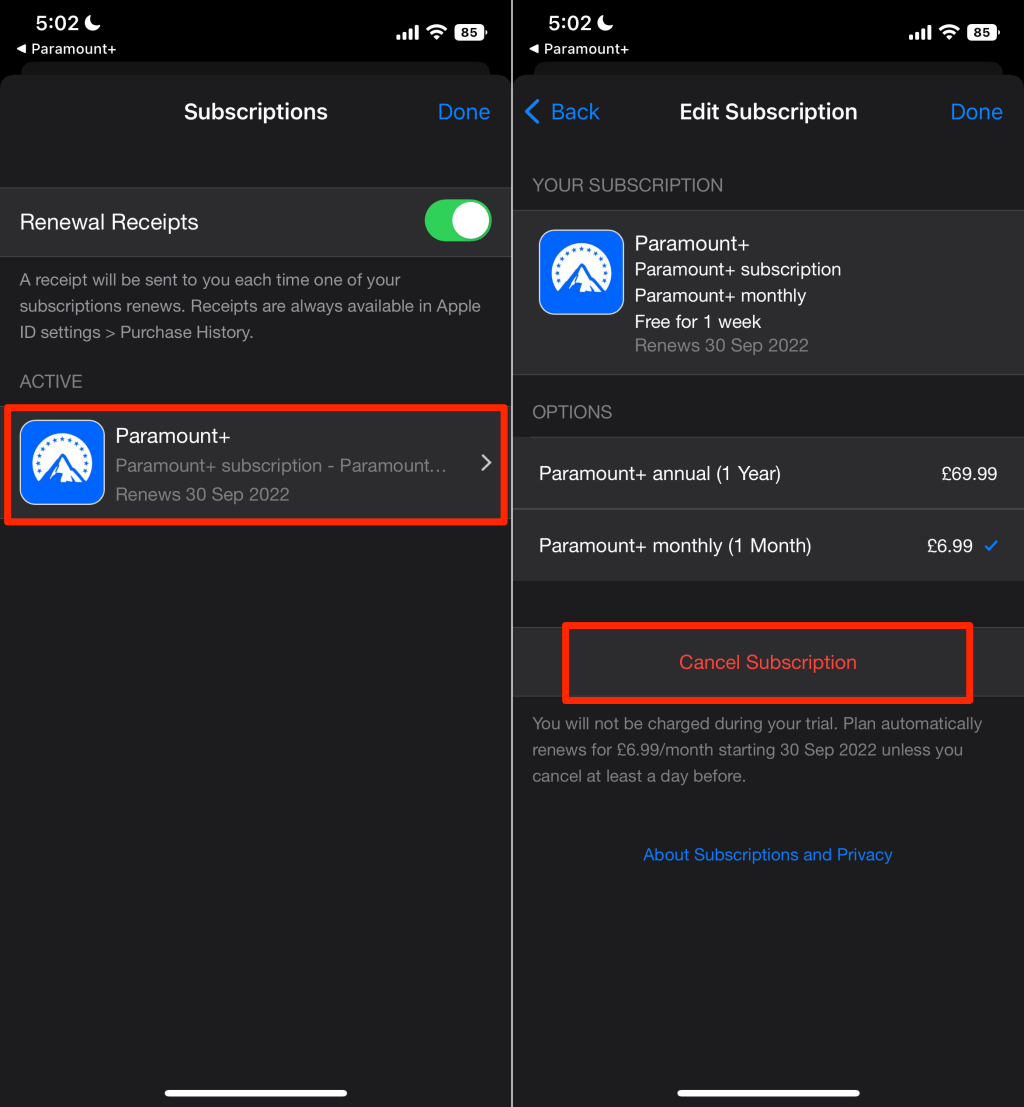
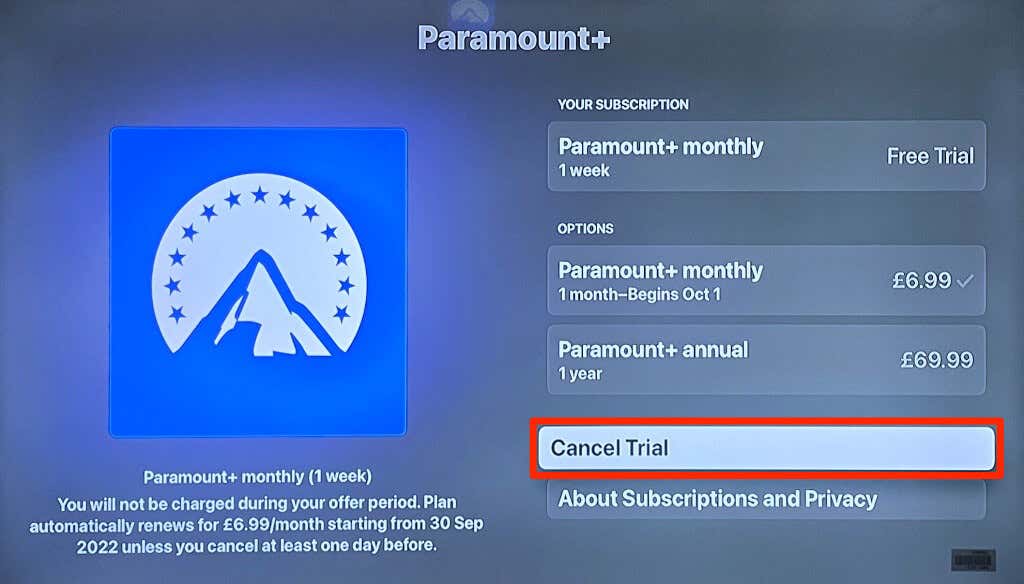
If you subscribed to Paramount Plus via an iPhone, iPad, or Apple TV, your billing is tied to your Apple ID. Apple maintains a strict “walled garden” approach to subscriptions, requiring all cancellations to go through their internal Settings app or the App Store.
-
Open the Settings app on your device.
-
Tap your Apple ID name at the very top.
-
Select Subscriptions.
-
Locate Paramount Plus in the list of active services.
-
Tap Cancel Subscription.
From a technical standpoint, this action revokes the “auto-renew” token associated with your Apple ID. Apple’s system will then notify Paramount’s servers via a webhook that the subscription will not be renewed at the next interval.
The Google Play Store and Android Ecosystem
For Android users, the process is handled through the Google Play Store’s subscription management interface. This is critical because simply deleting the Paramount Plus app from your phone does not terminate the billing cycle.
-
Launch the Google Play Store app.
-
Tap your profile icon in the top right.
-
Navigate to Payments & subscriptions > Subscriptions.
-
Select Paramount+ and tap Cancel subscription.
Google’s interface may ask for a reason for the cancellation. Once submitted, the Google Play billing API updates your account status, ensuring no further charges are drafted from your linked payment method.
Amazon Prime Video Channels and Roku
Many users subscribe to Paramount Plus as a “Channel” within the Amazon Prime Video interface or via a Roku account. These integrations are convenient for consolidating apps, but they require a specific cancellation path.
-
For Amazon: You must log into your Amazon account via a web browser, go to “Account & Lists,” select “Your Prime Video Channels,” and then find Paramount Plus to disable the auto-renewal.
-
For Roku: Navigate to the Paramount Plus channel icon on your Roku home screen, press the asterisk (*) button on your remote, and select “Manage Subscription” to find the “Cancel Subscription” option.
Overcoming Technical Hurdles and Subscription Errors
Even with a clear roadmap, technical glitches can occur during the unsubscription process. These errors can range from “failed to load” pages to persistent billing after a cancellation has been confirmed. Understanding the technical roots of these issues can help you resolve them quickly.
Clearing Cache and Managing Sync Delays
If you are unable to see the “Cancel” button on the website, it may be due to a caching issue in your browser. Web browsers store versions of pages to speed up loading times; if your browser is displaying an old version of the account page, it might not reflect recent changes or display interactive elements correctly. Clearing your browser’s cache or attempting the process in an “Incognito” or “Private” window forces the browser to pull the most recent data from Paramount’s servers.
Sync delays are another common issue, especially with third-party billing. If you cancel on an iPhone, it may take several minutes (or in rare cases, hours) for that information to propagate to Paramount’s backend. If you still see an “Active” status on the app immediately after canceling via Apple, wait for the systems to synchronize before attempting to cancel again, which could lead to duplicate requests or errors.
Handling “Zombie” Subscriptions and Billing Discrepancies
A “zombie” subscription occurs when a user believes they have canceled, but the automated billing system continues to charge the linked credit card. This often happens when a user has multiple accounts under different email addresses or has authorized billing through two different platforms (e.g., once via the website and once via Roku).
To troubleshoot this, audit your bank statements to see exactly who is charging you. If the merchant name is “Paramount+,” you must cancel via their website. If it is “Apple Bill” or “Roku/Paramount+,” you must go through those specific device settings. Using a password manager can help you track which email address is associated with which service, preventing the technical headache of managing multiple “ghost” accounts.
Digital Sovereignty: Best Practices for Subscription Management
Managing subscriptions like Paramount Plus is more than just a task of clicking buttons; it is a component of maintaining digital sovereignty and security. As we move further into a software-reliant world, being proactive about how apps access your financial data is essential.
Utilizing Virtual Cards and Privacy Tools
One of the most effective tech-forward ways to manage streaming services is the use of virtual credit cards. Services like Privacy.com or features offered by modern fintech banks allow you to create “burner” cards or “merchant-locked” cards with strict spending limits.
By using a virtual card for your Paramount Plus subscription, you can set the card to expire after a certain date or limit its monthly spend to the exact price of the service. If the cancellation process becomes technically cumbersome or the company fails to honor a request, you can simply “pause” or delete the virtual card from your banking app. This shifts the power back to the consumer, ensuring that no unauthorized technical “auto-renewals” can occur.
Centralized Subscription Tracking
For power users with multiple streaming platforms, manual tracking is inefficient. Utilizing digital tools such as “Rocket Money” or “Subly” can help monitor the APIs of your bank accounts to flag recurring charges. These apps provide a high-level technical overview of your digital expenses, often allowing you to initiate cancellations directly through the tool’s interface or providing direct links to the necessary cancellation pages.
Transitioning Post-Cancellation: Data Retention and Future Access
Once the technical process of unsubscribing is complete, there are considerations regarding your user data and the potential for re-subscribing in the future.
What Happens to Your Data?
When you cancel a Paramount Plus subscription, the company generally retains your user profile, watch history, and “My List” preferences for a certain period. This is a deliberate technical choice intended to reduce friction if you decide to return. From a privacy perspective, if you wish for your data to be entirely purged from their systems, you may need to submit a formal “Data Deletion Request” (often found in the Privacy Policy section), especially if you are protected by regulations like GDPR or CCPA.
Strategic Re-subscription and Trial Management
The streaming tech stack is designed for fluidity. Many users employ a “cycling” strategy—subscribing for a month to binge a specific series (like Star Trek: Strange New Worlds or Yellowstone) and then immediately unsubscribing.
If you plan to return, keep an eye on your email for “win-back” campaigns. These are automated marketing triggers sent by Paramount’s CRM (Customer Relationship Management) software when it detects an inactive account. These offers often provide technical “promo codes” that can significantly reduce the cost of re-entry.
In conclusion, unsubscribing from Paramount Plus is a multi-layered technical task that requires an understanding of where your subscription lives. By identifying the billing gateway—be it the direct web interface, a mobile app store, or a streaming device—and following the specific protocols for that ecosystem, you can successfully manage your digital subscriptions and ensure your financial and data resources are allocated exactly where you want them.
aViewFromTheCave is a participant in the Amazon Services LLC Associates Program, an affiliate advertising program designed to provide a means for sites to earn advertising fees by advertising and linking to Amazon.com. Amazon, the Amazon logo, AmazonSupply, and the AmazonSupply logo are trademarks of Amazon.com, Inc. or its affiliates. As an Amazon Associate we earn affiliate commissions from qualifying purchases.