
In the rapidly evolving landscape of digital streaming, the ability to consume content offline has transitioned from a luxury feature to a fundamental requirement for users. Paramount Plus, the streaming arm of Paramount Global, offers a robust catalog of titles ranging from blockbuster films to exclusive original series. However, the technical execution of downloading these titles for offline viewing involves a specific set of hardware requirements, software configurations, and subscription parameters.
Understanding how to leverage the offline viewing feature of Paramount Plus is essential for commuters, travelers, and individuals residing in areas with inconsistent high-speed internet. This guide provides an exhaustive technical breakdown of the downloading process, storage management, and troubleshooting protocols necessary to optimize your mobile entertainment experience.
System Requirements and Subscription Architecture
Before attempting to download content, it is crucial to understand the technical and financial gatekeepers that govern the Paramount Plus offline ecosystem. Unlike basic streaming, which is available across almost all internet-connected devices, the download feature is restricted by specific software limitations and account tiers.
The Premium Subscription Requirement
Paramount Plus operates under a tiered subscription model. As of the current software architecture, the ability to download content is exclusively reserved for the “Paramount+ with SHOWTIME” plan. The entry-level “Paramount+ Essential” plan, which is ad-supported, does not include the license for offline caching. This distinction exists primarily due to the technical difficulty of serving and tracking advertisements within an offline, decrypted video file. By upgrading to the Premium tier, users gain access to the secure download servers that bypass the ad-insertion markers.
Device Compatibility
The download functionality is not universal across all hardware. It is strictly limited to mobile devices and tablets. This is a deliberate design choice centered on Digital Rights Management (DRM) and portability. The following platforms are currently supported:
-
iOS/iPadOS: Devices must be running iOS 13 or later. This ensures the app can utilize Apple’s advanced FairPlay Streaming (FPS) technology for content encryption.
-
Android: Mobile devices and tablets must be running Android 5.0 (Lollipop) or higher. Higher versions are recommended to ensure better memory management during the background download process.
-
Amazon Fire Tablets: Compatible with Fire OS 5.0 and above.
It is important to note that desktop computers (Windows/macOS), smart TVs, and gaming consoles (PlayStation/Xbox) do not support offline downloads. These devices are categorized as “stationary nodes” within the network architecture, where the service assumes a constant broadband connection.
The Step-by-Step Procedure for Mobile Downloads
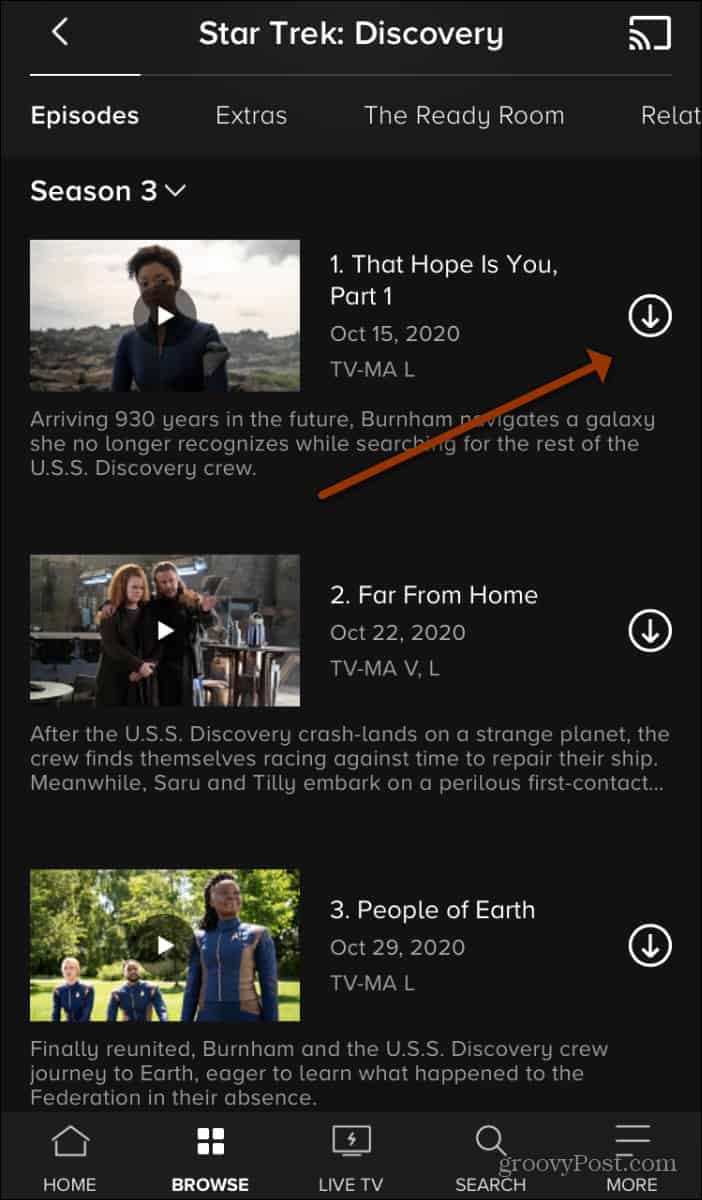
Once the account tier and hardware are verified, the process of localizing a video file involves a series of interactions with the Paramount Plus User Interface (UI). The application uses a streamlined “Download” icon—typically represented by a downward-pointing arrow—to indicate which titles are eligible for offline storage.
Identifying Downloadable Content
Not every title in the Paramount Plus library is available for download. Licensing agreements between Paramount and external production houses can sometimes restrict the offline distribution of specific films or series. To find eligible content:
-
Launch the Paramount Plus app on your mobile device.
-
Navigate to the “Browse” or “Search” tab.
-
Select a movie or a specific episode of a television show.
-
Look for the “Download” icon next to the title. For series, this icon appears next to individual episodes.
Initiating and Monitoring the Download
When you tap the download icon, the app initiates a handshake with the Paramount Plus servers. The server verifies your subscription status and device ID before sending the encrypted data packets.
-
The Progress Indicator: A circular progress bar will replace the download icon. This indicates the percentage of the file that has been written to your device’s internal flash storage.
-
Background Processes: On both iOS and Android, you can minimize the app, but it is technically safer to keep the app in the foreground if you are on a weak Wi-Fi connection. Extreme power-saving modes may kill the background process, leading to corrupted file fragments.
-
Accessing the Library: All completed downloads are stored in the “Downloads” section, accessible via the bottom navigation menu. This section acts as a localized database of your cached media.
Advanced Settings: Quality, Storage, and Data Management

To maintain the performance of your mobile device, you must manage how the Paramount Plus app utilizes your system resources. High-definition video files can consume significant amounts of storage space, and downloading over cellular networks can lead to unexpected data charges.
Configuring Download Quality
Paramount Plus offers two primary quality settings for downloads: Standard Definition (SD) and High Definition (HD).
-
Standard Definition: This setting uses a more aggressive compression codec, resulting in smaller file sizes. This is ideal for devices with limited storage (e.g., 32GB models) or when watching on smaller smartphone screens where the pixel density makes HD less noticeable.
-
High Definition: This maximizes the bitrate and resolution, providing a superior visual experience. This is recommended for tablets with larger displays, though it will significantly increase the write-time and storage footprint.
To toggle these settings, navigate to the app settings menu and select “Download Video Quality.” Adjusting this setting will only affect future downloads, not those already stored in your library.
Storage Allocation and Limits
The Paramount Plus app is governed by a set of internal rules to prevent device instability.
-
The 25-Item Cap: Users are typically limited to 25 active downloads at any given time. If you attempt to download a 26th item, the app will return a “Download Limit Reached” error. You must delete existing content to make room for new titles.
-
Write Permissions: On Android devices, if you have an external microSD card, the app may allow you to choose between internal and external storage. However, due to DRM restrictions, the SD card must be formatted as “Internal Storage” or meet specific encryption standards to be recognized by the app.
Understanding DRM and Expiration Protocols
Digital Rights Management (DRM) is the technical framework that protects copyrighted content from piracy. When you download a movie on Paramount Plus, you are not “owning” a file in the traditional sense; rather, you are storing an encrypted cache that requires a valid digital key to play.
The Expiration Timer
The DRM system imposes two specific time-based constraints on offline content:
-
The 30-Day Window: Once a title is downloaded, it will remain in your library for up to 30 days. After this period, the digital license expires, and the file must be “renewed” by connecting to the internet.
-
The 48-Hour Playback Window: Once you press “Play” on a downloaded title, the expiration timer accelerates. You typically have 48 hours to finish watching the content before the license is revoked. If you do not finish the movie within this timeframe, you will need to reconnect to the Paramount Plus servers to re-verify your credentials.
Account Syncing and Device De-authorization
The Paramount Plus server keeps a record of which devices have active downloads. If you sign out of your account on a device, the app is programmed to automatically purge all downloaded content. This is a security measure to prevent cached files from remaining on a device that is no longer authorized to access the account.
Troubleshooting and Performance Optimization
Despite the sophisticated engineering behind the Paramount Plus app, users may encounter technical hurdles such as failed downloads, “Waiting to Download” loops, or playback errors.
Common Error Resolutions
-
Network Instability: If a download stalls, it is often due to a “handover” failure between Wi-Fi and cellular data. Ensure that “Download via Wi-Fi Only” is toggled on in the settings to prevent the app from attempting to download over an unstable 4G/5G connection.
-
Cache Corruption: Occasionally, the app’s local database becomes desynchronized. Clearing the app cache (on Android) or offloading and reinstalling the app (on iOS) can reset the download manager and resolve persistent errors.
-
Storage Bottlenecks: Ensure your device has at least 15% of its total storage capacity free. The operating system needs “scratch space” to decompress and assemble the video packets during the download process.

Optimizing Download Speed
To maximize throughput, ensure that no other high-bandwidth applications (such as cloud backups or OS updates) are running in the background. Using a 5GHz Wi-Fi band instead of 2.4GHz can significantly reduce the time required to cache a full-length feature film, provided you are in close proximity to the router.
By understanding the intersection of subscription tiers, device compatibility, and DRM protocols, users can transform their Paramount Plus experience into a truly portable entertainment hub. The technical overhead required to maintain an offline library is minimal compared to the utility of having seamless access to premium content, regardless of geographical or connectivity constraints.
aViewFromTheCave is a participant in the Amazon Services LLC Associates Program, an affiliate advertising program designed to provide a means for sites to earn advertising fees by advertising and linking to Amazon.com. Amazon, the Amazon logo, AmazonSupply, and the AmazonSupply logo are trademarks of Amazon.com, Inc. or its affiliates. As an Amazon Associate we earn affiliate commissions from qualifying purchases.