
In the contemporary digital landscape, the Google Play Store serves as the primary gateway for millions of users to access a vast universe of applications, games, movies, books, and subscriptions. As the Android ecosystem continues to evolve, the integration of digital wallets and seamless payment methods has become central to the user experience. Whether you are a casual gamer using gift cards or a professional utilizing specialized software tools, knowing how to monitor and manage your Google Play balance is an essential skill in digital asset management.

Monitoring your balance is not merely about checking a number; it is about understanding the health of your digital account, ensuring security, and planning for upcoming subscription renewals. This guide provides a deep dive into the technical pathways for checking your Google Play balance across various platforms, troubleshooting common synchronization issues, and securing your financial data within the Google environment.
Navigating the Google Play Ecosystem: Understanding Digital Credits
Before diving into the procedural aspects of checking your balance, it is vital to understand what constitutes a “Google Play balance.” Unlike a standard bank account, your Google Play balance is a specialized digital ledger that aggregates funds from various sources. These include Google Play gift cards, promotional codes, Google Opinion Rewards, and credited refunds.
The Integration of Google Play and Google Pay
A common point of confusion for many users is the distinction between Google Play and Google Pay (now often integrated into the Google Wallet). While Google Pay is the broader payment infrastructure used for contactless payments and online shopping, the Google Play balance is a specific sub-wallet dedicated to the Google Play Store’s digital inventory. In recent software updates, Google has moved toward a more unified interface, making it easier to view these balances interchangeably, yet the technical “bucket” for Play Store credit remains distinct from linked credit cards or bank accounts.
Types of Credit and Expiration Policies
Not all credits are created equal. When you check your balance, you may be seeing a combination of “Non-expiring” funds (purchased via gift cards) and “Promotional” funds (earned through Google Opinion Rewards or device purchase bundles). Promotional credits often have strict expiration dates. Understanding where to find these details within the software interface is crucial to ensuring you don’t lose value over time.
Step-by-Step Instructions: Checking Your Balance Across Devices
Google has designed its interface to be accessible across multiple touchpoints. Depending on whether you are using a mobile device, a desktop computer, or a tablet, the navigational path varies slightly.
Accessing Balance via the Android Mobile App
For the vast majority of users, the Android app is the primary method of interaction. The software is designed with a “Profile-First” navigation logic.
-
Launch the Google Play Store App: Ensure you are signed into the correct Google account, especially if you manage multiple profiles (e.g., work and personal).
-
Tap the Profile Icon: Located in the top-right corner of the screen, this icon serves as the hub for all account-related settings.
-
Navigate to Payments & Subscriptions: This menu item aggregates all financial interactions within the app.
-
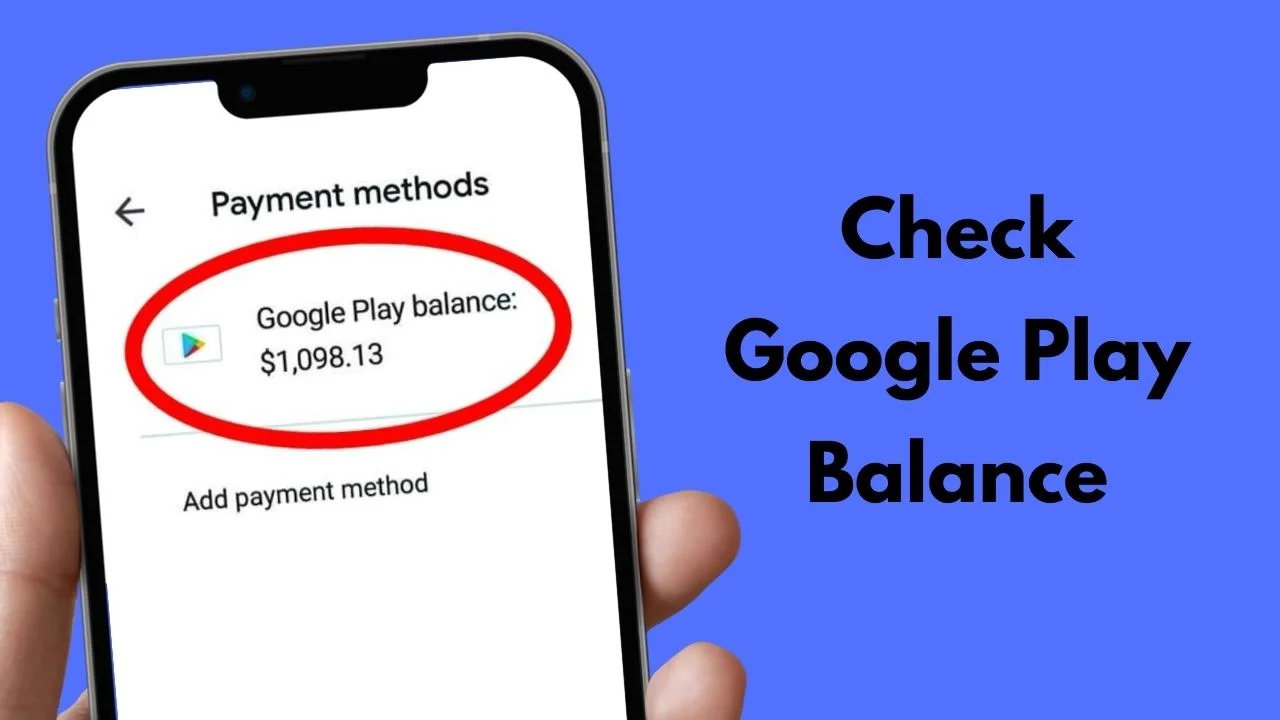
Select Payment Methods: Here, your “Google Play balance” will be displayed at the very top of the list.
This section also allows you to “Redeem code” immediately if you have a physical gift card or a digital promotion to add.
Checking Balance via a Web Browser
If you do not have access to an Android device, or if you prefer managing your digital life from a desktop environment, the web interface offers a robust alternative.
-
Navigate to play.google.com: Open your preferred browser (Chrome is recommended for the best integration).
-
Sign In: Click the profile button in the top-right to ensure you are viewing the correct account.
-
Select “Payment Methods”: Usually found in the left-hand sidebar or under the account menu.
-
View Balance: The screen will refresh to show your current Google Play credit alongside any linked credit cards or PayPal accounts.
Managing Google Play Credit on ChromeOS and Tablets
For users on Chromebooks or Android tablets, the experience mirrors the mobile app but utilizes the extra screen real estate. The “Payments & Subscriptions” menu may be permanently visible in a sidebar, providing quicker access to financial data. This is particularly useful for developers or power users who need to monitor balance fluctuations frequently.
Troubleshooting Common Balance Discrepancies and Technical Issues

Even with a streamlined interface, users often encounter technical hurdles when trying to access or update their balance information. Understanding the underlying software mechanics can help resolve these issues without contacting support.
Synchronization and Latency Issues
Sometimes, after redeeming a gift card, the balance does not update immediately. This is often a result of local cache latency rather than a server-side error. To resolve this, you can force a refresh by clearing the Google Play Store cache in your device settings or by logging out and logging back into your Google account. The synchronization between the Google Pay servers and the Play Store front-end usually takes seconds, but network congestion can occasionally cause delays.
Regional and Currency Restrictions
One of the most frequent technical roadblocks involves regional locking. Google Play balances are strictly tied to the country associated with your Google Payments profile. If you have a balance in USD but move to a region that operates in EUR, your USD balance may become “invisible” or inaccessible until you switch your profile back or create a new one. Note that Google only allows users to change their Play Store country once per year, making this a critical technical consideration for international travelers.
Multi-Account Conflict
Android allows for multiple Google accounts to be signed in simultaneously. If you check your balance and see $0.00 when you expected a different amount, verify which account is currently active in the Play Store app. The “Profile Icon” in the top-right corner allows for quick switching, but be aware that credits cannot be transferred between two different Google accounts. This architectural silo is a security measure designed to prevent unauthorized transfer of funds.
Maximizing the Utility of Your Google Play Credit
Once you have verified your balance, the next step is utilizing those funds effectively within the tech ecosystem. The Google Play Store has expanded far beyond simple mobile applications.
Subscriptions and Recurring Payments
Modern software is moving toward a SaaS (Software as a Service) model. Your Google Play balance can be used to pay for recurring subscriptions like YouTube Premium, Google One storage, or premium news apps. By maintaining a healthy balance through discounted gift cards, users can often save money on their monthly digital overhead.
The Google Play Points Program
For tech enthusiasts, the Play Points program adds a layer of gamification to spending. Every dollar spent from your balance earns points that can be redeemed for further Play Credit or special in-game items. Checking your balance should also include a quick look at your Points tally, as high-tier members (Gold, Platinum) receive additional perks and faster accumulation rates.
Cross-Platform Content Access
It is important to remember that digital content purchased with your balance is often accessible on other platforms. Movies purchased on Google Play can be viewed via the YouTube app on smart TVs or iOS devices. Books can be read on web browsers or specialized e-readers. This cross-platform interoperability makes your Google Play balance a versatile tool for building a comprehensive media library.
Securing Your Digital Funds: Best Practices for Account Safety
Because your Google Play balance represents real monetary value, it is a target for malicious actors. Digital security is paramount when managing any form of digital wallet.
Enabling Multi-Factor Authentication (MFA)
The most critical step in securing your balance is protecting the underlying Google account. Enabling Two-Step Verification ensures that even if someone obtains your password, they cannot access your Play Store funds or make unauthorized purchases without a secondary physical or digital token.
Monitoring Transaction History
Regularly checking your balance should go hand-in-hand with reviewing your “Budget & History.” This section, found within the “Payments & Subscriptions” menu, provides an itemized list of every transaction. If you notice a small discrepancy in your balance, the transaction history will reveal whether it was a forgotten subscription renewal or a background in-app purchase.
Biometric Purchase Authentication
To prevent “accidental” spending—common in households with children or in scenarios where a phone is left unlocked—you should enable biometric authentication for all purchases. By requiring a fingerprint or facial recognition before any funds are deducted from your Google Play balance, you add a robust layer of technical defense to your digital wallet.
Conclusion
Managing your Google Play balance is a fundamental aspect of navigating the Android and Google ecosystems. By understanding the technical pathways to view your funds, recognizing the nuances of regional restrictions, and implementing high-level security protocols, you ensure a seamless and safe digital experience. As the boundary between traditional finance and digital wallets continues to blur, staying informed about these tools allows you to maximize the value of your software investments and maintain total control over your digital footprint. Regardless of the device you use, the power to monitor and manage your digital assets is always just a few taps away.
aViewFromTheCave is a participant in the Amazon Services LLC Associates Program, an affiliate advertising program designed to provide a means for sites to earn advertising fees by advertising and linking to Amazon.com. Amazon, the Amazon logo, AmazonSupply, and the AmazonSupply logo are trademarks of Amazon.com, Inc. or its affiliates. As an Amazon Associate we earn affiliate commissions from qualifying purchases.