
The graphics processing unit (GPU) is the powerhouse of the modern computing experience. Whether you are a competitive gamer seeking high frame rates, a creative professional rendering 4K video, or an enthusiast exploring the frontiers of local AI model execution, your graphics card is the engine driving those pixels. However, hardware is only as capable as the software that instructs it. Graphics drivers act as the essential bridge between your operating system and your GPU hardware. Keeping these drivers updated is not merely a matter of maintenance; it is a critical step in ensuring peak performance, system stability, and access to the latest technological advancements in rendering and computation.

Understanding the Role of Graphics Drivers in Modern Computing
To appreciate why updating drivers is necessary, one must understand what a driver actually does. In technical terms, a graphics driver is a specialized piece of software that communicates the requirements of the operating system and applications—like Windows 11, Adobe Premiere, or a high-fidelity video game—to the physical silicon of the GPU. Without a functioning driver, your computer would rely on a basic “generic” display driver, resulting in poor resolution, lack of hardware acceleration, and the inability to run demanding 3D software.
Manufacturers like NVIDIA, AMD, and Intel are constantly refining this software. Optimization is an ongoing process. As new games are released or new software updates are pushed, developers find more efficient ways to utilize the GPU’s architecture. Driver updates often include “Game Ready” optimizations that provide day-one support for major titles, fixing bugs that could cause crashes or visual artifacts. Beyond gaming, these updates provide critical security patches and stability fixes that prevent “Blue Screen of Death” (BSOD) errors and system hangs.
Identifying Your Graphics Hardware
Before you can update your drivers, you must know exactly what hardware you are running. While many users know their brand (NVIDIA vs. AMD), specific model numbers are required for manual updates.
-
Task Manager Method: Right-click the Start button and select “Task Manager.” Navigate to the “Performance” tab and click on “GPU.” In the top-right corner, you will see the exact model name of your card (e.g., NVIDIA GeForce RTX 3070 or AMD Radeon RX 6800 XT).
-
Device Manager Method: Right-click the Start button and select “Device Manager.” Expand the “Display adapters” section to see your hardware.
-
DirectX Diagnostic Tool: Press
Windows Key + R, typedxdiag, and hit Enter. The “Display” tab provides comprehensive details about your graphics chip and the currently installed driver version.
The Automated Approach: Using Proprietary Software Suites
For the vast majority of users, the most efficient and reliable way to update graphics drivers is through the official software suites provided by the hardware manufacturers. These tools monitor your system, notify you when a new version is available, and handle the installation process with minimal user intervention.
NVIDIA GeForce Experience and the NVIDIA App
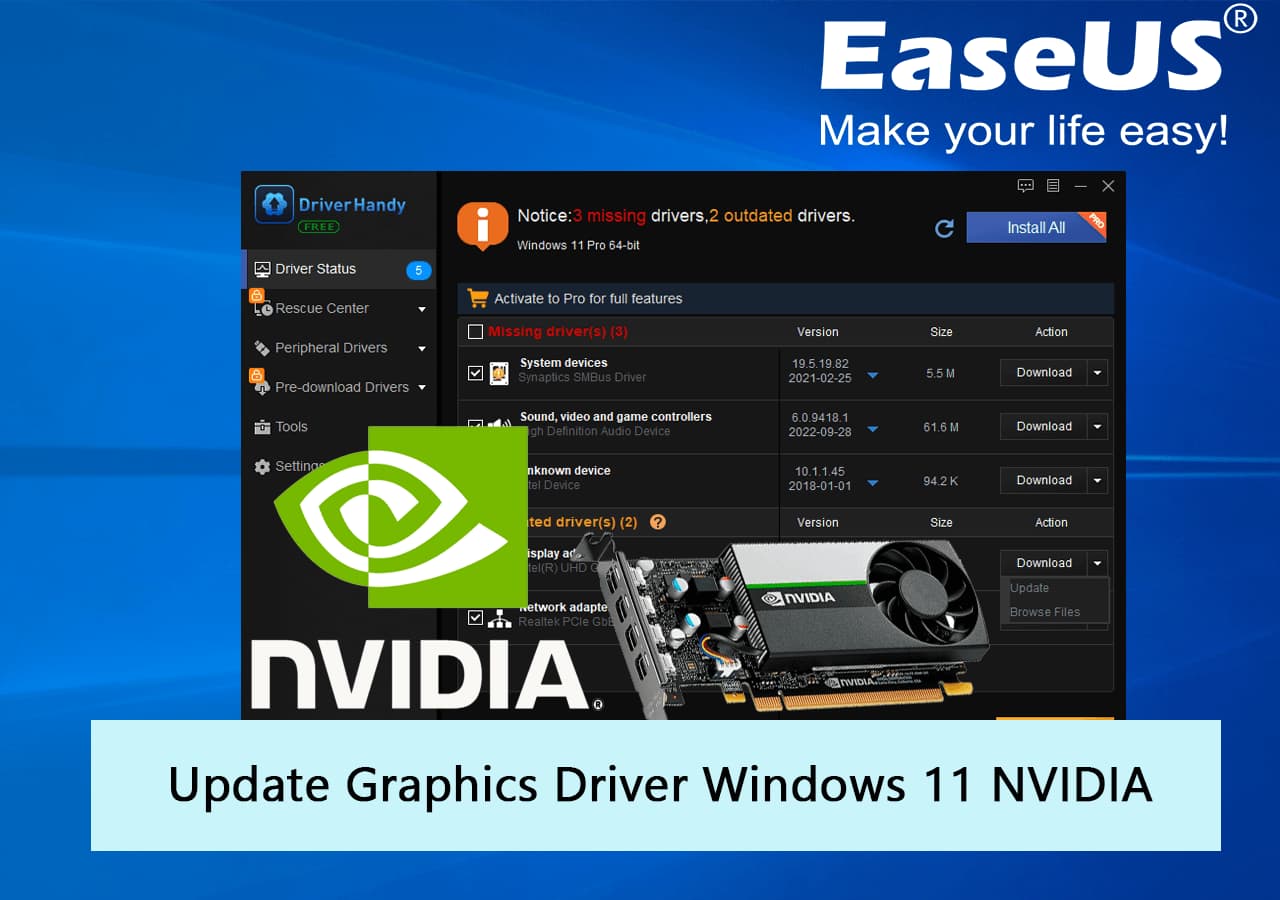
If you have an NVIDIA GPU, the primary tool is GeForce Experience, which is currently being transitioned into the more streamlined “NVIDIA App.” These applications offer a “Drivers” tab that displays the latest available version.
NVIDIA offers two distinct paths for drivers: Game Ready Drivers (GRD) and Studio Drivers (SD). Game Ready Drivers are optimized for the latest titles and are released frequently to coincide with major game launches. Studio Drivers, on the other hand, are prioritized for stability and performance in creative applications like Maya, Blender, and the Adobe Creative Cloud suite. If you use your machine primarily for work, selecting the Studio Driver through the software’s settings can provide a more consistent experience.
AMD Software: Adrenalin Edition
AMD’s software suite, Adrenalin Edition, is widely regarded for its comprehensive feature set. To update, simply open the application and look at the “System” or “Home” tab. The software will indicate if your driver is up to date and provide a “Check for Updates” button.
AMD often provides “Optional” and “Recommended” driver versions. Recommended versions are those that have undergone extensive WHQL (Windows Hardware Quality Labs) testing for maximum stability. Optional versions often contain support for the very latest games but may carry a slightly higher risk of minor bugs. For most users, staying on the Recommended path is the safest choice for a daily-driver machine.
Intel Arc Control and Driver Support Assistant
With Intel’s entry into the high-performance GPU market with the Arc series, they have introduced Intel Arc Control. This software functions similarly to its competitors, offering automatic updates and performance tuning. For integrated graphics (found in most Intel CPUs), the Intel Driver & Support Assistant (DSA) is a web-based tool that scans your system and provides the correct downloads through your browser.

The Manual Update Process: When and Why to Do It
While automated tools are convenient, there are several scenarios where a manual update is preferable. These include “clean installs” to fix persistent errors, updating legacy hardware no longer supported by modern suites, or managing systems without a constant internet connection.
Downloading Directly from the Manufacturer
To perform a manual update, you must visit the official download page of your GPU manufacturer. It is vital to avoid third-party “driver updater” sites, which often bundle malware or provide incorrect, outdated versions.
-
NVIDIA: Visit the NVIDIA Driver Downloads page. You will need to select your product type, series, and operating system.
-
AMD: Navigate to the AMD Support page and use the “Search for your product” tool or the manual selection grid.
-
Intel: Use the Intel Download Center to find specific drivers for Iris Xe or Arc graphics.
The Importance of a “Clean Install”
Over time, as you install driver update after driver update, old registry keys and redundant files can accumulate. This can lead to performance degradation or specific software conflicts. Most modern installers offer a “Perform a clean installation” checkbox during the setup process. This removes the old driver and its settings before applying the new one.
In extreme cases where a driver update fails or causes the system to become unstable, professionals use a tool called Display Driver Uninstaller (DDU). DDU is a third-party utility that completely wipes all traces of previous graphics drivers from the Windows registry and file system. This should be done in “Safe Mode.” After the cleanup, you can install the latest driver on a completely blank slate, which often resolves issues that a standard update cannot fix.
Troubleshooting and Best Practices for Driver Management
Updating drivers is generally safe, but because the GPU is so deeply integrated into the system’s architecture, things can occasionally go wrong. Understanding how to navigate these challenges is key to maintaining a healthy PC.
Dealing with “Black Screen” and Installation Failures
During a driver installation, it is normal for your monitor to flicker or momentarily go black. This happens because the system is disabling the current driver to initialize the new one. However, if the screen does not come back after several minutes, or if the installer throws an error code, do not panic.
Most modern operating systems can recover by reverting to the Basic Display Adapter. If the installation fails, try the following:
-
Disable Antivirus: Occasionally, aggressive real-time scanning can interfere with driver installation files.
-
Verify Windows Updates: Ensure your Windows OS is fully updated, as newer graphics drivers often require specific Windows build versions to function.
-
Check for Residual Files: Use the aforementioned DDU tool if you are moving from an AMD card to an NVIDIA card (or vice versa), as conflicting driver files are a common cause of system instability.
Why Windows Update Is Not Enough
Many users assume that running “Windows Update” keeps their graphics drivers current. While Windows Update does deliver graphics drivers, these are often several months old and are stripped-down versions designed solely for basic functionality. They lack the control panels, performance optimizations, and feature sets (like DLSS or FSR) provided by the manufacturer’s direct packages. To ensure your hardware performs as advertised, always source your drivers directly from the manufacturer rather than relying on Windows’ generic repositories.
The Future of GPU Drivers: AI and Beyond
As we move further into a tech-driven landscape, graphics drivers are evolving from simple translators into sophisticated AI management platforms. Modern drivers are now responsible for managing complex features such as DLSS (Deep Learning Super Sampling) for NVIDIA and FSR (FidelityFX Super Resolution) for AMD. These technologies use AI and spatial upscaling to significantly boost frame rates without a heavy cost to visual quality.
Furthermore, with the rise of local AI workloads, graphics drivers are being optimized for Tensor cores and specialized AI accelerators. Keeping your drivers updated ensures that your system can take advantage of these breakthroughs, allowing for faster image generation, better noise cancellation in audio, and more efficient video encoding.
In conclusion, the process of updating your graphics card drivers is an essential pillar of digital hygiene. Whether you utilize the seamless automation of GeForce Experience and Adrenalin or prefer the precision of manual installations and DDU cleanups, staying current ensures you are getting every bit of value out of your hardware. By following these professional standards, you guarantee a more stable, secure, and high-performing computing environment, ready for whatever the next generation of software demands.
aViewFromTheCave is a participant in the Amazon Services LLC Associates Program, an affiliate advertising program designed to provide a means for sites to earn advertising fees by advertising and linking to Amazon.com. Amazon, the Amazon logo, AmazonSupply, and the AmazonSupply logo are trademarks of Amazon.com, Inc. or its affiliates. As an Amazon Associate we earn affiliate commissions from qualifying purchases.