
The Apple ecosystem is frequently cited as the benchmark for cross-device synergy. For users who possess both an Apple Watch and a MacBook, the integration between these two devices offers more than just novelty; it provides a significant boost to productivity and security. By connecting your Apple Watch to your MacBook, you unlock the ability to bypass password prompts, authenticate system changes, and streamline your workflow through a feature known as Auto Unlock.
Understanding how to bridge these two powerful pieces of hardware requires a grasp of Apple’s Continuity framework. This system allows devices to recognize one another’s proximity and share secure tokens to verify identity without manual input. In this guide, we will explore the technical requirements, the step-by-step configuration process, and the underlying technology that makes this seamless connection possible.
Technical Prerequisites for Auto Unlock and Integration
Before attempting to connect your Apple Watch to your MacBook, it is essential to ensure that your hardware and software meet the necessary criteria. Because this feature relies on high-security protocols and proximity sensing, older devices may not support the full suite of integration features.
Hardware Compatibility
To use the Auto Unlock feature, you generally need a Mac from mid-2013 or later. Specifically, for the more advanced “Approve with Apple Watch” features (such as authorizing app installations or viewing passwords), you will need a Mac released in 2016 or later. On the wearable side, all Apple Watch models support basic unlocking, but newer models offer faster response times due to improved Bluetooth and Wi-Fi chips.
Software Requirements
The software environment is the most critical factor in a successful connection. Your MacBook must be running at least macOS Sierra or later, though modern versions like macOS Ventura, Sonoma, or Sequoia are recommended for the most stable experience. Your Apple Watch must be running watchOS 3 or later. It is highly recommended to keep both devices updated to the latest available firmware to ensure that security certificates remain valid.
Security and Account Settings
The backbone of the Apple ecosystem is the Apple ID. For the MacBook and Apple Watch to “trust” each other, they must both be signed into the same iCloud account using Two-Factor Authentication (2FA). Note that Two-Step Verification (an older security method) is not compatible; you must be using the modern 2FA system. Additionally, your MacBook must have both Wi-Fi and Bluetooth turned on, and your Apple Watch must have a passcode enabled.
Step-by-Step: Enabling the Connection
Once you have verified that your devices meet the technical requirements, the process of enabling the connection is straightforward. However, the menu paths vary slightly depending on which version of macOS you are currently using.
Setting Up on Modern macOS (Ventura, Sonoma, and Later)
In the most recent iterations of macOS, Apple redesigned the System Settings to mirror the interface of iOS.
-
Open System Settings: Click the Apple logo in the top-left corner of your screen and select “System Settings.”
-
Navigate to Security: In the sidebar, scroll down and select “Login Password” or “Touch ID & Password.”
-
Toggle the Apple Watch Switch: Look for the section titled “Apple Watch.” You should see your watch listed there. Flip the toggle switch next to your watch’s name to the “On” position.
-
Authenticate: Your MacBook will prompt you to enter your administrator password to finalize the link. Once entered, the “Turning on…” message will appear briefly before the feature is active.
Setting Up on Older macOS (Monterey, Big Sur, and Earlier)
If you are using an older MacBook that cannot update to the latest OS, the path is slightly different.
-
System Preferences: Click the Apple logo and select “System Preferences.”
-
Security & Privacy: Select the “Security & Privacy” icon.
-
General Tab: Ensure you are on the “General” tab. Look for the checkbox that says “Use your Apple Watch to unlock apps and your Mac” or “Allow your Apple Watch to unlock your Mac.”
-
Enable: Check the box and enter your Mac password when prompted.
Confirming the Connection
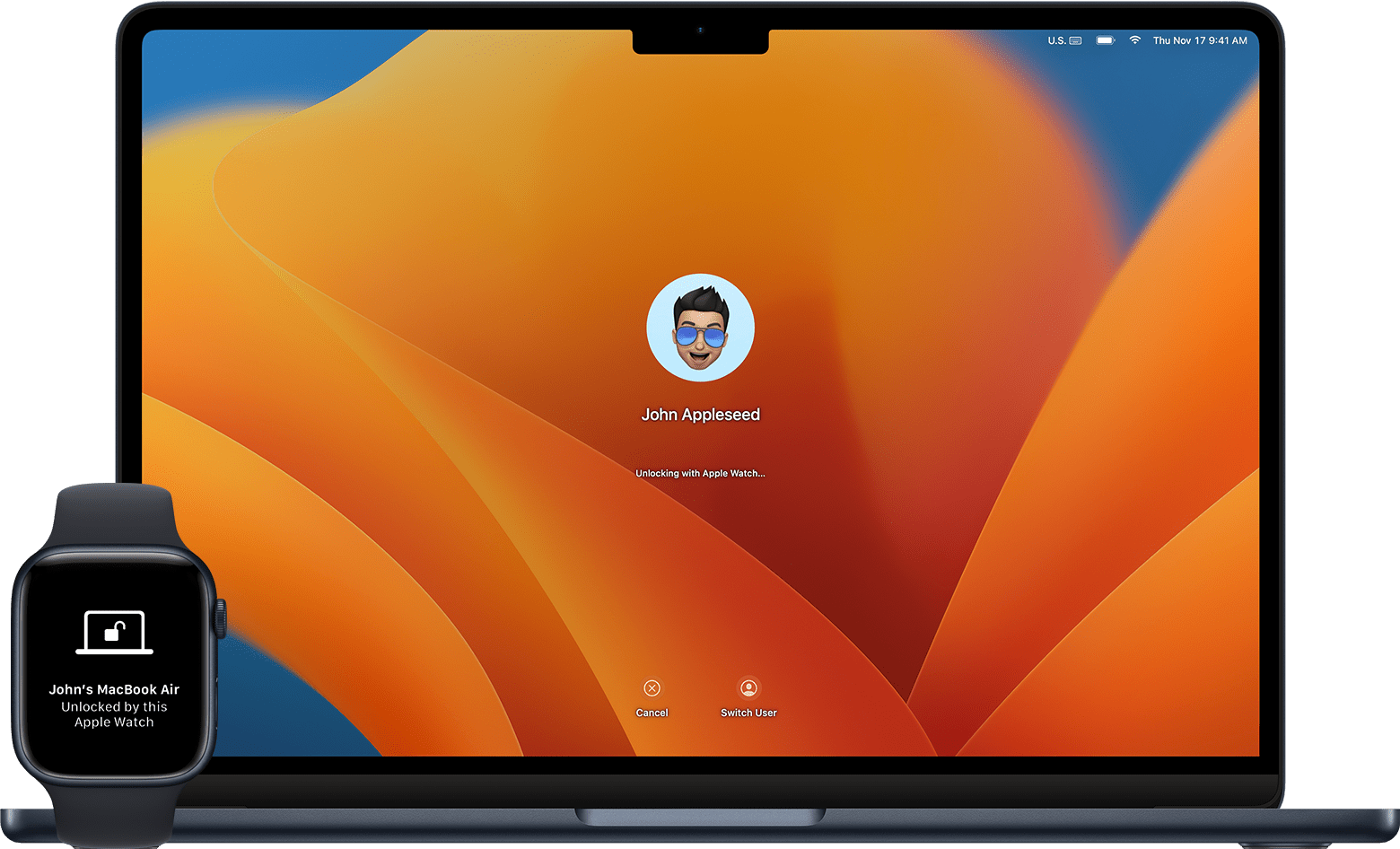
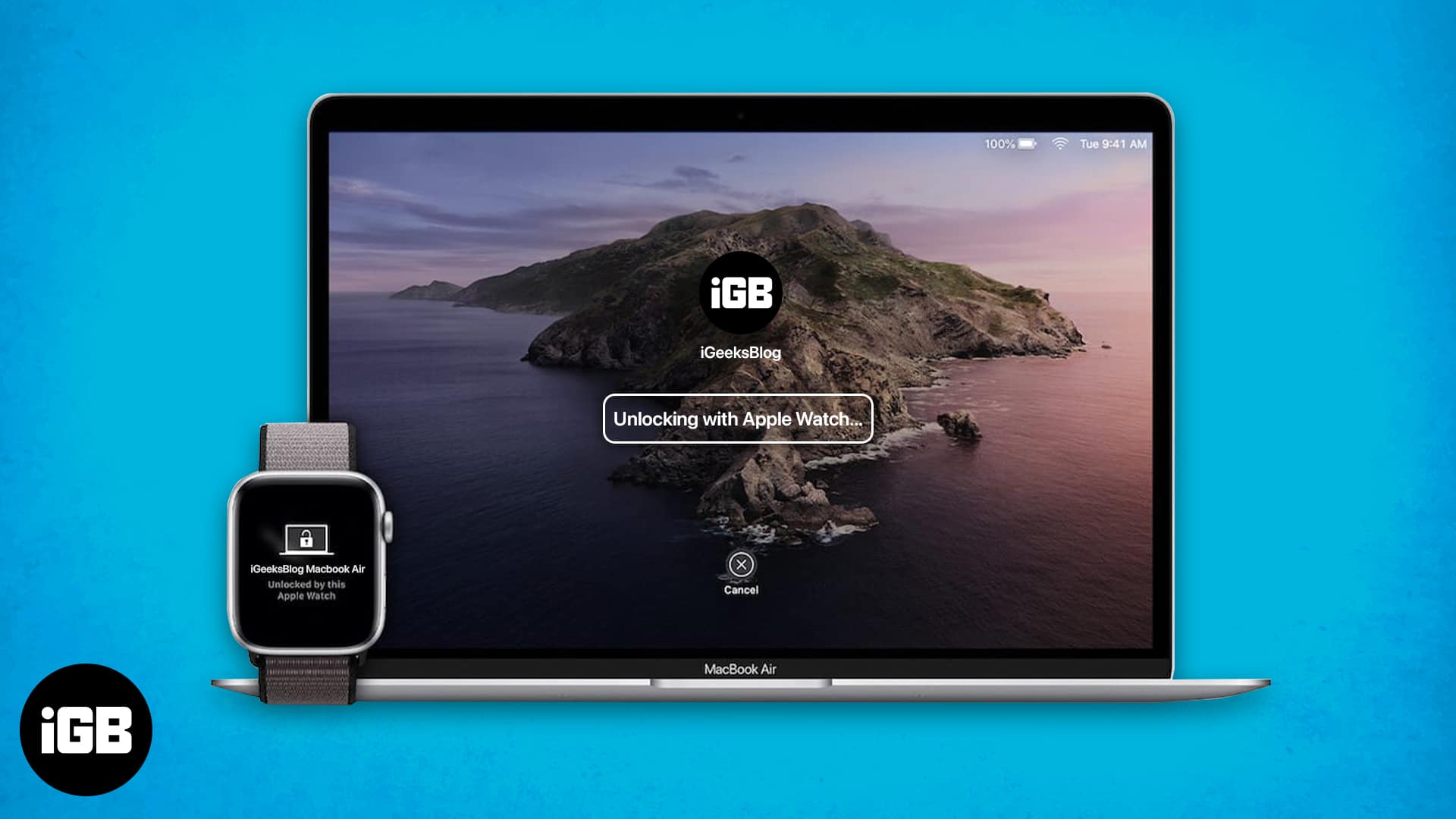
To test if the connection is active, put your MacBook to sleep. Ensure your Apple Watch is on your wrist and unlocked. Wake your MacBook by lifting the lid or pressing a key. You should see a message on the screen stating “Unlocking with Apple Watch…” followed by the desktop appearing. You will also feel a haptic “tap” on your wrist and hear a subtle chime from the watch, confirming that the unlock was successful.
Beyond the Desktop: Advanced Integration Features
Connecting your Apple Watch to your MacBook does more than just bypass the login screen. It creates a persistent link that allows the watch to act as a security key for various system-level tasks.
Authenticating Administrative Prompts
One of the most useful aspects of this connection is the “Approve with Apple Watch” feature. Whenever macOS requires an administrator password—such as when you are changing system settings, unlocking a note in the Notes app, or viewing saved passwords in Safari—your Apple Watch will vibrate. By double-clicking the side button on your watch, you can instantly authorize the request. This eliminates the need to type complex passwords repeatedly throughout the workday.
Apple Pay on Mac
If you are shopping online using Safari on your MacBook, you can use your Apple Watch to authorize Apple Pay transactions. Instead of needing a MacBook with a Touch ID sensor, the payment request will be sent to your wrist. Double-clicking the side button on the watch confirms the payment securely, utilizing the encrypted tokenization system that Apple Pay is known for.
The Role of the Secure Enclave
From a technical standpoint, this connection is incredibly secure. The Apple Watch and the MacBook use a process called “Time of Flight” (ToF). The devices measure the time it takes for a signal to travel between them to ensure they are physically close to one another. This prevents “relay attacks” where someone might try to unlock your Mac from a distance. The cryptographic keys required for the unlock are stored in the Secure Enclave of both devices, ensuring that your actual password is never transmitted over the air.
Troubleshooting Common Connectivity Issues
Despite the sophistication of Apple’s software, users may occasionally encounter issues where the Apple Watch fails to unlock the Mac. Most of these issues stem from minor synchronization glitches.
Resetting the Handshake
If the “Unlocking with Apple Watch” message appears but eventually fails, the first step is to toggle the setting off and on. Navigate back to the “Touch ID & Password” settings on your Mac, disable the Apple Watch toggle, restart both the Mac and the Watch, and then re-enable the setting. This forces a new cryptographic handshake between the devices.
Checking Connectivity Conflicts
Since this feature relies on both Bluetooth and Wi-Fi, interference can cause drops. Ensure that “Internet Sharing” and “Screen Sharing” are turned off in your Mac’s sharing settings, as these can sometimes interfere with the specific Wi-Fi frequency used for Continuity features. Additionally, ensure that your Mac is not using a VPN that blocks local network traffic, as this can prevent the devices from “seeing” each other.
The Wrist Detection Requirement
A common point of confusion is the “Wrist Detection” setting. For the Apple Watch to unlock a Mac, it must be on your wrist and unlocked. If you have disabled Wrist Detection in the Watch app on your iPhone, the Auto Unlock feature will not function. This is a security measure to ensure that a watch sitting on a table cannot be used by a third party to gain access to your computer.

The Future of Cross-Device Synergy
The connection between the Apple Watch and the MacBook represents a shift toward “ambient computing,” where your devices work together without requiring explicit commands. As Apple continues to iterate on its silicon (the M-series and S-series chips), we can expect even deeper integration.
Future updates may include more granular control over proximity-based features, such as the ability for the MacBook to automatically lock itself the moment the Apple Watch moves a certain distance away, or the integration of biometrics from the watch (like heart rate patterns) to further verify the user’s identity.
For the modern professional, the Apple Watch is no longer just a fitness tracker or a notification hub; it is a vital component of a digital security architecture. By taking the time to properly connect and configure these devices, you move away from the friction of passwords and toward a more fluid, secure, and intuitive computing experience. Through the combination of Bluetooth low energy, Wi-Fi proximity sensing, and iCloud synchronization, Apple has turned the simple act of sitting down at a computer into a seamless transition into one’s digital workspace.
aViewFromTheCave is a participant in the Amazon Services LLC Associates Program, an affiliate advertising program designed to provide a means for sites to earn advertising fees by advertising and linking to Amazon.com. Amazon, the Amazon logo, AmazonSupply, and the AmazonSupply logo are trademarks of Amazon.com, Inc. or its affiliates. As an Amazon Associate we earn affiliate commissions from qualifying purchases.