
In the modern landscape of digital streaming, the ability to consume media offline has transformed from a luxury to a fundamental requirement for users. Amazon Prime Video, a cornerstone of the global streaming market, offers a robust offline viewing feature designed to cater to commuters, travelers, and those with inconsistent internet connectivity. However, the process involves more than just a simple click; it is governed by complex Digital Rights Management (DRM), platform-specific software requirements, and hardware limitations. This guide provides a comprehensive technical breakdown of how to download videos on Amazon Prime across various ecosystems, ensuring a seamless high-definition experience regardless of your connection status.
Hardware Compatibility and Software Requirements
Before initiating a download, it is essential to understand that Amazon Prime Video does not support offline viewing through standard web browsers (such as Chrome, Firefox, or Safari) due to piracy concerns and the lack of integrated DRM containers within the browser environment. Instead, users must utilize dedicated applications designed to manage encrypted data packets.
Supported Devices
To download Prime Video titles, you must use one of the following compatible devices:
-
Android Devices: Smartphones and tablets running Android 5.0 or higher.
-
iOS/iPadOS Devices: iPhones and iPads running iOS 14.0 or later.
-
Fire Tablets: All generations of Amazon Fire tablets support native downloading.
-
Windows 10/11: The official Amazon Prime Video app available via the Microsoft Store.
-
macOS: The official Amazon Prime Video app available via the Mac App Store (requires macOS 11.4 Big Sur or higher).
Storage Considerations
High-definition (HD) video files are significantly larger than standard definition (SD) files. A typical 90-minute movie in HD can occupy between 2GB and 4GB of storage, while a 4K UHD file (where available for download) can exceed 10GB. Users must ensure their device has sufficient internal storage or a high-speed microSD card (formatted as internal storage) before beginning the process.
Step-by-Step Platform Guides
The interface for Prime Video remains relatively consistent across platforms, but the background processes for handling data vary. Below are the specific workflows for the most common operating systems.
Downloading on Mobile (iOS and Android)
The mobile application is the most optimized platform for offline viewing, featuring advanced compression algorithms to balance visual fidelity with storage constraints.
-
Launch and Authentication: Open the Prime Video app and ensure you are signed into an active Amazon Prime or Prime Video account.
-
Content Selection: Use the search function or browse the “Included with Prime” category. Note that not every title is available for download; this is determined by licensing agreements with content creators.
-
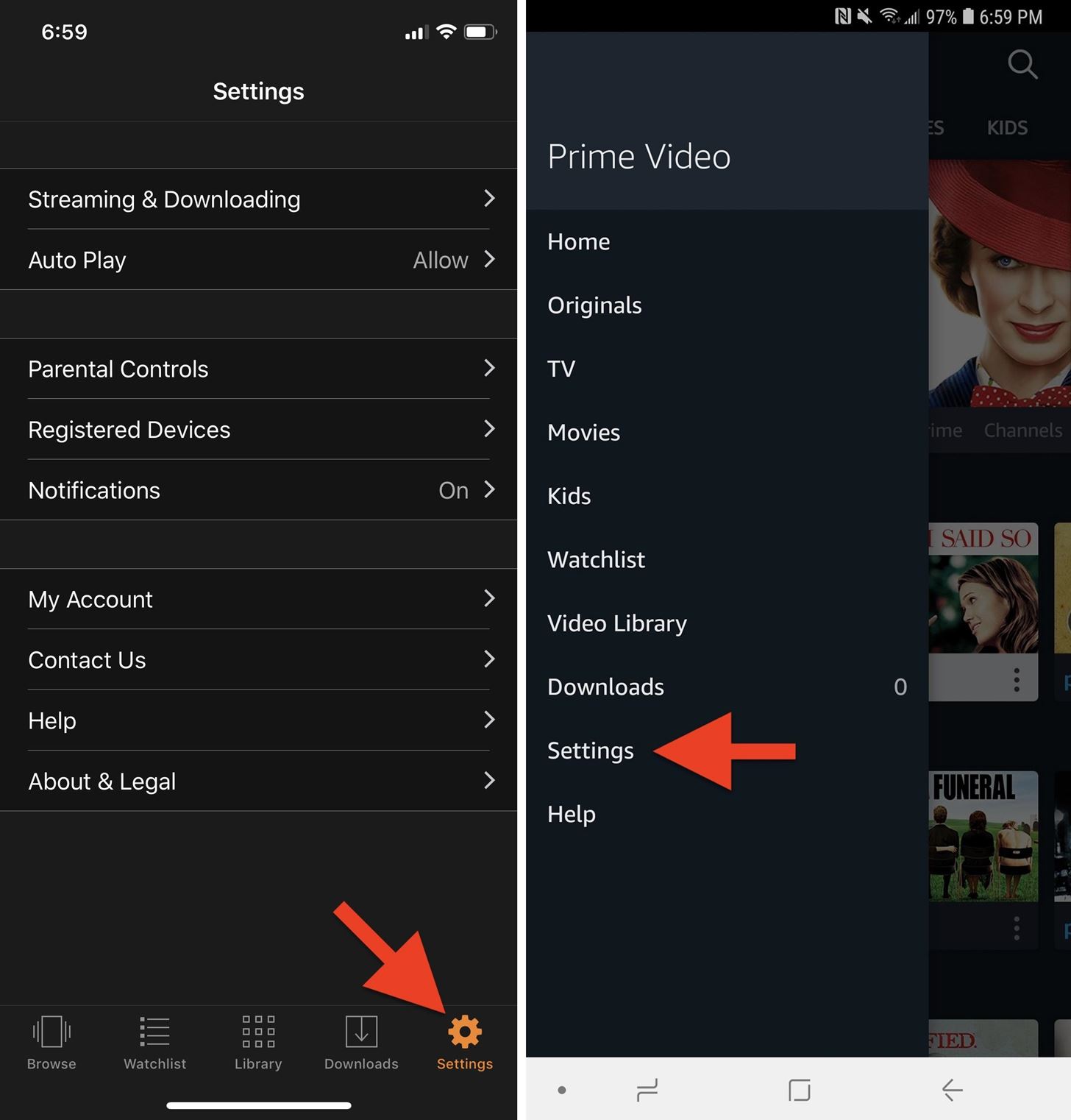
Configuring Quality: Before tapping download, navigate to Settings > Streaming & Downloading > Download Quality. Here, you can select between “Data Saver,” “Good,” “Better,” and “Best.” For most mobile screens, “Better” provides the ideal balance.
-
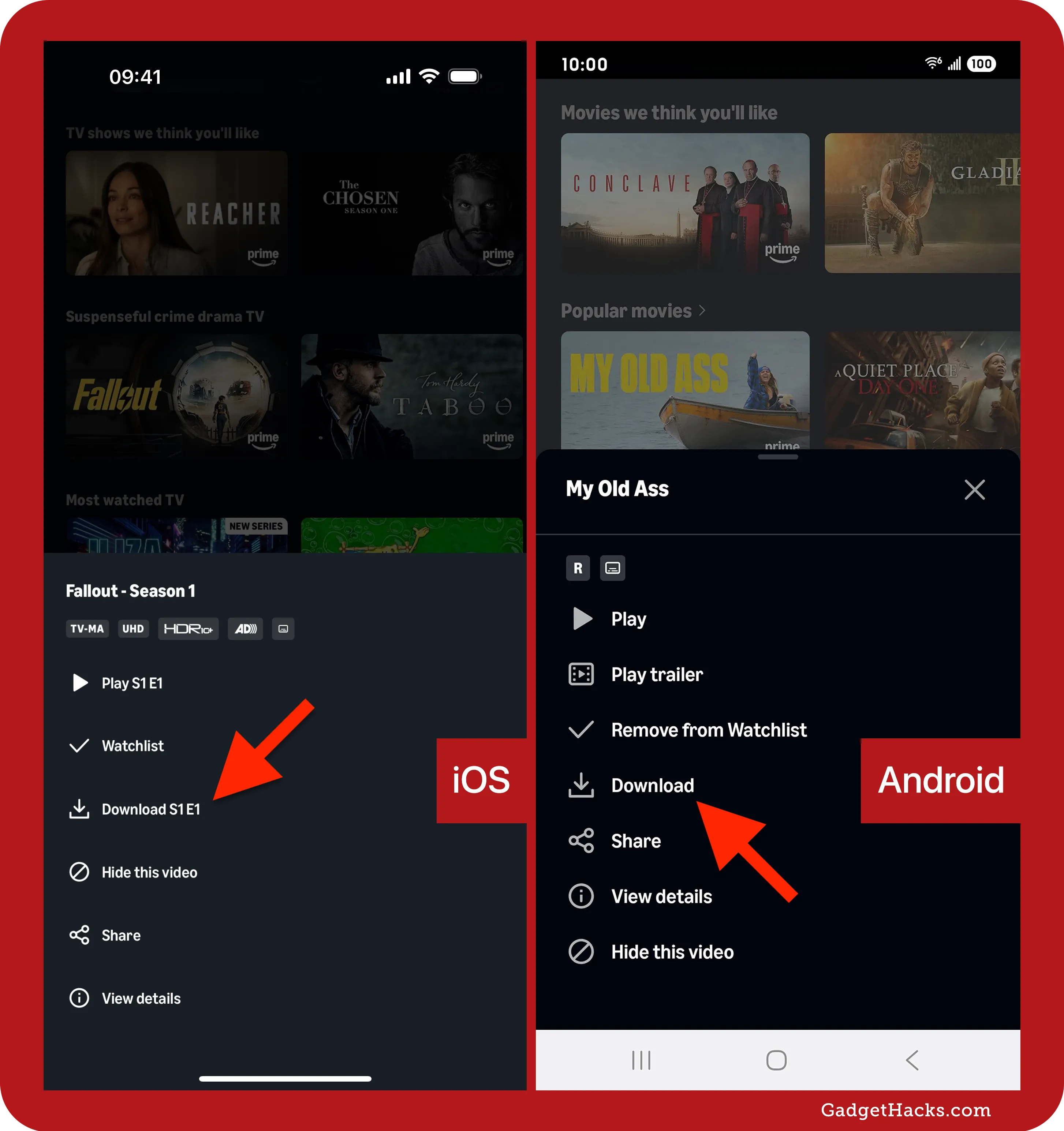
Initiating the Download: On the video detail page, look for the “Download” icon (a downward-pointing arrow). For TV series, you can download the entire season or individual episodes.
-
Accessing Content: Once complete, navigate to the “Downloads” tab in the bottom navigation bar to view your offline library.
Downloading on Windows 10/11 and macOS
The desktop application provides a more expansive viewing experience but follows stricter DRM protocols.
-
Application Installation: Download the Prime Video app from the Microsoft Store or Mac App Store. Browser-based viewing will not offer a download option.
-
Search and Filter: Use the “Free to me” filter to find content included in your subscription.
-
The Download Process: Click on the movie or episode. A “Download” button will appear next to the “Watch Now” or “Resume” button.
-
Background Processing: Unlike mobile devices, desktop downloads can often be interrupted if the laptop enters “Sleep” mode. Ensure your power settings allow the app to run in the background during the transfer.
Technical Constraints and Digital Rights Management (DRM)
The technology that enables offline viewing is heavily regulated by DRM systems. These systems ensure that downloaded content remains encrypted and accessible only to authorized users for a specific duration.
Download Limits and Expirations
Amazon imposes several technical restrictions that users should be aware of:
-
Account Limits: There is a maximum number of titles that can be downloaded across all devices associated with a single Amazon account (typically between 15 and 25 titles, depending on the region).
-
Viewing Windows: Once you begin watching a downloaded title, you typically have 48 hours to finish it before the license expires. Even if you don’t start watching, most downloads expire after 30 days.
-
License Renewal: To renew an expired download, the device must connect to the internet to verify the account’s subscription status and the title’s availability in the Prime catalog.
Geographic Restrictions
Downloaded content is subject to “geofencing.” If you download a movie in the United States and travel to a country where Amazon does not have the licensing rights for that specific movie, the app may block playback despite the file being stored locally. To circumvent this, users often use a VPN to “check in” to their home region before going offline, though Amazon’s detection systems are increasingly sophisticated at blocking unauthorized VPN traffic.
Optimizing Quality and Managing Storage
For power users, managing the technical overhead of a large offline library is crucial for device performance.
Data Usage Settings
If you are downloading over a cellular network, it is vital to enable the “Download on Wi-Fi Only” toggle in the settings menu. This prevents accidental data overages. Furthermore, Amazon uses the HEVC (High Efficiency Video Coding) codec for downloads on supported hardware, which allows for significantly better quality at lower bitrates compared to the older H.264 standard.
Utilizing External Storage
On Android and Fire tablets, you can often direct downloads to a microSD card.
-
Go to Settings.
-
Select Streaming & Downloading.
-
Toggle the Download Videos to SD Card switch.
Note that the SD card must be a Class 10 or UHS-1 card to handle the read/write speeds required for HD video playback without stuttering.
Troubleshooting Common Technical Issues
Even with the best hardware, software glitches can impede the download process. Understanding the root causes of these errors can help in quick resolution.
“Insufficient Storage” Errors
Even if your device indicates it has enough space, the Prime Video app requires a “buffer” of free space to decompress and verify files. If you encounter this error, clear the app cache or delete older downloads. On Android, this is done via Settings > Apps > Prime Video > Storage > Clear Cache.
“License Error” or Playback Failure
This often occurs when the system clock on the device does not match the server time, causing a conflict with the DRM timestamp. Ensure your device’s date and time settings are set to “Automatic.” Additionally, if a device has been offline for more than 30 days, the app will require a brief internet handshake to re-validate the DRM tokens.
Connectivity and Slow Download Speeds
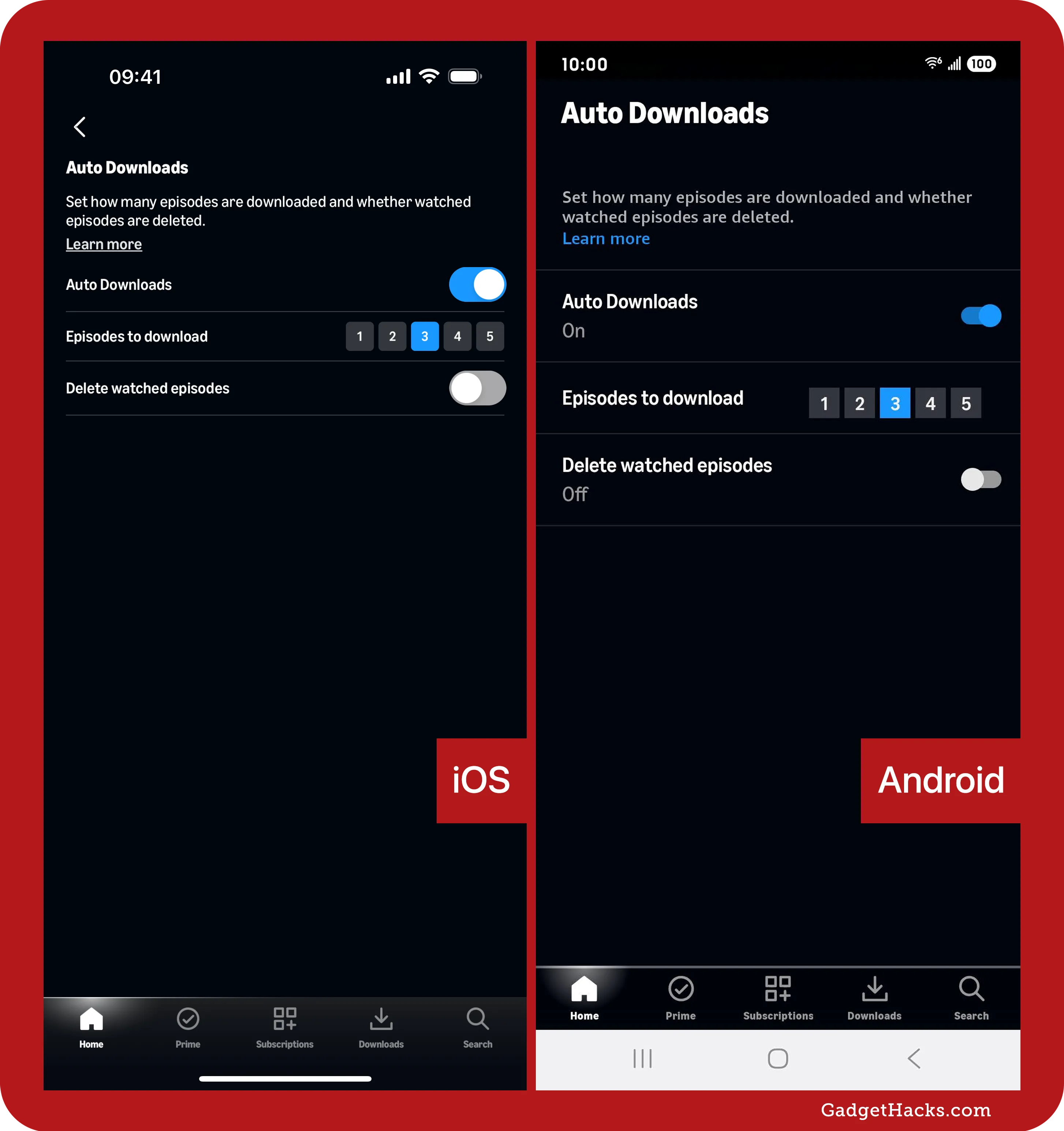
If downloads are crawling, it may be due to the app’s internal “Smart Download” feature attempting to prioritize certain episodes over others. Disabling “Auto-downloads” (a feature that automatically downloads the next episode in a series) can sometimes free up bandwidth for the specific file you want to prioritize.
The Evolution of Offline Streaming Technology
As we look toward the future of media consumption, the technology behind Amazon Prime’s download feature is likely to evolve. We are seeing the integration of AI-driven predictive downloading, where the app anticipates what a user will want to watch based on their viewing history and pre-caches content during off-peak internet hours.
Furthermore, the shift toward AV1 (an open-source, royalty-free video coding format) promises to provide even higher compression efficiency than HEVC. This will eventually allow users to store twice as much content in the same amount of space without sacrificing 1080p or 4K clarity. For the tech-savvy consumer, staying informed about these updates ensures that your mobile cinema experience remains at the cutting edge of digital performance.
By understanding the synergy between software settings, hardware capabilities, and DRM protocols, you can master the Amazon Prime Video ecosystem. Whether you are preparing for a long-haul flight or managing a data-capped home network, the technical ability to download and manage video content effectively is an essential skill in the modern digital age.
aViewFromTheCave is a participant in the Amazon Services LLC Associates Program, an affiliate advertising program designed to provide a means for sites to earn advertising fees by advertising and linking to Amazon.com. Amazon, the Amazon logo, AmazonSupply, and the AmazonSupply logo are trademarks of Amazon.com, Inc. or its affiliates. As an Amazon Associate we earn affiliate commissions from qualifying purchases.