
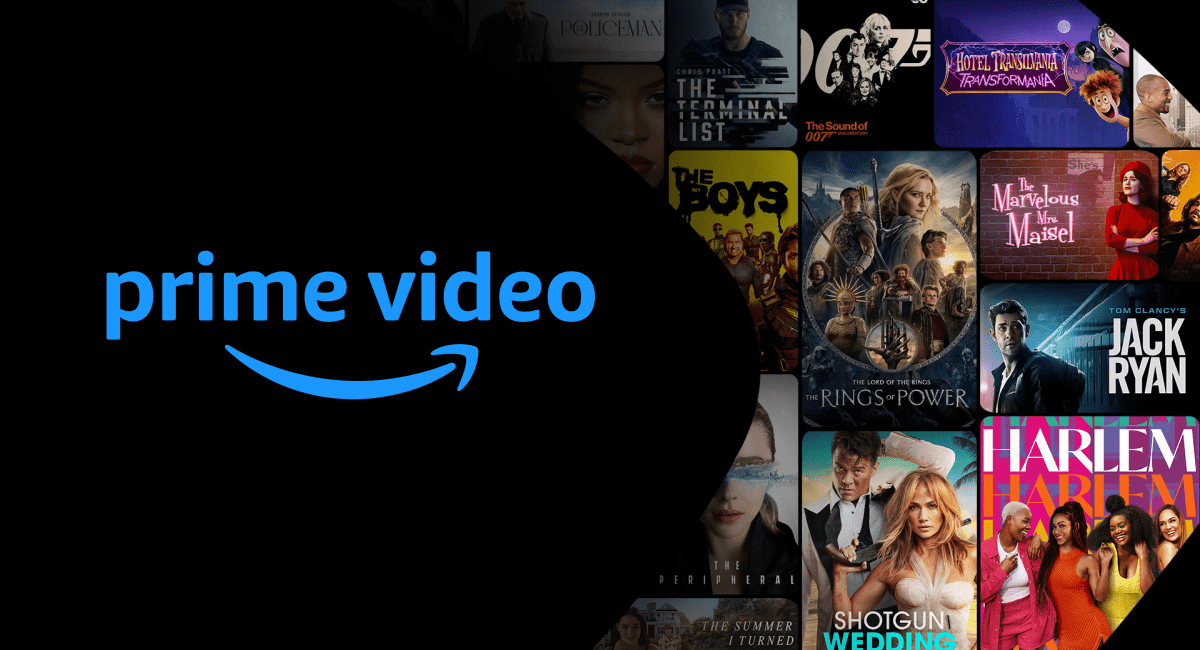
Amazon Prime Video has evolved from a secondary perk of a shipping subscription into one of the most sophisticated streaming ecosystems in the global technology landscape. As a platform, it bridges the gap between hardware integration, cloud computing, and high-fidelity content delivery. For users looking to maximize their viewing experience, understanding the technical nuances of the platform—from device optimization to data management—is essential. This guide provides an in-depth walkthrough of how to watch movies on Amazon Prime Video, focusing on the software interface, hardware compatibility, and advanced settings that define the modern digital cinema experience.
Setting Up Your Ecosystem: Hardware and Account Initialization
The first step in accessing the Prime Video library is ensuring your hardware environment is optimized for the service’s software architecture. Unlike traditional cable services, Prime Video relies on a diverse range of operating systems, including Android TV, tvOS, Fire OS, and web-based protocols.
Device Compatibility and Requirements
To watch movies effectively, you must utilize a device that supports the Prime Video application’s latest version. This includes:
-
Streaming Media Players: Amazon Fire TV Stick (4K Max and standard models), Roku, Apple TV 4K, and Google Chromecast.
-
Smart TVs: Systems running webOS (LG), Tizen (Samsung), and Android/Google TV (Sony, Hisense).
-
Gaming Consoles: PlayStation 4/5 and Xbox Series X/S.
-
Mobile and Tablets: iOS and Android devices with the latest OS updates to support Widevine DRM (Digital Rights Management) for high-definition playback.
-
Web Browsers: Chrome, Firefox, and Safari are supported, though resolution may be capped at 1080p due to browser-based encryption limitations.
Account Authentication
Accessing the platform requires an Amazon account with an active Prime membership or a standalone Prime Video subscription. Once the application is installed on your chosen hardware, you will typically encounter a “Register Your Device” screen. The most efficient way to log in is via the “Sign in on the Web” option, which provides a six-digit alphanumeric code. By navigating to amazon.com/mytv on a secondary device (like a smartphone), you can link your hardware to your account without the friction of typing passwords with a remote control.
Navigating the Software Interface and Content Discovery
The Prime Video User Interface (UI) is designed around a proprietary recommendation algorithm that analyzes viewing history, genre preferences, and watch-time metrics. Understanding how to navigate this software is key to finding content in a library that contains tens of thousands of titles.
Distinguishing Between Included and Premium Content
One technical hurdle for new users is the hybrid nature of the storefront. Prime Video integrates “Included with Prime” content alongside titles available for rent or purchase.
-
Included with Prime: These titles feature a small blue “Prime” ribbon in the corner of the thumbnail. Accessing these requires no additional transaction.
-
Store (Rent/Buy): Some movies are part of the digital retail storefront. These utilize Amazon’s “1-Click” payment technology. If you select a movie that is not included, you will see options for “Rent” (usually 48-hour access) or “Buy” (permanent digital ownership).
-
Channels: This is a sub-section where users can subscribe to third-party providers like Paramount+, Max, or MUBI within the Prime Video app, consolidating multiple billing cycles into one Amazon statement.
Search and Metadata Filtering
The search function is powered by Amazon’s robust cloud infrastructure, allowing for voice-activated search via Alexa on Fire TV devices. You can filter movies by technical specifications, such as “4K Ultra HD Movies” or “Movies with Dolby Atmos.” The metadata on each title’s “Details” page provides vital information, including the IMDb rating, runtime, release year, and content maturity ratings (X-Ray data), which assists in informed decision-making before hitting “Play.”
Optimizing Playback for Superior Visual and Audio Quality

To truly “watch” a movie as intended by its creators, you must calibrate the software settings to match your hardware’s capabilities. Prime Video supports a wide array of high-end video and audio formats that require specific bandwidth and hardware handshakes.
Resolution and High Dynamic Range (HDR)
Prime Video is a leader in HDR technology, supporting HDR10, HDR10+, and Dolby Vision.
-
4K Ultra HD: To stream in 4K, you need a minimum consistent internet speed of 15 Mbps. The software uses adaptive bitrate streaming, meaning it will automatically lower the resolution if your connection dips to prevent buffering.
-
HDR10+: Amazon co-developed this standard. It provides dynamic metadata, allowing the brightness and contrast of the movie to adjust frame-by-frame, provided your TV supports the format.
-
Bitrate Management: In the mobile app settings, you can manually select quality levels: “Good,” “Better,” or “Best.” The “Best” setting can consume up to 6GB of data per hour, which is a critical consideration for users on capped data plans.
Audio Configurations
For a cinematic experience, audio is as important as video. Prime Video supports 5.1 surround sound and, for select titles, Dolby Atmos.
-
Setup: Ensure your device is connected to a compatible soundbar or AVR (Audio Video Receiver) via HDMI ARC/eARC.
-
Language and Subtitles: While playing a movie, navigating to the “Subtitles and Audio” menu allows you to switch between different language tracks and toggle Closed Captioning (CC). Amazon provides “SDH” (Subtitles for the Deaf and Hard of Hearing) for the majority of its library.
Advanced Features: The X-Ray Technical Advantage
Perhaps the most significant differentiator for Prime Video is its “X-Ray” feature. Powered by IMDb (an Amazon-owned subsidiary), X-Ray is an integrated software layer that provides real-time data about the content being viewed.
Utilizing X-Ray during Playback
By pausing the video or clicking “Up” on your remote/screen, the X-Ray overlay appears. It identifies:
-
Actors in Scene: It lists the names of every actor currently on screen and their filmography.
-
Music/Soundtrack: It identifies the song playing in the background with a link to Amazon Music.
-
Trivia and Goofs: It provides behind-the-scenes facts and production notes curated by the IMDb community.
-
Bonus Content: Some movies include “Bonus Features” accessible through X-Ray, such as deleted scenes, director commentaries, and “Making Of” featurettes.
Offline Viewing and Downloads
For users on the go, Prime Video allows for the downloading of titles on mobile devices (iOS, Android, and Fire tablets).
-
Protocol: You can select the download quality to manage storage space. The “Optimal” setting balances visual fidelity with file size.
-
Expiration: Downloaded content is governed by licensing agreements. Once you start watching a downloaded movie, you typically have 48 hours to finish it before it expires from your local storage. If you do not start it, it may remain on your device for up to 30 days.
Security, Multi-User Profiles, and Parental Controls
In a household with multiple users, managing the software environment is vital for privacy and content appropriateness. Prime Video allows for the creation of up to six user profiles under a single account.
Personalization and Watchlists
Each profile maintains its own “Watchlist” and “Continue Watching” row. This prevents a child’s viewing habits from influencing the recommendation algorithm of an adult profile. Users can add movies to their Watchlist by clicking the “+” icon on the movie’s detail page, creating a curated queue of upcoming content.

Parental Controls and PINs
From a digital security standpoint, Prime Video offers granular parental controls. You can set a “Prime Video PIN” that must be entered to bypass age-restricted content or to authorize a purchase.
-
Viewing Restrictions: You can apply these restrictions to specific devices or across the entire account. For example, you can allow a tablet to only access “G” or “PG” rated content while leaving the living room TV unrestricted.
-
Device Management: Through the “Account & Settings” menu on the web, you can view every device currently logged into your Prime Video account. If you see an unrecognized device, you can remotely “Deregister” it, effectively logging it out and maintaining the security of your subscription.
By understanding these technical layers—ranging from the initial hardware handshake to the advanced metadata provided by X-Ray—you can transform a simple movie night into a high-performance home cinema experience. Prime Video’s flexibility across platforms and its commitment to high-fidelity standards make it a cornerstone of modern digital entertainment.
aViewFromTheCave is a participant in the Amazon Services LLC Associates Program, an affiliate advertising program designed to provide a means for sites to earn advertising fees by advertising and linking to Amazon.com. Amazon, the Amazon logo, AmazonSupply, and the AmazonSupply logo are trademarks of Amazon.com, Inc. or its affiliates. As an Amazon Associate we earn affiliate commissions from qualifying purchases.