
The landscape of modern home entertainment has shifted from traditional linear broadcasting toward integrated digital ecosystems. When users ask “how to get Amazon TV,” they are typically navigating a choice between two distinct but interconnected pillars: the Amazon Prime Video streaming service and the Fire TV hardware ecosystem. Understanding how to access these technologies requires a deep dive into compatible devices, network requirements, and software configurations. Whether you are looking to upgrade an existing “dumb” television or optimize a high-end 4K home theater, the path to integration involves specific technical steps and hardware considerations.
Decoding the Amazon TV Ecosystem: Prime Video vs. Fire TV
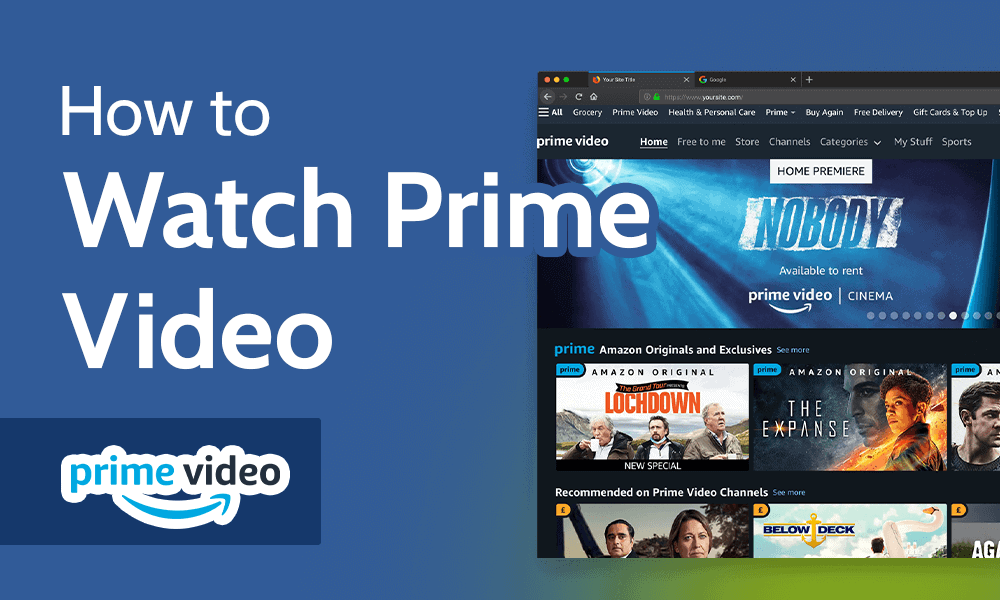
To successfully “get” Amazon TV, one must first distinguish between the content delivery platform and the operating system. Prime Video is a cross-platform application available on almost every smart device, whereas Fire TV refers to the proprietary hardware and software environment developed by Amazon to centralize a user’s entire digital library.
The Software Layer: Prime Video App
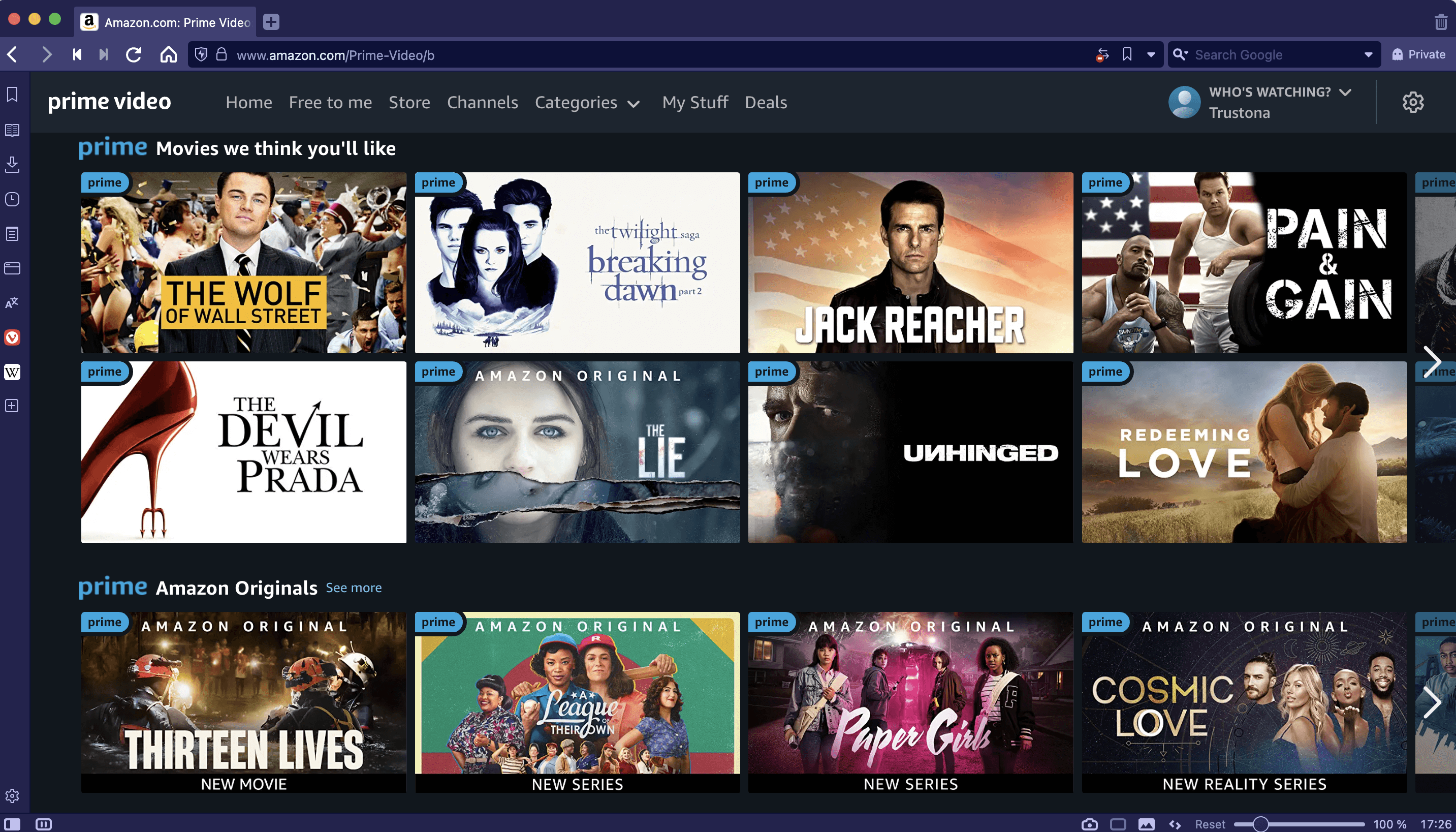
The most accessible way to obtain Amazon’s content is through the Prime Video application. This software is compatible with iOS, Android, macOS, Windows, and most third-party smart TV platforms such as Samsung’s Tizen, LG’s webOS, and Roku. If you already own a smart TV, “getting” Amazon TV is often as simple as navigating to the integrated app store, searching for “Prime Video,” and authenticating your account via a QR code or an alphanumeric sign-in process. This provides access to the library of streaming content but does not provide the full “Fire TV” user interface experience.
The Hardware Layer: Fire TV OS
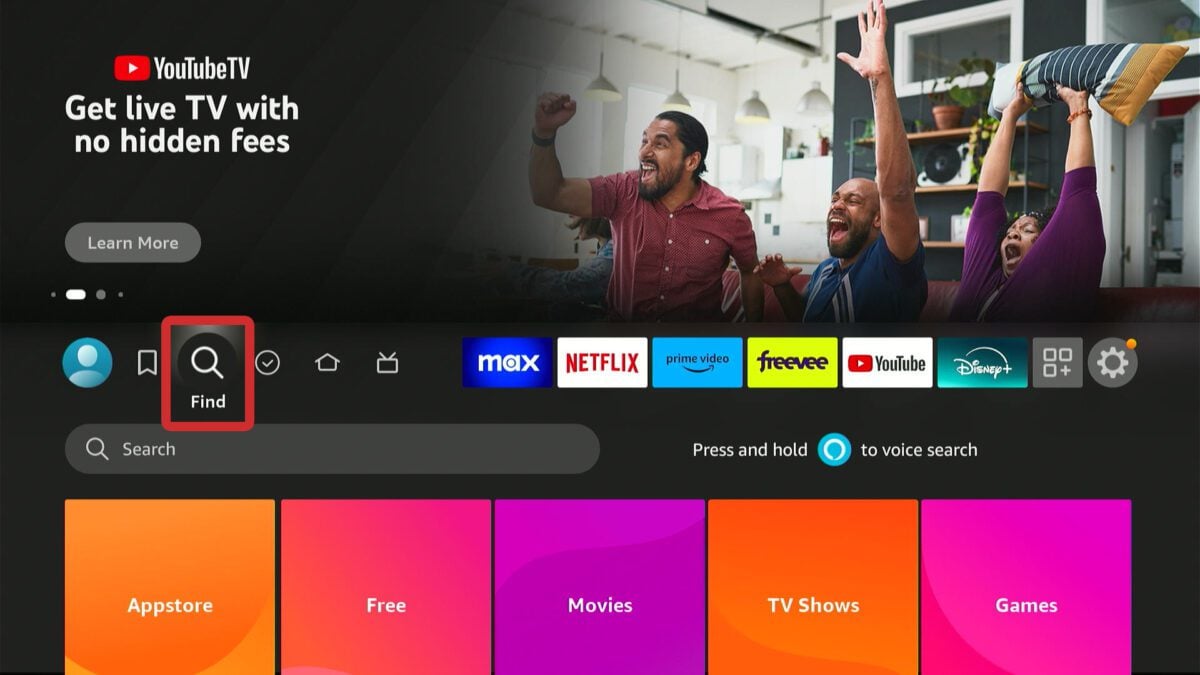
For those seeking the full “Amazon TV” experience—which includes integrated Alexa voice control, smart home dashboards, and a unified search across multiple streaming services—hardware is required. Fire TV OS is a fork of the Android Open Source Project (AOSP), customized to prioritize Amazon’s services while maintaining compatibility with thousands of third-party apps like Netflix, Disney+, and YouTube. Obtaining this experience requires either a standalone streaming stick, a set-top box, or a television with the OS built directly into the motherboard.
Selecting the Optimal Hardware for Your Streaming Experience
The hardware you choose determines the technical ceiling of your viewing experience. Amazon offers several tiers of devices tailored to different display capabilities and processing needs.
Fire TV Stick Series: Portability and Power
The Fire TV Stick is the most common entry point. The “Lite” version is designed for secondary televisions, providing 1080p Full HD resolution. However, for a primary living room setup, the Fire TV Stick 4K or 4K Max is the professional choice. The 4K Max, in particular, supports Wi-Fi 6E, providing lower latency and higher bandwidth, which is crucial for streaming high-bitrate Ultra HD content without buffering. It also features an upgraded quad-core processor and increased RAM to ensure the user interface remains fluid during heavy multitasking.
Fire TV Cube: The High-End Hybrid
For users who want a hands-free experience, the Fire TV Cube acts as a hybrid between a streaming player and an Echo speaker. Technically, it is the most powerful device in the lineup, featuring an octa-core processor and a built-in HDMI input. This allows you to pass through signals from cable boxes or Blu-ray players, effectively making the Cube the brain of your media center. It also includes an Ethernet port for a hardwired internet connection, which is the gold standard for maintaining consistent 4K HDR streams.
Fire TV Omni and 4-Series: The All-in-One Solution
If you are in the market for a new display, purchasing an “Amazon Fire TV” (the actual television set) eliminates the need for external dongles. The Omni Series supports advanced display technologies like Dolby Vision and HDR10+, and it features built-in microphones for far-field voice control. From a tech perspective, these units integrate the Fire TV OS directly into the TV’s firmware, allowing for seamless switching between HDMI inputs and streaming apps using a single remote or voice commands.
Technical Setup: From Unboxing to 4K Streaming
Once you have selected your hardware, the installation process involves optimizing both the physical connection and the network environment to ensure maximum performance.
Physical Installation and Power Management
When installing a Fire TV Stick, it is tempting to plug the USB power cable directly into the television’s USB port. From a technical standpoint, this is often insufficient. Most TV USB ports output 0.5A, whereas Fire TV devices typically require 1.0A or higher for peak performance. Using the included wall adapter ensures the device doesn’t reboot during high-intensity tasks or firmware updates. Furthermore, utilizing the included HDMI extender is recommended to prevent “wireless shadowing”—a phenomenon where the bulk of the TV chassis interferes with the device’s Wi-Fi reception.
Network Configuration and Bandwidth Requirements
To “get” Amazon TV in high definition, a stable internet connection is paramount. For 1080p streaming, a consistent 5 Mbps connection is required. For 4K Ultra HD, Amazon recommends a minimum of 25 Mbps.
-
Frequency Bands: If your router supports dual-band Wi-Fi, always connect the Fire TV device to the 5GHz band. While 2.4GHz has better range, it is prone to interference from household appliances and provides lower throughput.
-
Static IP and DNS: For advanced users, assigning a static IP to your Fire TV device and using a fast DNS provider (like Cloudflare’s 1.1.1.1) can reduce latency and improve the snappiness of the interface.
Account Authentication and Security
During the initial boot sequence, you will be prompted to link your Amazon account. This can be done manually or via a secondary device. Once linked, it is critical to navigate to the “Settings” menu to manage “Data Monitoring” and “Privacy Settings.” Disabling “Interest-Based Ads” and “Collect Device Usage Data” can marginally improve system responsiveness by reducing background telemetry processes.
Maximizing the Fire TV OS: Apps, Sideloading, and Security
After the basic setup, the true power of the platform lies in its software versatility. Because the OS is based on Android, it offers a level of customization that competitors often lack.
App Management and the Silk Browser
The Amazon Appstore provides the primary method for downloading utilities and streaming services. However, the inclusion of the Silk Browser is a significant technical advantage. Silk allows users to access web-based content that may not have a dedicated app, effectively turning the TV into a giant web portal. The browser supports “Cloud-to-Web” acceleration, where Amazon’s servers pre-render pages to speed up the browsing experience on low-power hardware.
Sideloading and Third-Party Applications
For power users, “getting” Amazon TV also means accessing applications not found in the official store. By enabling “Install Unknown Apps” in the Developer Options menu, users can sideload Android APKs. This is often used for installing media server clients like Kodi or specialized network diagnostic tools. While this expands functionality, it requires a higher level of digital hygiene; users should only install verified packages to avoid compromising the device’s security.
VPN Integration for Privacy
Since Fire TV is an internet-connected device, many users opt to install a Virtual Private Network (VPN). Most major VPN providers offer dedicated apps in the Amazon Appstore. Using a VPN on your Fire TV encrypts your streaming traffic, preventing ISP throttling and protecting your data from local network snooping. From a technical perspective, this adds a layer of overhead, so it is best paired with high-performance hardware like the 4K Max or the Cube.
Future-Proofing Your Home Cinema with Alexa Integration
The final step in mastering the Amazon TV experience is the integration of the Alexa Voice Service. This transforms the television from a passive display into an active smart home hub.
Voice Search and Universal Control
The Fire TV remote includes a dedicated microphone button that utilizes cloud-based Natural Language Processing (NLP). This allows users to perform complex queries such as “Find 4K action movies with Tom Cruise.” Because the device is linked to your Amazon account, it can also control CEC-compatible (Consumer Electronics Control) hardware. This means your Fire TV remote can turn on your soundbar, adjust the volume on your receiver, and switch inputs on your television through a single interface.
Smart Home Dashboard and Camera Overlays
For those with a broader smart home ecosystem, the Fire TV serves as a visual dashboard. You can view live feeds from Ring or Blink cameras in a “Picture-in-Picture” (PiP) window while watching a movie. This level of technical integration is achieved through the Alexa Smart Home Skill API, which bridges the gap between the TV’s display and IoT (Internet of Things) devices throughout the home.
Regular Maintenance and Firmware Updates
To ensure long-term stability, users should periodically check for software updates in the “My Fire TV” section of the settings. Amazon frequently releases “Over-the-Air” (OTA) updates that include security patches, UI refinements, and performance optimizations. Clearing the cache of heavy applications like Prime Video or Netflix once a month can also prevent the “storage full” errors that can occur on devices with limited internal flash memory.
By combining the right hardware selection with a meticulous network setup and software customization, you can achieve a high-performance Amazon TV experience. The transition from a basic streaming app to a fully integrated Fire TV ecosystem represents the pinnacle of modern, tech-forward home entertainment.
aViewFromTheCave is a participant in the Amazon Services LLC Associates Program, an affiliate advertising program designed to provide a means for sites to earn advertising fees by advertising and linking to Amazon.com. Amazon, the Amazon logo, AmazonSupply, and the AmazonSupply logo are trademarks of Amazon.com, Inc. or its affiliates. As an Amazon Associate we earn affiliate commissions from qualifying purchases.