
The landscape of modern entertainment has shifted dramatically from traditional cable broadcasts to sophisticated, on-demand streaming ecosystems. At the forefront of this digital revolution is Amazon, offering a dual-pronged approach to home cinema through its Prime Video service and its Fire TV hardware line. When users ask “how do you get Amazon TV,” they are often looking for the technical pathways to integrate this ecosystem into their living rooms. Navigating this process requires an understanding of hardware compatibility, software installation, and network optimization to ensure a seamless viewing experience.
Understanding the Amazon TV Ecosystem: Hardware vs. Software
Before diving into the installation process, it is essential to distinguish between the two primary ways users consume “Amazon TV.” While the terms are often used interchangeably, they represent different technological layers of the streaming experience.
Prime Video: The Software Layer
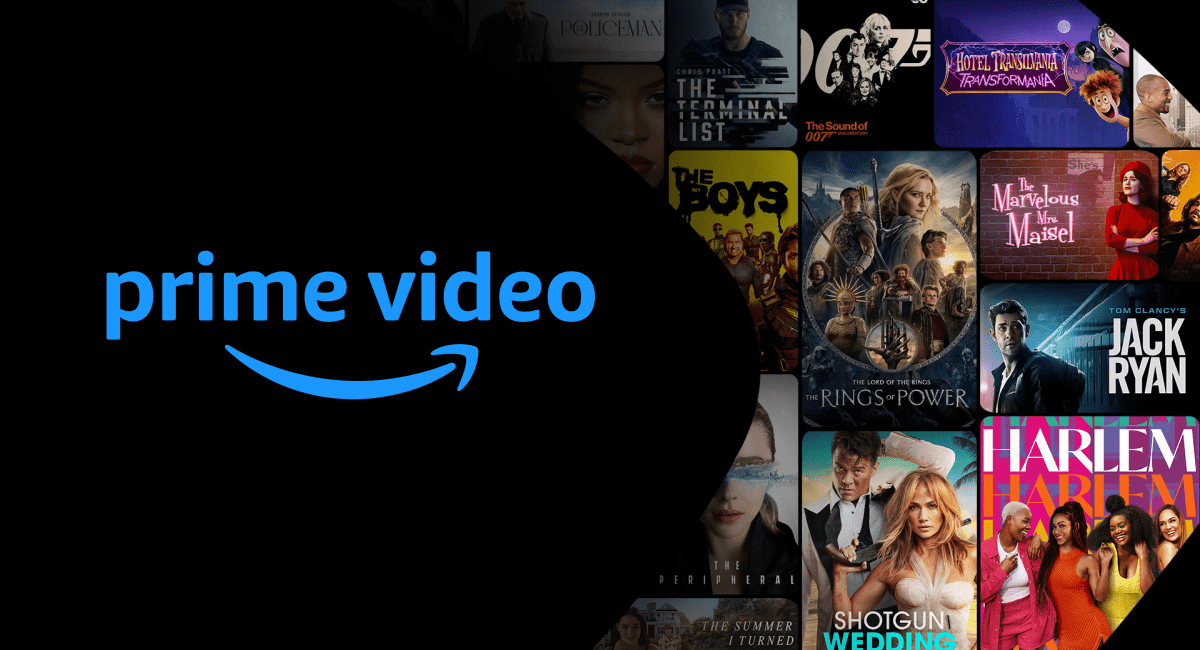
Prime Video is the standalone streaming application. It functions similarly to other Over-The-Top (OTT) platforms like Netflix or Disney+. You can “get” Amazon TV simply by installing this app on a pre-existing smart device. The application is built on a cross-platform architecture, meaning it is compatible with a vast array of operating systems, including Android, iOS, iPadOS, and various proprietary Smart TV platforms like Samsung’s Tizen or LG’s webOS.
Fire TV: The Hardware Layer
Fire TV refers to Amazon’s proprietary line of hardware devices that run on Fire OS, a fork of the Android Open Source Project (AOSP). These devices are designed to act as a central hub for all your streaming needs, not just Amazon’s content. When you purchase a Fire TV device, the “Amazon TV” experience is baked into the operating system at the kernel level, providing the most optimized and feature-rich way to access the service.
Hardware Pathways: Selecting the Right Device
If you do not own a Smart TV with the Prime Video app pre-installed, or if your current TV’s interface is sluggish and outdated, the most effective way to get Amazon TV is through a dedicated hardware peripheral. Amazon offers several tiers of Fire TV devices tailored to different technical requirements.
Fire TV Stick Lite and Standard Models
The Fire TV Stick is a dongle-style device that plugs directly into an HDMI port on your television. The Lite and Standard models are designed for 1080p Full HD streaming. These are ideal for secondary televisions, such as those in bedrooms or kitchens, where 4K resolution is not a priority. Despite their small form factor, they pack significant processing power, utilizing quad-core processors to handle UI navigation and video decoding efficiently.
Fire TV Stick 4K and 4K Max
For enthusiasts with UHD (Ultra High Definition) displays, the Fire TV Stick 4K and 4K Max are the gold standards. The 4K Max, in particular, supports Wi-Fi 6 and 6E protocols, which are crucial for maintaining the high bitrates required for 4K Dolby Vision and HDR10+ content. These devices also feature increased RAM, allowing for smoother multitasking and faster app launches.
Fire TV Cube
The Fire TV Cube is the flagship of the hardware line, functioning as a hybrid between a high-end streaming player and an Alexa smart speaker. It features an octa-core processor and dedicated hardware for hands-free voice control. From a technical standpoint, the Cube is the most robust option, offering an Ethernet port for a stable wired connection and an HDMI input for integrating other cable boxes or gaming consoles into the Fire TV interface.
Fire TV Edition Smart TVs
Alternatively, you can get Amazon TV by purchasing a television that has the Fire TV OS built-in. Manufacturers like Toshiba, Insignia, and Amazon itself (with the Omni and 4-Series) produce “Fire TV Edition” sets. This eliminates the need for external dongles and allows the user to control the entire television experience—including inputs and volume—through the unified Fire TV interface.
Cross-Platform Integration: Accessing the App on Third-Party Tech
If you prefer not to purchase new hardware, the technical flexibility of the Prime Video app allows you to access Amazon TV through devices you likely already own.
Gaming Consoles
Both the PlayStation 5 and Xbox Series X/S host the Prime Video app within their respective media stores. On these platforms, the app is optimized to utilize the console’s high-end GPUs, often resulting in very stable 4K playback. To get started, navigate to the “Media” or “Store” tab on your console, search for Prime Video, and download the application.

Mobile and Tablet Ecosystems
For on-the-go viewing, Amazon TV is available via the Prime Video app on the Apple App Store and Google Play Store. The technical advantage of using mobile devices is the ability to download content for offline viewing. This utilizes the device’s internal storage and sophisticated video compression algorithms (such as HEVC/H.265) to maintain high visual quality while minimizing file size.
Web Browsers and PC Integration
On a desktop or laptop (Windows, macOS, or Linux), you can access Amazon TV simply by navigating to the Prime Video website. Modern browsers like Chrome, Firefox, and Safari utilize HTML5 video players and Encrypted Media Extensions (EME) for Digital Rights Management (DRM), ensuring that the stream remains secure while providing high-definition playback directly in the browser window.
The Installation and Configuration Process
Once you have chosen your hardware or platform, the setup process is the final technical hurdle to getting Amazon TV active in your home.
Physical Installation (For Fire TV Devices)
-
Connection: Insert the Fire TV Stick into an available HDMI port. If space is tight, use the included HDMI extender to prevent signal interference from the TV’s chassis.
-
Power: Connect the USB power cable to the device and plug it into a wall outlet using the provided adapter. While some TV USB ports can power the device, they often provide insufficient amperage, leading to boot loops or performance throttles.
-
Input Selection: Switch your TV to the corresponding HDMI input using your original TV remote.
Initial Software Configuration
Upon booting, the device will prompt you to pair the remote (usually by holding the “Home” button). The most critical technical step here is the network connection. You will need to select your Wi-Fi SSID and enter your credentials. If you are using a dual-band router, always select the 5GHz band for streaming to avoid the interference common on 2.4GHz frequencies.
Account Authentication
To link your device to the Amazon ecosystem, you will typically see a 6-digit code on the screen. You must then visit amazon.com/code on a separate computer or smartphone to register the device to your Amazon account. This handshake utilizes secure OAuth protocols to ensure your login credentials are never typed directly into the TV interface, providing an extra layer of digital security.
Optimizing Performance and Troubleshooting
Getting Amazon TV is only the first step; maintaining a high-quality stream requires occasional technical fine-tuning.
Network Optimization and Buffer Management
Streaming high-definition video requires a consistent download speed of at least 5 Mbps for HD and 25 Mbps for 4K. If you experience buffering, the issue is often related to “network jitter” or signal attenuation. Using a Wi-Fi analyzer app to find a clear channel or upgrading to a mesh Wi-Fi system can significantly improve the delivery of the video packets.
Updating Firmware and Apps
Like any modern software, the Fire TV OS and the Prime Video app receive regular updates that patch security vulnerabilities and optimize resource management. Navigating to Settings > My Fire TV > About > Check for Updates ensures that your hardware is running the latest version of the software, which often includes improvements to the video decoding engine.
Privacy and Data Settings
For tech-savvy users, managing data privacy is a crucial part of the setup. Within the Fire TV settings, users can navigate to “Preferences” to toggle off “Device Usage Data” and “Collect App Usage Data.” Furthermore, setting up a PIN for purchases through the “Parental Controls” menu is a vital step in securing the device against unauthorized digital transactions.

The Future of the Amazon TV Experience
As we look toward the future of home entertainment tech, getting Amazon TV will likely involve even deeper integration with Artificial Intelligence and the Internet of Things (IoT). With the rise of Ambient Intelligence, the Fire TV interface is evolving to become a proactive dashboard for the smart home, utilizing Alexa to predict viewing habits and automate environmental controls like dimming smart lights when a movie begins.
The transition from traditional broadcasting to the Amazon TV ecosystem represents a significant leap in user agency and technical capability. Whether through a high-performance Fire TV Cube or a simple application on a smartphone, the process of acquiring and setting up this technology is designed to be accessible yet powerful, catering to both casual viewers and dedicated tech enthusiasts alike. By following these hardware and software guidelines, anyone can transform their standard television into a cutting-edge portal for global digital content.
aViewFromTheCave is a participant in the Amazon Services LLC Associates Program, an affiliate advertising program designed to provide a means for sites to earn advertising fees by advertising and linking to Amazon.com. Amazon, the Amazon logo, AmazonSupply, and the AmazonSupply logo are trademarks of Amazon.com, Inc. or its affiliates. As an Amazon Associate we earn affiliate commissions from qualifying purchases.