
The digital streaming landscape has undergone a massive transformation over the last decade, shifting from a few monolithic providers to a highly fragmented ecosystem of niche “add-on” channels. Amazon Prime Video has positioned itself as a central hub for this transition, allowing users to subscribe to services like AMC+ directly through their existing Amazon account. While this “all-in-one” billing approach offers unparalleled convenience, it can also lead to technical confusion when a user decides to part ways with a specific service.
Managing these digital permissions requires a clear understanding of Amazon’s interface and the underlying subscription architecture. Whether you are looking to trim your digital budget or simply moving to a different streaming platform, this guide provides the technical roadmap for canceling AMC+ on Amazon.
Understanding the Amazon Prime Video Channels Ecosystem
Before diving into the “how-to,” it is essential to understand the technical structure of Amazon Prime Video Channels. When you subscribe to AMC+ through Amazon, you are not dealing with AMC directly for billing or interface management. Instead, Amazon acts as the technical intermediary. This means your AMC+ credentials will not work on the standalone AMC+ app unless Amazon has specifically enabled a “TV Everywhere” login—which is often not the case for Prime Channel subscriptions.
This integration simplifies the user experience by keeping all content within the Prime Video app, but it complicates the cancellation process if you go looking for it on AMC’s corporate website. To terminate the service, you must navigate through Amazon’s proprietary account management tools. This infrastructure is designed to maintain user retention, so the options for cancellation are often tucked away under several layers of account settings.
The Advantage of Centralized Management
The primary tech advantage of subscribing through Amazon is the centralized billing. Instead of having fifteen different credit card charges for fifteen different streaming services, everything is funneled through your Amazon account. However, the downside of this “walled garden” approach is that you lose some granular control over the specific settings offered by the content provider themselves.
Why Cancellations Are Technical
In the software world, subscription management is a matter of database permissions. When you click “cancel,” you are sending a command to Amazon’s servers to toggle a specific flag on your user profile from “Active” to “Pending Cancellation.” Understanding this helps clarify why you often keep access to the content until the end of your current billing cycle; the system is programmed to honor the time you have already purchased.
Step-by-Step Tutorial: Canceling AMC+ via a Web Browser
The most reliable way to manage digital subscriptions is through a desktop web browser. Mobile apps often have restricted settings due to the commission structures of the Apple App Store and Google Play Store, which can sometimes lead to circular navigation loops.
Navigating to Your Account Settings
-
Log In: Open your preferred browser and navigate to the Amazon homepage. Ensure you are logged into the account that holds the AMC+ subscription.
-
Accounts & Lists: Hover over the “Accounts & Lists” menu in the top-right corner.
-
Memberships & Subscriptions: From the dropdown menu, select “Memberships & Subscriptions.” This section is the master dashboard for all recurring digital services, including Kindle Unlimited, Audible, and Prime Video Channels.
Locating AMC+ in the Prime Video Channels Menu
While some users can find AMC+ under “Memberships & Subscriptions,” Amazon frequently redirects “Channel” specific services to a dedicated Prime Video management page.
-
Navigate to Prime Video.
-
Click on the “Settings” icon (the gear icon) usually located in the top-right corner of the Prime Video interface.
-
Select “Channels” from the top horizontal menu bar. Here, you will see a list of every add-on you are currently paying for, along with the monthly price and the next renewal date.
Executing the Cancellation
-
Find AMC+ in the list.
-
Select the “Cancel Channel” option.
-
Confirm the Prompt: Amazon will typically offer a “keep it” incentive, such as a discounted month or a reminder of the shows you will miss (like The Walking Dead universe or Interview with the Vampire). To proceed, confirm that you wish to turn off auto-renew.
-
Check for Confirmation: Once completed, the status of the subscription should change from “Renews on [Date]” to “Ends on [Date].”
Managing AMC+ via the Amazon App and Mobile Devices
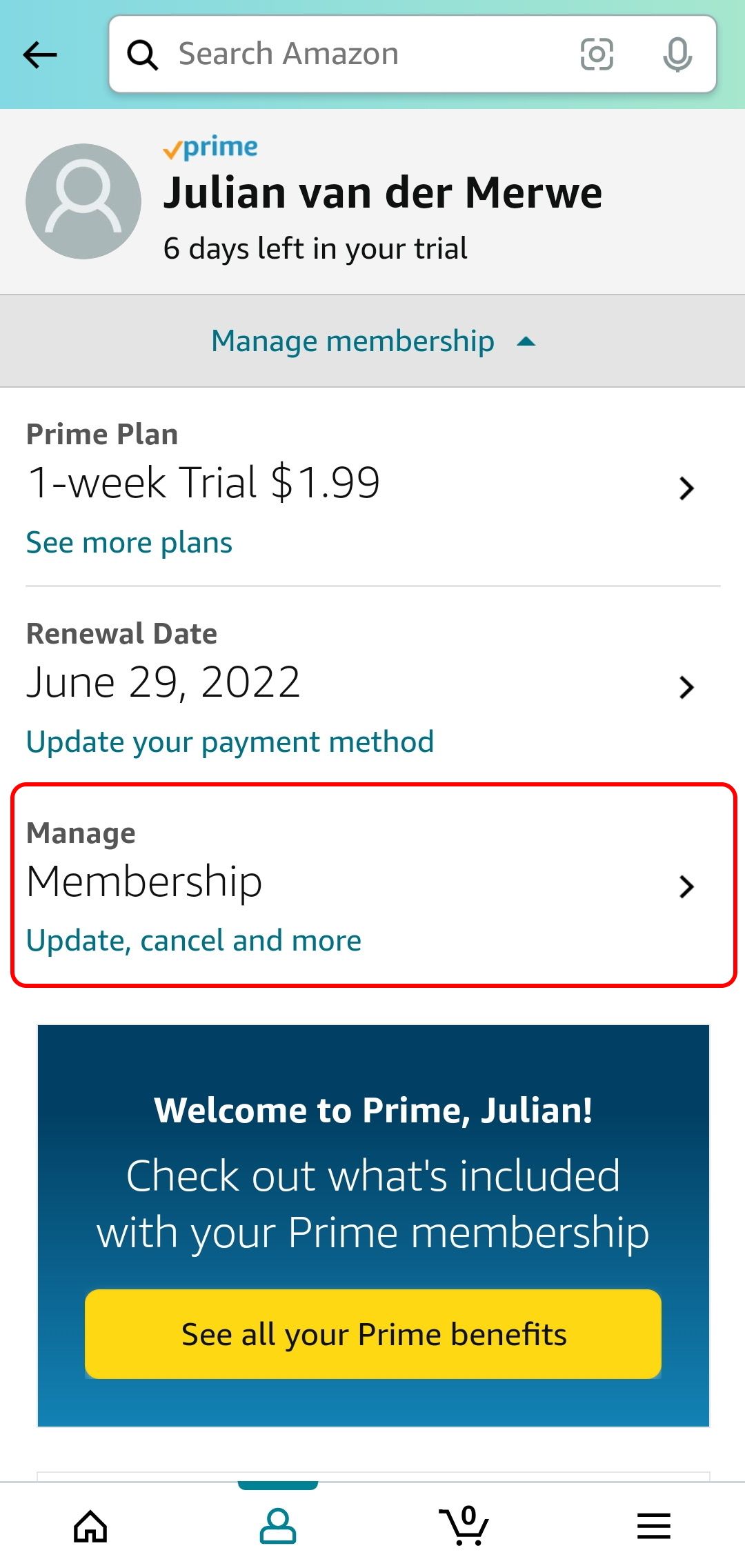
In an era of mobile-first computing, many users prefer to manage their tech stack via smartphone. However, due to the aforementioned “App Store Tax,” navigating subscription cancellations on iOS and Android can sometimes feel like a digital labyrinth.
The iOS and Android Limitation
It is important to note that you often cannot cancel a Prime Video Channel directly inside the Prime Video app on an iPhone or iPad. This is because Apple requires a 15-30% cut of transactions made within apps, and to avoid this, Amazon often disables the ability to manage billing within the iOS app environment.
To bypass this, use the mobile browser on your phone (Safari or Chrome) and follow the web instructions outlined above. Ensure you are using the “Desktop Site” version if the mobile site keeps redirecting you to the app.
Using the Amazon Shopping App (Android)
On most Android devices, you can still manage subscriptions through the main Amazon shopping app:
-
Open the Amazon app.
-
Tap the user icon (the person silhouette) at the bottom.
-
Select “Your Account.”
-
Scroll down to the “Account Settings” section and find “Memberships & Subscriptions.”
-
Locate AMC+ and follow the prompts to cancel the renewal.
Verifying via Email
Regardless of the device used, Amazon’s backend is programmed to send an automated “Subscription Cancellation” email within minutes of the action. If you do not receive this digital receipt, your technical request may not have been processed correctly. Always check your inbox to ensure the server-side change was successful.
Troubleshooting and Technical Considerations
Even with a clear guide, technical hurdles can arise. These are often related to account synchronization or browser cache issues.
The “Missing Cancel Button” Issue
If you navigate to your channels and do not see a “Cancel” button, it usually indicates one of three things:
-
The Subscription is Already Canceled: If the status shows an “End Date” rather than a “Renewal Date,” you have already successfully toggled the auto-renew off.
-
Wrong Account: Many households have multiple Amazon accounts (e.g., a personal and a business account). The subscription is tied to the specific email address used at the time of signup.
-
Billing via a Third Party: If you originally signed up for AMC+ via the AMC+ app on a Fire TV and chose “Subscribe using your Amazon Account,” the billing might be handled via the Amazon Appstore rather than Prime Video Channels. In this case, you must go to the “Appstore Subscriptions” section on the Amazon website to terminate the service.
Refunds and Prorated Access
In the world of Software as a Service (SaaS), refunds are rarely automatic. When you cancel AMC+ on Amazon, the technical protocol is to allow “Access Until Expiration.” This means that if you paid for a month on the 1st and cancel on the 5th, your access remains active for the remaining 25 days. Amazon typically does not offer prorated refunds for “change of mind” cancellations. However, if you were charged for a renewal you didn’t authorize, you can contact Amazon’s customer service via their “Chat” feature to request a manual override.
Removing the Data Footprint
For those concerned with digital security and data hygiene, canceling the subscription is only the first step. You may also want to remove the AMC+ “Watch History” from your Prime Video profile to stop the Amazon algorithm from recommending similar content. This can be done in the “Watch History” settings under the “Activity” tab of your Prime Video profile.

The Evolution of Digital Subscription Management
The difficulty users face in canceling services is a known phenomenon in UI/UX design, often referred to as “dark patterns.” While Amazon’s interface is more transparent than many, the sheer volume of menus can be overwhelming. As we move toward a more integrated digital future, the tech industry is seeing a rise in “Subscription Management Tools”—third-party apps designed to scan your bank statements and cancel these services on your behalf using automated scripts.
However, understanding the manual process is a critical skill in the modern digital economy. By mastering the settings of major hubs like Amazon, you take control of your “digital overhead.” Managing AMC+ is not just about stopping a $8.99 charge; it’s about navigating the complex interplay between content providers and platform aggregators.
As streaming services continue to consolidate and shift their pricing models (moving from ad-free to ad-supported tiers), the ability to quickly toggle subscriptions on and off becomes a powerful tool for the tech-savvy consumer. Whether you are “churning” (subscribing for one month to binge a specific show and then canceling) or simply auditing your digital lifestyle, the technical steps remain the same: locate the hub, identify the service, and trigger the database change.
aViewFromTheCave is a participant in the Amazon Services LLC Associates Program, an affiliate advertising program designed to provide a means for sites to earn advertising fees by advertising and linking to Amazon.com. Amazon, the Amazon logo, AmazonSupply, and the AmazonSupply logo are trademarks of Amazon.com, Inc. or its affiliates. As an Amazon Associate we earn affiliate commissions from qualifying purchases.