
In the modern digital landscape, managing your software-as-a-service (SaaS) subscriptions has become a fundamental aspect of digital literacy. YouTube, as a cornerstone of the Google ecosystem, offers a variety of paid services, including YouTube Premium, YouTube Music, and YouTube TV, as well as individual channel memberships and Super Chat features. Because these services are deeply integrated into the broader Google account infrastructure, updating your payment information is not just about changing a credit card number; it is about managing the technical synchronization between your digital wallet and the platform’s billing API.
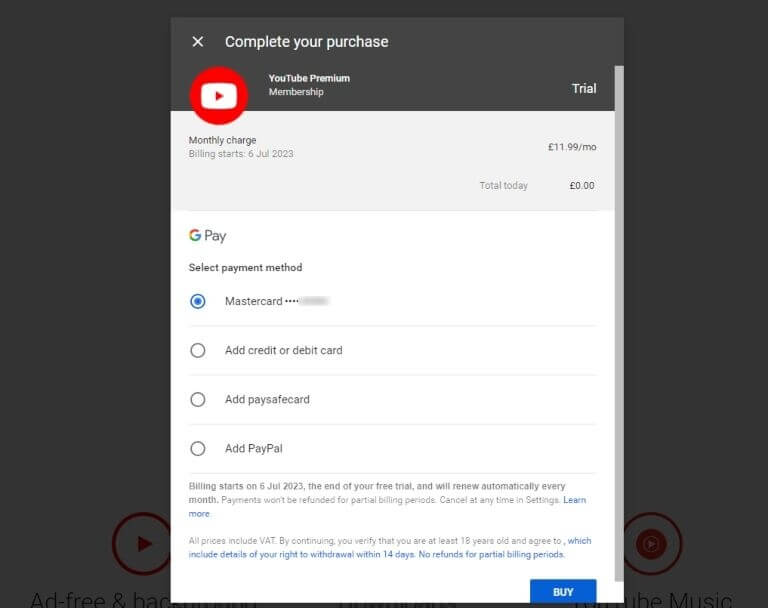
Whether you are transitioning to a new financial institution, updating an expired card, or shifting your digital spending to a different account, understanding the technical steps involved ensures uninterrupted access to your content. This guide provides an in-depth technical walkthrough of how to change your YouTube payment method across different devices while exploring the security protocols and platform architectures that govern these transactions.
Navigating the YouTube and Google Billing Infrastructure
To understand how to change your payment method on YouTube, one must first understand the relationship between YouTube and Google Pay. YouTube does not maintain an independent financial processing system; instead, it leverages the Google Payments Center (GPC). This centralized hub manages all financial data across the Google ecosystem, including the Play Store, Google Cloud, and YouTube.
When you update a payment method on YouTube, you are essentially modifying a record within your Google Pay profile. This architecture is designed for cross-platform consistency. For example, if you add a new debit card to pay for your YouTube Premium subscription, that card becomes available for purchases within the Google Play Store or for extending your Google One storage.
However, this integration can sometimes lead to technical confusion, particularly when users attempt to manage subscriptions through third-party intermediaries. If you signed up for YouTube Premium through the Apple App Store on an iOS device, your billing is managed by Apple’s In-App Purchase (IAP) system rather than Google’s internal billing engine. Identifying which gatekeeper manages your subscription is the first technical step in successfully updating your payment details.
Step-by-Step Walkthrough: Modifying Payment Details on Various Platforms
The user interface (UI) for managing payments varies significantly depending on the hardware and operating system you are using. Below are the precise technical steps for the most common environments.
Managing Billing via Desktop Browser
For most users, the desktop interface provides the most granular control over billing settings and transaction history.
-
Access Account Settings: Navigate to YouTube.com and click on your profile icon in the top-right corner. From the dropdown menu, select “Purchases and memberships.”
-
Identify the Subscription: You will see a list of active memberships. Locate the service you wish to update (e.g., YouTube Premium) and click on “Manage membership.”
-
Edit Payment Method: Click on the “Edit” button next to your current payment method. This action will trigger a redirect or an overlay from the Google Payments interface.
-
Update or Add: Here, you can select an existing card already linked to your Google account or click “Add credit or debit card.”
-
Synchronization: Once you enter the new CVV or card details, the Google billing API validates the card with a temporary “pending” authorization. Once confirmed, the new method is set as the primary billing source for that specific subscription.
Updating Payments on Android (Google Play Integration)
On Android devices, the YouTube app is tightly coupled with the Google Play Store’s billing services.
-
Open YouTube App: Tap your profile picture and go to “Purchases and memberships.”
-
Navigate to Membership: Tap the membership you want to modify.
-
Update: Select “Update” or “Payment Method.” This will often launch the Google Play billing interface.
-
Selection: You can choose a different saved method or input a new one. On Android, you also have the option to use Google Play balance or integrated carrier billing, depending on your region and service provider.
The iOS Exception: Managing Apple-Billed Subscriptions
If your YouTube subscription was initiated on an iPhone or iPad via the App Store, you must bypass the YouTube app settings to change your payment method.
-
System Settings: Open the “Settings” app on your iOS device.
-
Apple ID: Tap your name at the top of the menu, then tap “Subscriptions.”
-
YouTube: Find YouTube in the list. Note that you cannot change the specific card just for YouTube here; you must change the payment method for your entire Apple ID.
-
Payment & Shipping: Go back to the main Apple ID screen and select “Payment & Shipping” to add or remove cards.
Troubleshooting Technical Barriers and Synchronization Errors
Even with a streamlined UI, users often encounter technical hurdles when attempting to update payment information. Understanding the root causes of these errors can prevent service interruptions.
Declined Authorization Holds
When you add a new payment method, Google’s payment gateway sends a request to your bank to verify that the account is active. This is often a $0.00 or $1.00 transaction that never actually clears. If your bank’s fraud detection algorithms flag this as suspicious, the “Add Method” request will fail. To resolve this, ensure that your card supports international “card-not-present” transactions and that your billing address in Google Pay matches the bank’s records exactly.
Region and Currency Mismatches
YouTube’s billing system is highly sensitive to geographic location. If you attempt to add a credit card issued in a different country than your Google account’s home region, the transaction will likely be blocked. This is a security measure to prevent regional pricing exploitation. If you have moved to a new country, you must create a new payments profile in the Google Payments Center, which may involve cancelling your current subscriptions and re-subscribing under the new profile.
Browser Cache and Script Blocking
On desktop, aggressive ad-blockers or privacy extensions can sometimes interfere with the secure frames (iFrames) used to collect credit card data. If the “Add Card” button is unresponsive, try disabling extensions or performing the update in an Incognito/Private window. This ensures that no cached data or third-party scripts are interfering with the secure handshake between your browser and Google’s servers.
Security Protocols for Digital Transactions within the YouTube Ecosystem
When you update your payment method, you are interacting with highly sensitive data. Google employs several layers of technology to ensure that your financial information remains secure throughout the lifecycle of the transaction.
Tokenization and Encryption
Google does not store your actual credit card number in its raw form on YouTube’s servers. Instead, they use a process called tokenization. When you enter your card details, the information is encrypted and sent to a secure vault. Google then generates a “token”—a unique alphanumeric string—that represents your card. This token is what is used to process monthly renewals. Even in the unlikely event of a data breach, an intercepted token is useless to an attacker because it is locked to a specific merchant (Google).
Two-Factor Authentication (2FA) and 3D Secure
For users in regions with strict financial regulations, such as the EU (under PSD2), changing a payment method often triggers a “3D Secure” challenge. This requires you to verify the change through your bank’s app or a one-time password (OTP) sent via SMS. Furthermore, if you have 2FA enabled on your Google account—which is highly recommended—Google may ask for a secondary form of identification before allowing changes to your billing settings to prevent unauthorized account takeovers.
Advanced Configuration: Backup Methods and Family Plans
To ensure that your digital services remain active even if your primary card expires or is declined, the Google Payments Center allows for the configuration of redundant systems.
Setting a Backup Payment Method
Within the “Subscriptions” tab of your Google account, you can designate a “Backup Payment Method.” If the primary transaction fails—perhaps due to reaching a credit limit or a card being replaced—Google will automatically attempt to charge the backup method. This technical redundancy is critical for users who rely on YouTube TV for live news or YouTube Premium for professional research and content creation.

Family Link and Shared Billing
For those using the YouTube Family Plan, the “Family Manager” is the only individual with the technical authority to change the payment method. The manager’s Google Pay account serves as the central billing node for up to five additional family members. If you are a member of a family group and wish to use your own payment method for individual “Super Chat” purchases, you must configure your personal Google Pay profile, though the monthly subscription fee will always default to the Family Manager’s primary card.
By mastering these technical nuances, you can ensure that your interaction with YouTube’s paid ecosystem is seamless, secure, and tailored to your evolving financial needs. Managing digital payments is no longer a simple administrative task; it is a vital part of maintaining your digital identity and access in an increasingly subscription-based world.
aViewFromTheCave is a participant in the Amazon Services LLC Associates Program, an affiliate advertising program designed to provide a means for sites to earn advertising fees by advertising and linking to Amazon.com. Amazon, the Amazon logo, AmazonSupply, and the AmazonSupply logo are trademarks of Amazon.com, Inc. or its affiliates. As an Amazon Associate we earn affiliate commissions from qualifying purchases.