
In the rapidly evolving landscape of Over-The-Top (OTT) media services, user flexibility remains a cornerstone of digital consumer rights. YouTube TV, Google’s premier live television streaming service, has established itself as a technological powerhouse by integrating cloud-based recording features with a seamless user interface. However, as the streaming market becomes increasingly saturated and subscription fatigue sets in, many users find themselves needing to audit their digital expenses or pivot to alternative platforms. Navigating the deactivation of a high-tier service requires more than just a cursory glance at the settings menu; it demands an understanding of the platform’s cross-device synchronization and billing architecture.
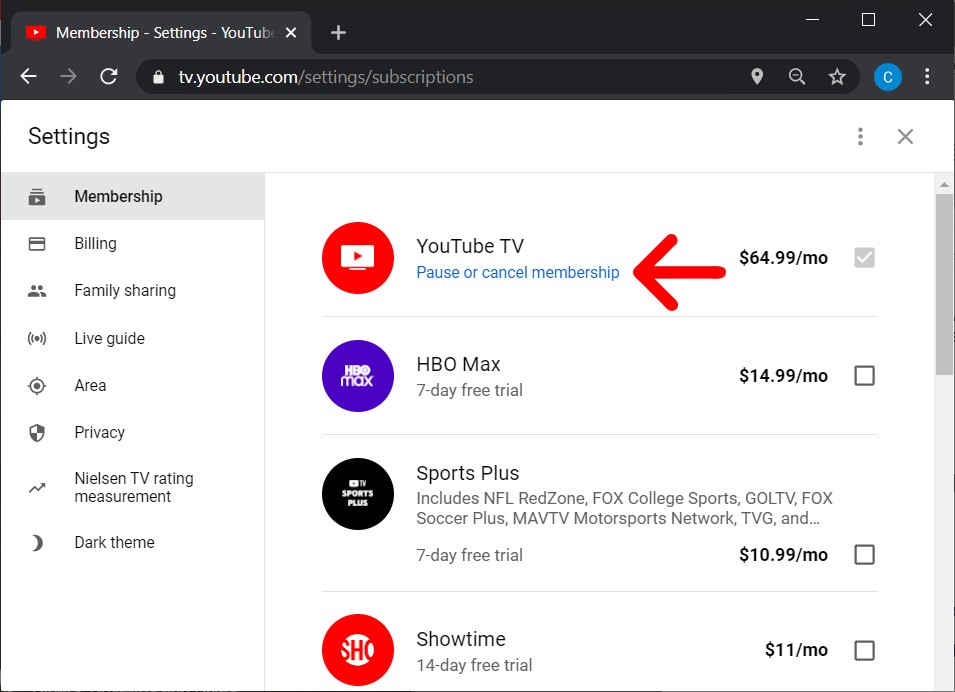
Navigating the YouTube TV Interface: A Technical Overview
The architecture of YouTube TV is built upon the broader Google account ecosystem. This integration simplifies the login process but adds layers of complexity when it comes to subscription management. Unlike traditional cable providers that often require long-form phone calls and retention negotiations, YouTube TV utilizes a software-driven approach to offboarding. The process is designed to be user-centric, yet it follows a specific logical flow that varies depending on the hardware used to access the service.
From a technical perspective, your YouTube TV membership is tied to your primary Google identity. This means that any changes made to the subscription status are reflected instantaneously across all authorized devices—from smart TVs and gaming consoles to mobile devices and web browsers. When you initiate a cancellation, you are essentially modifying a set of permissions within your Google Payments profile. It is important to note that “canceling” in this context does not mean your access is revoked immediately; rather, the system marks the account for non-renewal at the end of the current billing cycle.
Understanding the Billing Cycle and Proration
A common misconception in the software-as-a-service (SaaS) world is that canceling a service leads to an immediate refund of the remaining month. In the YouTube TV ecosystem, the service follows a “pay-ahead” model. When you click the cancel button, the API triggers a flag that prevents the next automated clearing house (ACH) or credit card transaction from occurring. You maintain “Active” status until the final millisecond of your prepaid period. This technical distinction is vital for users who want to maximize their final month of service without risking an accidental renewal.
Comprehensive Guide to the Cancellation Workflow
The process of canceling your YouTube TV membership can be executed via a web browser or the mobile application. However, there are significant technical nuances depending on whether you are using an Android device, an iOS device, or a desktop computer.
Canceling via Web Browser (Desktop/Laptop)
The web interface is the most robust method for managing subscription settings, as it provides the clearest view of all add-on packages and billing details.
-
Authentication: Navigate to the YouTube TV website and ensure you are logged into the primary account associated with the billing profile.
-
Accessing Membership Settings: Click on your profile avatar in the top-right corner and select “Settings.” From the sidebar, click on the “Membership” tab.
-
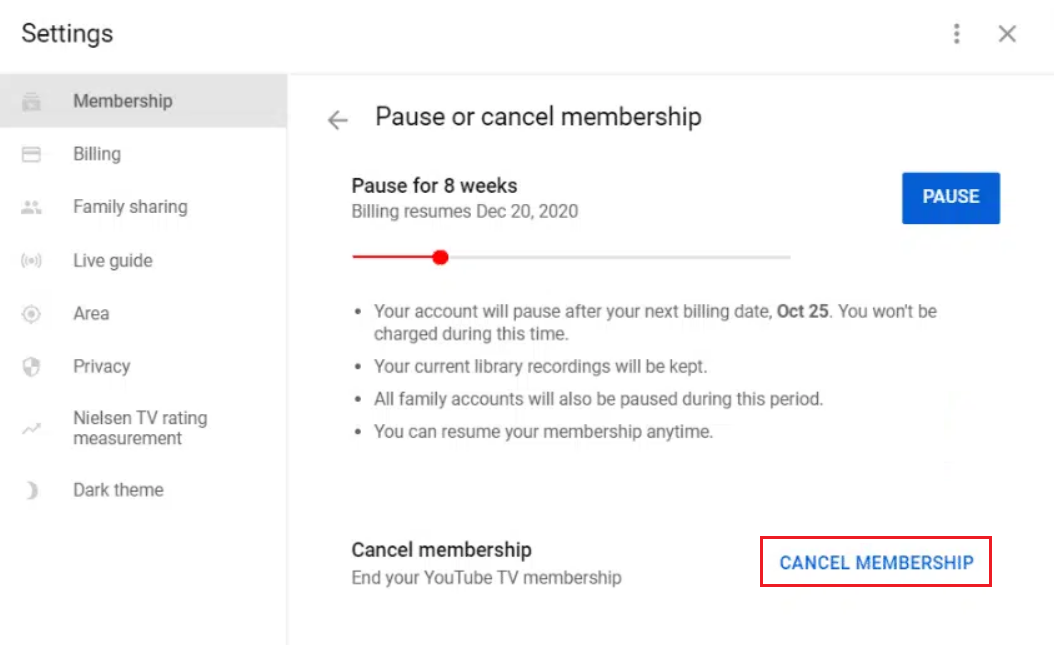
The Deactivation Sequence: Locate the “Manage” button next to your membership status. Here, you will be presented with two primary options: “Pause” or “Cancel.”
-
Confirmation and Feedback: Upon selecting “Cancel,” the system will prompt you for a reason for leaving. This data is fed into Google’s machine learning models to improve user retention strategies. After selecting a reason, you must confirm the cancellation once more to finalize the instruction.
Managing Subscriptions on Mobile Devices
For Android users, the process is integrated directly into the YouTube TV app. However, iOS users face a different technical hurdle due to the “Apple Tax”—the commission Apple takes for in-app purchases. If you subscribed to YouTube TV via the Apple App Store, the “Membership” settings within the YouTube TV app will not allow you to cancel. Instead, you must navigate to the iOS Settings app, tap on your Apple ID, and manage the subscription through the “Subscriptions” menu. This decoupling of the service provider and the billing provider is a frequent point of friction in the mobile tech space.
Handling Add-on Networks
YouTube TV allows users to stack premium networks like HBO Max, Showtime, or NFL Sunday Ticket on top of their base plan. When canceling the base membership, the system typically defaults to canceling all associated add-ons. However, it is a technical best practice to manually verify that each individual “bolt-on” service is marked for deactivation to avoid ghost charges on your statement.
Pausing vs. Canceling: Data Retention and Cloud DVR Implications
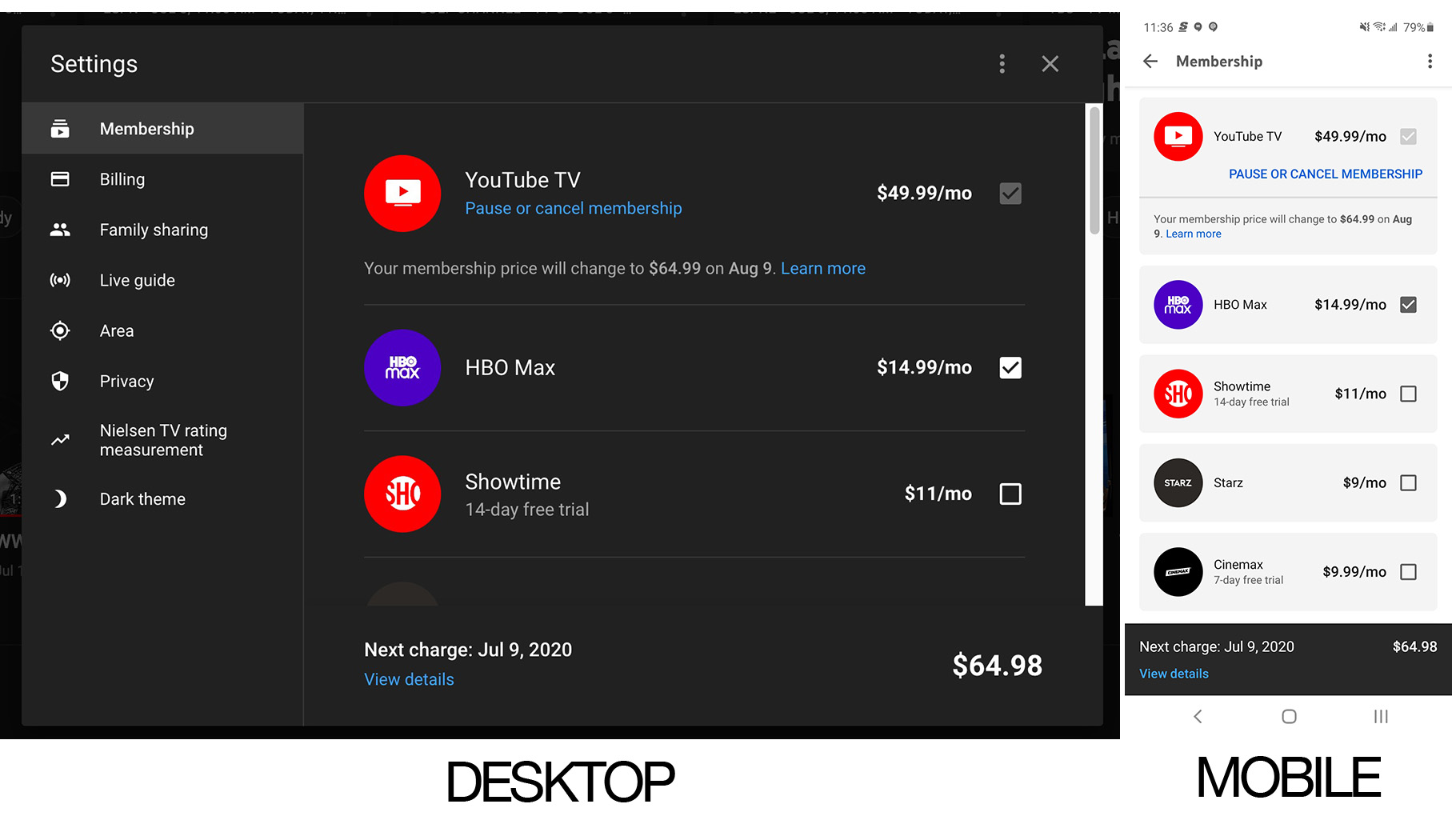
One of the most innovative features Google introduced to the streaming space is the “Pause Membership” function. From a data management perspective, pausing is significantly different from canceling.
The Technical Logic of Pausing
When you choose to pause your membership, you can set a duration ranging from 4 weeks to 6 months. During this period, Google retains your “Library” data—including your scheduled recordings and personal preferences. The technical advantage here is the preservation of the Cloud DVR. YouTube TV offers unlimited storage, but recordings are subject to a 9-month expiration date from the time of broadcast. If you pause your service, the 9-month clock continues to tick.
If you cancel the service entirely, Google typically retains your library settings and preferences for a limited window (usually 21 days to a few months) in case you decide to reactivate. However, after a certain threshold, the system purges the user metadata associated with that specific YouTube TV instance to comply with data minimization policies and free up server resources.
Impact on Shared Family Groups
YouTube TV allows for a “Family Group” where up to five additional members can use the service. If the family manager cancels the subscription, the access for all sub-accounts is terminated simultaneously at the end of the billing cycle. It is a common technical support issue where family members lose access to their individual DVRs because the primary account holder initiated a cancellation without prior notification. The system does not currently offer a way to “transfer” the primary billing responsibility to a sub-member without a full cancellation and subsequent re-subscription.
Troubleshooting Common Cancellation Hurdles
Despite the streamlined UI, technical glitches can occur during the offboarding process. Understanding the root causes of these issues can save users significant time.
Missing “Manage Membership” Button
If the “Manage” or “Cancel” button is missing from your settings menu, it usually indicates a billing synchronization error. This frequently happens if your subscription is managed through a third-party partner, such as a mobile carrier (Verizon, T-Mobile) or an internet service provider (ISP). In these instances, YouTube TV acts as the service delivery layer, but the financial layer is controlled by the partner’s API. You must log into the partner’s portal to terminate the link.
Refund Requests and Billing Discrepancies
YouTube TV generally adheres to a no-refund policy for partial billing cycles. However, if a technical error occurred—such as a double-charge or a failure to process a cancellation request—users must interact with the automated support bot to reach a human agent. From a technical standpoint, ensure you have the “Transaction ID” found in your Google Pay history (pay.google.com). This ID is the primary key used by support engineers to trace the lifecycle of your subscription in their database.
Residual Access and App Cache
Occasionally, users may find they still have access to live channels after their cancellation date. This is often not a billing error but an app caching issue. Modern streaming apps store “tokens” locally to speed up the login process. If the token hasn’t expired or the app hasn’t “called home” to verify the subscription status, the UI may remain active. Clearing the app cache or force-closing the application will usually trigger a status check and update the interface to its “Expired” state.
Life After Cancellation: Evaluating the Streaming Technology Landscape
Once the cancellation is finalized, the user transitions back into the broader market of digital media. The decision to leave YouTube TV often stems from a shift in technical requirements—perhaps a need for higher bitrate 4K content, better integration with specific hardware, or a move toward “skinny bundles.”
Migrating Your Digital Library
Unfortunately, there is currently no interoperability between streaming services for DVR content. Your recordings on YouTube TV cannot be exported to a local hard drive or migrated to a competitor like Hulu + Live TV or FuboTV. This lack of data portability is a significant point of contention in the tech industry, as users are essentially “locked-in” by their accumulated library of content.
Security Post-Cancellation
After canceling any digital service, it is a technical best practice to review your “Authorized Apps” within your Google Account security settings. Removing YouTube TV’s deep permissions if you do not plan to return can reduce your digital attack surface. While Google’s internal security is robust, maintaining a clean list of third-party access points is fundamental to digital hygiene.
In conclusion, canceling a YouTube TV membership is a straightforward process that sits at the intersection of account security, cloud data management, and third-party billing ecosystems. By understanding the underlying technical workflows—from the distinction between pausing and canceling to the complexities of mobile app store billing—users can navigate their digital subscriptions with precision and confidence. As the software governing our entertainment continues to evolve, staying informed about these administrative protocols ensures that you remain the master of your digital footprint.
aViewFromTheCave is a participant in the Amazon Services LLC Associates Program, an affiliate advertising program designed to provide a means for sites to earn advertising fees by advertising and linking to Amazon.com. Amazon, the Amazon logo, AmazonSupply, and the AmazonSupply logo are trademarks of Amazon.com, Inc. or its affiliates. As an Amazon Associate we earn affiliate commissions from qualifying purchases.