
The shift from traditional cable infrastructure to Over-the-Top (OTT) streaming services has fundamentally changed how we consume media. At the forefront of this revolution is YouTube TV, Google’s premium live TV service that blends the familiarity of broadcast television with the sophisticated data architecture of the web. One of the platform’s most disruptive features is its cloud-based Digital Video Recorder (DVR). Unlike the physical hard drives of yesteryear, YouTube TV’s “Library” function provides a seamless, high-bandwidth environment for archiving content. Understanding how to add to your library on YouTube TV is not just a basic operational task; it is the key to mastering a personalized, on-demand entertainment ecosystem.
The Evolution of the DVR: Why the YouTube TV Library is Different
To appreciate the utility of adding content to your YouTube TV library, one must first understand the technical departure it represents from legacy hardware. Traditional DVRs rely on physical local storage, meaning users are often forced to manage megabytes, delete old recordings to make room for new ones, and deal with hardware failures. YouTube TV operates on a “Cloud-Native” model. When you add a show to your library, you aren’t just scheduling a recording; you are flagging a specific content ID within Google’s massive server farms to be indexed for your account.
Unlimited Storage Capabilities
The most significant technical advantage of the YouTube TV Library is its “Unlimited” nature. Because the recordings live in the cloud, there is no cap on the number of hours you can record. This removes the “storage anxiety” that plagued the previous generation of cord-cutters. You can add entire sports seasons, every episode of a long-running sitcom, and dozens of feature-length films without ever receiving a “storage full” notification.
The Metadata Advantage
When you add a program to your library, YouTube TV’s algorithm begins to aggregate metadata associated with that title. This includes upcoming airings, “on-demand” versions provided by the network, and related clips. This creates a unified viewing interface where the distinction between a “live recording” and “VOD (Video On Demand)” content becomes blurred, providing a smoother user experience.
Step-by-Step: Adding Programs to Your YouTube TV Library
The process of adding content to your library is designed to be frictionless across all supported devices, from high-end Smart TVs to mobile applications. While the interface may vary slightly depending on the operating system—Tizen, webOS, Android TV, or iOS—the core logic remains consistent.
Adding Content via Smart TVs and Streaming Sticks
For most users, the primary interaction happens on the big screen via devices like Roku, Amazon Fire TV, or Chromecast.
-
Search and Discovery: Use the magnifying glass icon at the top of the interface to search for a specific title. Alternatively, navigate through the “Live” or “Home” tabs.
-
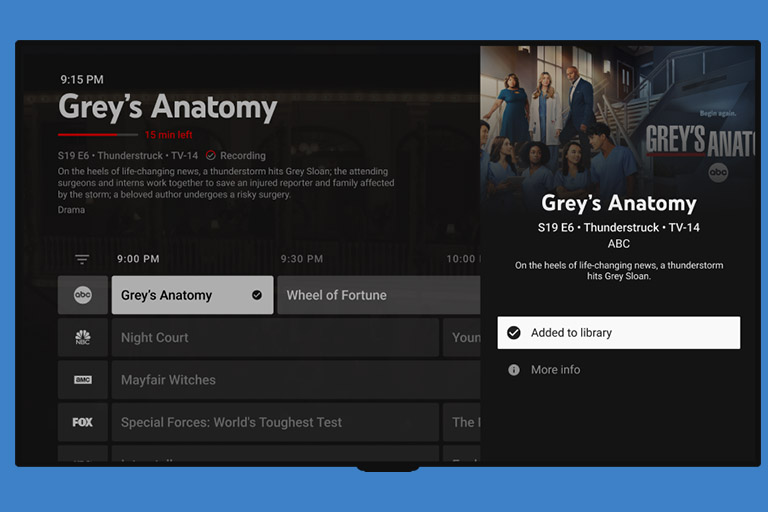
The Plus (+) Icon: Once you select a show, movie, or sports team, look for the “Plus” icon. On most TV interfaces, this is labeled “Add to Library.”
-
Confirmation: Once clicked, the icon will transform into a checkmark. This signifies that the system has successfully tagged this content for future recording.
Utilizing the Mobile App for Remote Management
One of the hallmarks of a modern tech stack is cross-platform synchronization. If you are away from home and realize you forgot to record a game, the mobile app serves as a powerful remote.
-
Open the YouTube TV app on your smartphone.
-
Tap the search icon or browse the categories.
-
Tap the “Add” button (the plus sign) located directly under the title’s thumbnail or on the program’s dedicated page.
-
The change is instantaneous; your cloud library is updated across all logged-in devices via Google’s real-time data sync.
Adding via Web Browser
For those who prefer managing their digital life on a desktop or laptop, the web interface at tv.youtube.com offers the most granular control. The process mirrors the mobile app but allows for faster navigation through complex lists of shows or sports leagues using a mouse and keyboard.
Advanced Library Management and Sports Logic
Adding content to your library is more than just a binary “on/off” switch. The YouTube TV backend employs sophisticated logic, particularly when it comes to sports and recurring broadcasts, allowing for a highly customized viewing experience.

Following Sports Teams and Leagues
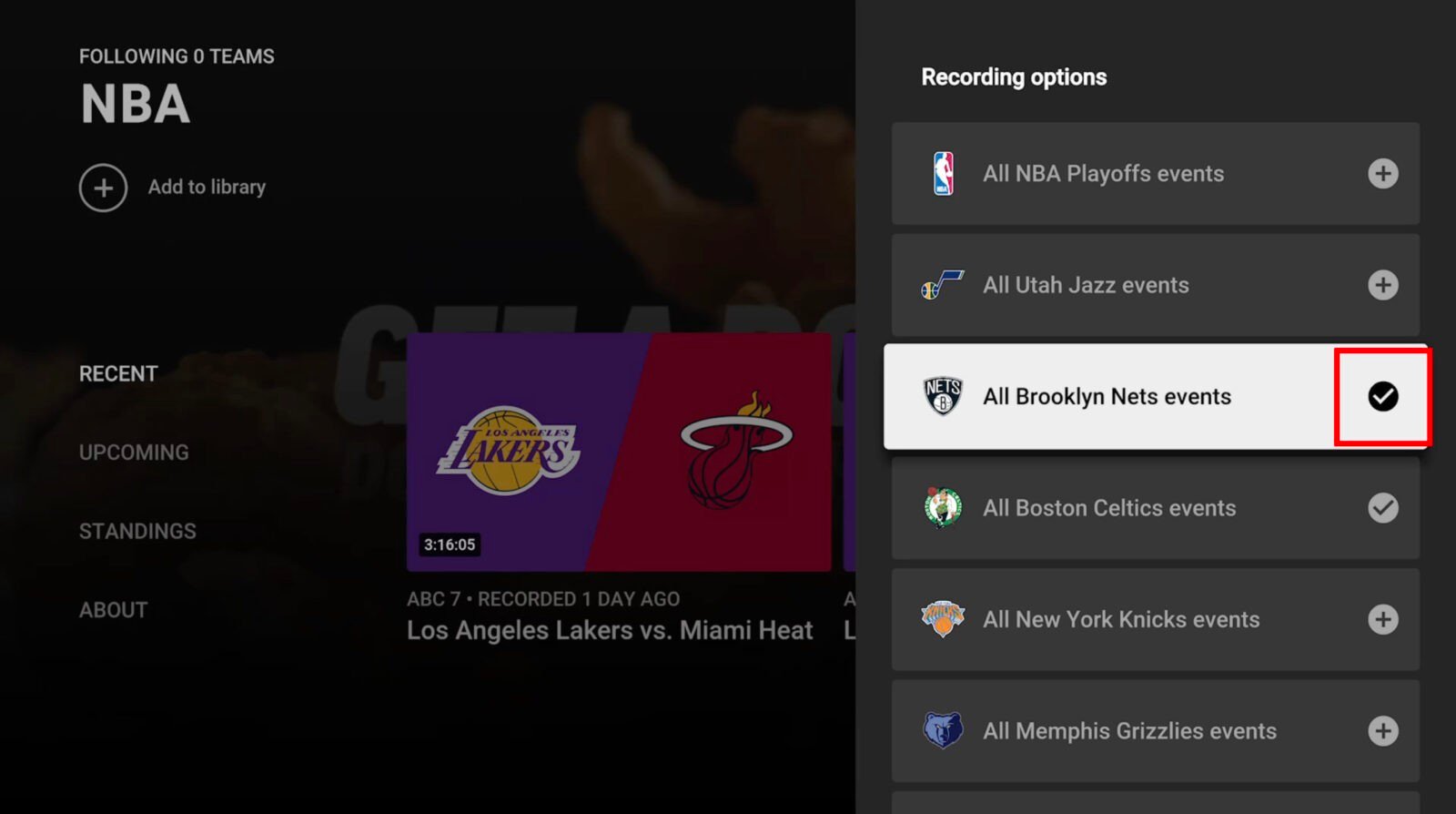
Unlike traditional DVRs where you might have to record individual games, YouTube TV allows you to add entire teams or leagues to your library. If you search for the “NFL” or “Golden State Warriors” and hit the “Add” button, the system’s scheduling algorithm will automatically track every broadcast involving that entity across all networks included in your subscription. This includes pre-game shows and post-game analysis if they are categorized under the same metadata tag.
Dealing with Overruns and Schedule Changes
A common technical hurdle for DVRs is the “overrun”—when a live event, such as a playoff game, goes into overtime and exceeds its scheduled time slot. YouTube TV utilizes real-time data feeds to adjust recording windows. When you add a live event to your library, the system monitors the actual broadcast end-time rather than sticking strictly to the digital program guide (EPG), ensuring you don’t miss the final play.
Library Organization: New, Most Watched, and A-Z
Once you have added a significant amount of content, organization becomes paramount. The “Library” tab is divided into several smart categories:
-
New in your library: Highlights recently recorded episodes or newly available VOD content.
-
Most watched: Leverages your viewing history to surface the shows you engage with most frequently.
-
Scheduled: Provides a technical overview of upcoming recordings for the next 24 hours to two weeks, allowing you to verify that the system is tracking your desired content.
Technical Nuances: Family Sharing and Expiration Rules
While the YouTube TV Library is incredibly robust, it operates within a specific set of parameters dictated by licensing agreements and cloud architecture. Understanding these nuances is vital for maintaining a high-quality digital archive.
Individual Libraries via Family Sharing
YouTube TV allows for up to six individual accounts per household. A critical technical feature here is that “Add to Library” actions are account-specific. When the primary subscriber adds a show, it does not clutter the library of other family members. Each user gets their own private, unlimited DVR space, with personalized recommendations and “watched” statuses. This prevents the algorithm from suggesting content based on another user’s preferences.
The 9-Month Retention Policy
While storage is unlimited in terms of volume, it is not infinite in terms of time. Google currently implements a 9-month retention policy for DVR recordings. Once a program is recorded, it remains in your library for nine months. If the show airs again within that window, the timer resets for that specific episode. It is important to distinguish between these recordings and VOD versions, which are controlled by the networks and may have different expiration dates or unskippable commercials.
The Distinction Between Recording and VOD
When you add a show to your library, you will often see multiple versions of the same episode. One may be your “DVR” version (the actual broadcast recording), and another might be the “VOD” version. The DVR version typically allows you to fast-forward through commercials, whereas the VOD version, provided by the network, may restrict this. The YouTube TV interface usually defaults to the highest quality version available, but users can often toggle between “Choose a version” to select their preferred playback experience.
Optimizing the Tech Stack: Voice Commands and Integration
To truly leverage the power of the YouTube TV Library, one should look toward integration with the broader Google ecosystem. The synergy between AI-driven voice assistants and cloud streaming provides a futuristic level of convenience.
Google Assistant Integration
For users with Google Home or Nest speakers, or those using the remote on a Chromecast with Google TV, adding content can be done entirely through natural language processing (NLP). Saying, “Hey Google, add The Mandalorian to my YouTube TV library,” triggers a backend API call that identifies the program and updates your account settings without you ever having to navigate a menu.
Data Privacy and Algorithm Training
Every time you add a program to your library, you are providing a data point to YouTube TV’s recommendation engine. This tech utilizes machine learning to refine your “Home” feed. Over time, the system moves beyond mere recording and begins to predict what you might want to add next, surfacing similar genres or actors. From a digital security and privacy standpoint, it is worth noting that this data is tied to your Google Account, benefiting from the company’s standard encryption and two-factor authentication (2FA) protocols.
In the modern era of software-as-a-service (SaaS), the ability to curate a bespoke media library is a significant value proposition. By understanding the underlying cloud mechanics, the nuances of metadata, and the cross-platform capabilities of YouTube TV, users can transform their television experience from a passive stream into a highly organized, on-demand powerhouse. Whether you are tracking live sports with real-time adjustments or archiving an entire series for a weekend binge, the “Add to Library” feature is the fundamental building block of the digital living room.
aViewFromTheCave is a participant in the Amazon Services LLC Associates Program, an affiliate advertising program designed to provide a means for sites to earn advertising fees by advertising and linking to Amazon.com. Amazon, the Amazon logo, AmazonSupply, and the AmazonSupply logo are trademarks of Amazon.com, Inc. or its affiliates. As an Amazon Associate we earn affiliate commissions from qualifying purchases.