
In the modern digital ecosystem, YouTube has evolved from a simple video-sharing repository into a sophisticated platform powered by complex account structures and data-driven management tools. For creators, developers, and tech-savvy users, understanding the technical nuances of expanding a digital footprint is essential. Adding a new channel to your existing YouTube infrastructure is not merely a matter of clicking a button; it involves navigating Google’s Identity and Access Management (IAM) framework, understanding the distinction between personal and Brand Accounts, and configuring the software environment for multi-channel efficiency.

Whether you are diversifying content streams or managing a corporate portfolio, this guide provides a deep dive into the technical process of adding and configuring additional YouTube channels under a single administrative umbrella.
The Architecture of YouTube Accounts and Brand Channels
Before initiating the creation process, it is critical to understand the underlying architecture of Google’s account system. YouTube operates within the broader Google ecosystem, meaning every channel is tied to a Google Account. However, for those looking to manage multiple channels, the platform utilizes a specific entity known as a “Brand Account.”
Understanding Personal vs. Brand Accounts
A standard Personal Account is tied directly to a user’s Google Identity—usually their primary email address. This account is typically restricted to one channel that shares the name and avatar of the Google profile. This structure is limiting for professional use because it does not support multiple managers or distinct branding without altering the primary Google account.
A Brand Account, conversely, acts as a sub-entity. It allows a single Google Account to serve as an owner or manager for multiple YouTube channels, each with its own unique metadata, subscriber base, and permissions. When you add a channel to your existing profile, you are essentially instantiating a new Brand Account that resides within your Google identity’s administrative control. This technical separation ensures that your personal data remains decoupled from your public-facing content.
The Role of Google Workspace and Identity Management
For enterprise-level users, YouTube channels are often managed through Google Workspace (formerly G Suite). In this environment, adding a channel involves stricter administrative protocols. The Workspace administrator must ensure that YouTube services are enabled for the organizational unit. This highlights the importance of permission hierarchies; a Brand Account allows for a “Primary Owner” who has ultimate control over the channel’s lifecycle, while “Managers” and “Communications Managers” can access the YouTube Studio dashboard without having full administrative rights over the root Google Account.
Step-by-Step Technical Implementation
The actual process of adding a channel is handled through YouTube’s web interface, which serves as the front-end for the platform’s database management tools. Following these steps ensures that the new channel is correctly provisioned within your account metadata.
Accessing the YouTube Channel Switcher
To begin, you must navigate to the YouTube Channel Switcher, which is the centralized dashboard for account management.
-
Sign in to YouTube using your primary administrative Google Account.
-
Access the account settings by clicking on your profile icon in the upper right-hand corner.
-
Select “Settings” from the dropdown menu.
-
Locate the “Your YouTube channel” section and click on “Add or manage your channel(s).”
This URL (youtube.com/channel_switcher) is the direct portal to the platform’s multi-channel management interface. It lists every Brand Account currently associated with your identity.
Creating the New Channel Instance
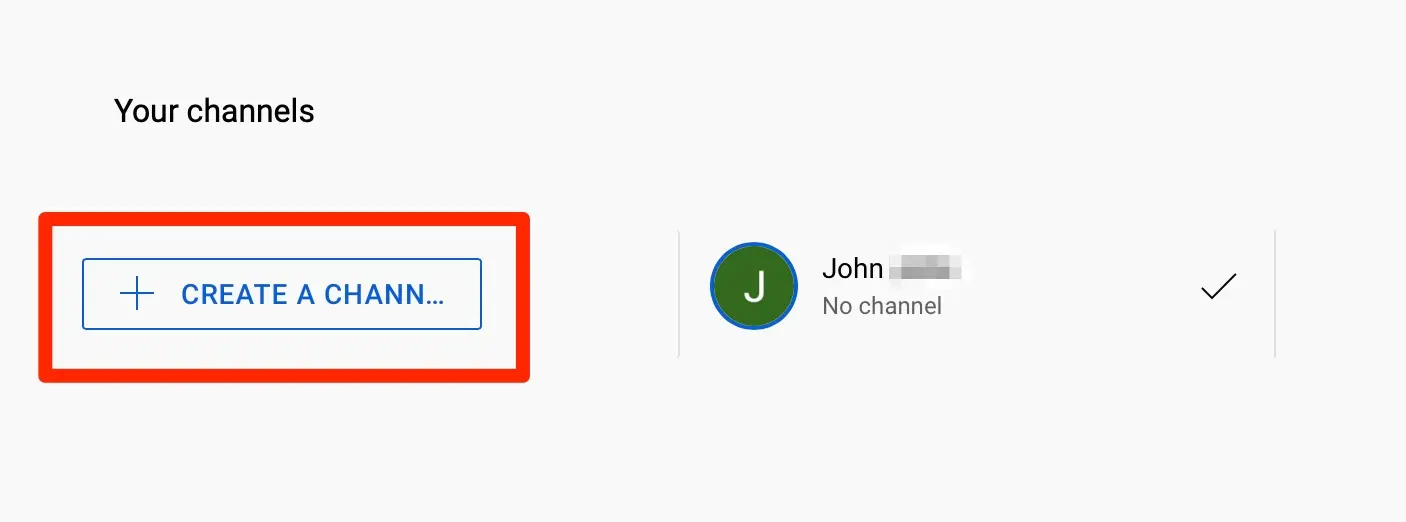
Once inside the Channel Switcher, the software provides a clear path to deployment:
-
Click the “Create a channel” button.
-
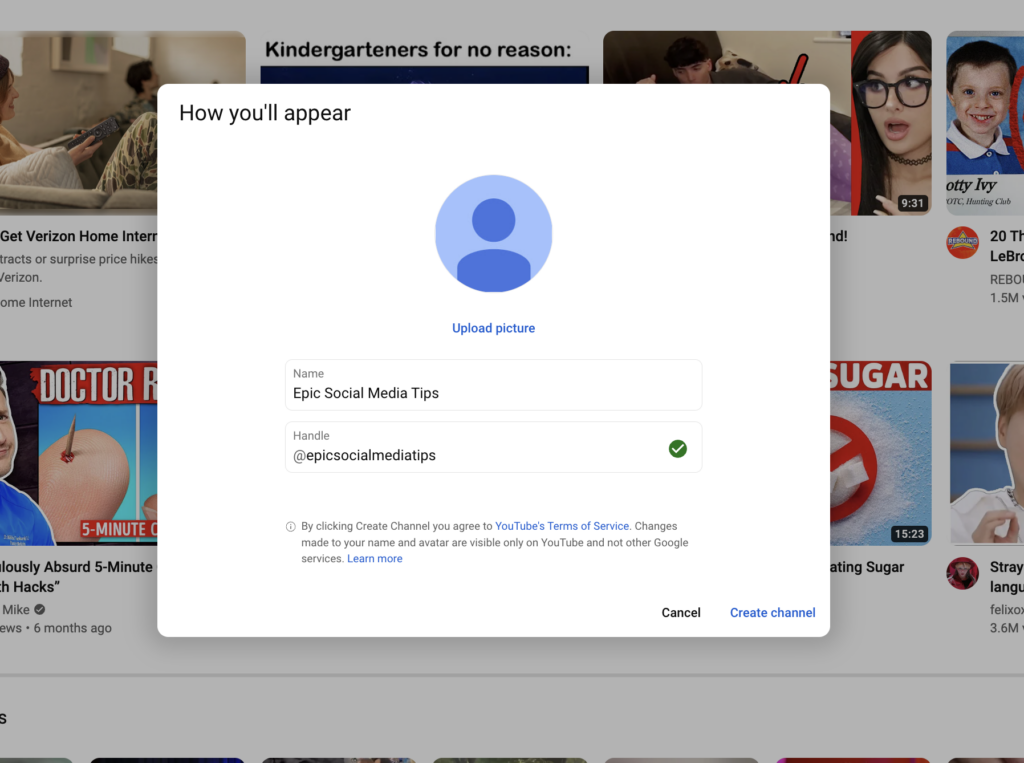
You will be prompted to enter a “Brand Account Name.” This name is a primary key in YouTube’s database for your new entity. It is independent of your Google Account name, allowing for complete creative and technical autonomy.
-
Upon clicking “Create,” YouTube’s backend initiates a sequence that provisions a new channel ID, initializes a fresh YouTube Studio dashboard, and links the Brand Account to your primary login credentials.
Configuring Initial Permissions and Security
Once the channel is created, it exists as a “naked” instance. The first technical priority is securing the account. Navigate to the “Permissions” tab within YouTube Studio. Here, you can utilize Google’s Invitations system to add secondary email addresses as managers. This is a critical security step for teams, as it avoids the risky practice of sharing primary login passwords. By using individual invitations, you maintain an audit trail of who accessed the channel and what changes were made.
Advanced Optimization and YouTube Studio Integration
Adding a channel is only the first stage of the technical setup. To operate effectively, you must integrate the new channel into the YouTube Studio software environment, which serves as the Command Center for content creators.
Leveraging the YouTube Studio Dashboard
YouTube Studio is a robust web-based application (and mobile app) designed for high-level data analysis and content management. When you add a new channel, it receives its own unique instance of Studio. Technical users should immediately configure the “Settings” menu within Studio to establish default upload protocols. This includes:
-
Default Metadata: Setting standard tags, language preferences, and license types (Standard YouTube License vs. Creative Commons).
-
Automated Filters: Implementing community settings like blocked words or automated comment moderation via the platform’s AI-driven content filters.
-
Feature Eligibility: New channels are often restricted in functionality. To unlock technical features like custom thumbnails, external links in descriptions, and videos longer than 15 minutes, you must complete “Intermediate Features” verification via SMS. This links a physical device to the digital entity, serving as an anti-spam protocol.
Managing Multiple Channels via a Single CMS
For professional media organizations or multi-channel networks (MCNs), managing several channels through individual logins is inefficient. YouTube provides a Content Management System (CMS) for qualified partners. The CMS allows for “Content ID” management, where a technical administrator can monitor asset usage across the entire platform. If you are adding a channel to a business portfolio, it should be linked to the Content Manager to centralize rights management and financial reporting.
Security Protocols and Multi-Factor Authentication (MFA)
In the realm of digital security, a YouTube channel is a high-value asset. Every new channel added increases the attack surface of your Google Account. It is mandatory from a technical standpoint to enable 2-Step Verification (2SV). This ensures that even if a session token is hijacked or a password is compromised, the channel’s core architecture remains protected. Furthermore, the use of hardware security keys (like Yubico) provides a physical layer of protection that is superior to SMS-based codes.
Automating Workflow with API and Third-Party Tools
For users managing a significant number of channels, manual management through the browser becomes a bottleneck. The tech-centric approach involves utilizing the YouTube Data API v3 and third-party software to streamline operations.
Utilizing the YouTube Data API
The YouTube Data API allows developers to programmatically interact with their channels. Once a new channel is added, its “Channel ID” (a unique alphanumeric string) can be used to authenticate API requests. This allows for:
-
Batch Uploading: Using Python scripts or Node.js applications to upload videos across multiple channels simultaneously.
-
Metadata Syncing: Automatically updating video descriptions or titles across a fleet of channels using JSON payloads.
-
Custom Analytics Dashboards: Extracting data from the YouTube Analytics API to create centralized reports in tools like Google Data Studio or Tableau.
Software for Multi-Channel Distribution
Beyond the API, several software platforms are designed to handle the complexities of multi-channel management. Tools like TubeBuddy or VidIQ integrate directly into the browser via extensions, providing an overlay on the YouTube interface. These tools offer technical features such as “Bulk Processing,” which allows you to update end screens or cards on hundreds of videos across different channels with a single command. This is essential for maintaining technical consistency as your network grows.
Troubleshooting Common Technical Hurdles
Adding and managing YouTube channels can occasionally result in technical friction, particularly concerning account verification and platform limitations.
Resolving Account Verification Issues
A common technical hurdle when adding a second or third channel is the “Phone Verification” limit. YouTube limits the number of channels that can be verified with a single phone number per year (typically two). If you are building a large network, you may need to stagger your channel creation or utilize different verified hardware devices to satisfy the platform’s security algorithms.
Navigating Channel Migration and Mergers
Users often ask if they can merge two existing channels into one. Technically, the answer is no. YouTube’s database structure does not support the merging of two distinct channel IDs into a single entity without losing metadata, comments, and views. However, you can migrate a channel from a Personal Account to a Brand Account. This is a delicate technical procedure involving the “Move channel” tool in advanced settings. It requires careful execution to ensure that the channel’s URL (custom handle) and verification badges are preserved during the transfer.
Handling API Quota Limits
For those using automated tools, every action performed on a YouTube channel consumes “units” of your API quota. Adding more channels and increasing upload frequency can quickly exhaust these limits. Technical managers must monitor their Google Cloud Console to request quota increases or optimize their code to minimize redundant API calls.
By understanding the underlying architecture of Brand Accounts, mastering the YouTube Studio interface, and leveraging API-driven automation, you can effectively scale your digital presence. Adding a channel is not just a creative milestone; it is a technical expansion of your digital infrastructure that requires diligent management and robust security protocols.
aViewFromTheCave is a participant in the Amazon Services LLC Associates Program, an affiliate advertising program designed to provide a means for sites to earn advertising fees by advertising and linking to Amazon.com. Amazon, the Amazon logo, AmazonSupply, and the AmazonSupply logo are trademarks of Amazon.com, Inc. or its affiliates. As an Amazon Associate we earn affiliate commissions from qualifying purchases.