
In the modern digital landscape, YouTube has evolved from a simple video-sharing platform into an essential ecosystem for education, entertainment, and global communication. While the service is accessible through any standard web browser, installing the dedicated YouTube application provides a more optimized, feature-rich experience. Whether you are using a smartphone, a desktop computer, or a smart home entertainment system, the installation process varies slightly depending on the operating system and hardware architecture. This guide provides a deep dive into the technical steps required to deploy YouTube across your entire tech stack, ensuring seamless synchronization and high-quality playback.
Getting Started with YouTube on Mobile Devices
Mobile devices represent the primary consumption point for video content globally. The dedicated mobile application is optimized for touch interfaces and offers features like offline viewing (with YouTube Premium), background play, and integrated casting capabilities that are often restricted or cumbersome in a mobile browser.
Installing YouTube on Android
For the vast majority of Android users, YouTube comes pre-installed as part of the Google Mobile Services (GMS) core suite. However, if you are using a device with a custom ROM or a manufacturer-specific build that lacks the app, follow these steps:
-
Open the Google Play Store: Ensure you are signed in with your Google Account to access the repository.
-
Search and Select: Use the search bar to find “YouTube.” Select the official app developed by Google LLC.
-
Download and Permissions: Tap “Install.” The system will automatically handle the download and background installation. During this process, the OS allocates the necessary storage and sets up the app’s sandbox environment.
-
Sideloading (Advanced): In specific scenarios where the Play Store is unavailable, users may opt to install the YouTube APK (Android Package Kit) manually. This requires enabling “Install Unknown Apps” in the system settings. It is critical to source APKs only from reputable repositories to maintain digital security.
Setting Up YouTube on iOS (iPhone and iPad)
Apple’s ecosystem requires a different approach due to the proprietary nature of the App Store and iOS architecture.
-
Access the App Store: Launch the App Store from your home screen.
-
Verification: Tap the search icon and enter “YouTube.”
-
Authentication: Tap “Get.” You may be prompted to authenticate the installation via FaceID, TouchID, or your Apple ID password. This ensures that the app is linked to your iCloud account for cross-device purchases and subscriptions.
-
Optimization: On iPadOS, the YouTube app utilizes the larger screen real estate to offer a multi-column layout, which is automatically configured upon the first launch.
Managing App Updates for Peak Performance
Software updates are crucial for security and performance. Developers frequently release patches that optimize video codecs (like VP9 or AV1) to reduce data usage and improve battery life. On both Android and iOS, it is recommended to enable “Auto-Updates” within the store settings. This ensures that your installation remains resilient against exploits and compatible with the latest YouTube API changes.
YouTube on Desktop: From Browsers to Progressive Web Apps (PWAs)
On desktop environments (Windows, macOS, and Linux), the “installation” of YouTube has shifted toward the Progressive Web App (PWA) model. A PWA allows the web interface to behave like a native desktop application, providing a dedicated window, taskbar integration, and faster load times by caching essential assets.
The Advantage of the YouTube PWA
Unlike traditional software that requires a heavy installation package, the YouTube PWA is lightweight. It utilizes the underlying engine of your web browser (Chromium-based browsers like Chrome or Edge are best for this) to run the application. The benefits include:
-
No Background Bloat: It only consumes significant resources when active.
-
Integrated Controls: Use media keys on your keyboard to play, pause, or skip videos without being in the browser tab.
-
Clean Interface: Removes the address bar and browser UI, focusing entirely on the content.
Installing the YouTube App on Windows 10/11
Windows users can install YouTube via the Microsoft Edge or Google Chrome browsers.
-
Navigate to YouTube: Open your preferred Chromium browser and go to the YouTube homepage.
-
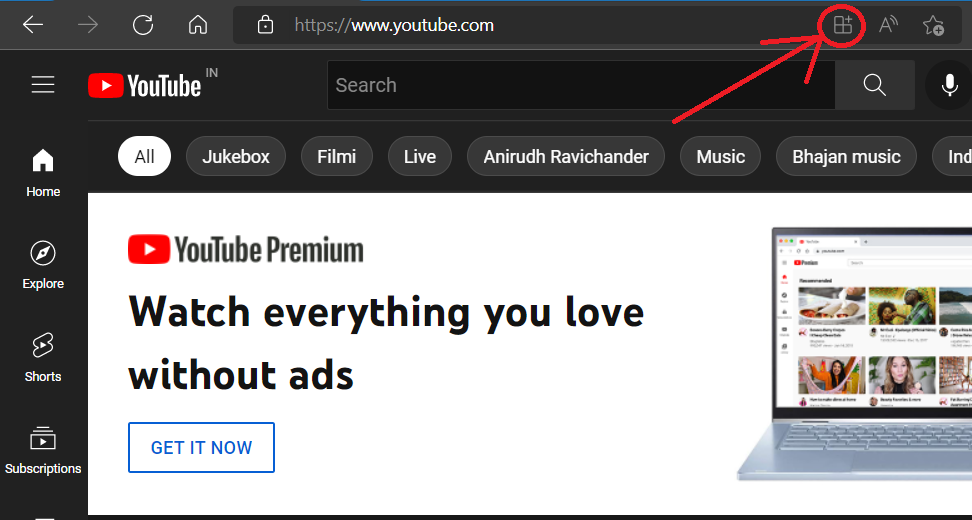
The Installation Prompt: In the address bar, look for a small icon that resembles a computer screen with a down arrow (in Chrome) or three dots followed by “Apps” (in Edge).
-
Confirm Installation: Click “Install YouTube.” The platform will instantly transform into a standalone window.
-
Pinning: You can now right-click the YouTube icon on your taskbar and select “Pin to taskbar” for one-click access, bypassing the need to open a browser first.
Accessing YouTube via macOS
While macOS does not have a native .app file for YouTube in the Mac App Store, the PWA method described above works perfectly in Chrome or Edge for Mac. Additionally, users on Apple Silicon (M1/M2/M3 chips) can sometimes run the iPad version of the YouTube app if the developer has enabled it, though the PWA remains the most stable desktop-class experience for Mac users.
Bringing YouTube to the Big Screen: Smart TVs and Media Streamers
Installing YouTube on a television provides the highest fidelity audio and video experience, often supporting 4K HDR and surround sound. Most modern Smart TVs come with YouTube pre-installed, but knowing how to reinstall or update it is vital for troubleshooting.
Installation on Android TV and Google TV
Since YouTube is a Google product, the integration with Android TV (Sony, Hisense, TCL) is seamless.
-
Navigate to the Apps Tab: From the home screen, select the “Apps” or “Google Play Store” icon.
-
Search: Use the voice remote or on-screen keyboard to find YouTube.
-
Update/Install: If the app is missing, click “Install.” If it is acting sluggish, you can “Uninstall Updates” and then reinstall them to clear the application cache and resolve corrupted data.
Using YouTube on Apple TV and Roku
For external streaming boxes like Roku or Apple TV, the installation occurs within their respective “Channel Stores.”
-
Roku: Go to “Search,” type YouTube, and select “Add Channel.” Once added, you can move the tile to the top of your home screen for easier access.
-
Apple TV: Open the tvOS App Store, search for YouTube, and download it. The tvOS version is particularly well-regarded for its smooth frame-rate matching features.
Casting and AirPlay: The Wireless Alternative
In cases where you do not want to install the app directly on a TV (perhaps for privacy reasons or on a guest’s device), you can “install” the connection via Casting. By ensuring both your mobile device and your TV are on the same Wi-Fi network, the “Cast” icon will appear in your mobile YouTube app. This allows your mobile device to act as the “installer” and remote control, while the TV’s hardware handles the high-resolution stream.
Optimizing Your Experience: Settings, Security, and Customization
Installation is only the first step. To ensure the software runs efficiently and securely, certain technical configurations should be addressed immediately after setup.
Security Best Practices for Your Google Account
Because YouTube is tied to your Google Account, your watch history, subscriptions, and even payment methods (for YouTube TV or Premium) are at risk if the installation is not secured.
-
Two-Factor Authentication (2FA): Always enable 2FA on the account you use to sign in to the YouTube app.
-
Incognito Mode: If you are installing YouTube on a shared computer, utilize the “Incognito” feature within the app to prevent your data from being cached on the local machine.
Configuring Data Saving and Quality Settings
Upon installation, YouTube often defaults to “Auto” quality. In the app settings, you can manually set your preferences:
-
High Picture Quality: Best for Wi-Fi and high-bandwidth fiber connections.
-
Data Saver: Crucial for mobile installations where data caps are a concern. This lowers the bitrate and resolution to preserve your mobile data plan.
Dark Mode and Accessibility Features
To reduce eye strain and improve the aesthetic of your installation, navigate to “Settings > General > Appearance” and enable Dark Theme. Furthermore, explore the “Caption” settings to customize how subtitles appear across all videos, which is an essential feature for accessibility and viewing in loud environments.
Troubleshooting Common Installation Issues
Even with a straightforward process, technical hurdles can occur. Identifying the root cause is the key to a quick resolution.
Resolving “App Not Compatible” Errors
This error usually occurs on older mobile devices. It means the version of Android or iOS you are running no longer supports the latest YouTube API requirements. To fix this, check for system updates. If your hardware is too old for a system update, you may need to access YouTube via the mobile browser (m.youtube.com), which uses HTML5 and has lower system requirements.
Fixing Download and Update Loops
If the installation gets stuck at 99% or constantly asks for an update:
-
Clear Cache: On Android, go to Settings > Apps > Google Play Store > Storage > Clear Cache.
-
Check Storage: YouTube requires several hundred megabytes for the app itself, but significantly more for the “Smart Downloads” feature. Ensure you have at least 1GB of free space.
-
Date and Time Settings: Paradoxically, if your device’s date and time are incorrect, it cannot establish a secure connection with the Google servers to complete the installation. Ensure these are set to “Automatic.”

Network Configuration and Connectivity Checks
If the app installs but fails to load content, the issue is likely your DNS or firewall settings. For a smoother YouTube experience, many tech enthusiasts switch their router’s DNS to Google Public DNS (8.8.8.8) or Cloudflare (1.1.1.1), which can reduce the latency of video metadata loading.
By following these technical procedures, you ensure that YouTube is not just “installed,” but fully optimized for your specific hardware and network environment. This creates a stable foundation for a high-quality digital media experience across all your platforms.
aViewFromTheCave is a participant in the Amazon Services LLC Associates Program, an affiliate advertising program designed to provide a means for sites to earn advertising fees by advertising and linking to Amazon.com. Amazon, the Amazon logo, AmazonSupply, and the AmazonSupply logo are trademarks of Amazon.com, Inc. or its affiliates. As an Amazon Associate we earn affiliate commissions from qualifying purchases.