
In the modern digital landscape, the television has evolved from a passive receiver of broadcast signals into a sophisticated computing hub. Central to this evolution is YouTube, the world’s largest video-sharing platform, which has transitioned from the small screens of desktop monitors and smartphones to the expansive canvases of 4K and 8K Smart TVs. While YouTube offers premium subscriptions, the core experience remains accessible at no cost. Navigating the technical nuances of Smart TV ecosystems—ranging from Android TV and Tizen to webOS and Roku—is essential for users who want to maximize their viewing experience without financial commitment.

This guide explores the technical infrastructure required to stream YouTube on various Smart TV platforms, optimizes the software settings for peak performance, and examines alternative methods for content delivery, such as casting and mirroring.
Optimizing the Native YouTube App Experience
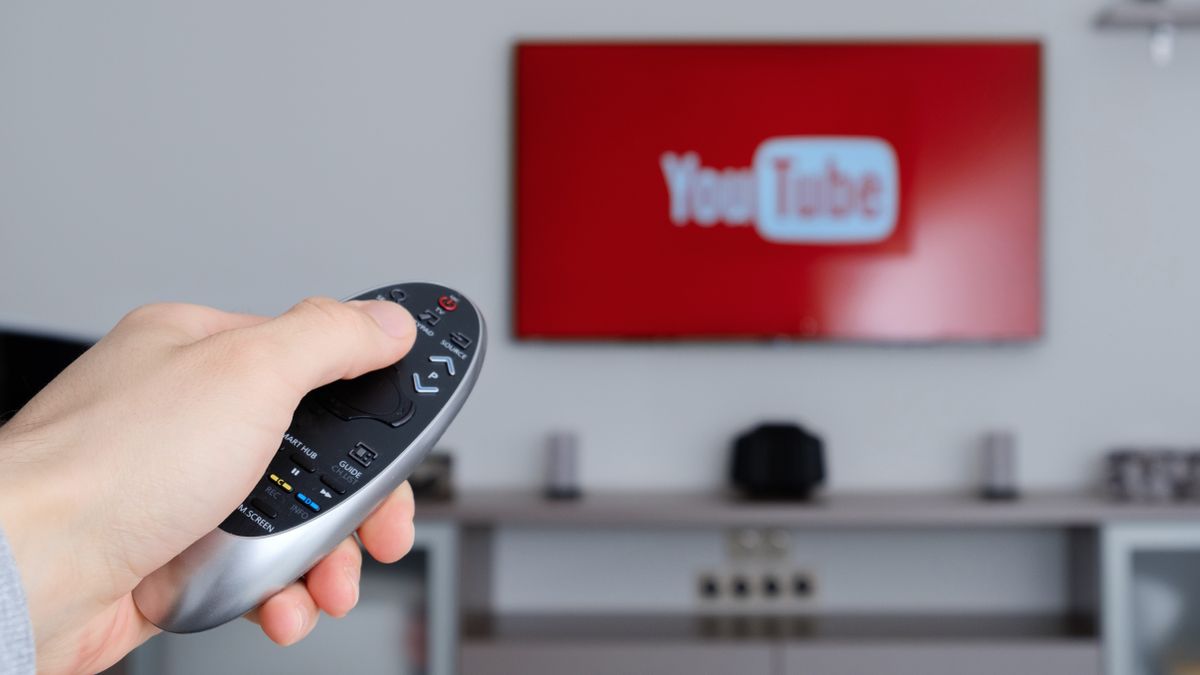
The most direct way to watch YouTube for free on a Smart TV is through the native application specifically designed for the “Leanback” interface. Unlike the mobile or desktop versions, the Smart TV app is optimized for remote control navigation and high-resolution output.
Installation and Initial Setup
Most contemporary Smart TVs come with the YouTube app pre-installed. However, if the icon is missing from your home screen, you must navigate to your TV’s specific app repository—such as the Google Play Store (Android TV/Google TV), the LG Content Store (webOS), or the Samsung App Store (Tizen).
Once installed, the initial setup involves more than just launching the app. To access personalized recommendations, subscriptions, and history without paying a fee, signing in is paramount. The modern technical approach to signing in utilizes “Cross-Device Authentication.” Instead of typing complex passwords using an on-screen keyboard, the TV generates a code or an alphanumeric string. By visiting a specific URL on a smartphone or laptop logged into the same Google account, the TV app authenticates via the local network or cloud sync, significantly reducing setup friction.
Understanding the UI and Navigation
The Smart TV version of YouTube utilizes a grid-based system. On the left-hand side, a collapsible sidebar provides access to Search, Home, Subscriptions, and the Library. For a smoother experience, many Smart TVs now support voice search. By leveraging the built-in microphone in the remote, users can bypass manual typing. Technically, this involves the TV’s OS processing the voice command through an API (like Google Assistant or Alexa) and relaying the search query directly to the YouTube app’s internal database.
Playback Settings and Quality Control
Streaming 4K content for free requires a robust understanding of your TV’s hardware capabilities and network bandwidth. Within the YouTube app’s settings, users can often toggle the “Stats for Nerds” feature. This overlay provides real-time technical data, including the video’s current resolution, the codec being used (such as VP9 or AV1), and the connection speed. If you notice buffering, manually adjusting the resolution from “Auto” to a fixed setting like 1080p can stabilize the stream, especially during peak internet usage hours.
Navigating Different Smart TV Ecosystems
Not all Smart TVs are built on the same architecture. The “free” YouTube experience varies slightly depending on the operating system powering your hardware.
Android TV and Google TV
Android-based systems offer the most seamless integration with YouTube. Since both are Google products, updates are frequent and optimization is high. These systems often support “Background Playback” features (within the OS constraints) and allow for deep integration with the system-wide search. If you search for a movie on the Google TV home screen, the OS will prioritize showing you if that content is available for free on YouTube.
Samsung Tizen and LG webOS
Samsung and LG use proprietary operating systems. While the YouTube app functions similarly, the underlying hardware acceleration might differ. These platforms often use specific HTML5-based app wrappers. To ensure the best “free” experience, users must keep their TV firmware updated. Firmware updates often include new video decoders that allow the YouTube app to run more efficiently, reducing lag when scrolling through high-definition thumbnails.
Roku and Amazon Fire TV
Roku and Fire TV devices function as the “brains” for many Smart TVs or as external plug-ins. The YouTube app on these platforms is highly optimized for low-latency navigation. On Fire TV, the integration with Alexa allows for granular control, such as saying “Find 4K nature videos on YouTube,” which triggers a filtered search results page immediately.
Alternative Viewing Methods: Casting and Mirroring
If the native Smart TV app is sluggish or if your TV is an older “Smart” model that no longer receives app updates, you can still watch YouTube for free by leveraging secondary devices. This involves communication protocols that bridge the gap between your mobile device and your television.
Google Cast (Chromecast Built-in)
Many Smart TVs come with Chromecast built-in. This does not merely “mirror” your phone screen; rather, it sends a set of instructions to the TV. When you tap the “Cast” icon in the YouTube mobile app, your phone tells the TV’s YouTube receiver app which video URL to play. The TV then pulls the stream directly from YouTube’s servers, leaving your phone free to be used for other tasks. This method is often faster and more stable than using a TV remote for navigation.
Apple AirPlay 2
For users within the Apple ecosystem, many modern Smart TVs (including models from Sony, LG, and Samsung) support AirPlay 2. This allows an iPhone, iPad, or Mac to stream YouTube content directly to the TV. AirPlay 2 uses a combination of Wi-Fi and Bluetooth to establish a handshake, ensuring high-quality audio and video synchronization. It is an excellent fallback if the native TV app encounters software glitches.
Screen Mirroring and DLNA
For older TVs that lack dedicated casting protocols, “Screen Mirroring” (or Miracast) acts as a wireless HDMI cable. It mirrors exactly what is on your mobile device. While effective for showing a quick video, it is technically taxing on the mobile device’s battery and may result in a lower frame rate compared to dedicated casting or native apps.
Technical Troubleshooting and Performance Optimization
To maintain a high-quality, free viewing experience, users must manage the technical health of their Smart TV’s software environment.
Cache Management and Storage
Smart TVs have limited internal storage and RAM compared to computers. Over time, the YouTube app accumulates “cache” data—temporary files used to speed up loading. If the app begins to crash or run slowly, navigating to the TV’s “App Management” settings and clearing the YouTube cache can resolve these issues. In extreme cases, deleting and reinstalling the app ensures that you are running the most optimized version of the software.
Network Configuration: Wired vs. Wireless
While Wi-Fi is convenient, it is susceptible to electromagnetic interference and signal degradation over distance. For 4K YouTube streaming, a stable connection of at least 25 Mbps is recommended. If your Smart TV is located near your router, using a physical Ethernet (Cat5e or Cat6) cable is the most effective technical upgrade you can make. A wired connection provides lower latency and eliminates the packet loss often associated with wireless signals, ensuring that “free” content doesn’t come at the cost of constant buffering.
DNS Settings for Improved Routing
Sometimes, ISP-provided DNS servers can be slow or lead to inefficient routing to YouTube’s Content Delivery Networks (CDNs). Advanced users can manually change the DNS settings in their Smart TV’s network menu to public DNS servers like Google DNS (8.8.8.8) or Cloudflare (1.1.1.1). This can result in faster video start times and more responsive searching.
Security and Privacy in the Living Room
Streaming YouTube on a Smart TV introduces specific privacy considerations, especially since the TV is often a shared household device.
Managing Account Privacy
If you do not want your search history or watch history to be visible to others using the TV, YouTube offers an “Incognito Mode” directly within the Smart TV app settings. Turning this on prevents the app from saving your activity during that session. Furthermore, if you are using a TV in a public or semi-public space (like a vacation rental), always remember to use the “Reset App” or “Sign Out” feature in the settings menu before departing. This clears your credentials and personal data from the device’s local storage.

Ad-Tracking and Data Settings
Since the service is free, it is supported by advertising. Users can manage their ad-personalization settings through their Google Account dashboard. On the TV itself, you can often limit ad-tracking within the OS settings (e.g., “Limit Ad Tracking” on Roku or “Reset Advertising ID” on Android TV). While this won’t remove ads, it prevents the TV and YouTube from building a detailed commercial profile based on your viewing habits.
By understanding the technical landscape of Smart TV applications, network optimization, and casting protocols, users can ensure a premium-tier viewing experience on YouTube without any financial investment. Whether through the native app or secondary casting methods, the “free” version of YouTube remains a powerful tool for entertainment and education on the big screen.
aViewFromTheCave is a participant in the Amazon Services LLC Associates Program, an affiliate advertising program designed to provide a means for sites to earn advertising fees by advertising and linking to Amazon.com. Amazon, the Amazon logo, AmazonSupply, and the AmazonSupply logo are trademarks of Amazon.com, Inc. or its affiliates. As an Amazon Associate we earn affiliate commissions from qualifying purchases.