
The shift from traditional cable to over-the-top (OTT) streaming services has fundamentally changed how we consume media. At the forefront of this digital revolution is YouTube TV, Google’s comprehensive live television service. While the platform offers a seamless viewing experience, managing the technical backend of your subscription—specifically the billing and payment architecture—requires an understanding of the Google ecosystem. Navigating the digital payment landscape for a premium streaming service involves more than just entering a credit card number; it requires knowledge of platform integration, security protocols, and cross-device synchronization.
This guide provides a deep dive into the technical processes of managing your YouTube TV bill, ensuring your service remains uninterrupted and your digital footprint secure.
Navigating the YouTube TV Payment Ecosystem
YouTube TV operates within the broader Google Pay and Google Account infrastructure. Unlike legacy cable providers that send physical invoices or maintain siloed billing portals, YouTube TV leverages the unified Google billing system. This integration allows for a streamlined experience, but it also means your payment settings are often tied to other Google services like YouTube Premium, Google One, or Google Play.
The Direct Billing Method via Web Browser
For most users, managing billing via a desktop browser is the most efficient method. Because the web interface provides the most robust set of tools, it is the preferred environment for troubleshooting payment issues.
To access your billing settings, navigate to the YouTube TV web portal. By clicking on your profile icon and selecting “Settings,” you enter the administrative hub of your account. The “Billing” tab serves as your primary dashboard. Here, you can view your next billing date, the amount due, and the current payment method on file. This section is dynamic; it reflects real-time changes to your subscription, including any added “bolt-on” channels like HBO Max or Sports Plus packages.
Payment Integration with the YouTube TV App
While the mobile application on Android and iOS offers convenience, there are technical nuances to consider. On Android devices, the billing experience is tightly coupled with the Google Play Store. On iOS, however, Apple’s ecosystem often intervenes. Due to the “Apple Tax” and in-app purchase policies, many users may find they cannot sign up or change billing directly within the iOS app, or they may be billed through Apple’s subscription service rather than Google directly. For the most direct control over your technical billing cycle, managing the account via a mobile or desktop browser is generally recommended to avoid third-party processing delays.
The Role of Google Pay (GPay)
The actual processing of your YouTube TV bill happens through Google Pay. When you add a payment method to YouTube TV, you are technically adding it to your Google payments profile. This centralized approach means that if you update a card for YouTube TV, it may become the default for other Google services. Understanding this technical hierarchy is crucial for users who manage multiple digital subscriptions and want to maintain separate payment methods for different services.
Platform-Specific Billing: Google Play vs. Third-Party Carriers
YouTube TV’s flexibility extends to how the service is invoiced, but this can lead to technical complexity if you are not paying Google directly.
Billing Through the Google Play Store
For users who signed up via an Android device, the subscription is often managed as a “Google Play Subscription.” Technically, this means the billing cycle is handled by the Play Store’s automated merchant system. The primary benefit here is the ability to use Google Play balance—earned through gift cards or Google Opinion Rewards—to pay for your monthly service. To manage this, you must navigate to the “Subscriptions” section within the Google Play Store app, rather than the YouTube TV app settings.
Third-Party Integrated Billing (Mobile Carriers and ISPs)
In recent years, Google has partnered with internet service providers (ISPs) and mobile carriers like Frontier, Verizon, and T-Mobile to bundle YouTube TV with home internet or cellular plans. In these instances, the “how to pay” question shifts from Google to your service provider.
From a technical standpoint, this creates a “federated identity” for your billing. Your Google Account is linked to your carrier account via an API. While you still log into YouTube TV with your Gmail credentials, the financial transaction occurs on your carrier’s monthly statement. If you encounter a billing error in this setup, the technical resolution usually begins with the carrier’s support portal rather than Google’s, as they hold the primary merchant record.
Apple Subscriptions and the iOS Interface
If you initiated your subscription through an iPhone or iPad several years ago, you might be billed through Apple. This creates a bridge between your Apple ID and your Google Account. It is important to note that Google has largely moved away from allowing new sign-ups via Apple in-app purchases to avoid the associated commission fees. If you are an “inherited” subscriber through Apple, your billing management must occur in the iOS “Media & Purchases” settings.
Troubleshooting Billing Failures and Technical Glitches
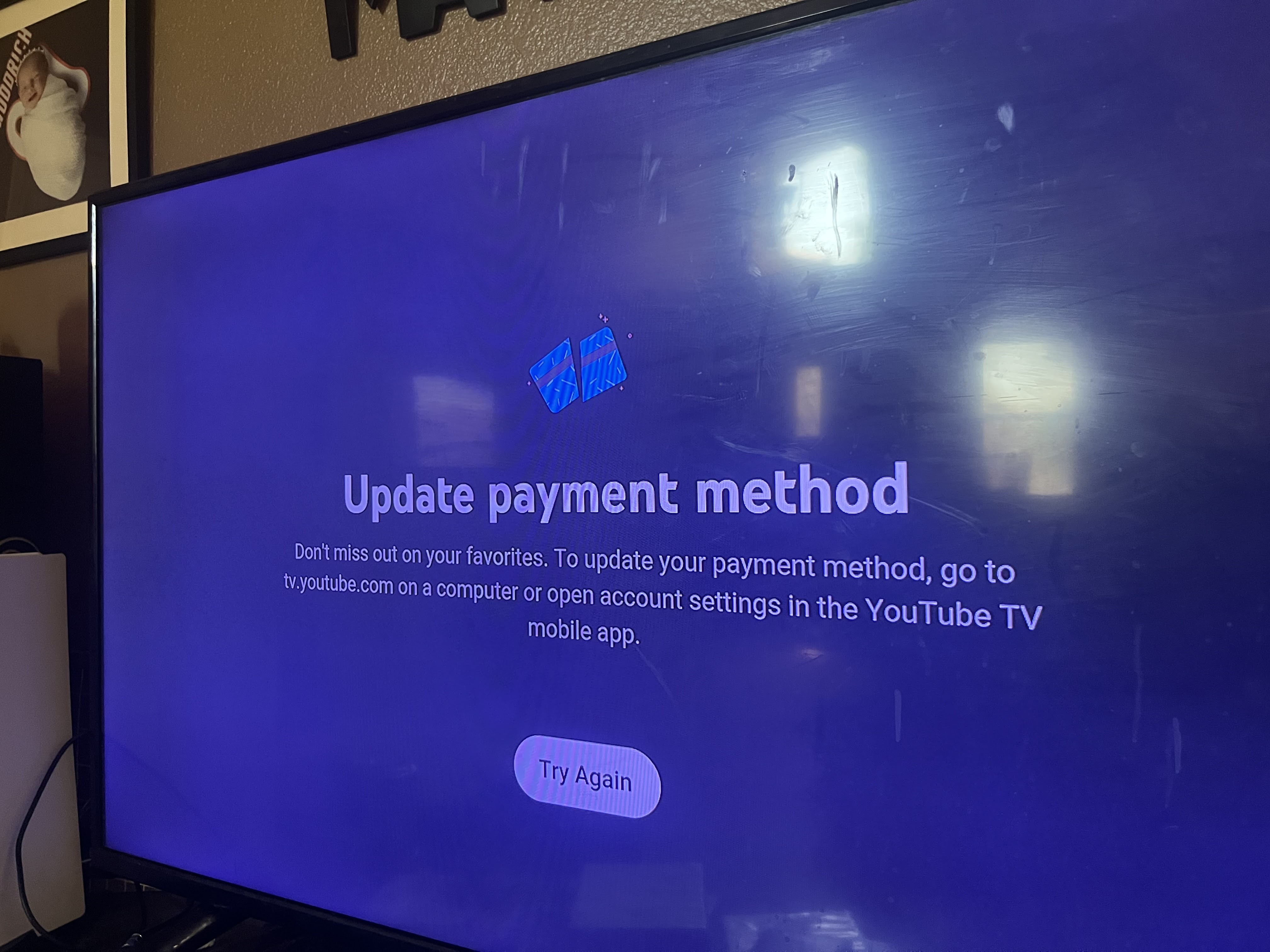
Nothing disrupts a viewing experience like a “Service Suspended” notification. Understanding the technical reasons behind payment failures can help you resolve issues before you miss a live event.
Credit Card Tokenization and Expiration
When you save a card to YouTube TV, the system uses tokenization to protect your data. However, if your bank issues a new card with a new CVV or expiration date, the “token” becomes invalid. YouTube TV’s system will typically attempt to charge the card multiple times over a three-day grace period. If the transaction fails, the system sends an automated trigger to pause the subscription.
To fix this, you don’t just “pay the bill”; you must update the payment instrument in the Google Payments center (pay.google.com). Once the new card is verified through a “micro-charge” (a temporary $0.00 or $1.00 hold), the service is usually restored within minutes as the API syncs the updated status across your devices.
Resolving Regional and Currency Discrepancies
YouTube TV is currently a U.S.-only service. Technically, the billing system is tied to your “Home Area,” which is determined by your IP address and the billing zip code of your credit card. If you move or if your bank updates your billing address to a different zip code, you may encounter a “Location Mismatch” error. This is a security and licensing feature. To resolve this, you must update your “Home Area” in the YouTube TV settings, which allows the system to recalculate local taxes and verify that your payment method originates from a supported region.
Insufficient Funds and Automated Retries
The automated nature of SaaS (Software as a Service) billing means that if a charge is declined due to insufficient funds, the system enters a “Retry Logic” phase. During this time, you may still have access to the service, but certain features might be restricted. If you manually pay the bill after a failure, it is essential to ensure that the payment is applied to the “Subscription” and not just added as “Account Balance,” as the latter may not automatically trigger the resumption of service.
Security Protocols for Digital Subscription Management
In an era of increasing digital fraud, securing the method you use to pay your YouTube TV bill is a critical component of digital hygiene.
Two-Factor Authentication (2FA) and Billing Access
Since your YouTube TV billing is tied to your Google Account, your financial security is only as strong as your account security. Enabling 2-Step Verification is essential. If a malicious actor gains access to your Gmail, they could potentially change your billing preferences, add expensive add-ons, or even lock you out of the account while incurring charges. Utilizing hardware security keys (like YubiKeys) or Google Prompt provides the highest level of protection for your subscription settings.
Identifying Phishing and Billing Scams
Users often receive emails claiming their “YouTube TV payment was declined” or that their “account will be deleted.” These are common phishing tactics. From a technical perspective, always verify the sender’s domain. Official YouTube TV billing communications will always come from a @google.com or @youtube.com address. Furthermore, YouTube TV will never ask you to provide credit card details directly in an email or over the phone. Always navigate directly to tv.youtube.com/settings/billing to verify the status of your account.
Virtual Cards and Merchant-Specific Privacy
For users concerned about digital security, using virtual credit cards (offered by many modern fintech apps) is a smart technical workaround. By creating a virtual card specifically for YouTube TV, you can set a “spend limit” that prevents the service from charging more than the agreed-upon monthly rate (useful for preventing accidental add-on purchases). This also isolates your primary bank account from the recurring billing engine, adding an extra layer of digital defense.

The Future of Subscription Tech: Unified Management
As we look toward the future of streaming technology, the process of paying for services like YouTube TV is becoming increasingly automated and integrated. The move toward “centralized billing hubs” means that users will soon be able to manage dozens of disparate subscriptions through a single API-driven interface.
Currently, the most important technical step a user can take is to ensure their Google Payments profile is optimized. This includes setting up a “Backup Payment Method.” By designating a secondary card in your YouTube TV settings, the system will automatically pivot to the backup if the primary card fails. This prevents the technical “handshake” between the service and the user from breaking, ensuring that the cloud-based DVR continues to record your shows and your access remains constant.
Managing your YouTube TV bill is not merely a financial chore; it is a technical maintenance task that ensures your digital entertainment ecosystem functions smoothly. By understanding the underlying Google infrastructure, navigating the nuances of different platforms, and maintaining rigorous security standards, you can enjoy a frictionless streaming experience.
aViewFromTheCave is a participant in the Amazon Services LLC Associates Program, an affiliate advertising program designed to provide a means for sites to earn advertising fees by advertising and linking to Amazon.com. Amazon, the Amazon logo, AmazonSupply, and the AmazonSupply logo are trademarks of Amazon.com, Inc. or its affiliates. As an Amazon Associate we earn affiliate commissions from qualifying purchases.