
In the rapidly evolving landscape of digital entertainment, YouTube TV has emerged as a premier leader in the cord-cutting revolution. As a cloud-based streaming service, it offers a sophisticated alternative to traditional cable, integrating live television with the vast infrastructure of the Google ecosystem. However, because YouTube TV operates within the broader framework of Google’s software services, managing your billing and payment methods requires an understanding of how these platforms interconnect. Whether you are a new subscriber or a long-term user looking to streamline your digital expenses, mastering the technical nuances of the YouTube TV billing interface is essential for uninterrupted service.
Understanding the YouTube TV Billing Ecosystem and Infrastructure
To effectively manage your YouTube TV bill, it is crucial to recognize that the service does not operate on a standalone billing platform. Instead, it is deeply integrated into Google Payments (Google Pay). This centralized approach allows users to manage multiple subscriptions—such as Google One, YouTube Premium, and YouTube TV—under a single architectural umbrella. When you search for “how to pay my YouTube TV bill,” you are essentially looking for the configuration settings within your Google account that dictate how funds are transferred to the service provider.
The Role of the Google Account in Subscription Management
Your YouTube TV subscription is tethered to a specific Google Account. This means that all billing cycles, payment history, and invoices are stored within the security layers of that specific profile. From a technical standpoint, Google uses a recurring billing API that automatically attempts to charge your primary payment method on the same date every month. Unlike traditional utility bills that may arrive via physical mail, YouTube TV operates on a “pre-paid” model. Your payment covers the upcoming month of service, ensuring that the cloud-based DVR and live streams remain active without interruption.
Billing Cycles and the Grace Period Logic
The billing cycle for YouTube TV begins on the day you finish your free trial or the day you first sign up for the service. For example, if your service started on the 15th of the month, your payment will be processed on the 15th of every subsequent month. It is important to note that YouTube TV’s software is programmed to handle failed transactions with a specific logic. If a payment fails due to an expired card or insufficient funds, the system typically provides a short grace period. During this time, the software will send automated notifications via email and push alerts through the app, prompting an update to the payment method before the service is officially suspended.
Step-by-Step Guide: Paying Your Bill via Web and Mobile Apps
Navigating the user interface (UI) of YouTube TV to manage payments is a straightforward process, but the steps vary slightly depending on the hardware and operating system you are using. Google has optimized the experience for both desktop browsers and mobile applications to ensure that users can update their financial information with minimal friction.
Managing Payments via Desktop Browser
For many power users, the desktop interface provides the most comprehensive view of billing history and payment settings. To update or pay your bill through a web browser:
-
Navigate to the official YouTube TV website and sign in with your credentials.
-
Click on your profile avatar in the top-right corner of the interface.
-
Select “Settings” from the dropdown menu. This will open a side panel with various administrative options.
-
Click on the “Billing” tab. Here, you will see your current monthly rate, the date of your next scheduled payment, and your current payment method.
-
To change how you pay, click “Update” next to your payment method. This will redirect you to the Google Pay interface, where you can add a new credit card, debit card, or link a PayPal account.
Paying via Android and iOS Applications
The mobile experience for YouTube TV is designed for efficiency. On Android devices, the billing is often integrated directly with the Google Play Store’s subscription management system. Users can navigate to the Play Store app, tap their profile icon, and select “Payments & subscriptions” to view their YouTube TV status.
On iOS devices (iPhone and iPad), the process can be slightly different due to Apple’s App Store policies regarding in-app purchases. If you signed up for YouTube TV through the iOS app, your billing may be managed via your Apple ID. However, many users choose to sign up via a mobile browser to maintain direct billing through Google. Regardless of the platform, the “Settings” menu within the YouTube TV app remains the primary gateway for viewing your current billing status and initiating a manual update to your payment credentials.
Troubleshooting Common Billing Issues and Digital Security
As with any sophisticated software-as-a-service (SaaS) platform, technical glitches or security concerns can occasionally arise regarding billing. Understanding how to troubleshoot these issues and maintaining high digital security standards is vital for protecting your financial data.
Resolving Payment Failures and Declined Transactions
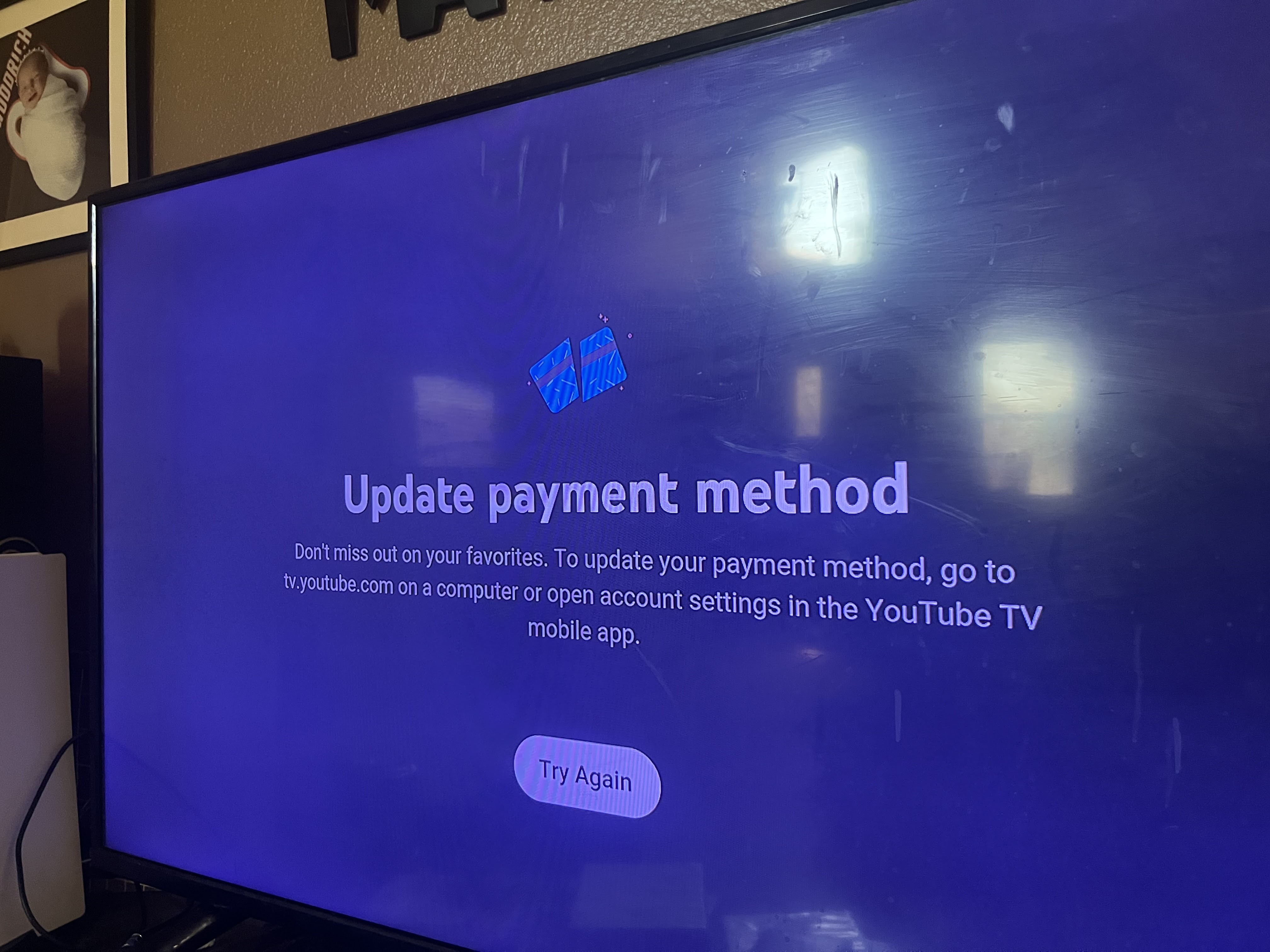
A common issue users face is a “Payment Declined” notification. This is often caused by the automated security protocols of banks rather than a failure in the YouTube TV software. When Google attempts to process a recurring charge, the bank’s fraud detection algorithms may flag it if the card has recently expired or if the billing address on file does not match the bank’s records. To resolve this, you should first check the “Payment Methods” section of your Google Account to ensure the CVV code and expiration date are current. In some cases, deleting the payment method and re-adding it triggers a fresh authentication token that clears the error.
Protecting Your Financial Data on Streaming Platforms
In an era of increasing digital threats, securing the account associated with your YouTube TV bill is a top priority. Because your payment information is stored within your Google Account, it is susceptible to any security breaches that affect your primary login.
-
Enable Two-Factor Authentication (2FA): This is the single most effective way to prevent unauthorized access to your billing information. By requiring a secondary code from a mobile device or a physical security key, you ensure that only you can modify your payment methods.
-
Monitor for Unauthorized Add-ons: YouTube TV offers various “add-on” networks like HBO Max, Showtime, or 4K Plus features. Periodically review your billing statement within the app to ensure that no third-party subscriptions have been added accidentally, which can significantly inflate your monthly costs.
Advanced Management: Pausing Subscriptions and Third-Party Billing
One of the more unique technical features of YouTube TV is the ability to “pause” a subscription. This is a sophisticated alternative to canceling, allowing users to halt billing without losing their recorded library of shows in the cloud DVR.
The Software Logic of Pausing vs. Canceling
When you pause your subscription, you can choose a duration ranging from 4 weeks to 6 months. From a billing perspective, the software stops the recurring charge immediately after the current billing cycle ends. The system effectively enters a “dormant” state where your data is preserved, but access to live streams is revoked. Once the pause period expires, the billing engine automatically resumes the monthly charge. This is an excellent tool for seasonal viewers, such as sports fans who only require the service during the NFL or NBA seasons.

Managing Third-Party and Integrated Billing
Many consumers now receive YouTube TV as part of a bundle through their internet service provider (ISP) or a mobile carrier like T-Mobile or Verizon. In these instances, “how to pay your bill” shifts from the Google interface to your ISP’s portal. Technically, this is handled through a secure API handshake between Google and the third-party provider. If you are billed through a carrier, you must manage your payment methods through that carrier’s application. If you decide to decouple your YouTube TV account from a third-party bundle, the software will prompt you to enter a direct payment method into the Google Pay system to maintain service continuity.
By understanding the technical framework of the YouTube TV platform and the centralized nature of Google’s billing software, users can navigate their subscriptions with confidence. Whether managing payment through a browser, mobile app, or third-party integrator, the key to a seamless experience lies in proactive monitoring and leveraging the security tools provided by the Google ecosystem.
aViewFromTheCave is a participant in the Amazon Services LLC Associates Program, an affiliate advertising program designed to provide a means for sites to earn advertising fees by advertising and linking to Amazon.com. Amazon, the Amazon logo, AmazonSupply, and the AmazonSupply logo are trademarks of Amazon.com, Inc. or its affiliates. As an Amazon Associate we earn affiliate commissions from qualifying purchases.