
In the modern digital landscape, YouTube has transcended its origins as a simple video-sharing website to become an essential utility for education, entertainment, and global communication. Whether you are migrating to a new smartphone, setting up a home theater system, or optimizing your workstation for productivity, knowing how to properly install and configure the YouTube application is fundamental. While the platform is accessible via any standard web browser, the dedicated applications offer optimized performance, offline viewing capabilities, and seamless integration with hardware features like HDR and 4K playback.
This guide explores the technical nuances of installing YouTube across various ecosystems, including mobile platforms, desktop environments via Progressive Web Apps (PWAs), and living room hardware like Smart TVs and gaming consoles.
Installing YouTube on Mobile Devices: Android and iOS
The mobile experience is the primary way millions of users interact with YouTube. Because YouTube is a Google product, the installation experience can vary significantly between the Android ecosystem and Apple’s iOS.
The Android Ecosystem: Google Play Store and System Integration
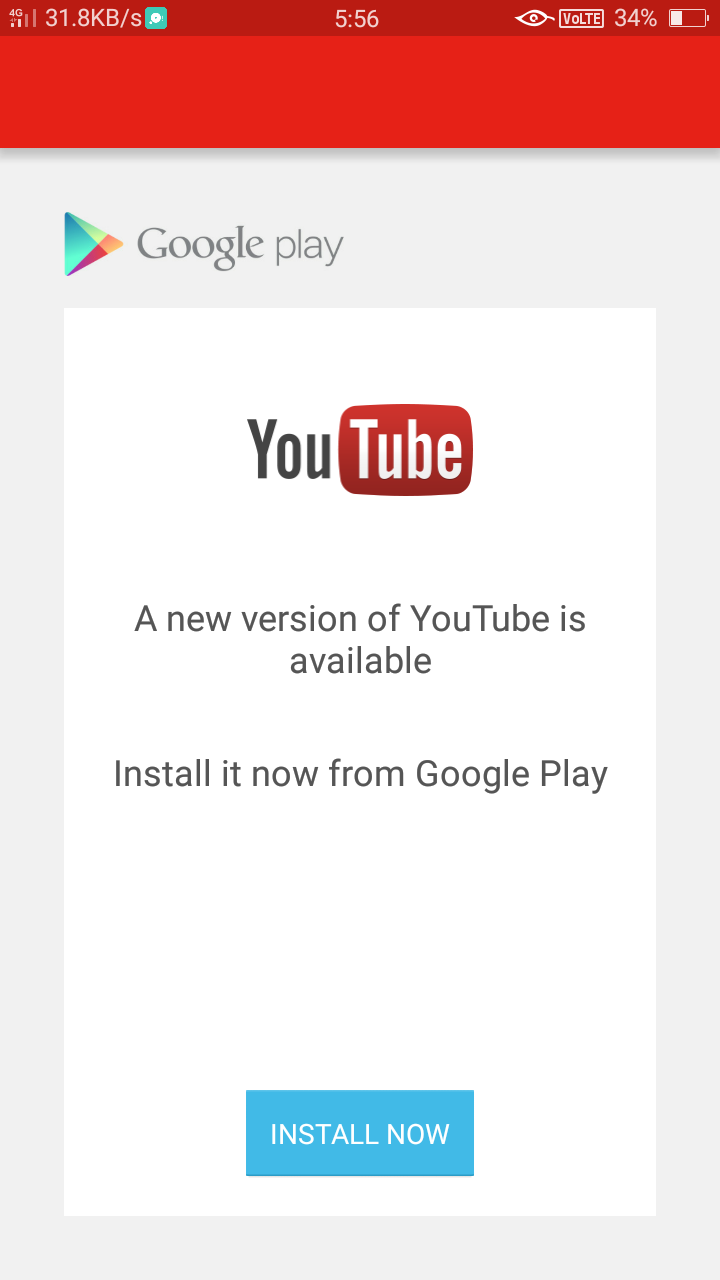
For the vast majority of Android users, YouTube is considered a “system app.” This means it comes pre-installed by the manufacturer as part of the Google Mobile Services (GMS) package. However, if you have a device that lacks the app or if you are using a custom ROM, the installation process is handled through the Google Play Store.
-
Open the Google Play Store: Locate the Play Store icon on your home screen or app drawer.
-
Search for YouTube: Type “YouTube” into the search bar. Ensure the developer is listed as “Google LLC” to avoid third-party clones.
-
Download and Install: Tap the “Install” button. If the app is already on your phone but disabled, the button will say “Enable” or “Update.”
-
Permissions and Setup: Upon launching, the app will sync with the Google account already signed into the device, providing immediate access to your subscriptions and history.
For users on devices without GMS (such as certain Huawei models or privacy-focused forks of Android), installing YouTube requires accessing the mobile web version or utilizing “vanced” alternatives, though the latter often sit in a legal and security grey area. The most secure method for these users is to navigate to YouTube.com in a browser and use the “Add to Home Screen” feature to create a shortcut.
iOS and iPadOS: The Apple App Store Experience
On Apple devices, YouTube is not a system app and must be downloaded manually from the App Store. The iOS version is highly optimized for Apple’s proprietary silicon, ensuring high-efficiency decoding of VP9 and AV1 video codecs.
-
Access the App Store: Open the App Store on your iPhone or iPad.
-
Authentication: Use the search tab to find YouTube. Tap “Get.” You may be prompted to authenticate the download via FaceID, TouchID, or your Apple ID password.
-
Installation: Once the circular progress bar completes, the app will appear on your home screen.
-
iPad Optimization: On iPadOS, the YouTube app supports Split View and Picture-in-Picture (PiP), allowing you to install the app and then multitask by dragging it to the side of your screen.
YouTube on Desktop: Native Apps vs. Progressive Web Apps (PWA)
Unlike mobile platforms, there is no traditional “.exe” or “.dmg” installer for YouTube on Windows or macOS in the way there is for software like Microsoft Office or Adobe Creative Cloud. Instead, the tech world has shifted toward Progressive Web Apps (PWAs).
Installing YouTube as a PWA on Windows and macOS
A Progressive Web App is a website that acts like a native application. It has its own window, an icon on your taskbar or dock, and can launch independently of your browser’s main interface.
-
Using Google Chrome or Microsoft Edge: Navigate to
www.youtube.com. -
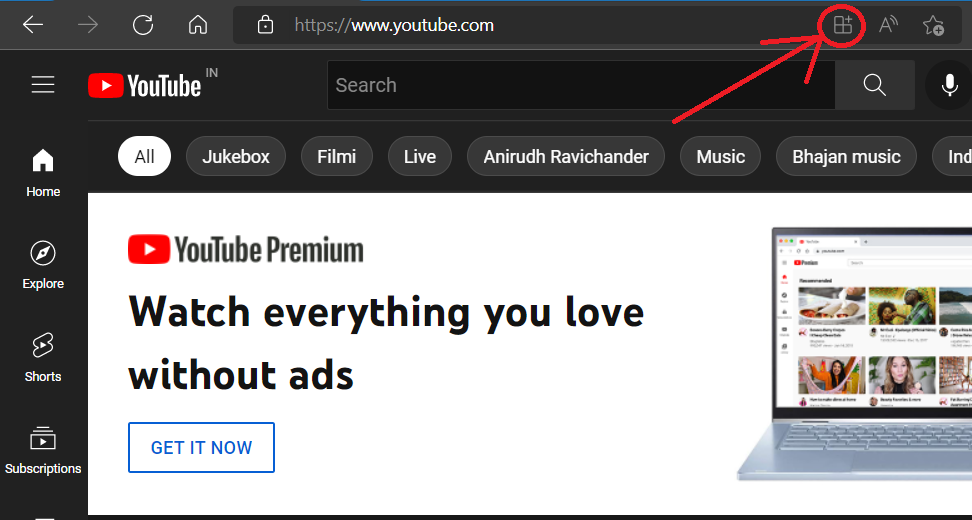
The Installation Prompt: In the address bar (URL bar), look for a small icon that resembles a computer screen with an arrow or a “plus” (+) sign. In Chrome, hovering over this icon will display “Install YouTube.”
-
Confirm Installation: Click the icon and select “Install.”
-
System Integration: YouTube will now appear in your Windows Start Menu or macOS Applications folder. You can pin it to your taskbar for one-click access.
The technical benefit of the PWA is that it uses the underlying engine of your browser (Chromium) while stripping away the browser UI (tabs, bookmarks bar), providing more screen real estate for video content. It also allows for better integration with media keys on your keyboard, such as Play, Pause, and Skip.
The ChromeOS Experience
On Chromebooks, YouTube is often the centerpiece of the operating system. Depending on the age of the device, you may have the choice between the Android app version (installed via the Play Store) and the PWA version. For most users, the PWA is recommended on ChromeOS as it is lighter on system resources and scales better to large desktop monitors compared to the mobile-centric Android app.
Bringing YouTube to the Living Room: Smart TVs and Streaming Devices
The “Leanback” interface of YouTube is specifically designed for high-resolution displays and remote-control navigation. Installing YouTube on these devices is crucial for accessing 4K HDR content at high bitrates.
Installation on Android TV and Google TV
Devices like the Nvidia Shield, Sony Bravia TVs, and the Chromecast with Google TV utilize the Android TV OS.
-
Navigate to the Apps Tab: From the home screen, select the “Apps” or “Store” section.
-
Search and Install: Use the voice search or on-screen keyboard to find YouTube.
-
Cloud Sync: Because these devices are tied to your Google account, installing the app usually signs you in automatically, syncing your “Watch Later” list and personalized recommendations.
Roku, Apple TV, and Amazon Fire Stick
For proprietary platforms, the process involves visiting the respective app repositories:
-
Roku: Go to “Streaming Channels,” search for YouTube, and select “Add Channel.”
-
Apple TV (tvOS): Open the App Store, search for YouTube, and download. The tvOS version is particularly noted for its smooth frame-rate switching features.
-
Amazon Fire TV: Navigate to the “Find” menu, search for YouTube, and select “Get” or “Download.” Note that in previous years, legal disputes between Google and Amazon removed this app, but it is currently fully supported and available.
YouTube for Gaming Consoles
For many, the PlayStation 5 or Xbox Series X serves as the primary media hub. YouTube can be installed on these consoles to take advantage of their powerful hardware.
-
PlayStation: Navigate to the “Media” tab on the home screen, select “All Apps,” and find YouTube.
-
Xbox: Open the Microsoft Store, navigate to the “Apps” section, and search for YouTube.
The console versions are unique because they often support controller-based shortcuts and can be integrated into the console’s “Share” features for broadcasters.
Troubleshooting and Optimizing Your YouTube Installation
Even with a straightforward installation process, technical hurdles can arise. Understanding how to manage the application is just as important as the initial setup.
Solving Common Installation Errors
-
Storage Issues: On mobile devices and streaming sticks (which often have limited internal storage), an installation may fail due to a lack of space. Clearing the cache of other apps or deleting unused media can resolve this.
-
Incompatible OS Versions: Modern versions of the YouTube app require recent operating system updates. If the App Store or Play Store does not show an “Install” button, check if your device requires a system update (e.g., moving from iOS 12 to iOS 15).
-
Network Configuration: Sometimes, restrictive firewall settings or VPNs can block the download servers used by Google. Disabling the VPN temporarily during the installation process often clears the “Pending” or “Downloading” stall.
Security Practices and Official Sources
A critical rule in the tech world is to only install YouTube from official sources. Third-party websites often offer “Pro” or “Ad-free” versions of the YouTube APK. While tempting, these files can be injected with malware or spyware. Always use the Google Play Store, the Apple App Store, or the official YouTube.com website for PWA installations.
For those looking for an ad-free experience, the only secure and official method is subscribing to YouTube Premium through the app’s settings. This not only removes ads but also unlocks the “Background Play” feature, allowing you to listen to videos while the screen is off or while using other apps.

Managing Data and Cache for Better Performance
Once installed, YouTube can grow significantly in size as it caches thumbnails and video data to speed up load times.
-
On Android: You can go to Settings > Apps > YouTube > Storage and tap “Clear Cache” to reclaim space without losing your login data.
-
On Desktop: Since the PWA relies on the browser, clearing your browser’s “Hosted App Data” will refresh the YouTube installation.
By following these steps across your various devices, you ensure a high-fidelity viewing experience that is both secure and optimized for your specific hardware. Whether you are using a 6.1-inch smartphone or a 75-inch OLED TV, the installation of YouTube is your gateway to the world’s largest repository of digital video.
aViewFromTheCave is a participant in the Amazon Services LLC Associates Program, an affiliate advertising program designed to provide a means for sites to earn advertising fees by advertising and linking to Amazon.com. Amazon, the Amazon logo, AmazonSupply, and the AmazonSupply logo are trademarks of Amazon.com, Inc. or its affiliates. As an Amazon Associate we earn affiliate commissions from qualifying purchases.