
Microsoft Teams has rapidly become an indispensable collaboration platform for businesses and educational institutions worldwide. Its ubiquitous presence, however, often leads to a common question, particularly among IT professionals and power users: “Where exactly is Teams installed?” While seemingly simple, the answer is multi-faceted, varying across operating systems, installation types, and even the specific environment in which it’s deployed. Understanding Teams’ digital footprint is crucial not only for effective troubleshooting and performance optimization but also for robust security management, data governance, and streamlined enterprise deployment.
This article delves into the intricate details of Teams’ installation locations, exploring its presence on various platforms, the implications of different deployment methods, and why this knowledge is vital for maintaining a healthy and secure collaborative ecosystem. We’ll unpack the standard paths, discuss its manifestations beyond the desktop, and provide insights into managing this pervasive application.
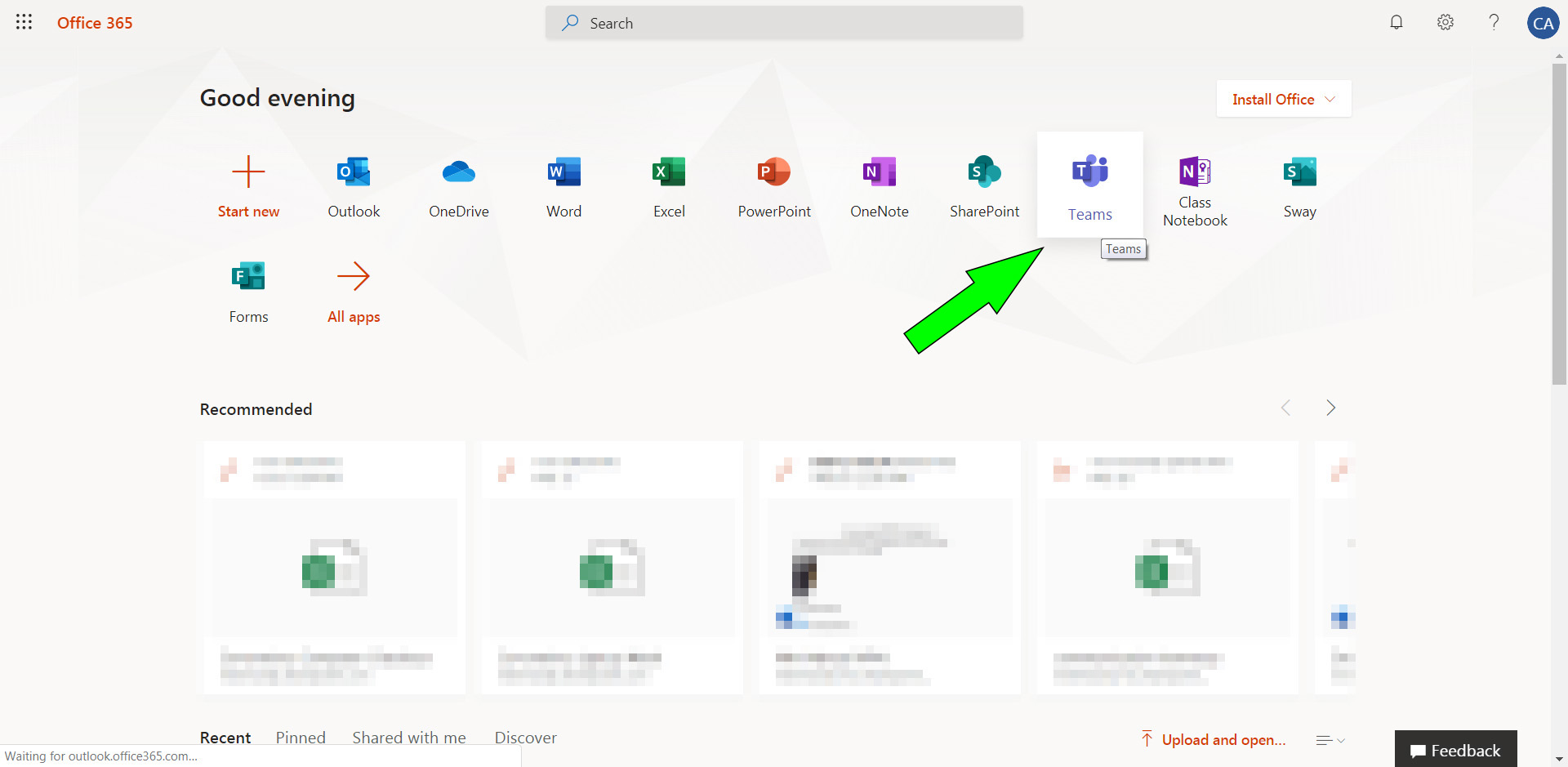
The Standard Digital Footprint: Common Installation Paths
The most common interaction users have with Microsoft Teams is through its desktop application. However, even within this seemingly straightforward scenario, the installation path can differ significantly based on the operating system and how it was initially deployed.
Windows Desktop Client: User vs. System-Wide
On Windows, the installation of Microsoft Teams presents a nuanced scenario, primarily revolving around whether it’s installed per-user or machine-wide.
The default and most common installation for individual users is within the user’s profile directory. This means Teams is installed for the logged-in user and doesn’t affect other users on the same machine. You’ll typically find the core application files and user-specific data in the following locations:
-
Core Application Files:
C:Users<username>AppDataLocalMicrosoftTeams- Within this directory, you’ll find the
currentfolder containing the executable (Teams.exe), application resources, and the Squirrel.Windows auto-updater service.
- Within this directory, you’ll find the
-
User Data and Cache:
C:Users<username>AppDataRoamingMicrosoftTeams- This folder stores critical user-specific data, including cache files, logs, configuration settings, and database files that hold chat history and other application-specific information. The cache, in particular, can grow significantly over time and is often a target for troubleshooting performance issues.
This per-user installation model is lightweight and allows users to update their Teams client without requiring administrative privileges, leveraging the Squirrel auto-updater framework.
In enterprise environments, IT administrators often opt for a machine-wide installation, typically using an MSI installer. This ensures Teams is available for all users on a given device and is installed in a more traditional program directory:
-
Machine-Wide Installation (32-bit/64-bit):
-
C:Program Files (x86)Teams(for 32-bit applications on 64-bit Windows, or if the 32-bit MSI was used) -
C:Program FilesTeams(for 64-bit applications) -
Even with a machine-wide installation, much of the user-specific data (cache, logs, config) still resides in the
AppDataRoamingMicrosoftTeamsdirectory within each user’s profile, maintaining user isolation for data.
-
The distinction between per-user and machine-wide is crucial for IT teams managing deployments, updates, and troubleshooting across an organization.
macOS Installation: The Application Bundle Approach
On macOS, the installation process for Microsoft Teams is generally more straightforward, adhering to the standard Apple application bundling conventions. When you download and install Teams for macOS, it typically results in a single application bundle.
-
Application Bundle:
/Applications/Microsoft Teams.app- This
.appfile is a directory that contains all the executable code, resources, frameworks, and support files necessary for the application to run.
- This
-
User Data and Cache:
~/Library/Application Support/Microsoft/Teams(where~denotes the current user’s home directory)- Similar to Windows, user-specific data, cache, and logs are stored within the user’s Library directory, ensuring data isolation between different users on the same Mac.
The .app bundle simplifies installation and uninstallation; dragging the app to the Applications folder installs it, and dragging it to the Trash uninstalls it (though user data folders might remain).
Linux Client: Snap, Deb, and RPM Packages
Microsoft also provides a native Linux client for Teams, catering to the growing Linux user base in corporate and developer environments. The installation method and, consequently, the location, depend on the package manager used.
-
Snap Package: For distributions supporting Snap (like Ubuntu, Fedora, Debian, Mint, etc.), Teams can be installed as a Snap package.
-
Installation Location: Typically within
/snap/teams/current/or similar paths managed by the Snap daemon. Snap packages are self-contained and run in an isolated environment. -
User Data: Still typically found in
~/.config/Microsoft/Microsoft Teams/or~/.local/share/Microsoft/Teams/.
-
-
Debian/RPM Packages: For Debian-based systems (Ubuntu, Debian) and Red Hat-based systems (Fedora, CentOS, RHEL), traditional
.deband.rpmpackages are available.-
Installation Location: The application files are usually installed in standard system paths like
/opt/microsoft/teams/or/usr/share/teams/. -
User Data: Similar to the Snap package, user data and cache are typically stored within the user’s home directory, often in
~/.config/Microsoft/Microsoft Teams/or~/.local/share/Microsoft/Teams/.
-
Understanding these paths is particularly relevant for Linux administrators who need to manage dependencies, perform updates, or troubleshoot client-specific issues.
Beyond the Desktop: Teams Across Diverse Environments
While the desktop client is a primary interface, Microsoft Teams’ versatility extends far beyond traditional operating systems. Its presence in web browsers, mobile devices, and virtualized environments represents different installation paradigms, each with its own implications.
Web Browser: The Cloud-Native Experience
The web version of Microsoft Teams (teams.microsoft.com) is, by its very nature, a cloud-native application. This means there is no local application installation on your device. Instead, the application code, user interface, and data processing all reside in Microsoft’s cloud infrastructure.
-
No Local Application Files: The browser downloads temporary resources (HTML, CSS, JavaScript, images) needed to render the interface, but these are transient and not a permanent “installation.”
-
Browser Cache and Local Storage: Your web browser will store cache files, cookies, and potentially local storage data related to the Teams web application to improve performance and remember your login state. These are stored within your browser’s profile directory (e.g., for Chrome:
C:Users<username>AppDataLocalGoogleChromeUser DataDefaultCache). This data is minimal compared to the desktop client’s cache. -
Progressive Web App (PWA): Some modern browsers allow you to “install” Teams as a PWA, creating a shortcut that launches Teams in its own window without the browser’s address bar or tabs. While this feels like a native app, it’s still fundamentally the web version running within a dedicated browser instance, and its underlying files are still handled by the browser’s caching mechanisms.
The web client is invaluable for quick access, devices with limited storage, or when a native client is unavailable or undesirable.
Mobile Devices: iOS and Android Apps
Microsoft Teams is a staple on mobile platforms, available for both Apple’s iOS and Google’s Android. The installation process here is entirely managed by the respective app stores and operating system security models.
-
App Store (iOS) / Google Play Store (Android): Users download and install Teams directly from the official app stores.
-
Sandboxed Environment: Both iOS and Android employ robust sandboxing mechanisms. This means the Teams app and its data are confined to a specific, isolated directory structure that prevents it from interfering with other apps or accessing system resources without explicit permission.
-
iOS: App data is typically stored within the app’s sandboxed container, inaccessible directly by users.
-
Android: App data is stored in a private directory, often found at
/data/data/com.microsoft.teams(root access often required to view directly), with user-accessible files (like downloads) potentially appearing in public storage areas (/sdcard/Download).
-
-
Managed App Configuration: In corporate environments, IT administrators can use Mobile Device Management (MDM) solutions (like Microsoft Intune) to deploy Teams to mobile devices, enforce security policies, and manage app configurations, but the core installation remains within the OS’s sandboxed app directory.
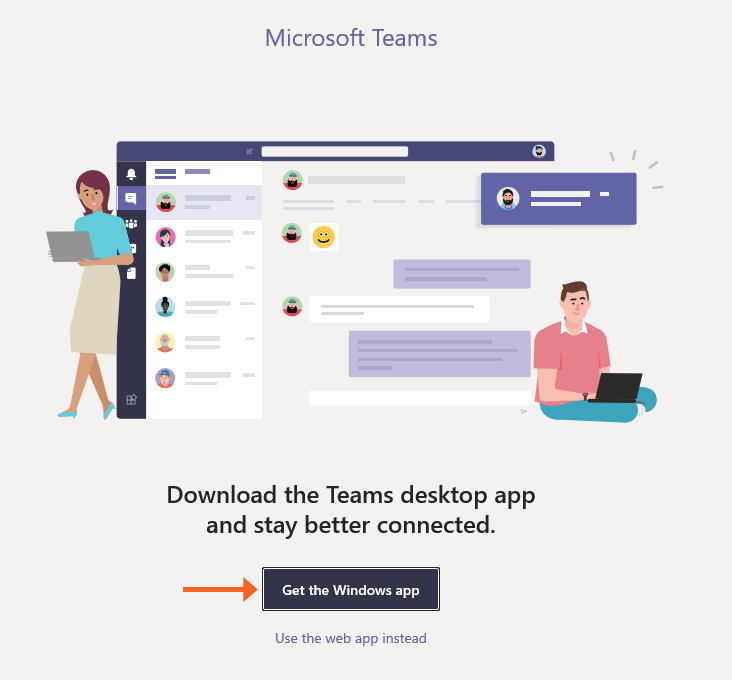
The mobile apps are optimized for touch interfaces and on-the-go communication, making them an essential part of the Teams ecosystem.
Virtual Desktop Infrastructure (VDI): A Unique Challenge
Deploying Microsoft Teams in a Virtual Desktop Infrastructure (VDI) environment (e.g., Citrix Virtual Apps and Desktops, VMware Horizon, Azure Virtual Desktop) presents unique challenges and specific installation considerations. VDI environments aim for a consistent user experience while optimizing resource consumption.
-
Optimized Installation: For optimal performance, particularly for audio and video calls, VDI environments often require a specific Teams VDI client. Microsoft and VDI vendors collaborate to provide optimized versions that offload media processing to the client device rather than the virtual machine, reducing server load.
-
Machine-Wide Installation: Teams is typically installed machine-wide on the VDI master image. This ensures all users logging into a virtual desktop have access to the application.
- Installation Path: Similar to the Windows machine-wide installation:
C:Program FilesTeamsorC:Program Files (x86)Teams.
- Installation Path: Similar to the Windows machine-wide installation:
-
Profile Management: User-specific data (cache, logs) still needs to persist across sessions. This is managed through profile redirection, roaming profiles, or profile management solutions (e.g., FSLogix Profiles for Azure Virtual Desktop) that containerize user data and attach it to the virtual desktop session. This allows the
AppDataRoamingMicrosoftTeamsfolder to follow the user.
Properly configured Teams in VDI is crucial for a smooth user experience, preventing common issues like poor audio quality or high CPU usage on the virtual desktop server.
Why Understanding Installation Locations Matters for Users and IT
Knowing where Microsoft Teams resides on various systems is far more than a trivial piece of trivia. It’s foundational knowledge that empowers both end-users and IT professionals to better manage, troubleshoot, secure, and optimize their collaboration experience.
Troubleshooting and Performance Optimization
The most immediate benefit of understanding Teams’ installation paths comes in the realm of troubleshooting. Many common Teams issues, such as slow performance, persistent login problems, or display glitches, can often be resolved by clearing the application’s cache.
-
Clearing Cache: By knowing that the cache resides in
AppDataRoamingMicrosoftTeams(Windows) or~/Library/Application Support/Microsoft/Teams(macOS), users and IT support can navigate directly to these folders and delete specific cache directories (Cache,GPUCache,IndexedDB) to resolve stubborn problems without reinstalling the entire application. -
Log Files: The same directories contain log files (
logs.txt,MSTeams Diagnostics Log.txt), which are invaluable for IT support to diagnose more complex issues, identify errors, and understand the application’s behavior. -
Configuration Files: Corrupted configuration files can also lead to issues. Knowing their location allows for their deletion or modification to reset the application to a default state.
For performance, understanding the installation type (per-user vs. machine-wide) on Windows helps IT plan for updates and resource allocation, ensuring that the updater service or core application doesn’t cause unexpected overhead.
Data Management and Compliance Considerations
The location of Teams’ user data has significant implications for data management, privacy, and compliance.
-
Data Residency: User-specific data, including chat history (cached), files, and meeting recordings, has local components (cache, offline storage) and cloud components. Understanding where local data resides is critical for ensuring compliance with data residency regulations (e.g., GDPR, CCPA).
-
Backup and Recovery: While most critical data is stored in Microsoft 365, local cache and configuration files contribute to the user experience. In some niche scenarios, backing up specific user profiles might be necessary, and knowing the paths is essential.
-
Auditing and Forensics: In security incidents or legal discovery, knowing where local Teams data might be found is crucial for forensic investigations, allowing IT and security teams to collect relevant logs and cached information.
-
User Profile Management: In environments with roaming profiles or folder redirection, IT administrators must ensure that the Teams data folders are correctly managed to prevent profile bloat or data loss when users move between devices or virtual desktops.
Updates, Security, and Version Control
How Teams is installed directly impacts how it’s updated and secured, which is paramount in an evolving threat landscape.
-
Auto-Updater Mechanism: The default per-user installation on Windows leverages Squirrel.Windows, an auto-updater that downloads and applies updates in the background without admin privileges. Knowing its location in
AppDataLocalMicrosoftTeamsexplains how this self-service updating works. -
Centralized Deployment and Patching: For machine-wide installations, IT typically uses tools like Microsoft Intune, SCCM, or Group Policy to deploy and update Teams. Understanding where the MSI installs the application allows administrators to verify successful deployments and manage version control across the organization.
-
Security Vulnerabilities: Any application installed locally can potentially be a vector for security vulnerabilities. Knowing the installation paths helps security teams conduct vulnerability assessments, monitor for suspicious activity within these directories, and ensure that only legitimate Teams components are present.
-
Rollback Strategies: In cases where an update causes unforeseen issues, IT professionals might need to roll back to a previous version. Understanding the directory structure helps in isolating and replacing application files if such a measure becomes necessary.
Advanced Management and Deployment Strategies
For organizations, simply knowing where Teams is installed is just the beginning. Effective management, particularly in large-scale deployments, requires strategic approaches to installation, uninstallation, and ongoing maintenance.
Centralized Deployment for Enterprises
Large organizations rarely rely on individual users to download and install Teams. Instead, they leverage centralized deployment tools and strategies.
-
MSI Installer: Microsoft provides an MSI (Microsoft Installer) package for machine-wide deployment. This allows administrators to push Teams to multiple computers simultaneously using tools like Microsoft Intune, Microsoft Endpoint Configuration Manager (SCCM), or Group Policy Objects (GPOs). The MSI ensures that Teams is installed in the
Program Filesdirectory and is available to all users who log into that machine. -
Customization and Scripting: Deployment scripts can be used to customize the installation, pre-configure certain settings, or ensure that specific components are installed or excluded. Knowledge of the default installation directories allows for post-installation configuration or verification.
-
VDI Optimization: As discussed, for VDI environments, special VDI-optimized MSI installers are often used, combined with profile management solutions like FSLogix, to ensure a high-performance and persistent user experience.
Centralized deployment ensures consistency, reduces administrative overhead, and allows for greater control over security and compliance.
Uninstalling and Reinstalling Teams Effectively
A clean uninstallation and reinstallation are often the last resort for resolving persistent Teams issues. Simply uninstalling from “Add or Remove Programs” (Windows) or dragging the app to Trash (macOS) might leave residual files that can cause problems upon reinstallation.
-
Thorough Uninstallation: For a complete removal, beyond the standard uninstall process, it’s often necessary to manually delete the remaining user data and cache folders:
-
Windows: Delete
C:Users<username>AppDataLocalMicrosoftTeamsandC:Users<username>AppDataRoamingMicrosoftTeams. -
macOS: Delete
/Applications/Microsoft Teams.appand~/Library/Application Support/Microsoft/Teams. -
Linux: Depending on the installation method, use
snap remove teamsor the respective package manager commands, and then manually delete~/.config/Microsoft/Microsoft Teams/and~/.local/share/Microsoft/Teams/.
-
-
Clean Slate Reinstallation: Deleting these residual files ensures that when Teams is reinstalled, it starts with a completely fresh configuration, often resolving issues tied to corrupted cached data or settings.

Addressing Common Installation Issues
Understanding the installation locations also aids in diagnosing and fixing common issues that can arise during or after deployment.
-
Installation Failures: If Teams fails to install, checking system event logs and looking for incomplete files in the expected installation directories can provide clues. Permission issues are a common culprit.
-
Update Loops: The Teams auto-updater can sometimes get stuck in a loop. Examining logs in the
AppDataLocalMicrosoftTeamsdirectory (specifically theSquirrelSetuplogs) can help identify the cause, and manually clearing the cache or deleting specific update files might resolve it. -
Profile Corruption: If a user’s Teams profile becomes corrupted, leading to crashes or inability to log in, knowing where the user data resides allows IT to isolate the issue by creating a new profile or selectively deleting problematic folders.
-
Disk Space Consumption: The cache folders can grow very large, especially in environments with heavy media usage. Regularly clearing the cache or implementing policies to manage its size can prevent disk space issues.
In conclusion, the question “Where is Teams installed?” transcends a simple geographical query within a computer’s file system. It opens a door to a deeper understanding of software architecture, deployment strategies, and the intricate relationship between application data and user experience. For individual users, this knowledge empowers better self-troubleshooting. For IT professionals, it’s a critical component of effective management, robust security, and the seamless operation of one of today’s most vital collaboration tools. By grasping the various installation footprints, organizations can ensure their Microsoft Teams environment is not just functional, but also optimized, secure, and compliant.
aViewFromTheCave is a participant in the Amazon Services LLC Associates Program, an affiliate advertising program designed to provide a means for sites to earn advertising fees by advertising and linking to Amazon.com. Amazon, the Amazon logo, AmazonSupply, and the AmazonSupply logo are trademarks of Amazon.com, Inc. or its affiliates. As an Amazon Associate we earn affiliate commissions from qualifying purchases.