
Navigating the nuances of installing a new operating system can often feel like a meticulous chore, especially when it comes to preparing the necessary installation media. For Windows 11, Microsoft’s latest iteration of its flagship operating system, the process is streamlined, yet requires attention to detail, particularly regarding the choice of your USB drive. This seemingly simple question – “what size USB for Windows 11 install?” – unravels into a discussion about minimum requirements, optimal practices, and considerations for a smooth, future-proof installation experience. Understanding these factors is crucial not just for a successful installation, but also for avoiding common pitfalls that can lead to frustration and wasted time.
Understanding the Windows 11 Installation Media Requirements
Before delving into specific sizes, it’s essential to grasp what the Windows 11 installation entails from a storage perspective. The operating system itself, along with its setup files, occupies a significant amount of space. This isn’t just about the final installed size on your hard drive, but the size of the bootable media needed to initiate that installation.
Minimum Storage Needs for the Installation File
The core of your Windows 11 installation media is the ISO file, which contains all the necessary setup files, drivers, and components to install the operating system. Over time, as Windows 11 receives updates and feature enhancements, the size of this ISO file tends to grow.
-
Current ISO Size: Typically, the Windows 11 ISO file hovers around 5.5 GB to 6 GB. This size is dynamic and can fluctuate with major updates (e.g., 23H2, 24H2, etc.).
-
Media Creation Tool Overhead: When you use Microsoft’s official Media Creation Tool, it downloads the necessary files and then creates the bootable USB. While the final data written to the USB will be around the ISO size, the tool itself might temporarily use additional space on your main drive during its operation. The tool also formats the USB drive, which requires a small amount of overhead for the file system structure.
-
Future Updates and Components: Although the initial installation media size is relatively fixed, having a slightly larger USB drive accounts for potential future scenarios where Microsoft might bundle additional recovery environments or diagnostic tools within the installation package, or if you decide to include other utilities on the same drive.
Therefore, while the core ISO might fit into a smaller capacity, the practical requirements, considering file system overhead and the dynamic nature of software, necessitate a slightly more generous approach.
The Role of USB Speed (USB 2.0 vs. 3.0/3.1/3.2)
While not directly related to the size of the USB drive, the speed of your chosen stick plays a significant role in the overall installation experience. A faster USB drive can drastically cut down the time it takes to copy the installation files and boot into the setup environment.
-
USB 2.0: These drives are slower, typically offering transfer speeds of up to 480 Mbps (megabits per second), but in real-world scenarios, often much less. While a USB 2.0 drive will work, the file copy process and the initial boot from the drive will be noticeably slower, potentially adding significant time to your installation.
-
USB 3.0/3.1/3.2 (SuperSpeed USB): These offer much higher theoretical speeds, ranging from 5 Gbps (USB 3.0/3.1 Gen 1) to 10 Gbps (USB 3.1 Gen 2) and even 20 Gbps (USB 3.2 Gen 2×2). In practice, you’ll see substantially faster copy times and a snappier boot experience. Most modern computers have USB 3.0 or higher ports, so pairing a fast drive with a fast port is highly recommended for efficiency.
Investing in a USB 3.0 or newer drive is a smart move, not just for Windows 11 installation but for any large file transfers. It’s a small additional cost that yields significant time savings.
Why a Dedicated USB Drive is Recommended
It’s crucial to understand that creating a bootable Windows 11 USB drive involves formatting the drive. This process erases all data currently stored on the USB stick.
-
Data Loss Prevention: Using a dedicated USB drive ensures that you don’t accidentally wipe important personal files, documents, or backups.
-
Clean Installation: A clean, freshly formatted drive minimizes the chances of file corruption or conflicts during the creation of the bootable media.
-
Reliability: Older, frequently used USB drives might have sectors going bad, which could lead to errors during installation. A newer, dedicated drive is generally more reliable for this critical task.
-
Avoids Fragmentation: While less of an issue with modern file systems, a fresh drive starts with optimal file allocation.
Always opt for a USB drive that you can dedicate solely to the Windows 11 installation, at least for the duration of the setup process.
Selecting the Optimal USB Drive Size
With the technical prerequisites out of the way, we can now address the core question of size, balancing minimum requirements with practical recommendations for a hassle-free experience.
The Bare Minimum: 8GB – Is It Enough?
Technically, an 8GB USB drive can be sufficient for a Windows 11 installation. The current ISO size of around 5.5-6GB leaves just enough room on an 8GB drive (which typically has about 7.45GB of usable space after formatting) to accommodate the installation files.
-
Pros: It’s the cheapest option if you already have one lying around.
-
Cons: It’s a tight fit. As Windows 11 updates, the ISO size might exceed this capacity. Some bootable media creation tools (especially those that add recovery partitions or custom boot options) might struggle with such limited space. It also leaves no room for error or for adding any personal utility files later. If the file system overhead or the specific build of Windows 11 is slightly larger, you might find yourself in a bind.
While an 8GB drive might just get the job done, it operates at the very edge of the requirements and is not recommended for a smooth experience or future proofing.
The Recommended Sweet Spot: 16GB
For most users, a 16GB USB drive is the ideal choice for creating Windows 11 installation media. It strikes a perfect balance between cost, availability, and sufficient storage.
-
Ample Space: A 16GB drive typically offers about 14.9 GB of usable space, which provides plenty of room for the Windows 11 ISO (5.5-6GB) with significant buffer space.
-
Future-Proofing (Within Reason): This size generally accommodates future, slightly larger Windows 11 ISOs for a few update cycles without requiring a new drive.
-
Flexibility: It leaves enough space for some diagnostic tools, drivers specific to your hardware, or other essential utilities you might want to keep on the bootable drive for troubleshooting purposes.
-
Cost-Effective: 16GB USB drives are widely available and very affordable, making them a practical choice.
This is the size we strongly recommend for its reliability and versatility.
Going Larger: 32GB or More for Future-Proofing and Multi-Purpose Use
For users who want even more flexibility, or those who frequently work with multiple operating systems or recovery tools, a 32GB or even 64GB USB drive can be a worthwhile investment.
-
Ultimate Future-Proofing: A 32GB drive (around 29.8GB usable) provides substantial overhead, almost guaranteeing compatibility with future Windows 11 builds, even if their size increases dramatically.
-
Multi-OS Boot Drive: You could potentially use tools like Ventoy or Rufus to create a multi-boot USB drive containing not just Windows 11, but also other Windows versions, Linux distributions, or various diagnostic ISOs.
-
Comprehensive Toolkit: Ample space allows you to store a full suite of recovery tools, anti-malware scanners, hardware diagnostics, and essential drivers alongside your Windows 11 installer. This turns your USB drive into a powerful IT toolkit.
-
High-Capacity Usage: If you frequently install Windows or troubleshoot computers, having a larger, dedicated USB stick can save time and effort in the long run.
While not strictly necessary for a single Windows 11 install, a larger drive offers peace of mind and significantly expands its utility beyond a one-time use.
Preparing Your USB Drive for Windows 11 Installation
Once you have your chosen USB drive, the next critical step is preparing it correctly to become a bootable Windows 11 installer. This involves formatting and then writing the installation files.
Formatting the USB Drive: FAT32 vs. NTFS vs. exFAT
The choice of file system is crucial for bootability, especially with UEFI systems.
-
FAT32: This is the most universally compatible file system for booting, supported by both legacy BIOS and modern UEFI systems. However, FAT32 has a significant limitation: it cannot store individual files larger than 4GB. Since the
install.wimfile within the Windows 11 ISO often exceeds 4GB, simply copying the ISO contents to a FAT32 drive will fail. The Windows Media Creation Tool handles this by splitting theinstall.wimif necessary, or by using a different approach. If you are manually preparing the drive for UEFI booting, FAT32 is generally preferred for the boot partition itself, sometimes with a separate partition for the largerinstall.wimfile. -
NTFS: This file system supports large files and is robust. It’s fully compatible with Windows. However, some older UEFI firmware might not be able to boot from an NTFS-formatted USB drive. Most modern systems, especially those designed for Windows 10/11, will boot from NTFS just fine. Microsoft’s Media Creation Tool often formats the drive as NTFS.
-
exFAT: This file system offers better large file support than FAT32 and wider compatibility than NTFS, especially across different operating systems. However, its bootability support from BIOS/UEFI is generally less widespread or reliable than FAT32 or NTFS for Windows installation.
Recommendation: If using Microsoft’s Media Creation Tool, let it handle the formatting. It typically uses NTFS for UEFI-capable drives or a hybrid approach to ensure bootability. If using a third-party tool like Rufus, you can generally select the target system (UEFI, BIOS, or both) and it will suggest the appropriate file system and partition scheme. For UEFI-only systems, Rufus often suggests NTFS.
Using the Windows Media Creation Tool
This is Microsoft’s official and recommended method for creating Windows 11 installation media.
-
Download: Go to Microsoft’s official Windows 11 download page and download the Media Creation Tool.
-
Run the Tool: Execute the downloaded file. Accept the terms.
-
Select Options: Choose your language, edition (Windows 11), and architecture (usually 64-bit).
-
Choose Media: Select “USB flash drive” as the media to use.
-
Select Drive: Pick your USB drive from the list (ensure it’s the correct one, as all data will be erased).
-
Create: The tool will then download the Windows 11 files, verify them, and create the bootable USB drive. This process can take a significant amount of time depending on your internet speed and USB drive speed.
This method is foolproof for most users as it automates all the necessary steps, including formatting and copying files correctly.
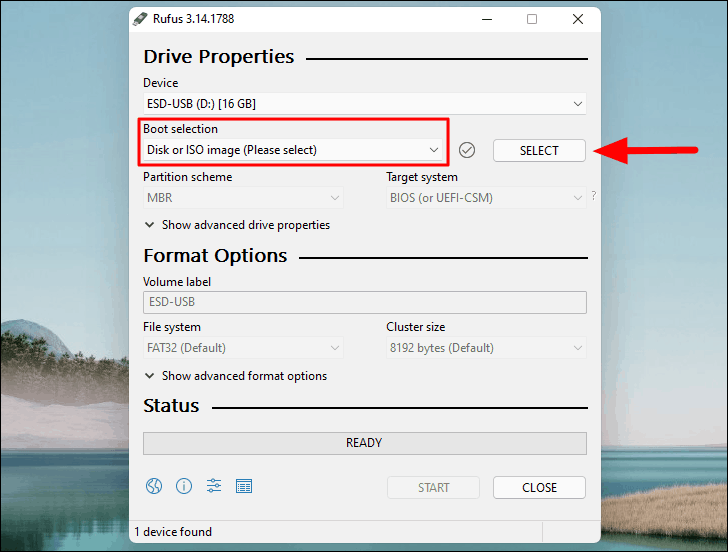
Creating Bootable Media with Third-Party Tools (e.g., Rufus)
For advanced users or those with specific requirements, tools like Rufus offer more control.
-
Download Rufus: Obtain Rufus from its official website.
-
Download Windows 11 ISO: Manually download the Windows 11 ISO file from Microsoft’s website (under “Download Windows 11 Disk Image (ISO)”).
-
Run Rufus: Launch Rufus.
-
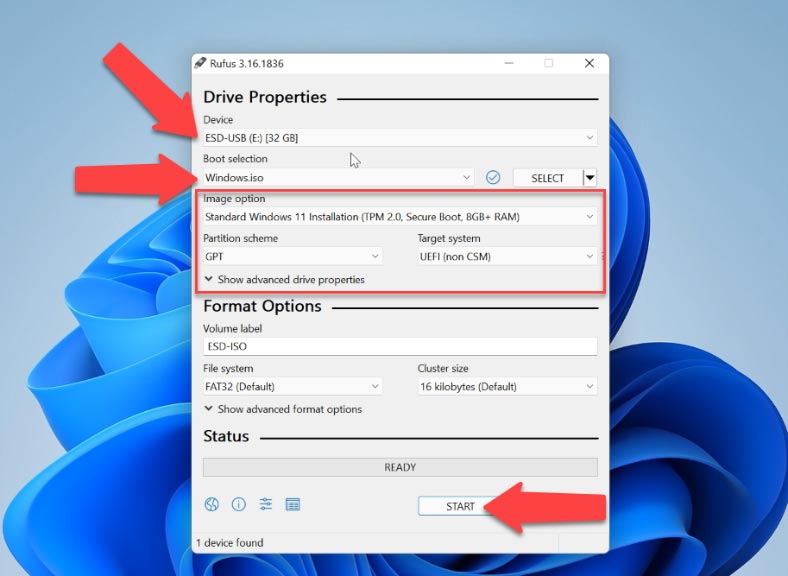
Select USB Drive: Choose your USB drive from the “Device” dropdown.
-
Select ISO: Click “SELECT” and browse to your downloaded Windows 11 ISO file.
-
Partition Scheme and Target System: Rufus will usually auto-detect optimal settings based on the ISO and your PC. For modern PCs, “GPT” partition scheme and “UEFI (non CSM)” target system are common. Ensure “File system” is set appropriately (NTFS is common for UEFI).
-
Start: Click “START” to begin the process. Rufus is generally faster than the Media Creation Tool because it doesn’t need to download the ISO if you already have it.
Rufus is excellent for creating specialized boot drives, such as those that support both MBR and GPT partition schemes, or for creating Windows To Go drives.
Common Pitfalls and Best Practices
Even with the correct USB size and preparation, installations can sometimes go awry. Being aware of common issues can help you troubleshoot effectively.
Verifying USB Drive Integrity
Before committing to a long installation process, ensure your USB drive is healthy.
-
Windows Disk Check: Right-click the USB drive in File Explorer, go to “Properties” > “Tools” > “Check” under Error checking.
-
Read/Write Test: Use a tool like H2testw (for Windows) to write and verify data across the entire drive, catching any bad sectors or counterfeit drives.
Dealing with Corrupted Installation Files
If you experience errors during the file copying stage or during the Windows setup itself, the ISO file might be corrupted.
-
Redownload: Delete the problematic ISO and download it again.
-
Checksum Verification: Compare the SHA256 checksum of your downloaded ISO file against the official checksum provided by Microsoft (if available) to ensure its integrity.
Ensuring BIOS/UEFI Settings are Correct
Incorrect BIOS/UEFI settings are a common reason for a computer failing to boot from the USB.
-
Boot Order: Enter your computer’s BIOS/UEFI settings (usually by pressing Del, F2, F10, or F12 during startup) and ensure the USB drive is listed as the first boot device.
-
Secure Boot: For Windows 11, Secure Boot must be enabled. Ensure it’s active in your UEFI settings.
-
CSM (Compatibility Support Module): If your USB is formatted for UEFI, ensure CSM is disabled. If you’re trying to boot a legacy (MBR) drive, CSM might need to be enabled.
Backup Your Data First!
This cannot be stressed enough. A fresh operating system installation formats the drive it’s installed on.
-
External Drive: Always back up all important personal files, documents, photos, and any other critical data to an external hard drive or cloud storage before beginning a Windows 11 installation.
-
Double-Check: Verify that your backup is complete and accessible before proceeding.
Beyond the Installation: Post-Setup Considerations
Once Windows 11 is successfully installed, your journey isn’t over. A few steps are crucial to ensure your new system is fully functional, secure, and optimized.
Driver Installation and Updates
While Windows 11 typically installs generic drivers, installing the latest manufacturer-specific drivers is vital for optimal performance and stability.
-
Chipset Drivers: Start with chipset drivers from your motherboard or CPU manufacturer.
-
Graphics Drivers: Download the latest drivers for your NVIDIA, AMD, or Intel GPU. This is critical for gaming and multimedia performance.
-
Network Drivers: Ensure your Ethernet and Wi-Fi drivers are up-to-date.
-
Peripherals: Install drivers for any specialized peripherals like printers, scanners, or custom input devices.
-
Windows Update: After installing core drivers, run Windows Update multiple times to catch any missing drivers and apply the latest security patches.
Essential Software and Security Measures
A fresh Windows install needs its basic toolkit.
-
Web Browser: Install your preferred web browser (Chrome, Firefox, Edge, etc.).
-
Antivirus/Security: While Windows Defender is robust, you might prefer a third-party antivirus suite. Ensure your security software is active and up-to-date.
-
Productivity Suite: Install Microsoft Office, LibreOffice, or other productivity tools.
-
Cloud Storage: Reconnect to your cloud storage services like OneDrive, Google Drive, or Dropbox.
Optimizing Windows 11 Performance
Fine-tuning your new OS can enhance your experience.
-
Disable Unnecessary Startup Programs: Use Task Manager to manage startup items.
-
Adjust Privacy Settings: Review Windows 11’s privacy settings to your comfort level.
-
Personalize: Set up your desktop, themes, and preferences.
-
Disk Cleanup: Periodically run Disk Cleanup to remove temporary files.
In conclusion, while an 8GB USB drive might technically suffice for a Windows 11 installation, a 16GB USB 3.0 (or newer) drive is the recommended sweet spot for a reliable, efficient, and future-proof experience. Going larger, to 32GB or more, offers even greater versatility for power users. With the right size, proper preparation using official tools, and an understanding of common pitfalls, your Windows 11 installation can be a seamless upgrade.
aViewFromTheCave is a participant in the Amazon Services LLC Associates Program, an affiliate advertising program designed to provide a means for sites to earn advertising fees by advertising and linking to Amazon.com. Amazon, the Amazon logo, AmazonSupply, and the AmazonSupply logo are trademarks of Amazon.com, Inc. or its affiliates. As an Amazon Associate we earn affiliate commissions from qualifying purchases.