
In the digital realm, fonts are more than just text; they are the silent architects of communication, shaping everything from corporate identities to personal expressions. For Windows users, the ability to install and manage custom fonts unlocks a vast potential for creativity, professional design, and enhanced readability. Whether you’re a graphic designer seeking the perfect typeface for a client project, a student needing a specific font for an academic presentation, or simply someone looking to personalize their computing experience, understanding the nuances of font installation and management in Windows is a fundamental skill.
This guide delves into the world of Windows fonts, providing a comprehensive tutorial on how to install them, manage your collection, troubleshoot common issues, and adopt best practices for their usage. We will explore the various methods available across different Windows versions, ensuring that whether you’re on an older system or the latest Windows 11, you have the knowledge to confidently integrate new typefaces into your digital toolkit. By mastering font installation, you not only enhance your system’s aesthetic appeal but also gain greater control over your visual communications, making your documents, presentations, and creative projects truly stand out.
Understanding Fonts in the Windows Ecosystem
Before diving into the mechanics of installation, it’s crucial to grasp what fonts are, why they matter, and how they function within the Windows operating system. This foundational knowledge will empower you to make informed decisions about your font choices and manage them effectively.
What are Fonts and Why Are They Important?
At its core, a font is a set of graphical data that defines the appearance of characters, numbers, and symbols. It dictates aspects such as typeface (e.g., Arial, Times New Roman), style (bold, italic), size, and spacing. While often used interchangeably, “typeface” refers to the design of the letterforms (e.g., Helvetica), and “font” refers to the specific digital file that allows that typeface to be rendered on a screen or printed.
The importance of fonts extends far beyond mere aesthetics. They play a critical role in:
-
Readability and User Experience: The right font can significantly improve how easily text is read and understood, reducing eye strain and enhancing the overall user experience.
-
Branding and Identity: For businesses and individuals, specific fonts contribute heavily to brand recognition and personality. A carefully chosen typeface can convey professionalism, creativity, trustworthiness, or innovation.
-
Communication and Tone: Fonts carry an inherent emotional weight. A whimsical script communicates a different message than a stark sans-serif, allowing users to set the appropriate tone for their written content.
-
Design and Creativity: For designers, fonts are fundamental tools for expressing artistic vision, creating visual hierarchy, and enhancing the overall appeal of any graphic or document.
Without the ability to install and utilize a diverse range of fonts, Windows users would be limited to a basic set, hindering both personal expression and professional output.
Types of Font Files
The digital world employs several font file formats, each with its own characteristics and historical context. Understanding the most common types will help you when sourcing new fonts.
-
TrueType Fonts (TTF): Developed by Apple and later adopted by Microsoft, TTF is one of the oldest and most widely supported font formats. TTF fonts are single files containing both screen and print outline data, making them highly versatile. They are a staple for general computing and desktop publishing.
-
OpenType Fonts (OTF): An extension of TrueType, OpenType was developed jointly by Microsoft and Adobe. OTF fonts offer enhanced features over TTF, including support for a wider range of characters, ligatures, small caps, old-style figures, and other advanced typographic capabilities. They are particularly favored by professional designers for their flexibility and robust feature set. OTF files can use either TrueType or PostScript outlines.
-
PostScript Type 1 Fonts: Developed by Adobe, these were once the professional standard, especially in desktop publishing. Type 1 fonts typically consist of two files: a screen font and a printer font. While still supported by many applications, they have largely been superseded by OpenType for their greater versatility and single-file simplicity. You’re less likely to encounter them for new font downloads today, but some legacy designs may still use them.
Most fonts you’ll download today will be either TTF or OTF, both of which are fully compatible with modern Windows versions.
Where Windows Stores Fonts
When you install a font on Windows, it typically resides in a specific system directory, making it accessible to all applications on your computer.
The primary location for installed fonts is:
C:WindowsFonts
This folder is not just a storage location; it also functions as a visual manager for your fonts, allowing you to preview, hide, or delete installed typefaces. When you install a font, Windows integrates it into this system-wide directory, enabling programs like Microsoft Word, Adobe Photoshop, web browsers, and other applications to detect and utilize it. This centralized management ensures consistency and ease of access across your entire software ecosystem.
Step-by-Step Guide to Installing Fonts
Installing fonts on Windows is a straightforward process, but the exact steps can vary slightly depending on your Windows version and preferred method. Here, we cover the most common and efficient ways to add new typefaces to your system.
Method 1: Installing Fonts via File Explorer (Windows 7, 8, 10, 11)
This is arguably the most common and simplest method, accessible to nearly all Windows users.
-
Locate Your Font Files: After downloading a font, it will usually be in a compressed
.zipfile. Navigate to your Downloads folder or wherever you saved the file. -
Extract the Font Files: Right-click the
.zipfile and select “Extract All…” (or use a third-party unzipping tool like 7-Zip or WinRAR). Choose a destination (often a new folder with the font’s name) and click “Extract.” -
Identify Font Files: Inside the extracted folder, you’ll find the actual font files, usually with
.ttf(TrueType Font) or.otf(OpenType Font) extensions. There might be several files for different styles (e.g., Regular, Bold, Italic). -
Install Individually (Right-Click):
-
Right-click on the desired
.ttfor.otffont file. -
From the context menu, select “Install” (or “Install for all users” if you want it available even when other user accounts are logged in).
-
Windows will display a quick installation dialog, and the font will be installed. If the font is already installed, you’ll be prompted to replace it.
-
-
Install by Drag and Drop (Using the Fonts Folder):
-
Open the
C:WindowsFontsfolder (you can type “fonts” into the Windows search bar and select “Font settings” or “Control Panel” > “Appearance and Personalization” > “Fonts”). -
Drag the
.ttfor.otffont files directly from their extracted folder into theC:WindowsFontswindow. -
Windows will automatically install the fonts.
-
After installation, the font should immediately become available in most applications. If an application was open during installation, you might need to restart it for the new font to appear in its font list.
Method 2: Using the Windows Font Settings (Windows 10 and 11)
Modern versions of Windows offer a more streamlined experience through the Settings app.
-
Access Font Settings:
-
Windows 11: Go to
Start>Settings>Personalization>Fonts. -
Windows 10: Go to
Start>Settings>Personalization>Fonts.
-
-
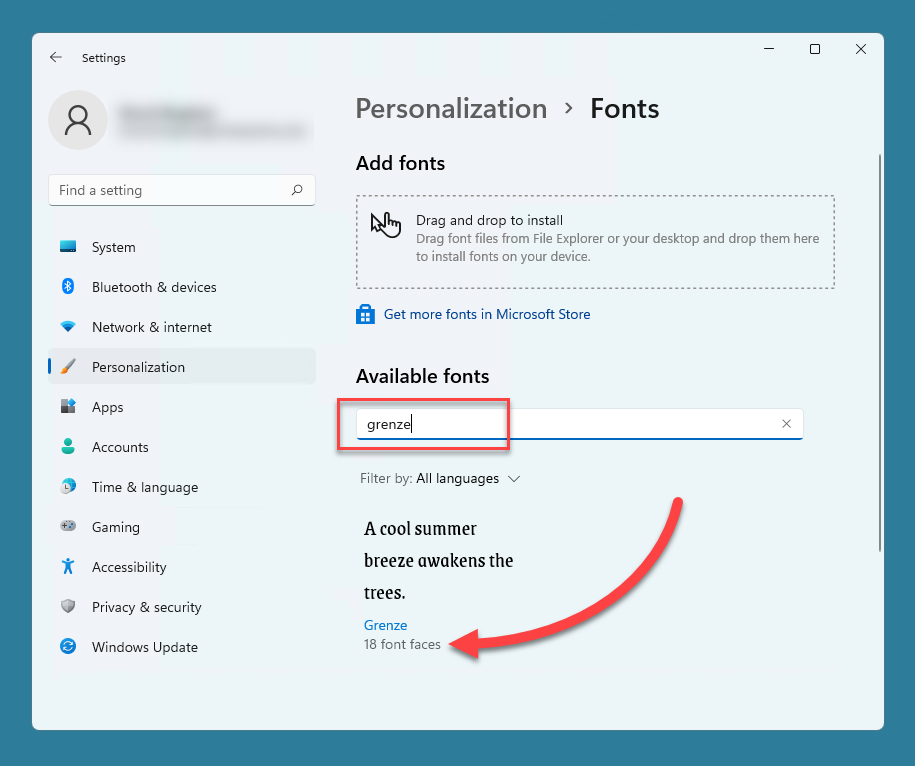
Drag and Drop to Install: In the Font settings window, you’ll see a section at the top that says “Drag and drop to install fonts.”
-
Install the Font: Locate your extracted
.ttfor.otffont files. Drag one or more of these files directly into the “Drag and drop to install fonts” area. -
Confirm Installation: Windows will show a progress bar and then confirm the installation. The new font will appear in the list below.
This method is particularly user-friendly for installing multiple fonts at once and provides a cleaner interface for managing your font collection.
Method 3: Installing Multiple Fonts Simultaneously
If you have a collection of fonts to install, doing them one by one can be tedious. Both File Explorer and the Font Settings app allow for batch installations.
-
Extract All Fonts: Ensure all your desired font files (TTF/OTF) are extracted from any
.ziparchives into a single folder. -
Select Multiple Files: In File Explorer, navigate to the folder containing your font files. You can:
-
Click and drag a box around multiple font files to select them.
-
Hold down the
Ctrlkey and click on individual font files to select specific ones. -
Use
Ctrl+Ato select all files in the folder.
-
-
Install Selected Fonts:
-
Right-Click Method: Right-click on any of the selected font files and choose “Install” or “Install for all users.” Windows will then install all selected fonts sequentially.
-
Drag and Drop to
C:WindowsFonts: Drag all selected font files directly into theC:WindowsFontsfolder. -
Drag and Drop to Font Settings (Windows 10/11): Drag all selected font files into the “Drag and drop to install fonts” area within the Font settings.
-
This bulk installation method saves considerable time and effort when dealing with large font packs.
Verifying Installation
After installing a font, it’s a good practice to verify that it’s accessible within your applications.
-
Restart Applications: If you had any applications open (e.g., Word, Photoshop, design software) during the font installation, close and reopen them. Many applications load their font lists at startup.
-
Check in a Text Editor or Design Software:
-
Open a program like Notepad, WordPad, Microsoft Word, or Adobe Photoshop.
-
Create a new document or text box.
-
Look for your newly installed font in the font selection dropdown menu. Type some text and apply the font to confirm it renders correctly.
-
If the font appears and functions as expected, your installation was successful.
Managing Your Font Collection
Installing fonts is only half the battle; effective management ensures your system remains optimized, clutter-free, and your creative workflow unhindered. A well-managed font collection enhances system performance and keeps your typeface library organized.
Uninstalling Unwanted Fonts
Over time, you might accumulate fonts you no longer need, which can clutter your font lists in applications and potentially impact system performance if the number becomes excessive. Removing them is as simple as installing them.
-
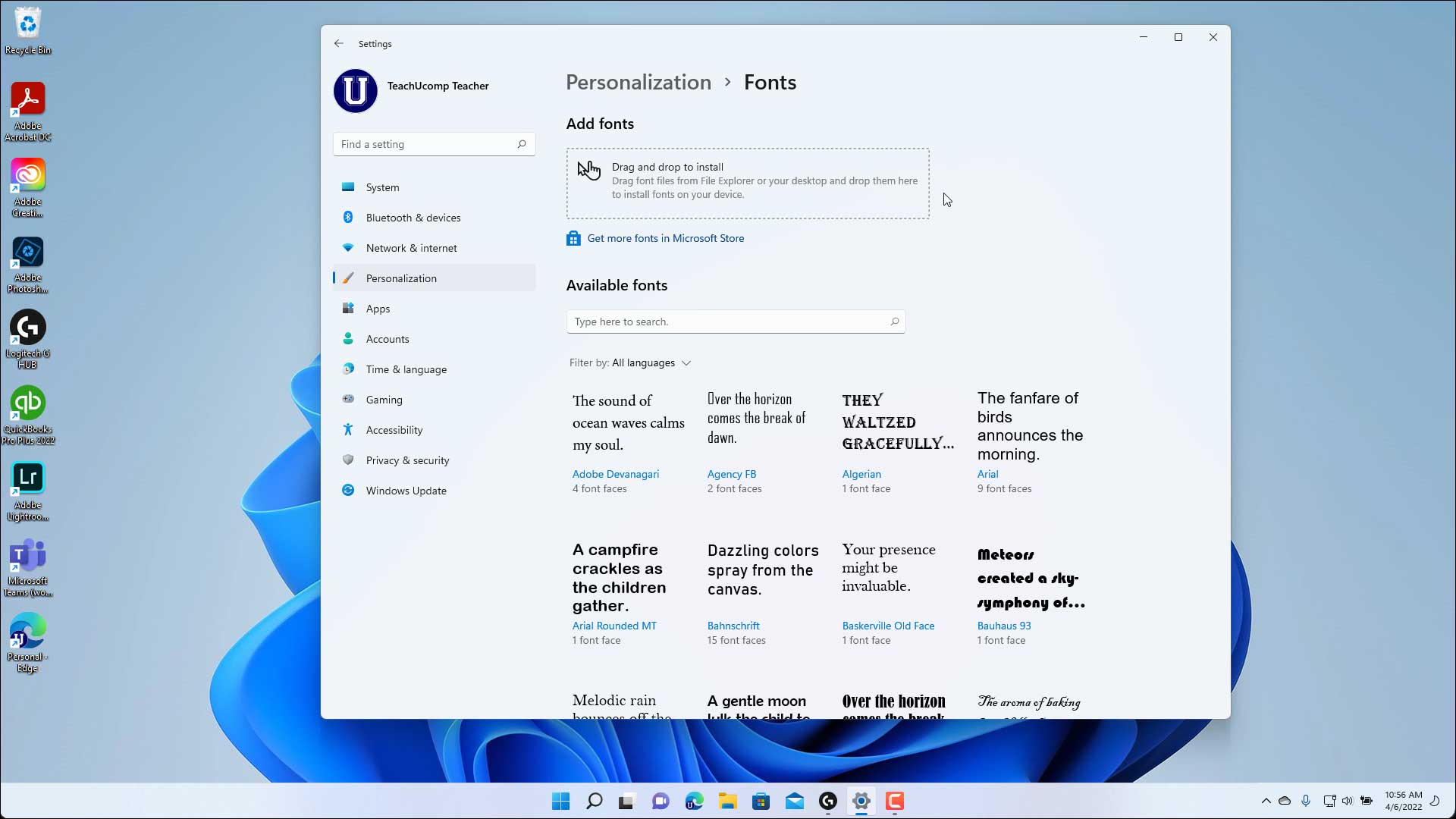
Access Font Settings/Folder:
-
Windows 11/10: Go to
Start>Settings>Personalization>Fonts. -
All Windows Versions: Open
C:WindowsFontsvia File Explorer or by searching for “fonts” in the Start menu.
-
-
Locate the Font: Find the font you wish to uninstall from the list.
-
Uninstall:
-
Windows 11/10 (Settings app): Click on the font name, then click the “Uninstall” button. Confirm when prompted.
-
All Windows Versions (Fonts folder): Right-click on the font file (or the font family icon) and select “Delete.” Confirm when prompted.
-
Note: Some system fonts that are critical for Windows operation cannot be uninstalled.
-
Removing unused fonts helps streamline your font menus in applications and frees up a tiny bit of disk space.
Previewing Fonts Before Installation
Sometimes you download a font pack and aren’t sure which specific style or weight you want to install, or if it’s even the right font for your project. Windows provides a built-in preview functionality.
-
Locate the Font File: In File Explorer, navigate to the folder where your extracted
.ttfor.otffiles are located. -
Open Preview: Double-click on any
.ttfor.otffile. -
Review the Font: A new window will open, displaying the font in various sizes and with example text. This allows you to see how the font looks before committing to installing it. You can also click the “Print” button to print a sample or the “Install” button directly from this preview window.
This simple preview feature is invaluable for making quick decisions about font suitability without cluttering your system with unnecessary installations.
Organizing Font Files
While Windows manages installed fonts in a single system folder, how you organize your uninstalled font files (your downloads, backups, and archives) is crucial for a creative professional or anyone with a large collection.
-
Dedicated Font Folder: Create a main folder, e.g.,
C:My FontsorD:Design AssetsFonts. -
Categorization: Within this main folder, create subfolders based on categories that make sense to you:
-
By Project: For fonts specific to certain client work or personal projects.
-
By Style: Serif, Sans-serif, Script, Display, Dingbats.
-
By Foundry/Designer: If you frequently use fonts from specific creators.
-
By License: Free, Commercial, Personal Use Only.
-
-
Font Management Software: For advanced users and designers with hundreds or thousands of fonts, third-party font managers (e.g., FontBase, NexusFont, Adobe Fonts (part of Creative Cloud)) are highly recommended. These tools allow you to:
-
Preview and activate/deactivate fonts without installing them system-wide.
-
Organize fonts with tags, collections, and custom metadata.
-
Resolve font conflicts and manage duplicates.
-
Synchronize fonts across multiple machines or cloud services.
-
Proper organization of your font source files ensures you can quickly find and install the exact typeface you need when inspiration strikes.
Troubleshooting Common Font Installation Issues
While installing fonts is generally straightforward, you might occasionally encounter hiccups. Knowing how to diagnose and resolve these common issues can save you time and frustration.
Font Not Appearing in Applications
This is perhaps the most frequent issue users face after installation.
-
Restart the Application: Many programs load their font list only when they start up. If the application was open during the font installation, close it completely and then reopen it. This forces it to refresh its font cache.
-
Restart Windows: In rare cases, especially after installing a large batch of fonts or if the font cache is stubborn, a full system restart might be necessary to ensure all applications recognize the new fonts.
-
Check the Font List Carefully: Double-check that you’re looking for the exact font name. Sometimes fonts have slightly different names than expected (e.g., “MyFont” instead of “My Font Pro”).
-
Verify Installation: Re-open the
C:WindowsFontsfolder or Font Settings and confirm the font is indeed listed there. If it’s not, the installation might have failed, and you should try reinstalling.
“Invalid Font File” or Corruption Errors
If Windows reports that a font file is invalid or corrupt, there are a few potential causes.
-
Corrupt Download: The most likely reason is that the font file itself was corrupted during download.
- Solution: Delete the problematic file and download it again from the original source. Ensure your internet connection is stable.
-
Incomplete Extraction: If the font was in a
.zipfile, the extraction process might have been interrupted or incomplete.- Solution: Re-extract the
.zipfile, ensuring all contents are fully extracted to a new folder.
- Solution: Re-extract the
-
Unsupported Format: While rare for modern downloads, you might occasionally encounter an obscure or outdated font format that Windows doesn’t fully support.
- Solution: Check the file extension. If it’s not
.ttfor.otf, search for conversion tools or look for an alternative font in a supported format.
- Solution: Check the file extension. If it’s not
Permissions Issues
Occasionally, you might encounter an error stating you don’t have sufficient permissions to install a font.
-
Run as Administrator: If you’re using Method 1 (right-clicking the font file), ensure you select “Install for all users” if available, or try right-clicking the font file and selecting “Run as administrator” (though this is less common for font files directly).
-
Administrator Account: Ensure you are logged into a user account with administrator privileges on your computer. If not, you may need an administrator’s password to complete the installation.
Duplicate Fonts
Installing the same font multiple times can sometimes lead to conflicts or cluttered font lists. Windows usually detects duplicates and asks if you want to replace the existing version.
-
Manage Duplicates: If you suspect duplicate fonts are causing issues (e.g., an older version is showing up instead of a newer one), go to the
C:WindowsFontsfolder or Font Settings. -
Remove Old Versions: Uninstall all instances of the problematic font, then reinstall only the desired version. Font management software can also help identify and resolve duplicate font issues more effectively.
By systematically addressing these common issues, you can quickly overcome most font installation hurdles and get back to your creative tasks.
Best Practices for Font Usage and Security
Beyond simply installing fonts, adopting best practices ensures a secure, efficient, and legally compliant font experience. This includes careful sourcing, understanding licensing, and considering system performance.
Sourcing Fonts Safely
The internet is awash with free and paid fonts, but not all sources are reputable. Downloading fonts from unknown websites can expose your system to malware or provide you with pirated typefaces.
-
Trusted Marketplaces: For commercial fonts, stick to well-known font foundries and marketplaces like MyFonts, Fontspring, Adobe Fonts, Google Fonts, DaFont (for many free fonts, but check licenses), and independent designer websites.
-
Check Reviews and Reputation: Before downloading from a lesser-known source, quickly search for reviews or check the website’s reputation.
-
Scan Downloads: Even from trusted sources, it’s a good habit to scan downloaded
.zipfiles with your antivirus software before extracting them. -
Avoid Suspicious Links: Be wary of unsolicited font download links or offers that seem too good to be true.
Safe sourcing protects your system from potential security threats and ensures you are acquiring legitimate copies of typefaces.
Performance Considerations
While modern computers are powerful, installing an excessive number of fonts can sometimes lead to minor performance degradation, especially in applications that build extensive font menus (like design software).
-
Install Only What You Need: Resist the urge to install every font you download. Preview fonts and only install those you genuinely plan to use for active projects.
-
Uninstall Unused Fonts: Regularly review your installed fonts and uninstall those that haven’t been used in a long time.
-
Use Font Management Software: For designers, a font manager is invaluable. It allows you to activate and deactivate fonts on demand, so only the fonts you’re actively using are loaded by the system, significantly improving application startup times and overall responsiveness.
Maintaining a lean and organized font collection contributes to a snappier computing experience.

Font Licensing and Copyright
One of the most critical aspects of using fonts, especially in professional or public contexts, is understanding licensing and copyright. Fonts are software, and like all software, they come with legal terms of use.
-
Personal Use vs. Commercial Use: Many “free” fonts available online are free for personal use only. This means you can use them for hobbies, school projects, or non-profit work. However, using them for a business logo, marketing materials, a website, or any commercial project without a proper commercial license is a copyright infringement.
-
EULA (End-User License Agreement): Always read the EULA that accompanies a font (often found in the downloaded folder or on the font’s download page). This document outlines what you can and cannot do with the font.
-
Types of Licenses:
-
Desktop License: The most common, allowing you to install the font on your computer for print and digital design work (e.g., PDFs, images).
-
Webfont License: Required for embedding fonts on websites using
@font-faceCSS. -
App/eBook License: For embedding fonts in applications or e-publications.
-
Server License: For use on web servers by multiple users or dynamic content.
-
-
Open Source/SIL Open Font License: Fonts released under licenses like the SIL Open Font License are generally very permissive, allowing for personal and commercial use, modification, and redistribution, often with attribution requirements. Google Fonts are a prime example.
Ignoring font licensing can lead to legal issues, hefty fines, and reputational damage for businesses. Always ensure you have the appropriate license for how you intend to use a font. When in doubt, purchase a commercial license or choose a font explicitly stated to be free for commercial use.
By adhering to these best practices, you not only ensure the smooth functioning of your system but also uphold ethical standards and legal compliance in your creative and professional endeavors. The ability to effectively install and manage Windows fonts is a small but mighty skill that underpins much of our digital communication and design.
aViewFromTheCave is a participant in the Amazon Services LLC Associates Program, an affiliate advertising program designed to provide a means for sites to earn advertising fees by advertising and linking to Amazon.com. Amazon, the Amazon logo, AmazonSupply, and the AmazonSupply logo are trademarks of Amazon.com, Inc. or its affiliates. As an Amazon Associate we earn affiliate commissions from qualifying purchases.