
The world of computing has become increasingly dynamic, demanding flexibility, security, and the ability to run diverse environments without the need for multiple physical machines. At the heart of this agility lies the virtual machine (VM), a software-based emulation of a complete computer system. Whether you’re a developer needing to test software across various operating systems, a cybersecurity enthusiast wanting a safe sandbox, or simply someone looking to run an older application incompatible with your current OS, understanding how to install a VM is an indispensable skill in today’s digital landscape. This comprehensive guide will walk you through the process, from foundational concepts to advanced tips, ensuring you can confidently set up and manage your own virtual environments.
Understanding Virtual Machines: The Foundation of Digital Flexibility
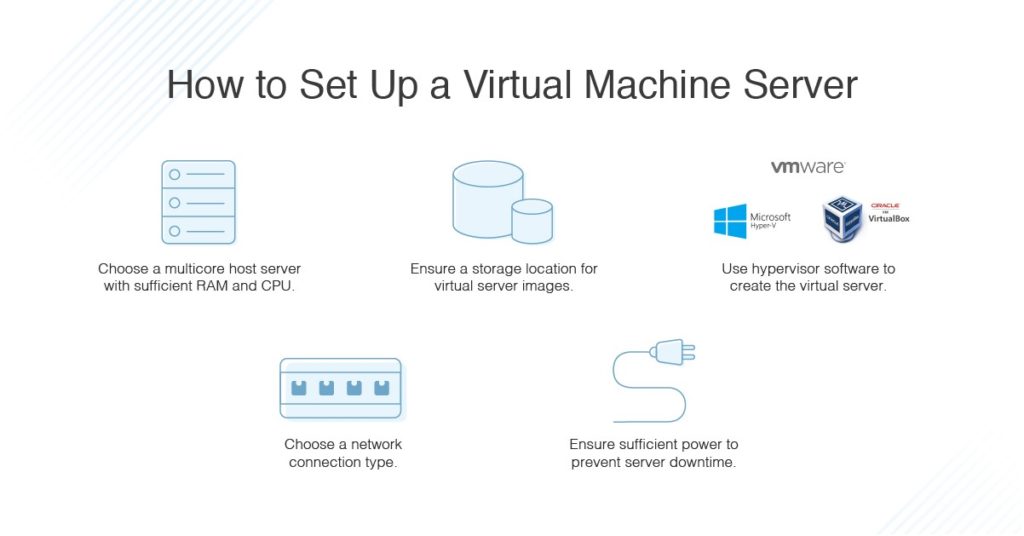
Before diving into the practical steps, it’s crucial to grasp what a virtual machine is and why it has become such a ubiquitous tool in technology. A VM fundamentally recreates the hardware of a physical computer – including the CPU, memory, hard disk, and network interface – all within a software environment. This allows it to run a complete operating system, known as the “guest OS,” entirely independent of your computer’s main operating system, or “host OS.”
What is a Virtual Machine?
Imagine your computer as a physical building. A virtual machine is like a completely self-contained apartment within that building. It has its own walls, utilities, and even residents (the guest OS and its applications), all operating independently of the main building’s management. The software that enables this virtualization is called a “hypervisor.” The hypervisor acts as the landlord, allocating shared resources like CPU cycles, RAM, and storage space from the host machine to each individual VM. It ensures that the operations within one VM do not interfere with the host system or other VMs, providing a crucial layer of isolation.
Why Use a Virtual Machine?
The applications for virtual machines are incredibly broad, spanning professional and personal uses:
-
Software Development and Testing: Developers frequently use VMs to test applications on different operating systems (Windows, Linux, macOS) or different versions of the same OS without needing multiple physical machines. This ensures compatibility and helps identify bugs across various environments.
-
Legacy Software Compatibility: Running older applications that are incompatible with modern operating systems can be a headache. A VM allows you to install an older OS, like Windows XP or an archaic Linux distribution, specifically to run those critical legacy programs.
-
Enhanced Security (Sandboxing): VMs provide an isolated environment, making them ideal for “sandboxing.” You can safely browse suspicious websites, open potentially malicious files, or test new software without risking your host system’s integrity. Any damage or infection is contained within the VM and can be easily discarded or reverted.
-
Operating System Exploration: Curious about Linux but don’t want to dual-boot or wipe your current system? A VM lets you experiment with different distributions, learn new commands, and understand alternative interfaces without commitment or risk.
-
Server Virtualization: While our focus is on desktop VMs, it’s worth noting that VMs are fundamental to cloud computing and data centers. They allow multiple virtual servers to run on a single powerful physical server, maximizing hardware utilization and reducing costs.
-
Forensics and Cybersecurity Training: Professionals in these fields often use VMs to analyze malware, simulate network attacks, or practice incident response in a controlled and safe environment.
Key Components of a VM Ecosystem
Understanding these components is key to a smooth installation:
-
Host OS: This is the operating system running on your physical computer (e.g., Windows 11, macOS Sonoma, Ubuntu Linux).
-
Guest OS: This is the operating system installed inside the virtual machine (e.g., Windows 10, Kali Linux, an older version of macOS).
-
Hypervisor: The software layer that creates and manages VMs, allocating resources from the host to the guests.
-
Virtual Hardware: The emulated components of a physical computer that the guest OS sees and interacts with (virtual CPU, RAM, hard disk, network adapter, etc.).
Choosing Your Hypervisor: The Right Tool for the Job
The hypervisor is the foundational software upon which all your virtual machines will run. Selecting the right one depends on your host operating system, technical comfort, and specific needs.
Popular Desktop Hypervisors
For personal and desktop use, several excellent hypervisors are available:
-
Oracle VM VirtualBox: A free and open-source solution, VirtualBox is incredibly popular due to its wide compatibility (Windows, macOS, Linux hosts) and ease of use. It’s an excellent choice for beginners and those on a budget.
-
VMware Workstation Player/Pro: VMware offers two main desktop products. Workstation Player is free for personal use and allows you to run pre-existing VMs or create new ones, though with fewer features than the commercial Workstation Pro. Workstation Pro offers advanced features like snapshots, cloning, and multi-VM networking, making it a favorite for professionals. VMware products generally offer superior performance and integration.
-
Microsoft Hyper-V: Built directly into professional editions of Windows (Pro, Enterprise, Education), Hyper-V is Microsoft’s native hypervisor. It’s a Type 1 hypervisor (meaning it runs directly on the hardware, below the host OS), offering excellent performance and deep integration with the Windows ecosystem. However, it’s only available on Windows hosts.
Factors to Consider When Choosing
-
Cost: VirtualBox is free. VMware Player is free for personal use, while Workstation Pro is a paid product. Hyper-V is included with qualifying Windows versions.
-
Host OS Compatibility: Ensure the hypervisor supports your current operating system.
-
Features: Do you need advanced features like snapshots, cloning, shared folders, or USB passthrough? VirtualBox offers a good range for free, while VMware Workstation Pro excels in advanced capabilities.
-
Performance: While all modern hypervisors are efficient, VMware products often edge out VirtualBox in raw performance for demanding workloads. Hyper-V, being native, also performs very well on Windows.
-
Ease of Use: VirtualBox is often cited as the most user-friendly for beginners.
Preparing Your System for Virtualization
Before installing any hypervisor, ensure your system meets these prerequisites:
-
Sufficient Hardware Resources: VMs consume resources. Ensure your host machine has ample RAM (at least 8GB recommended for comfortable use, 16GB+ if running multiple VMs or demanding guest OSes), CPU cores (a modern multicore processor is essential), and disk space (each VM will need tens of gigabytes).
-
Enable Virtualization in BIOS/UEFI: Most modern CPUs support hardware virtualization features (Intel VT-x or AMD-V), which significantly improve VM performance. These features are often disabled by default in your computer’s BIOS/UEFI settings. You’ll need to restart your computer, enter the BIOS/UEFI (usually by pressing Del, F2, F10, or F12 during boot-up), locate the virtualization setting (often under CPU configuration or security), and enable it. Save changes and exit.
-
Download Guest OS ISO: You’ll need an ISO image file of the operating system you wish to install in your VM. This is essentially a digital disk image of the OS installer. You can download these from official sources (e.g., Microsoft for Windows, various distribution websites for Linux).
Step-by-Step Installation of a Virtual Machine
For this tutorial, we’ll use Oracle VM VirtualBox as it’s free, widely available, and beginner-friendly. The general steps, however, are largely similar across different hypervisors.
Installing the Hypervisor Software (e.g., VirtualBox)
-
Download VirtualBox: Go to the official VirtualBox website (virtualbox.org) and download the appropriate installer for your host operating system.
-
Run the Installer: Double-click the downloaded executable. Follow the on-screen prompts. Generally, accepting the default installation location and features is fine. During installation, your network connection might temporarily reset as VirtualBox installs virtual network adapters. This is normal.
-
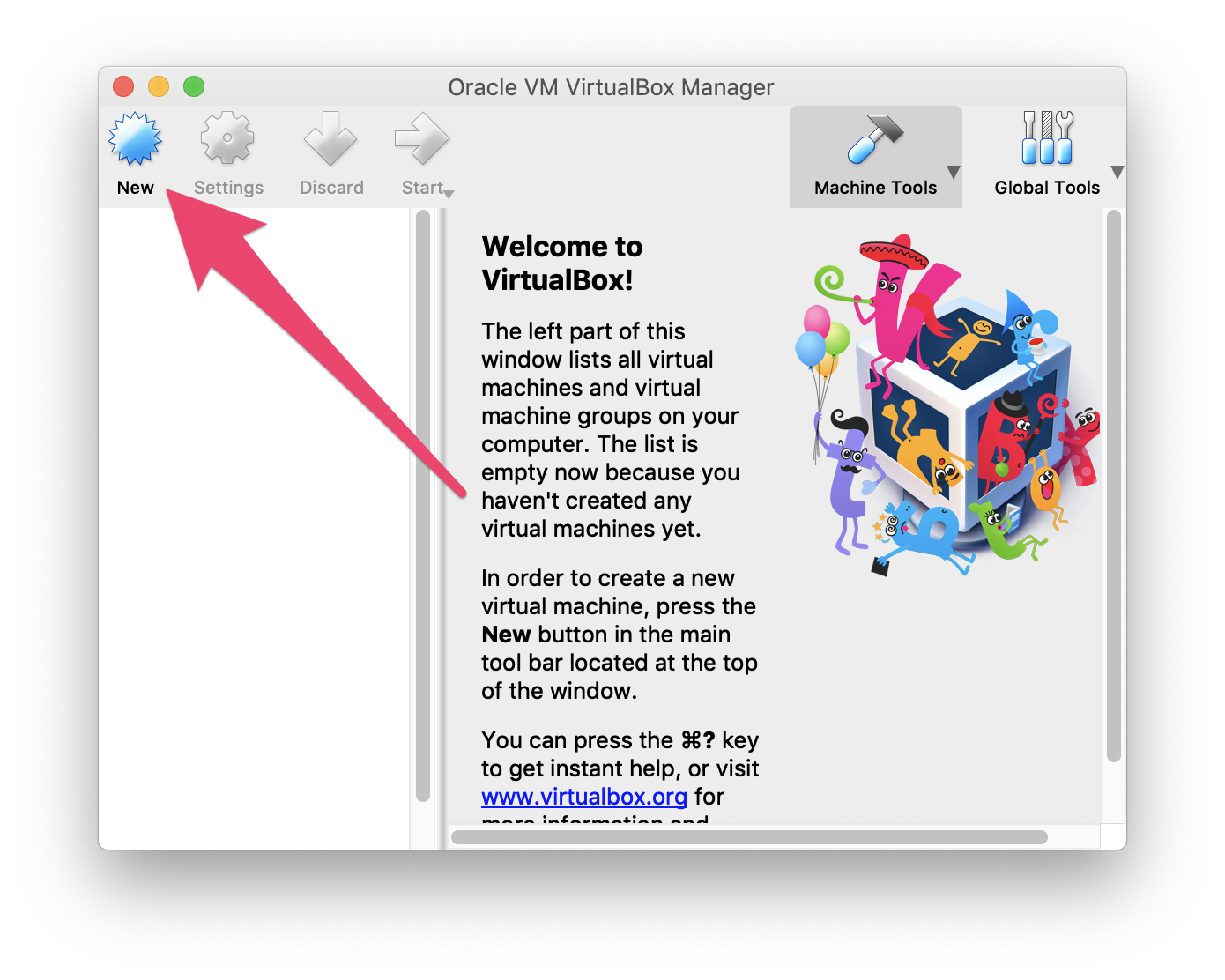
Launch VirtualBox: Once installed, launch the VirtualBox Manager application.
Creating a New Virtual Machine
-
Click “New”: In the VirtualBox Manager window, click the “New” button (or Machine > New).
-
Name and OS Type:
-
Name: Give your VM a descriptive name (e.g., “Windows 10 Test,” “Ubuntu Development”).
-
Machine Folder: Choose where the VM’s files will be stored.
-
ISO Image: Select the ISO image of the guest OS you downloaded earlier. VirtualBox will often automatically detect the OS type. If not, select it manually (e.g., Type: Microsoft Windows, Version: Windows 10 (64-bit)). Click Next.
-
-
Hardware Allocation:
-
Base Memory (RAM): Allocate RAM to your VM. A good rule of thumb is at least 2GB for lightweight Linux, 4GB for Windows 10, and more for demanding tasks. Do not allocate more than half of your physical RAM to a single VM, as your host OS also needs resources.
-
Processors (CPU Cores): Allocate CPU cores. For most desktop VMs, 1-2 cores are sufficient. For more demanding tasks, assign more, but again, leave enough for your host. Click Next.
-
-
Hard Disk:
-
Create a Virtual Hard Disk: Select “Create a virtual hard disk now.” Click Create.
-
Disk Size: Set the size of the virtual hard disk. Windows 10 typically needs at least 60GB for comfortable use, while many Linux distributions can run on 20-30GB.
-
Disk Type (VDI, VMDK, VHD): VDI (VirtualBox Disk Image) is VirtualBox’s native format. VMDK and VHD are compatible with VMware and Hyper-V, respectively. Stick with VDI unless you have a specific reason to choose another.
-
Storage on Physical Hard Disk (Dynamically Allocated vs. Fixed Size):
-
Dynamically Allocated: The virtual disk file will only grow as the guest OS uses more space, up to the maximum size you specified. This saves physical disk space but might be slightly slower.
-
Fixed Size: The virtual disk file will immediately take up the full specified size on your host machine. This offers slightly better performance but consumes more host disk space upfront. For most users, Dynamically Allocated is fine. Click Next.
-
-
-
Summary: Review your settings and click “Finish.” Your new VM will appear in the VirtualBox Manager.
Installing the Guest Operating System
-
Start the VM: Select your newly created VM in the VirtualBox Manager and click the “Start” button (green arrow).
-
Boot from ISO: The VM will boot and should automatically detect the ISO image you attached. If not, it might prompt you to select a startup disk; choose your OS ISO.
-
Follow OS Installation: Proceed with the standard installation steps for your chosen guest operating system, exactly as you would on a physical machine. This typically involves selecting language, time zone, disk partitioning (within the virtual disk), and setting up user accounts.
-
First Boot: Once the guest OS installation is complete, the VM will restart. Remove the virtual ISO from the virtual CD/DVD drive (Machine > Optical Drives > Uncheck the ISO) to ensure it boots from the virtual hard drive.
Installing Guest Additions/Tools (Crucial Step!)
This is a vital post-installation step that significantly enhances the VM experience. Guest Additions (for VirtualBox), VMware Tools (for VMware), or Integration Services (for Hyper-V) are software packages installed inside the guest OS that provide:
-
Better Video Performance: Enables higher resolutions, 3D acceleration, and seamless resizing of the VM window.
-
Shared Clipboard: Allows copying and pasting between the host and guest.
-
Drag-and-Drop: Enables dragging files between host and guest.
-
Shared Folders: Lets you access host folders from within the guest OS.
-
Improved Mouse Integration: No more needing to “capture” and “release” the mouse pointer.
To install VirtualBox Guest Additions:
-
With the guest OS running, go to the VirtualBox VM menu bar: Devices > Insert Guest Additions CD Image…
-
Inside the guest OS, open File Explorer/File Manager. You should see a new virtual CD drive. Double-click it to run the installer (e.g.,
VBoxWindowsAdditions.exefor Windows guests). -
Follow the on-screen prompts. You may need to grant permissions and restart the guest OS.
Post-Installation and Best Practices
Installing a VM is just the beginning. Effective management ensures a smooth, productive, and secure virtualized experience.
Optimizing VM Performance
-
Resource Allocation: Review your RAM and CPU core allocations. If your VM is sluggish, try increasing these, provided your host has spare resources.
-
Snapshots: Hypervisors allow you to take “snapshots” of your VM’s current state. This is invaluable for testing; if something goes wrong, you can revert to a previous snapshot, saving hours of reinstallation. Use them before major software installations or system changes.
-
Virtual Disk Type: For performance-critical VMs, using a fixed-size virtual disk might offer a slight edge over dynamically allocated.
-
SSD Host Drive: Running VMs from an SSD (Solid State Drive) on your host machine will drastically improve performance compared to a traditional HDD.
-
Guest OS Updates: Keep your guest operating system and its applications updated, just like your host OS, for security and performance.
Managing and Maintaining Your VMs
-
Regular Backups: While snapshots are great for quick reverts, they are not full backups. Regularly back up your entire VM folder to an external drive or cloud storage.
-
Host OS Updates: Keep your host OS and hypervisor software up to date to ensure compatibility, security, and performance improvements.
-
Networking: Understand the different networking modes (NAT, Bridged, Host-Only).
-
NAT (Network Address Translation): Default and simplest. VM shares the host’s IP address and uses its network connection.
-
Bridged Adapter: VM gets its own IP address on your network, appearing as a separate device. Useful for network testing or if the VM needs to be directly accessible from other devices on your network.
-
Host-Only Adapter: Creates a private network between the host and the VM, isolated from the external network. Ideal for development environments.
-
-
Shared Folders: Set up shared folders between your host and guest to easily transfer files without network overhead or copying to USB drives.
Common Issues and Troubleshooting Tips
-
VM Won’t Boot / “VT-x/AMD-V is not available”: This almost always means hardware virtualization (Intel VT-x or AMD-V) is not enabled in your BIOS/UEFI settings. Double-check this critical step.
-
Poor Performance: Ensure Guest Additions are installed. Check RAM and CPU allocation. Verify your host has sufficient resources.
-
Network Issues: Check your VM’s network adapter settings in the hypervisor. Try switching between NAT and Bridged mode. Ensure your host’s network is active.
-
Low Disk Space in Guest OS: Increase the size of the virtual hard disk in your hypervisor settings (though this often requires additional steps within the guest OS to expand the partition).
-
Guest OS Crashes/Freezes: This could indicate insufficient RAM or CPU, a corrupted guest OS installation, or driver issues. Try reverting to a snapshot if available.
Conclusion: Embracing the Virtual Frontier
Installing a virtual machine might seem daunting at first, but with a clear understanding of the concepts and a systematic approach, it quickly becomes a straightforward process. The ability to run multiple operating systems concurrently, experiment in isolated environments, and maintain compatibility with diverse software empowers you with an unparalleled level of digital flexibility. By following this guide, you’ve gained the knowledge to choose your hypervisor, set up your virtual environments, and optimize them for peak performance. Embrace the virtual frontier; it’s a powerful tool that will undoubtedly enhance your computing experience, whether for professional development, personal exploration, or robust security. The possibilities with VMs are virtually limitless.
aViewFromTheCave is a participant in the Amazon Services LLC Associates Program, an affiliate advertising program designed to provide a means for sites to earn advertising fees by advertising and linking to Amazon.com. Amazon, the Amazon logo, AmazonSupply, and the AmazonSupply logo are trademarks of Amazon.com, Inc. or its affiliates. As an Amazon Associate we earn affiliate commissions from qualifying purchases.