
In the realm of modern software development, system administration, and general command-line productivity, the terminal often serves as the primary interface for a vast array of tasks. While powerful, the native capabilities of a typical terminal emulator can sometimes feel limiting, especially when dealing with multiple long-running processes, managing several projects concurrently, or maintaining persistent sessions across network disconnects. This is where a tool like Tmux emerges as an indispensable utility, transforming a humble terminal into a dynamic, multi-faceted workspace.
Tmux, short for “Terminal Multiplexer,” allows users to create and control multiple terminal sessions from a single window. More critically, it enables these sessions to run persistently in the background, even after the user disconnects or closes their terminal. For anyone working remotely, interacting with servers, or simply striving for peak efficiency at the command line, understanding how to install and effectively utilize Tmux is not just a convenience, but a fundamental skill that significantly enhances workflow, productivity, and resilience. This comprehensive guide will walk you through the process of installing Tmux across various operating systems, providing context, practical steps, and essential post-installation insights to get you started on your journey towards terminal mastery.
Understanding Tmux: Why It’s Indispensable for Developers and Sysadmins
Before diving into the installation specifics, it’s crucial to grasp why Tmux holds such a revered position in the toolkit of developers, system administrators, and anyone who spends significant time in the terminal. Its power lies in its ability to abstract the terminal session from the visual terminal window, offering a layer of management that elevates command-line interaction to a new level.
What is Tmux? A Brief Introduction
At its core, Tmux is a server-client application. When you start Tmux, it launches a server process that manages your sessions. You then attach client windows to this server to interact with your sessions. The beauty of this architecture is that the server continues to run even if all clients detach. This means your running programs, open files, and command histories remain exactly where you left them, ready for you to reattach at any time, from anywhere.
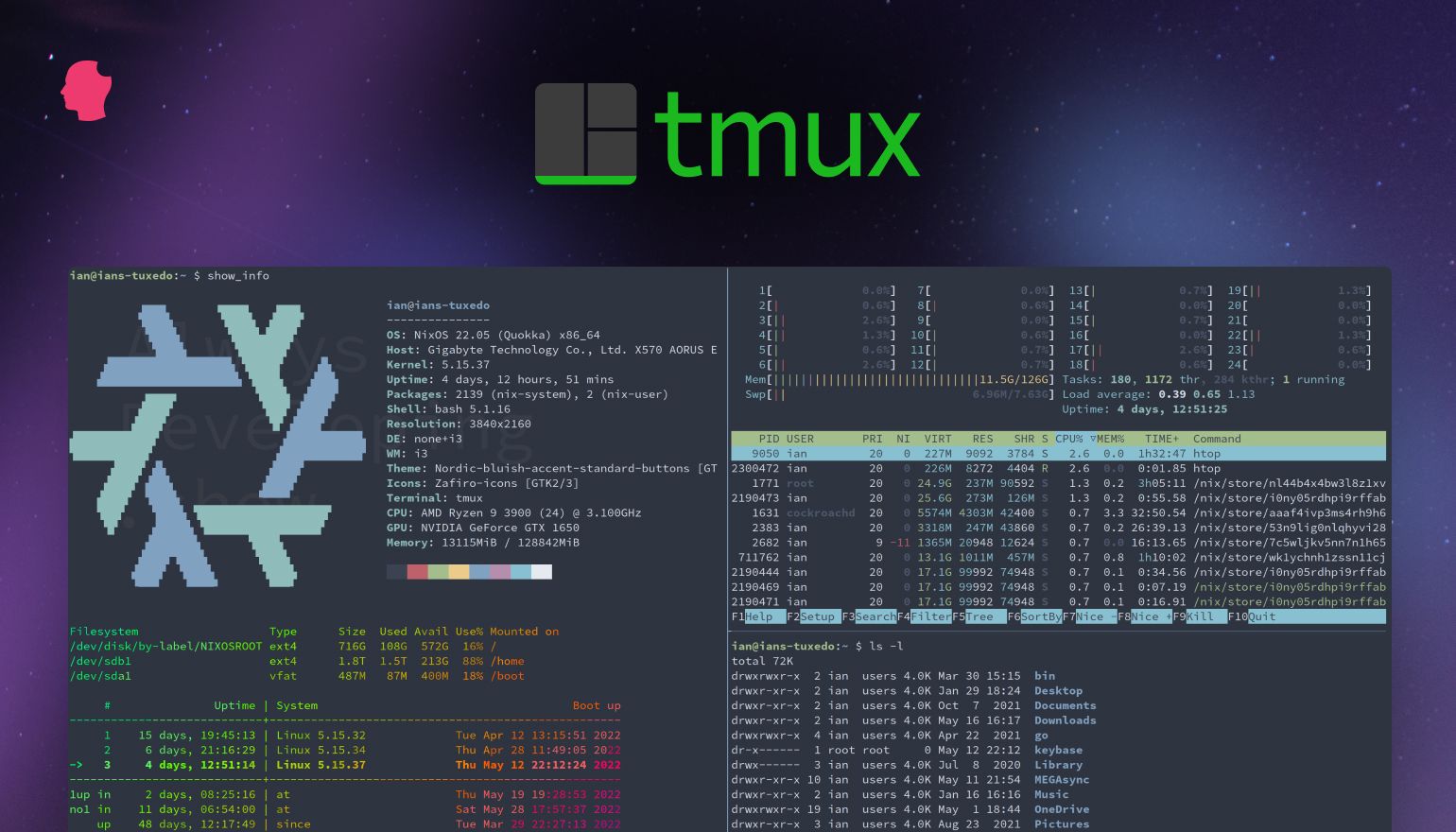
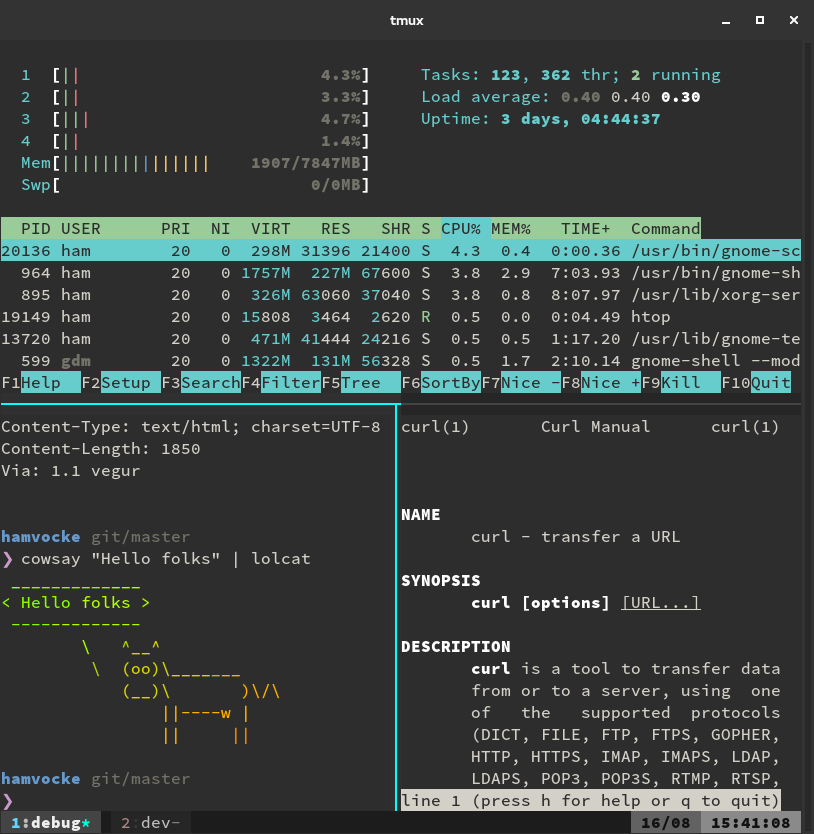
Think of it as a virtual desktop for your terminal. Instead of having just one shell, Tmux allows you to have multiple windows within a single session, and each window can be further divided into multiple panes. This hierarchical structure provides unparalleled flexibility for organizing your command-line tasks.
Key Benefits of Using Tmux
The practical advantages of integrating Tmux into your daily workflow are numerous and profound, touching upon aspects of efficiency, resilience, and organization.
Persistent Sessions
Perhaps the most celebrated feature of Tmux is its session persistence. Imagine you’re SSHed into a remote server, compiling a large project or running a lengthy script. Suddenly, your internet connection drops, or your laptop battery dies. Without Tmux, your process would be terminated, and all progress lost. With Tmux, your session—and everything running within it—continues to execute on the server. You can simply reconnect via SSH, reattach to your Tmux session, and pick up precisely where you left off. This capability is invaluable for remote work, long-running tasks, and maintaining development environments.
Window and Pane Management
Tmux revolutionizes how you interact with multiple terminal applications. Instead of juggling several separate terminal windows or tabs, you can consolidate everything within a single Tmux session. You can create new windows for different projects or tasks (e.g., one for code editing, one for server logs, one for a REPL), and then divide each window into multiple panes to view different outputs simultaneously. This eliminates the need for constant Alt-tabbing or window switching, keeping all relevant information in plain sight and streamlining your workflow considerably. Navigating between these windows and panes is done with simple keyboard shortcuts, making the process fluid and intuitive once mastered.
Enhanced Productivity
By providing a structured and persistent environment, Tmux inherently boosts productivity. Developers can dedicate panes to code editors (like Vim or Neovim), others to running tests, watching logs, or managing version control. System administrators can monitor multiple services, run diagnostic tools, and execute commands across different servers from a single consolidated view. The ability to quickly switch contexts, keep long-running processes alive, and organize your workspace efficiently means less time spent on context switching overhead and more time focused on the task at hand. Moreover, features like synchronized panes allow you to type the same command into multiple panes simultaneously, a massive time-saver for parallel operations.
Prerequisites and System Preparation
Before you embark on the Tmux installation journey, it’s wise to take a few preparatory steps. Ensuring your system is up-to-date and has the necessary build tools (especially if you plan to compile from source) will prevent many common installation woes.
Checking Your Operating System
Tmux is primarily a Unix-like utility, meaning it thrives on Linux distributions and macOS. While direct native installation on Windows isn’t typical, it’s fully functional within environments like Windows Subsystem for Linux (WSL), Cygwin, or Git Bash. Identify your operating system to select the most appropriate installation method.
Basic System Updates (Ensuring a Smooth Installation)
Regardless of your OS, it’s always good practice to update your package manager’s cache and upgrade existing packages before installing new software. This ensures you’re working with the latest stable versions of dependencies and reduces the likelihood of conflicts.
-
Linux (Debian/Ubuntu-based):
sudo apt update sudo apt upgrade -
Linux (Fedora/CentOS/RHEL-based):`
sudo dnf updateor for older CentOS/RHEL:
sudo yum update -
macOS (Homebrew):
brew update

brew upgrade
Required Build Tools and Dependencies (for source compilation, if applicable)
If you intend to compile Tmux from source (an advanced option often chosen for the very latest features or specific configurations), you’ll need development tools. These typically include a C compiler (like GCC or Clang), make, and development headers for libraries such as libevent and ncurses.
-
Linux (Debian/Ubuntu):
sudo apt install build-essential libevent-dev ncurses-dev -
Linux (Fedora/CentOS):
sudo dnf install @development-tools libevent-devel ncurses-devel -
macOS: Homebrew usually handles these dependencies automatically, but you might need Xcode Command Line Tools:
xcode-select --install
Step-by-Step Tmux Installation Guides
With your system prepped, you’re ready to install Tmux. The method largely depends on your operating system, with package managers being the preferred and easiest route for most users.
Installation on Linux
Linux distributions generally offer Tmux through their default package repositories, making installation straightforward.
Debian/Ubuntu-based Distributions (e.g., Ubuntu, Linux Mint, Debian)
This is perhaps the most common scenario.
sudo apt install tmux
This command will fetch the latest stable version of Tmux available in your distribution’s repositories and install it, along with any necessary dependencies.
Fedora/CentOS/RHEL-based Distributions (e.g., Fedora, CentOS Stream, RHEL)
For systems using dnf or yum:
sudo dnf install tmux
(For older CentOS/RHEL systems, replace dnf with yum.)
Arch Linux and Derivatives (e.g., Manjaro)
Arch Linux users benefit from a very up-to-date repository:
sudo pacman -S tmux
Installation on macOS (Homebrew)
Homebrew is the de facto package manager for macOS, simplifying software installation immensely. If you don’t have Homebrew installed, you can do so by running:
/bin/bash -c "$(curl -fsSL https://raw.githubusercontent.com/Homebrew/install/HEAD/install.sh)"
Once Homebrew is installed, installing Tmux is a single command:
brew install tmux
Installation on Windows (WSL/Cygwin/Git Bash)
Direct native Tmux on Windows is uncommon. The recommended approaches leverage Unix-like environments.
Windows Subsystem for Linux (WSL)
WSL allows you to run a full-fledged Linux distribution (like Ubuntu or Debian) directly on Windows. This is the most robust and recommended method for Windows users.
-
Enable WSL: Follow Microsoft’s official guide to install WSL and your chosen Linux distribution (e.g., Ubuntu).
-
Launch your WSL distribution: Open the “Ubuntu” app (or whatever distribution you installed).
-
Install Tmux within WSL: Once inside your WSL terminal, use the Linux commands appropriate for your distribution (e.g.,
sudo apt install tmuxfor Ubuntu). Tmux will then function identically to how it would on a native Linux system.
Cygwin
Cygwin provides a large collection of GNU and Open Source tools which provide functionality similar to a Linux distribution on Windows. During Cygwin installation, select tmux from the package list in the “Utils” or “Terminals” category.
Git Bash
Git Bash, which comes with Git for Windows, provides a Unix-like environment. While it can run some Unix utilities, its support for complex tools like Tmux can be limited or require additional setup. If Tmux isn’t directly available or fails to run after a standard installation (e.g., via apt-get if you’ve added a package manager to Git Bash), WSL is a more reliable alternative.
Compiling Tmux from Source (Advanced Option)
For those who need the absolute latest version, specific compilation flags, or are troubleshooting package manager issues, compiling from source is an option.
-
Install dependencies: Ensure you have
build-essential,libevent-dev, andncurses-dev(or their equivalents) installed, as discussed in the prerequisites. -
Download the source code: Visit the official Tmux GitHub repository or its releases page (e.g.,
https://github.com/tmux/tmux/releases) and download the latest tarball.wget https://github.com/tmux/tmux/releases/download/<version>/tmux-<version>.tar.gz tar -xzf tmux-<version>.tar.gz cd tmux-<version>(Replace
<version>with the actual version number, e.g.,3.3a). -
Configure, compile, and install:
./configure

make

sudo make install
This sequence will configure the build environment, compile the source code, and install Tmux to
/usr/local/bin(by default).
Post-Installation: Basic Configuration and First Steps
Once Tmux is installed, the next step is to verify the installation and take your first steps into this powerful environment.
Verifying Your Tmux Installation
To confirm Tmux is correctly installed and accessible, simply open your terminal and type:
tmux -V
This command should output the installed Tmux version (e.g., tmux 3.3a). If you see a “command not found” error, revisit the installation steps, paying close attention to paths and environment variables, especially if you compiled from source.
Starting Your First Tmux Session
To launch your inaugural Tmux session, just type:
tmux
Your terminal will appear to clear, and you’ll notice a green status bar at the bottom (by default), indicating you’re now inside a Tmux session. Congratulations!
Essential Tmux Commands (Prefix key, creating windows/panes, detaching/attaching)
Interacting with Tmux primarily involves a “prefix key” followed by another command key. The default prefix is Ctrl+b. This means you hold Ctrl, press b, then release both, and then press your command key.
Here are some fundamental commands:
-
Ctrl+b d: Detach from the current session. Your session will continue running in the background. -
tmux attachortmux a: Reattach to the most recently used session. -
tmux ls: List all active Tmux sessions. -
tmux attach -t <session_name>: Reattach to a specific named session (useful when you have multiple sessions). -
Ctrl+b c: Create a new window within the current session. -
Ctrl+b p: Go to the previous window. -
Ctrl+b n: Go to the next window. -
Ctrl+b ,: Rename the current window. -
Ctrl+b %: Split the current pane vertically (creates a new pane to the right). -
Ctrl+b ": Split the current pane horizontally (creates a new pane below). -
Ctrl+b <arrow_key>: Navigate between panes (e.g.,Ctrl+b Upto move to the pane above). -
Ctrl+b x: Kill the current pane. -
Ctrl+b [: Enter copy mode (allows you to scroll back and copy text). Pressqto exit. -
Ctrl+b ]: Paste the last copied text.
Customizing Tmux with .tmux.conf
While Tmux is powerful out-of-the-box, its true potential is unlocked through customization. All configurations are stored in a file named .tmux.conf in your home directory (~/.tmux.conf). You can change the prefix key, modify keybindings, alter the status bar, and much more.
A simple .tmux.conf might look like this:
# Change prefix key to Ctrl+a (more convenient for some)

set -g prefix C-a

unbind C-b

bind C-a send-prefix


# Reload config file with Ctrl+a r

bind r source-file ~/.tmux.conf ; display-message "tmux config reloaded"


# Start window numbering from 1 instead of 0

set -g base-index 1

set-window-option -g pane-base-index 1


# Enable mouse mode (for scrolling and pane switching with mouse)

set -g mouse on


# Set vi-style copy mode keys

set-window-option -g mode-keys vi

bind-key -T copy-mode-vi v send-keys -X begin-selection

bind-key -T copy-mode-vi y send-keys -X copy-selection
After modifying .tmux.conf, apply the changes without restarting Tmux by entering a Tmux session and typing Ctrl+b : (to enter command mode), then source-file ~/.tmux.conf and press Enter. Alternatively, if you’ve added the bind r source-file line, you can use Ctrl+b r.
Troubleshooting Common Installation Issues
Even with careful preparation, you might encounter issues. Here are some common problems and their solutions.
“Command not found” Errors
-
Cause: Tmux executable is not in your system’s
PATH, or installation failed. -
Solution:
-
Package Manager: Double-check the installation command. If using
apt,dnf, orbrew, ensure the command completed without errors. -
Source Compilation: If compiled from source, verify
sudo make installran successfully and that/usr/local/bin(or your custom install path) is in yourPATHenvironment variable. You might need to addexport PATH="/usr/local/bin:$PATH"to your~/.bashrcor~/.zshrcand thensourcethe file.
-
Dependency Conflicts
-
Cause: Older versions of
libeventorncursesmight conflict, or necessary development headers are missing. -
Solution:
-
Update System: Ensure your package manager is up-to-date (
apt update && apt upgrade,dnf update,brew update && brew upgrade). -
Install Dev Packages: Re-verify that
libevent-devandncurses-dev(or their equivalentdevelpackages) are installed. -
Source Compilation: If compiling, ensure you have the correct versions of dependencies specified by Tmux’s
README.
-
Permissions Issues
-
Cause: Installing without
sudowhere root privileges are required, or issues with user permissions for Tmux’s temporary files. -
Solution:
-
sudo: Always usesudofor package manager installations ormake installif installing to system-wide directories. -
tmux start-serverfails: Check your/tmpdirectory permissions. Tmux creates sockets there. Ensure your user has write access. This is rarely an issue on standard systems.
-
Version Incompatibilities
-
Cause: Using an extremely old terminal emulator or an unsupported SSH client.
-
Solution:
-
Update Terminal Emulator: Ensure your terminal emulator (e.g.,
gnome-terminal,iTerm2,Alacritty,Windows Terminal) is reasonably current. -
TERMvariable: Sometimes, theTERMenvironment variable isn’t set correctly. Tmux usually handles this, but if you experience display issues, try settingexport TERM="screen-256color"in your~/.bashrcor~/.zshrcbefore starting Tmux. Many Tmux users also setset -g default-terminal "screen-256color"in their.tmux.conf.
-

Conclusion: Unlocking Your Terminal’s Full Potential
Installing Tmux is the first step towards transforming your command-line experience from a simple prompt into a powerful, persistent, and highly organized workspace. By following the detailed instructions for your specific operating system, you can quickly integrate this essential tool into your daily routine.
Beyond mere installation, the true magic of Tmux lies in its comprehensive set of features for session management, multi-pane layouts, and deep customization. As you become more familiar with its prefix commands and begin to tailor your .tmux.conf file, you’ll discover new levels of efficiency and resilience in your terminal interactions. Whether you’re a seasoned developer, a dedicated system administrator, or just someone who wants to get more out of their command line, Tmux is an investment in productivity that will pay dividends for years to come. Embrace the terminal multiplexer, and unlock your terminal’s full potential.