
In an increasingly demanding digital world, the performance of your laptop can be the difference between seamless productivity and frustrating delays. While many components contribute to a computer’s speed, Random Access Memory (RAM) plays a pivotal role in multitasking, application responsiveness, and overall system fluidity. If your HP laptop feels sluggish, struggles with multiple open applications, or simply isn’t keeping up with your workload, upgrading its RAM is often one of the most cost-effective and impactful solutions.
This comprehensive guide is designed to empower HP laptop users, from novice to enthusiast, with the knowledge and confidence to perform a RAM upgrade. We’ll demystify the process, explain crucial compatibility factors, walk you through the installation step-by-step, and provide essential post-installation checks. By the end of this tutorial, you’ll not only have successfully enhanced your HP laptop’s capabilities but also gained valuable insight into its inner workings. Prepare to unlock a new level of performance and breathe new life into your trusted machine.
Preparing for Your RAM Upgrade: Essential Checks and Tools
Before you even think about unscrewing panels, a thorough preparation phase is critical. This involves understanding your laptop’s specific requirements, sourcing the correct components, and assembling the necessary tools. Skipping these initial steps can lead to compatibility issues, wasted money, or even potential damage to your device.
Understanding Your Laptop’s RAM Requirements
The first and most crucial step is to determine what kind of RAM your HP laptop currently uses and what it can support. Not all RAM is created equal, and installing the wrong type or capacity will lead to frustration, or worse, a non-booting system.
-
Checking Current RAM: On Windows, you can easily find this information. Press
Ctrl + Shift + Escto open Task Manager, navigate to the “Performance” tab, and select “Memory.” Here, you’ll see the current RAM capacity, speed (e.g., 2400MHz, 3200MHz), and form factor (e.g., DDR4 SODIMM). Alternatively, type “About your PC” into the Windows search bar for a summary of installed RAM. For more detailed information, tools like CPU-Z can provide in-depth specifications. -
Identifying RAM Type (DDR4, DDR5, SODIMM): Modern laptops predominantly use DDR4 or the newer DDR5 modules. It is absolutely critical that you match this generation. You cannot mix DDR4 and DDR5, nor can you use one where the other is required. Laptops specifically use Small Outline Dual In-line Memory Modules (SODIMM), which are physically smaller than desktop DIMMs.
-
Maximum Supported RAM and Number of Slots: Every laptop has a maximum RAM capacity it can recognize, dictated by its motherboard and processor. Consult your HP laptop’s specific model number manual (easily found on HP’s support website) or use online tools from reputable RAM manufacturers like Crucial or Kingston. These tools allow you to enter your laptop’s make and model, and they will tell you exactly what type of RAM is compatible, how many slots are available, and the maximum supported capacity. Most laptops have two RAM slots, but some compact models may only have one, or even have some RAM soldered directly to the motherboard, leaving only one upgradable slot.
Acquiring the Right RAM Modules
Once you know your laptop’s requirements, you can confidently purchase the new RAM.
-
Compatibility is Key: Prioritize modules explicitly listed as compatible with your specific HP laptop model. Don’t assume that because it’s the “right DDR generation” it will work. Check the voltage (usually 1.2V for DDR4 and 1.1V for DDR5) and ensure it matches.
-
Matching Speed and Latency: While not always strictly necessary, for optimal performance, try to match the speed (MHz) of your new RAM with any existing RAM. If you install a faster module alongside a slower one, both will operate at the speed of the slower module. Latency (CAS Latency or CL) is less critical for most users but matching it can ensure marginal performance gains. For best results, it’s often recommended to purchase RAM kits (e.g., 2x8GB) that are designed to work together.
-
Single vs. Dual Channel Configuration: If your laptop has two RAM slots, installing two identical modules allows them to operate in “dual-channel” mode, effectively doubling the memory bandwidth and significantly boosting performance. For example, two 8GB modules (total 16GB) in dual-channel mode will generally outperform a single 16GB module, even though the total capacity is the same. Aim for this configuration if possible.
Gathering Your Toolkit and Workspace
Safety and proper tools are paramount to a successful and damage-free installation.
-
Anti-static Wrist Strap: This is highly recommended. Static electricity can fatally damage delicate electronic components. A wrist strap, properly grounded, will protect your laptop’s internals. If you don’t have one, frequently touch a grounded metal object (like an unpainted metal pipe or a metal computer case) to discharge any static build-up from your body.
-
Small Phillips-head Screwdriver: Most laptop screws are small Phillips-head. Ensure you have a magnetic-tipped one to prevent losing tiny screws.
-
Plastic Pry Tool (Spudger): While not always necessary, a plastic pry tool is invaluable for gently separating plastic clips and panels without scratching or damaging the laptop’s casing. Avoid using metal objects like knives or screwdrivers for prying.
-
Clean, Well-lit Workspace: Work on a flat, stable, and clean surface. A good light source will help you see small screws and intricate connections. Avoid carpets, which can generate static electricity.
-
Safety Precautions: Always work with the laptop powered off, unplugged, and with the battery disconnected (if removable) or discharged.
The Step-by-Step Installation Process for HP Laptops
With your new RAM in hand and your workspace prepared, it’s time to delve into the physical installation. Take your time, follow each step carefully, and remember that patience is key.
Powering Down and Ensuring Safety
This initial phase is about ensuring the laptop is completely safe to work on, minimizing any risk of electrical shock or component damage.
-
Shutting Down Completely: Do not simply close the lid or put the laptop to sleep. Perform a full shutdown from the operating system.
-
Disconnecting All Peripherals: Unplug any external devices: mouse, keyboard, external drives, USB sticks, etc.
-
Removing the Main Power Adapter: Disconnect the charging cable from the laptop.
-
Discharging Residual Power: Once unplugged, press and hold the power button for 15-20 seconds. This helps drain any remaining power from the system’s capacitors, further reducing the risk of static discharge. If your laptop has a removable battery, remove it at this stage. For non-removable batteries, you’ll need to disconnect it internally later.
-
Grounding Yourself: Put on your anti-static wrist strap now, if you have one, ensuring it’s properly grounded.
Accessing the RAM Slots
This step varies slightly between HP laptop models, but the general principle is to remove the bottom cover.
-
Locating the Back Panel/Access Door: Carefully flip your laptop over. Some HP models have a small, dedicated access door secured by one or two screws, specifically for RAM or storage. More commonly, you’ll need to remove the entire bottom panel of the laptop.
-
Unscrewing the Panel: Using your Phillips-head screwdriver, carefully remove all visible screws on the bottom case. Pay attention to screw lengths; sometimes, screws in different locations have different lengths. It’s a good practice to arrange them in the order they were removed or place them on a diagram to ensure they go back in the correct places.
-
Gently Prying Open the Cover: Once all screws are removed, the back panel might still be held in place by plastic clips. Use your plastic pry tool to gently work your way around the edges, carefully releasing these clips. Take your time and apply even pressure to avoid snapping the clips or scratching the casing. For some older HP models, you might need to slide the panel after releasing the screws.
-
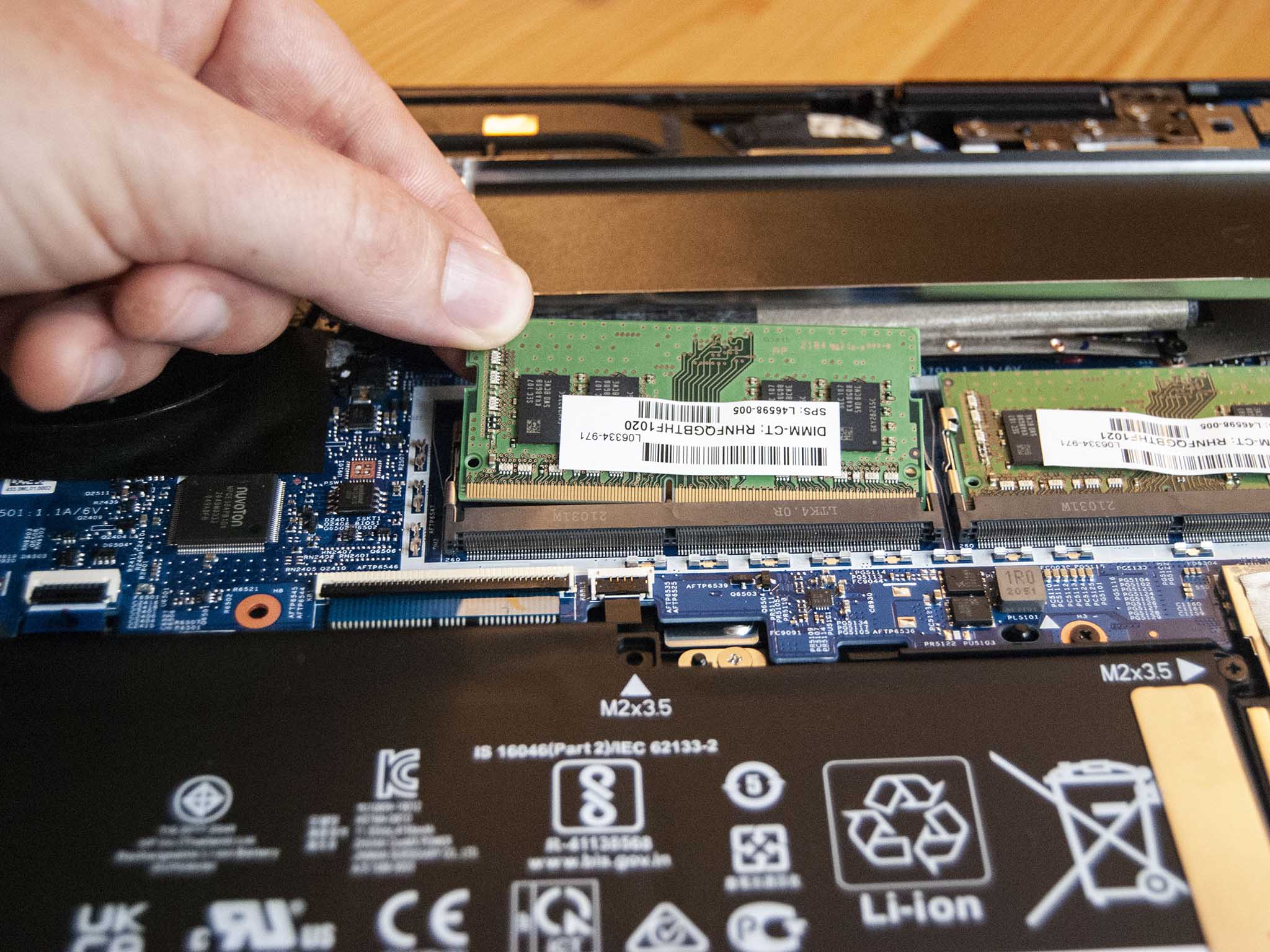
Locating the RAM Modules and Slots: Once the bottom panel is off, you’ll see the internal components. The RAM modules are typically rectangular sticks held in place by two small clips on either side, often covered by a black protective film or heatsink label.
Removing Existing RAM (If Upgrading/Replacing)
If you’re adding new RAM and have an empty slot, you can skip this step. If you’re replacing smaller modules or upgrading existing ones, you’ll need to remove them.
-
Releasing the Retention Clips: Locate the two small metal or plastic clips on either side of the RAM module. Gently push these clips outwards simultaneously. The RAM module should pop up at a slight angle (usually 30-45 degrees).
-
Gently Pulling Out the Old Module: Once the module is angled, carefully slide it straight out of the slot. Avoid forcing it.
-
Handling RAM Modules Correctly: Always hold RAM modules by their edges, never touching the gold connectors or the chips on the module’s surface. Store removed modules in an anti-static bag if you plan to keep them.
Installing the New RAM Modules
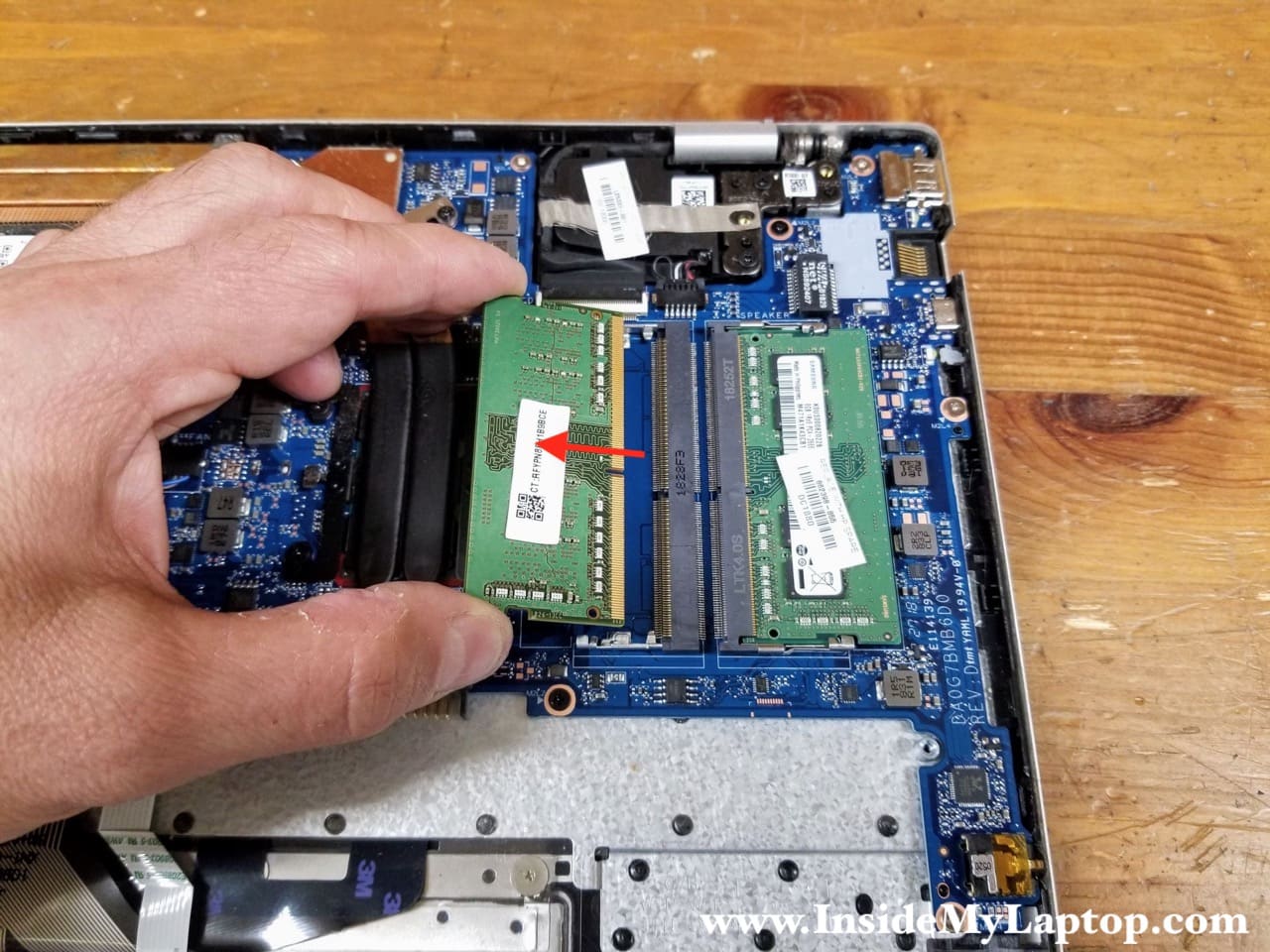
This is the core of the upgrade process. Take care to ensure correct orientation and secure seating.
-
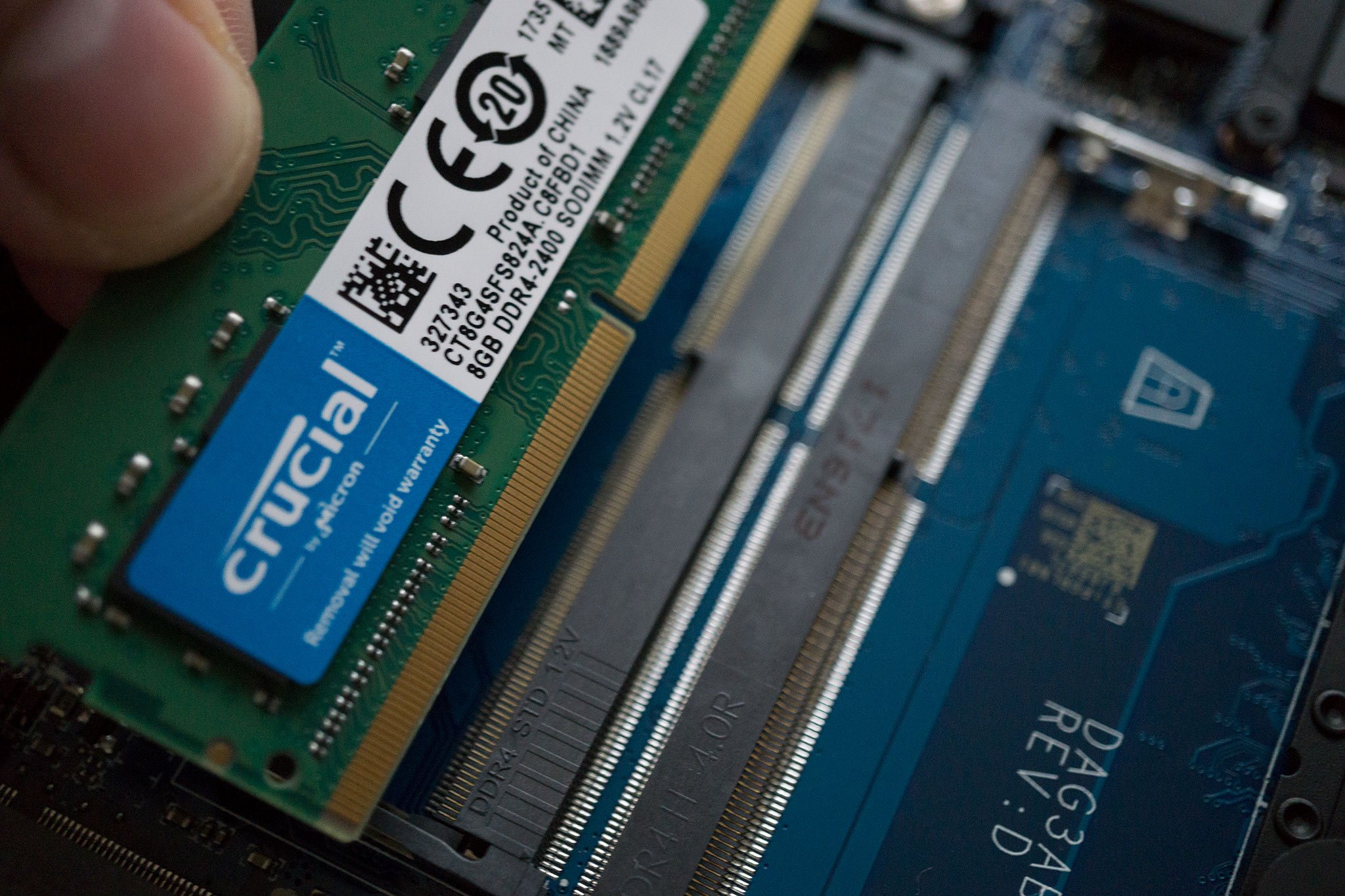
Aligning the Notch: Look closely at your new RAM module. There’s a small notch on the gold connector edge. This notch must align perfectly with the key in the RAM slot. Incorrect alignment means you’re trying to insert it backward or upside down. Do not force it.
-
Inserting at an Angle: With the notch aligned, hold the RAM module by its edges and insert the gold connector edge into the slot at an angle (typically 30-45 degrees). Push it firmly but gently into the slot until the gold connectors are almost fully seated and only a small portion is visible.
-
Pressing Down Until Clips Engage: Once inserted at an angle, gently but firmly push the module downwards towards the motherboard. You should hear and feel the two retention clips on either side snap into place, securing the module flat and parallel to the motherboard.
-
Double-checking Secure Fit: Visually inspect both clips to ensure they are fully engaged and holding the RAM module firmly. Wiggle the module very slightly; it should feel secure. Repeat for the second module if installing two.
Reassembly and Initial Power-Up
You’re almost there! It’s time to put everything back together and test your work.
-
Replacing the Back Panel: Carefully align the bottom panel with the laptop’s chassis. If there were plastic clips, gently press along the edges until they snap back into place. Ensure all edges are flush.
-
Securing Screws: Replace all the screws you removed earlier, putting them back in their original positions (if different lengths were noted). Do not overtighten them, as this can strip the threads or crack the plastic.
-
Reconnecting Power and Peripherals: Reinsert the laptop’s battery (if removable), reconnect the power adapter, and any peripherals you disconnected.
-
Booting the Laptop for the First Time: Power on your HP laptop. The first boot after a RAM upgrade might take a little longer than usual as the system initializes and recognizes the new memory. Don’t panic if it shows a black screen for a few extra seconds. It might also prompt you that the system configuration has changed.
Post-Installation Checks and Troubleshooting
After the successful power-up, it’s crucial to verify that the new RAM is correctly recognized and functioning as expected. Should you encounter any issues, a methodical troubleshooting approach will help resolve them.
Verifying RAM Recognition
The quickest way to confirm your upgrade was successful is to check your system’s memory information.
-
Checking System Information (Windows): Once Windows loads, right-click on the Start button and select “System” (or type “About your PC” in the search bar). Look for “Installed RAM” or “Installed physical memory.” The total capacity should reflect your new RAM. For example, if you upgraded from 8GB to 16GB, it should now show 16.0 GB (xx.x GB usable).
-
Task Manager/Activity Monitor: As before, open Task Manager (
Ctrl + Shift + Esc), go to the “Performance” tab, and click “Memory.” Here, you’ll see the total memory, speed, and whether it’s operating in single or dual channel mode. -
BIOS/UEFI Settings: For the most definitive check, you can enter your laptop’s BIOS/UEFI settings during boot-up (usually by pressing
F2,F10,Delete, orEscimmediately after power-on, depending on your HP model). The main information screen within the BIOS should display the total amount of installed RAM.
Common Issues and Solutions
Even with careful installation, sometimes issues can arise. Here’s how to address the most common ones:
-
Laptop Not Booting/Blank Screen: This is the most alarming issue.
-
Solution 1: Reseat the RAM: Power down, unplug, discharge power, and open the back panel again. Carefully remove and reinsert the new RAM modules, ensuring they are fully seated and the clips snap into place. Often, a module isn’t quite seated correctly.
-
Solution 2: Check Compatibility: Double-check that the new RAM modules are indeed compatible with your specific HP laptop model, matching DDR generation, voltage, and speed.
-
Solution 3: Test Modules Individually: If you installed two new modules, try booting with only one installed at a time in the first slot. If one works and the other doesn’t, you might have a faulty module.
-
-
Incorrect RAM Amount Detected: The system boots, but the detected RAM is less than expected.
-
Solution 1: Reseat: Again, often a seating issue.
-
Solution 2: Check BIOS/UEFI: Ensure the BIOS recognizes the full amount. If not, there might be a physical issue with a slot or module.
-
Solution 3: Faulty Module/Slot: If one module isn’t detected, try it in the other slot, and vice versa. This can help isolate if the issue is with the RAM stick itself or the motherboard slot.
-
-
Blue Screen of Death (BSOD) or System Instability: If the laptop boots but crashes frequently, especially under load, it could indicate faulty RAM or incompatibility.
-
Solution 1: Run Memory Diagnostics: Windows has a built-in Memory Diagnostic Tool (type “Windows Memory Diagnostic” in the search bar). This can help identify faulty RAM modules.
-
Solution 2: Check for BIOS Updates: Sometimes, a BIOS update can improve RAM compatibility and stability. Check HP’s support website for your model.
-
Memory Stress Testing (Optional but Recommended)
For advanced users or those experiencing subtle stability issues, a memory stress test can thoroughly check the integrity of your new RAM.
- Using Tools like MemTest86: This free, powerful tool runs comprehensive tests on your RAM from outside the operating system. You’ll need to create a bootable USB drive with MemTest86 and boot your laptop from it. A successful test (no errors) indicates healthy RAM.
Maximizing Your Upgraded HP Laptop’s Performance
Congratulations! You’ve successfully installed new RAM into your HP laptop. But merely having more RAM isn’t the whole story. Understanding its impact and combining it with other best practices will truly unleash your machine’s full potential.
Understanding the Impact of More RAM
The increase in RAM capacity directly translates to several noticeable performance improvements:
-
Multitasking Efficiency: With more RAM, your laptop can hold more applications, browser tabs, and documents open simultaneously without resorting to “paging” data to the slower hard drive. This means smoother transitions between tasks and no frustrating slowdowns when switching.
-
Faster Application Loading: While primarily dictated by your storage drive (SSD vs. HDD), increased RAM can keep frequently used application components in memory, reducing load times.
-
Smoother Gaming and Content Creation: RAM is crucial for gaming, especially open-world titles, and for demanding applications like video editing, graphic design, and 3D rendering. More RAM allows these applications to handle larger files and more complex operations without stuttering or crashing.
Complementary Performance Enhancements
While RAM is a significant upgrade, consider these other areas for an even greater boost:
-
SSD Upgrade (if not already present): If your HP laptop still uses a traditional Hard Disk Drive (HDD), upgrading to a Solid State Drive (SSD) is arguably the single most impactful upgrade for overall system responsiveness. Boot times, application loading, and file transfers will become dramatically faster. Many HP laptops allow for both RAM and storage upgrades.
-
Regular Software Maintenance: Keep your operating system and drivers updated. Regularly clear temporary files, run disk cleanup, and uninstall unused applications. A clean software environment allows your hardware to perform at its best.
-
Optimizing Startup Programs: Too many programs launching at startup can bog down your system, even with ample RAM. Use Task Manager (Startup tab) to disable unnecessary programs from launching with Windows.
Conclusion
Upgrading the RAM in your HP laptop is more than just a technical procedure; it’s an investment in your productivity, entertainment, and the longevity of your device. By meticulously following the steps outlined in this guide – from careful preparation and component selection to the hands-on installation and post-upgrade verification – you have not only enhanced your laptop’s performance but also gained invaluable experience in DIY tech maintenance.
Your HP laptop, now armed with increased memory, is ready to tackle more demanding tasks, handle intense multitasking with ease, and provide a significantly smoother user experience. Embrace the newfound speed, enjoy the seamless workflow, and revel in the satisfaction of having empowered your machine with your own hands. The world of efficient and responsive computing awaits!
aViewFromTheCave is a participant in the Amazon Services LLC Associates Program, an affiliate advertising program designed to provide a means for sites to earn advertising fees by advertising and linking to Amazon.com. Amazon, the Amazon logo, AmazonSupply, and the AmazonSupply logo are trademarks of Amazon.com, Inc. or its affiliates. As an Amazon Associate we earn affiliate commissions from qualifying purchases.