
In the digital age, where multitasking is the norm and demanding applications are commonplace, Random Access Memory (RAM) stands as a critical component dictating your computer’s responsiveness and overall performance. A significant bottleneck in many systems isn’t necessarily a slow processor or an outdated graphics card, but rather insufficient or improperly configured RAM. Upgrading your RAM is one of the most cost-effective ways to breathe new life into an aging machine or enhance the capabilities of a new one. However, the process, while seemingly straightforward, demands precision and adherence to best practices to avoid potential system instability or damage. This comprehensive guide will walk you through the correct procedure for installing RAM, ensuring a smooth upgrade and optimal performance.
Understanding RAM and Why Proper Installation Matters
Before diving into the mechanics of installation, it’s crucial to grasp what RAM is, its role in your system, and why its correct installation is paramount. A clear understanding of these fundamentals will underscore the importance of each step in the process.
What is RAM and Its Role in Your System?
RAM acts as your computer’s short-term memory, a high-speed volatile storage area where the operating system, applications, and data currently in use are temporarily stored. Unlike your hard drive or solid-state drive (SSD), which store data long-term, RAM provides incredibly fast access to information that the CPU needs immediately. When you open a program, edit a document, or browse the web, that data is loaded into RAM, allowing your CPU to access it quickly without waiting for slower long-term storage.
More RAM generally means your computer can handle more tasks simultaneously, open larger files, and run more resource-intensive applications without slowing down or freezing. Insufficient RAM forces your system to constantly swap data between the RAM and the much slower long-term storage (a process called “paging” or “swapping”), leading to noticeable performance degradation.
The Consequences of Incorrect RAM Installation
Installing RAM incorrectly can lead to a myriad of issues, ranging from minor annoyances to severe system damage. Physical damage to the RAM module or the motherboard’s RAM slot can occur if modules are forced into place or inserted at the wrong angle. Electrocution from static discharge is another risk, which can irrevocably damage sensitive electronic components.
Beyond physical damage, improper installation can manifest as:
-
System instability: Frequent crashes, blue screens of death (BSODs), or random reboots.
-
Failure to boot: The computer may not power on at all, or it might power on but display no video output.
-
Incorrect RAM detection: The system might only detect a portion of the installed RAM, or none at all.
-
Performance issues: Even if the system boots, incorrectly seated RAM can lead to reduced performance due to poor electrical contact or miscommunication with the CPU.
These issues highlight why meticulous preparation and careful execution are not just recommended, but essential.
Benefits of a Smooth Upgrade
A correctly executed RAM upgrade offers immediate and tangible benefits. You’ll experience faster application loading times, smoother multitasking, improved responsiveness across the board, and enhanced performance in demanding tasks like gaming, video editing, or virtual machine operation. It extends the useful life of your computer, making it feel snappier and more capable without the expense of a full system replacement. A smooth upgrade ensures these benefits are realized without any frustrating technical setbacks.
Before You Begin: Preparation is Key
Preparation is the cornerstone of any successful hardware upgrade. Taking the time to properly prepare will not only streamline the installation process but also mitigate risks and prevent potential compatibility headaches.
Compatibility Check: The Crucial First Step
The most critical pre-installation step is ensuring the new RAM is compatible with your motherboard and existing components. Not all RAM is created equal, and several factors must align:
-
RAM Type (DDR generation): DDR4, DDR5, etc. Your motherboard will only support one generation. Trying to install DDR4 RAM into a DDR5 slot (or vice versa) is physically impossible without damaging the components.
-
Form Factor: Desktop RAM uses DIMMs (Dual In-line Memory Modules), while laptops use SO-DIMMs (Small Outline Dual In-line Memory Modules). They are not interchangeable.
-
Speed (MHz): While a motherboard generally supports a range of speeds, it’s best to match the speed (e.g., 3200MHz, 3600MHz) of any existing RAM modules to ensure they work together optimally. If mixing speeds, all modules will typically operate at the speed of the slowest module.
-
Capacity: Ensure your motherboard supports the total RAM capacity you intend to install (e.g., up to 64GB, 128GB).
-
Voltage: Most modern RAM operates at 1.2V for DDR4 and 1.1V for DDR5, but it’s worth double-checking, especially for older or specialized modules.
-
Latency (CL timing): Lower CL timings generally indicate faster RAM. While less critical for compatibility, matching or considering similar CL timings for mixed modules can help performance.
Consult your motherboard’s manual or the manufacturer’s website for detailed specifications, including supported RAM types, speeds, and maximum capacity. Online tools and RAM configurators offered by manufacturers like Crucial or Kingston can also help you find compatible memory for your specific system.
Essential Tools and Safety Precautions
While RAM installation often requires minimal tools, observing safety precautions is paramount to protect both yourself and your computer components from static electricity discharge.
-
Phillips Head Screwdriver: Most computer cases are held together with these.
-
Anti-static Wrist Strap: This is highly recommended. It grounds you, preventing static electricity buildup that can damage sensitive components. If you don’t have one, regularly touch a bare metal part of your computer case (while it’s still plugged into the wall, but switched off) to discharge static.
-
Clean, Well-lit Workspace: A clear area reduces the chance of misplacing screws or tools and allows for better visibility of internal components.
-
Non-conductive Surface: Work on a wooden table or a large anti-static mat, not on carpet, which generates static easily.
Safety Precautions:
-
Unplug the PC: Always disconnect the power cable from the wall outlet and the power supply unit (PSU) before opening the case.
-
Discharge Residual Power: After unplugging, press and hold the power button on your PC for 10-15 seconds to drain any residual power from the system’s capacitors.
-
Ground Yourself: Wear an anti-static wrist strap, or frequently touch a grounded metal object.
-
Handle Components Carefully: Hold RAM modules by their edges, avoiding contact with the gold connector pins or the integrated circuits.
Backing Up and Powering Down
While a RAM upgrade generally doesn’t affect your data, it’s always good practice to back up important files before performing any internal hardware changes. This provides peace of mind in the rare event of an unforeseen issue.
Finally, ensure your computer is completely powered down and unplugged from the wall. Confirm no power indicator lights are active on the motherboard. This final step isolates the system from any electrical current, making it safe to handle internal components.
The Step-by-Step RAM Installation Process
With preparation complete, you’re ready to proceed with the physical installation. Each step requires a gentle but firm touch, ensuring components are seated correctly without undue force.
Opening Your Computer Case
First, open your computer case. Most desktop cases have side panels secured by thumbscrews or regular screws at the rear. Remove the screws, slide the side panel backward, and then lift it off. For most RAM installations, you’ll need to access the side of the case where the motherboard is mounted, typically the left panel when viewed from the front.
Once the panel is removed, set it aside in a safe place. Take a moment to observe the internal layout, familiarizing yourself with the motherboard, CPU cooler, and existing components.
Locating and Removing Old RAM (If Applicable)
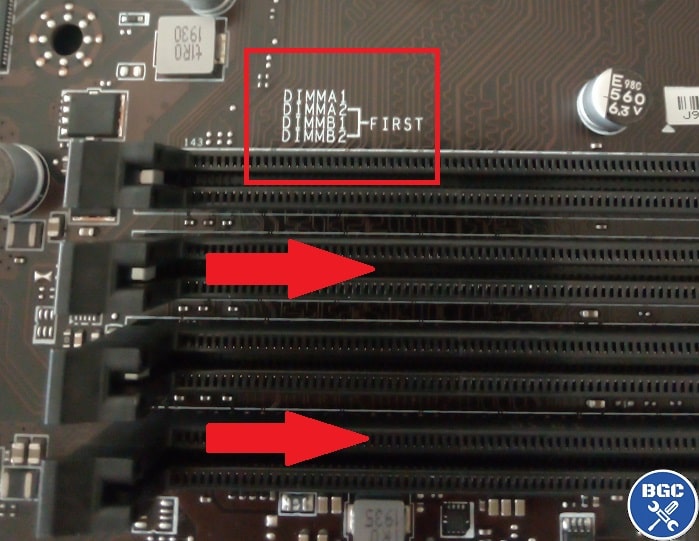
Identify the RAM slots on your motherboard. They are typically long, narrow slots arranged in pairs or groups, located near the CPU socket. If you’re replacing existing RAM, you’ll need to remove the old modules first.
-
Release the Latches: Each RAM slot has small plastic latches or clips at both ends. Gently push these latches outwards (away from the RAM module).
-
Remove the Module: Once the latches are released, the RAM module should slightly pop up. Grasp the module by its edges and carefully pull it straight out of the slot. Avoid rocking it side to side, which can stress the pins.
-
Store Safely: Place the removed RAM modules in an anti-static bag or a safe, dry place, especially if you plan to reuse or sell them.
If you are simply adding more RAM and have empty slots, you can skip this removal step.
Inserting New RAM Modules
Now for the main event: installing the new RAM. This step requires careful alignment and even pressure.
-
Align the Notch: Look at your new RAM module. It has a notch (or key) on its bottom edge that divides the gold connector pins into two sections. This notch must align perfectly with the corresponding ridge in the RAM slot on your motherboard. This ensures the module is inserted in the correct orientation. Do not force it if it doesn’t align – you likely have it backwards or it’s incompatible.
-
Open the Latches: Ensure the latches on both ends of the RAM slot are fully open.
-
Position the Module: Hold the RAM module by its edges, positioning it directly above the slot with the notch aligned.
-
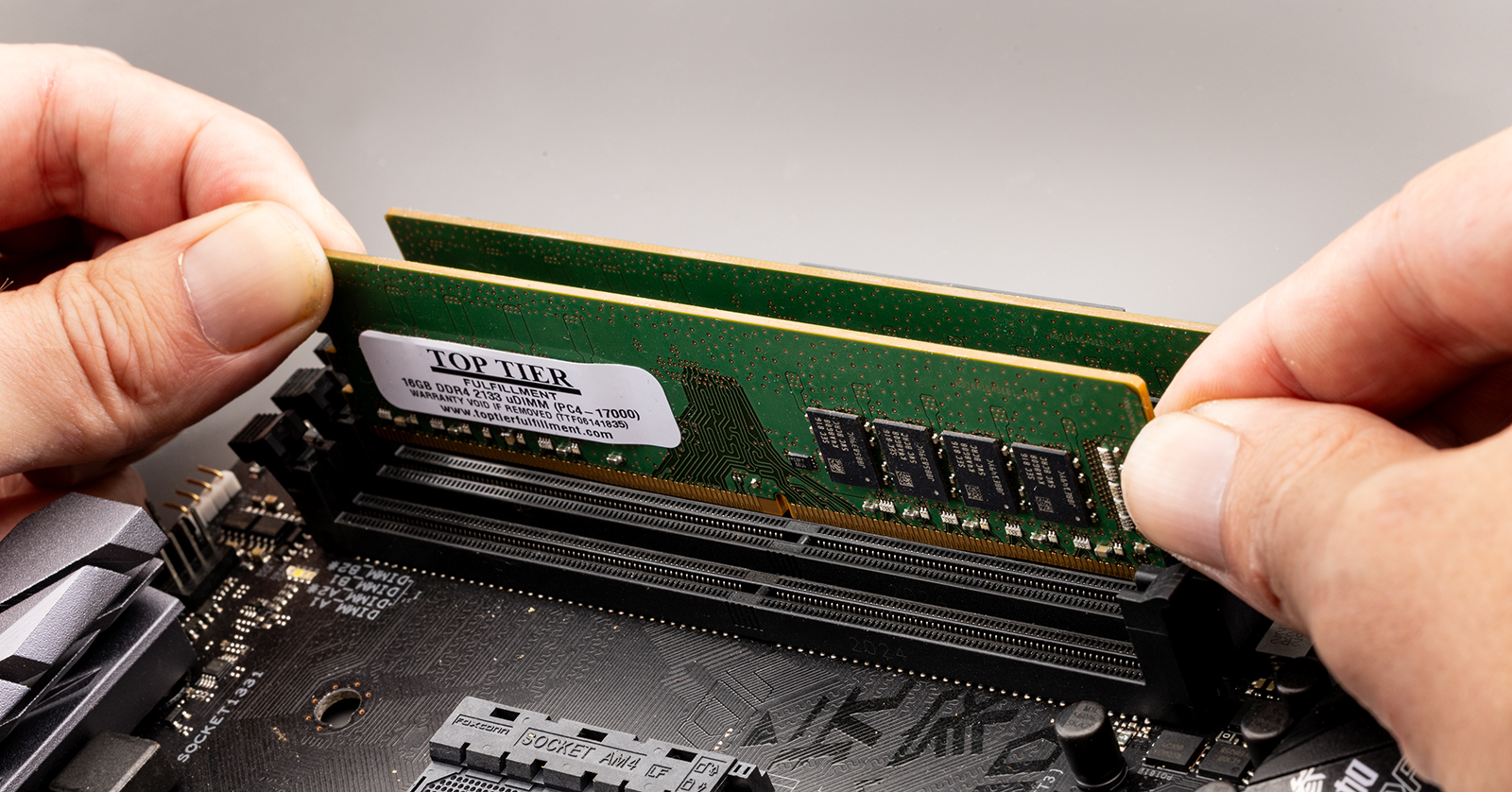
Apply Even Pressure: Place the module into the slot and apply firm, even pressure to both ends simultaneously. You should hear and feel two distinct clicks as the latches snap into place, securing the module.
-
Verify Seating: Visually inspect both ends of the module. The latches should be fully closed and flush with the module’s sides, and the gold contacts should be almost entirely hidden within the slot, with no gaps. If a latch doesn’t close, gently push down on that end of the RAM module until it clicks.
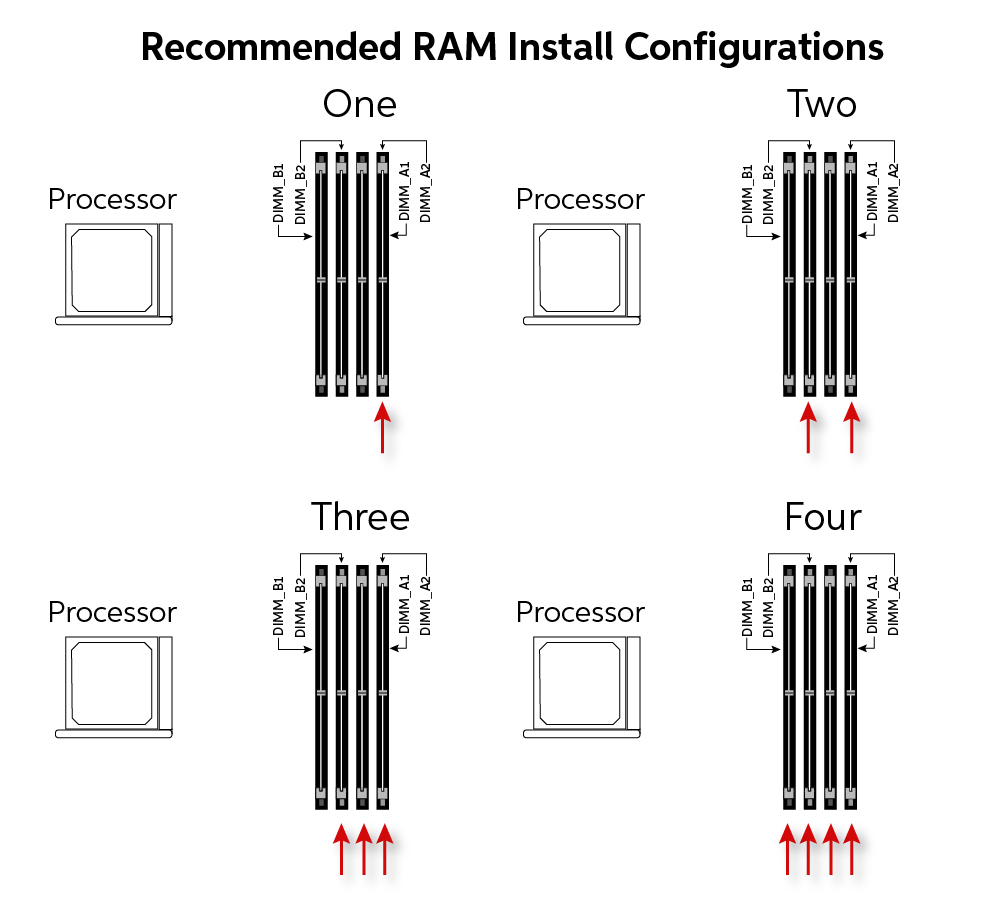
Pro Tip for Multiple Modules: If installing two or four RAM modules, refer to your motherboard’s manual for the correct slot configuration (e.g., A2/B2 or slots 2 and 4 for dual-channel performance). Populating the correct slots is crucial for unlocking performance benefits like dual-channel mode.
Securing the RAM and Reassembling the System
Once all RAM modules are correctly seated and secured, double-check your work. Ensure no loose screws or tools are inside the case.
-
Replace the Side Panel: Carefully slide the computer’s side panel back into place and secure it with the screws.
-
Reconnect Cables: Reconnect all power cables, monitor cables, and any other peripherals you disconnected.
-
Power On: Plug your computer back into the wall outlet.
Post-Installation: Verifying Your Upgrade
The physical installation is complete, but the job isn’t done until you’ve verified that your system recognizes and utilizes the new RAM correctly.
Initial Boot-Up and BIOS/UEFI Check
Power on your computer. The first boot after a RAM upgrade might take slightly longer than usual as the system detects and configures the new memory.
-
Monitor for Errors: Watch for any error messages, unusual beeps (post codes), or failure to display video. If the system fails to boot, power it off, check all connections again (especially RAM seating), and retry.
-
Access BIOS/UEFI: As the computer starts, repeatedly press the designated key (commonly DEL, F2, F10, or F12) to enter your motherboard’s BIOS/UEFI settings.
-
Verify RAM Detection: Within the BIOS/UEFI, navigate to a section that displays system information or memory settings. You should see the total amount of installed RAM listed, along with its speed. Confirm this matches the capacity and speed of the RAM you installed.
Operating System Verification
Once your system successfully boots into the operating system:
-
Windows: Open Task Manager (Ctrl+Shift+Esc), go to the “Performance” tab, and select “Memory.” It will display the total installed RAM.
-
macOS: Click the Apple menu, select “About This Mac,” and the “Memory” tab will show the installed RAM.
-
Linux: Open a terminal and type
free -horhtopto see memory usage and total capacity.
Confirm that the operating system reports the correct amount of RAM. If it’s less than expected, revisit the troubleshooting section.
Troubleshooting Common Issues
If you encounter problems post-installation, don’t panic. Most issues are minor and easily resolved:
-
System won’t boot / No display:
-
Re-seat all RAM modules firmly. Ensure the latches are fully closed.
-
Try booting with only one RAM module at a time (if you installed multiple) to identify a potentially faulty module or slot.
-
Clear the CMOS (Complementary Metal-Oxide-Semiconductor) settings on your motherboard (refer to your motherboard manual for how to do this, usually by removing a battery or shorting pins). This resets BIOS settings to default, which can resolve memory-related boot issues.
-
-
Incorrect RAM amount detected:
-
Ensure all modules are seated correctly.
-
Check your motherboard manual for the correct slot configuration for dual-channel or multi-channel memory. Sometimes, RAM needs to be in specific slots to be fully recognized.
-
Verify RAM compatibility again.
-
-
System instability / Crashes:
-
Run a memory diagnostic tool (Windows Memory Diagnostic or MemTest86 for a more thorough check). This can help identify faulty RAM modules.
-
Ensure your BIOS/UEFI is up to date, as newer versions often improve RAM compatibility.
-
Optimizing Your RAM Configuration
Once your RAM is installed and verified, there are a couple of additional steps you can take to ensure you’re getting the absolute best performance from your upgrade.
Understanding Dual-Channel vs. Single-Channel
Most modern motherboards and CPUs support dual-channel memory architecture (some high-end platforms support quad-channel). This allows the CPU to access two RAM modules simultaneously, effectively doubling the memory bandwidth compared to single-channel mode.
-
Configuration: To enable dual-channel mode, you typically need to install RAM modules in specific slots. Your motherboard manual will illustrate which slots to use (often labeled A2/B2 or slots 2 and 4 from the CPU).
-
Matching Modules: For optimal dual-channel performance, use identical RAM modules (same brand, model, speed, and capacity). While you can sometimes mix modules, it’s not guaranteed to work flawlessly and may revert to single-channel or slower speeds.
Always refer to your motherboard’s manual for the recommended dual-channel configuration.
XMP/DOCP Profile Activation
High-performance RAM modules often come with speeds advertised above the default JEDEC standard (e.g., 3600MHz instead of 2133MHz). Out of the box, your system might automatically run them at a lower, safer default speed. To unlock the full advertised speed, you need to enable an XMP (Extreme Memory Profile for Intel systems) or DOCP/EXPO (Direct Over Clock Profile/Extended Profiles for Overclocking for AMD systems) profile in your BIOS/UEFI.
-
Access BIOS/UEFI: Enter your BIOS/UEFI settings during boot-up.
-
Locate XMP/DOCP Setting: Look for a setting related to “Memory Profile,” “XMP,” “DOCP,” or “Overclocking.” It’s often found under an “Advanced” or “AI Tweaker” section.
-
Enable Profile: Select and enable the available XMP/DOCP profile (usually Profile 1). This will automatically adjust voltage, timings, and frequency to the RAM’s advertised specifications.
-
Save and Exit: Save your BIOS changes and exit. Your system will reboot, now utilizing the full speed of your RAM.
Be aware that enabling XMP/DOCP is technically an overclock, and while generally stable, it can occasionally lead to instability if your CPU’s memory controller or motherboard is not robust enough. If you experience issues, disable the profile and revert to default settings.
Monitoring RAM Performance
After all these steps, it’s good practice to monitor your RAM performance to ensure everything is running as expected.
-
Task Manager (Windows): The “Performance” tab provides real-time graphs of memory usage.
-
Third-party Monitoring Tools: Utilities like HWiNFO or CPU-Z can provide detailed information about your RAM’s current speed, timings, and temperature.
By following these guidelines, you’ll ensure your RAM upgrade is not only successful but also optimized for peak performance, providing a noticeable boost to your computer’s speed and efficiency. A correctly installed RAM module isn’t just about functionality; it’s about unlocking your system’s full potential, ensuring a responsive and enjoyable computing experience for years to come.
aViewFromTheCave is a participant in the Amazon Services LLC Associates Program, an affiliate advertising program designed to provide a means for sites to earn advertising fees by advertising and linking to Amazon.com. Amazon, the Amazon logo, AmazonSupply, and the AmazonSupply logo are trademarks of Amazon.com, Inc. or its affiliates. As an Amazon Associate we earn affiliate commissions from qualifying purchases.