
Minecraft, a game celebrated for its boundless creativity and emergent gameplay, truly unfurls its full potential through the vibrant world of modifications, or “mods.” While single-player mods can transform personal adventures, extending these experiences to a multiplayer server opens up an entirely new dimension of collaborative storytelling, enhanced mechanics, and shared innovation. Installing mods on a Minecraft server can seem daunting at first, involving a precise sequence of steps and an understanding of underlying technical principles. However, with the right guidance, server administrators can unlock a universe of custom content, from intricate industrial systems to fantastical creatures and new biomes, profoundly enriching the communal gaming experience. This comprehensive guide will navigate you through the process, ensuring your journey into server-side modding is both successful and secure within the Tech niche.

Understanding the Modding Ecosystem for Minecraft Servers
Before diving into the practical steps of installation, it’s crucial to grasp the fundamental components and concepts that underpin Minecraft server modding. This foundational knowledge will empower you to make informed decisions and troubleshoot effectively.
The Allure of Server-Side Modifications
The decision to mod a Minecraft server often stems from a desire to transcend the vanilla game’s limitations. Server-side mods introduce features that affect all connected players, creating a unified and enhanced environment. These can range from minor quality-of-life improvements, like better inventory management or dynamic lighting, to massive overhauls that introduce entirely new game modes, crafting systems, or even magic and technology trees. For communities, server mods foster unique identities, drive player engagement, and provide fresh challenges long after the base game’s novelty might wane. They transform a standard server into a bespoke digital world tailored to the community’s specific desires and playstyles, offering an unparalleled level of customization and replayability. Furthermore, many performance-enhancing mods specifically target server-side optimizations, ensuring a smoother experience for all players, even with demanding content.
Key Modding APIs: Forge vs. Fabric
The backbone of almost every modded Minecraft server is a Modding API (Application Programming Interface), which acts as a bridge between the game’s core code and the mod files. The two most dominant modding APIs in the Minecraft ecosystem are Forge and Fabric, each with its own philosophy, community, and library of compatible mods.
-
Minecraft Forge: For years, Forge was the undisputed king of Minecraft modding. It boasts an extensive library of mods, accumulated over many versions of Minecraft, and is generally considered more mature and robust for larger, more complex modpacks. Forge often provides deeper hooks into the game’s mechanics, allowing for highly transformative mods. However, its comprehensive nature can sometimes lead to slightly slower load times and resource usage compared to newer alternatives. If you’re looking to run established, content-heavy modpacks, Forge is often the go-to choice.
-
Fabric: Emerging more recently, Fabric gained significant traction due to its lightweight nature and speed. Fabric’s design prioritizes minimalism and performance, making it quicker to update for new Minecraft versions. While its mod library is growing rapidly, it might not yet rival Forge in sheer volume for older Minecraft versions. Fabric is often favored for smaller, more focused modpacks, performance enhancements, and for developers who appreciate its modern architecture.
The choice between Forge and Fabric is critical, as mods are typically built for one API or the other and are not cross-compatible. Your decision will dictate the available mods and potentially influence server performance and stability. It’s essential to research which API supports the specific mods you wish to install.
Essential Prerequisites Before You Begin
Before embarking on the modding journey, several prerequisites must be met to ensure a smooth installation process:
-
Java Development Kit (JDK): Minecraft servers and their mod loaders run on Java. Ensure you have the correct version of Java installed (often JDK 17 for newer Minecraft versions, but always check mod loader requirements). An outdated or incorrect Java version is a common source of server-start failures.
-
A Dedicated Minecraft Server Instance: This guide assumes you already have a basic vanilla Minecraft server set up, whether hosted on a dedicated machine, a VPS (Virtual Private Server), or a managed hosting service. Understanding how to access your server’s files (via SFTP/FTP) and its command line interface (CLI) or control panel is fundamental.
-
Basic Command Line Knowledge: While not strictly necessary for every step, familiarity with basic shell commands (e.g.,
cd,ls,java -jar) can be incredibly helpful for starting your server, debugging issues, and navigating server directories. -
Reliable Internet Connection: For downloading mod loaders, mods, and server files.
-
Sufficient System Resources: Modded servers are generally more resource-intensive than vanilla servers. Ensure your server has adequate RAM, CPU cores, and storage to comfortably run your chosen mods and support your player count. Under-resourced servers will lead to lag and crashes.
-
A Backup Strategy: This is paramount. Modding can be unpredictable. Always back up your entire server directory before making significant changes. This allows you to revert to a stable state if something goes wrong without losing your world or player data.
Preparing Your Minecraft Server for Mods
With the foundational understanding established, the next phase involves actively preparing your server environment to host mods. This usually entails installing the chosen mod loader and performing initial configurations.
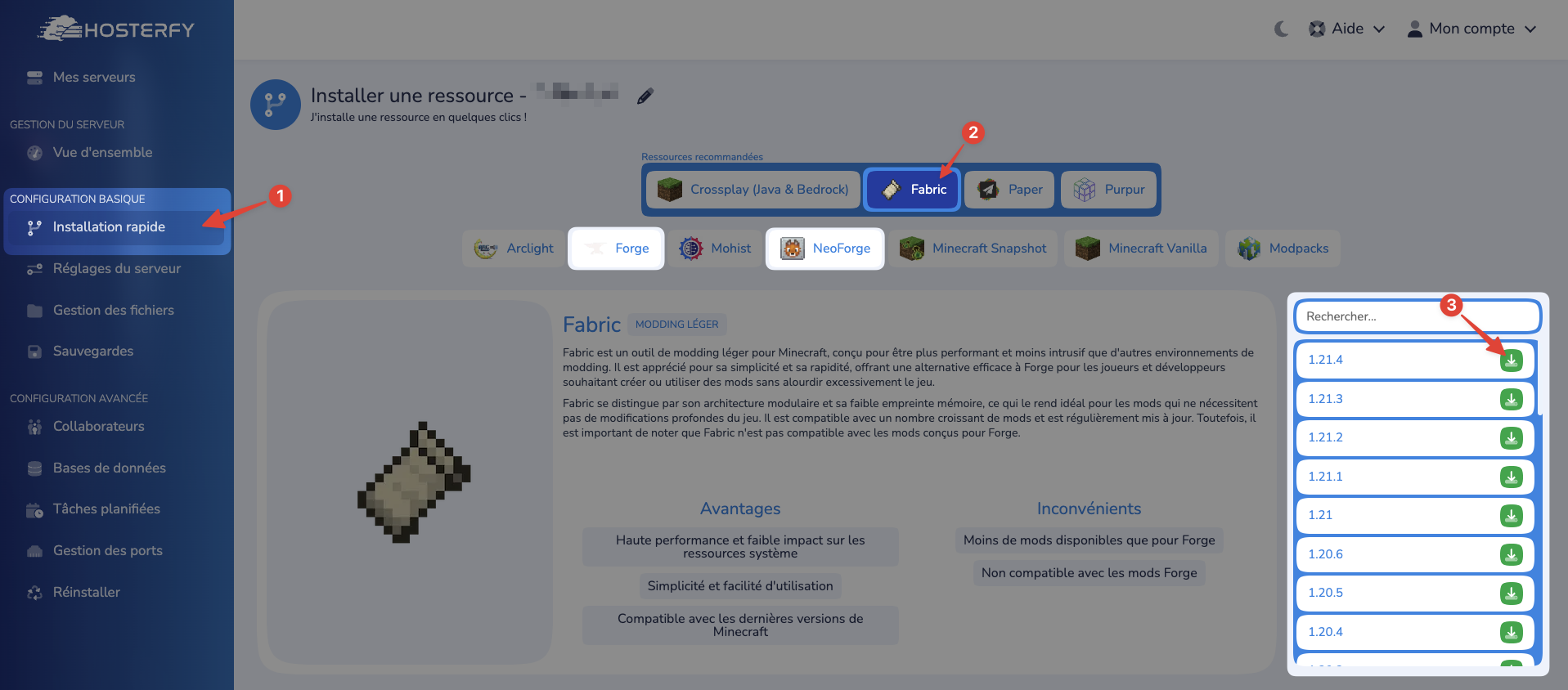
Choosing and Installing Your Mod Loader (Forge/Fabric)
The first concrete step is to install your chosen mod loader onto your server. The process for Forge and Fabric is similar but distinct.
For Minecraft Forge:
-
Download the Forge Installer: Visit the official Minecraft Forge website (
files.minecraftforge.net). Navigate to the Minecraft version you intend to mod (e.g., 1.20.1). Download the “Installer” version for the server. -
Run the Installer (on your local machine): The downloaded
.jarfile is a universal installer. Run it by double-clicking it. Select “Install server” and specify a new, empty folder on your local machine. This will download the necessary server files and the Forge server JAR. -
Transfer to Server: Once the installation is complete locally, you will have several files in that folder, including
forge-*-universal.jar(orforge-*-server.jar),libraries/folder, and potentially aeula.txt. Transfer all of these files and folders to your main Minecraft server directory using SFTP/FTP. -
Rename the JAR (Optional but Recommended): For convenience, you might rename the large Forge JAR file to something simpler, like
forge-server.jar. -
Accept EULA: If you haven’t already, ensure
eula.txtis present and theeula=falseline is changed toeula=true.
For Fabric:
-
Download the Fabric Installer: Go to the official Fabric website (
fabricmc.net/use/) and download the universal JAR installer. -
Run the Installer (on your local machine): Double-click the installer. Select the “Server” tab. Choose your desired Minecraft version and the corresponding Fabric Loader version. Specify an empty folder where the server files will be generated. Click “Install.”
-
Transfer to Server: This will create a
fabric-server-mc.jar(or similar), afabric-loader-0.X.Y.jar, and potentially aeula.txt. Transfer all these files to your main Minecraft server directory via SFTP/FTP. -
Rename the JAR (Optional): You might rename the main Fabric server JAR for easier launching, e.g.,
fabric-server.jar. -
Accept EULA: As with Forge, ensure
eula.txthaseula=true.
Initial Server Configuration for Mod Support
Once the mod loader files are on your server, you need to configure your server to use them.
-
Create a Server Start Script: Instead of directly running
java -jar server.jar, you’ll now run the mod loader JAR. Create astart.sh(for Linux) orstart.bat(for Windows) file in your server directory.-
Example
start.sh(Linux):#!/bin/bash java -Xmx4G -Xms2G -jar forge-server.jar nogui(Replace
forge-server.jarwith your actual mod loader JAR name, e.g.,fabric-server.jar. AdjustXmxandXmsfor your allocated RAM, e.g.,4Gfor 4 Gigabytes.) -
Example
start.bat(Windows):@echo off java -Xmx4G -Xms2G -jar forge-server.jar nogui pause
The
noguiargument prevents the server from opening a graphical user interface, which is rarely needed or wanted on a dedicated server. -
-
Make Script Executable (Linux): If on Linux, grant execute permissions to your
start.shscript:chmod +x start.sh. -
First Run: Execute your start script. The server will launch, generate necessary configuration files (including a
modsfolder), and then likely stop due to missing mods or further setup. This first run is crucial for the mod loader to initialize its environment. Check the server console for errors.
The Importance of Backups
We cannot overstate the importance of backups. Before installing any mods, and especially before your first modded server launch, create a full backup of your entire server directory. This includes your world files, configuration files, and any other data. In the event of mod conflicts, corrupted worlds, or other unforeseen issues, a recent backup is your lifeline to prevent data loss and minimize downtime. Consider automated backup solutions for ongoing protection.
Installing Individual Mods on Your Server
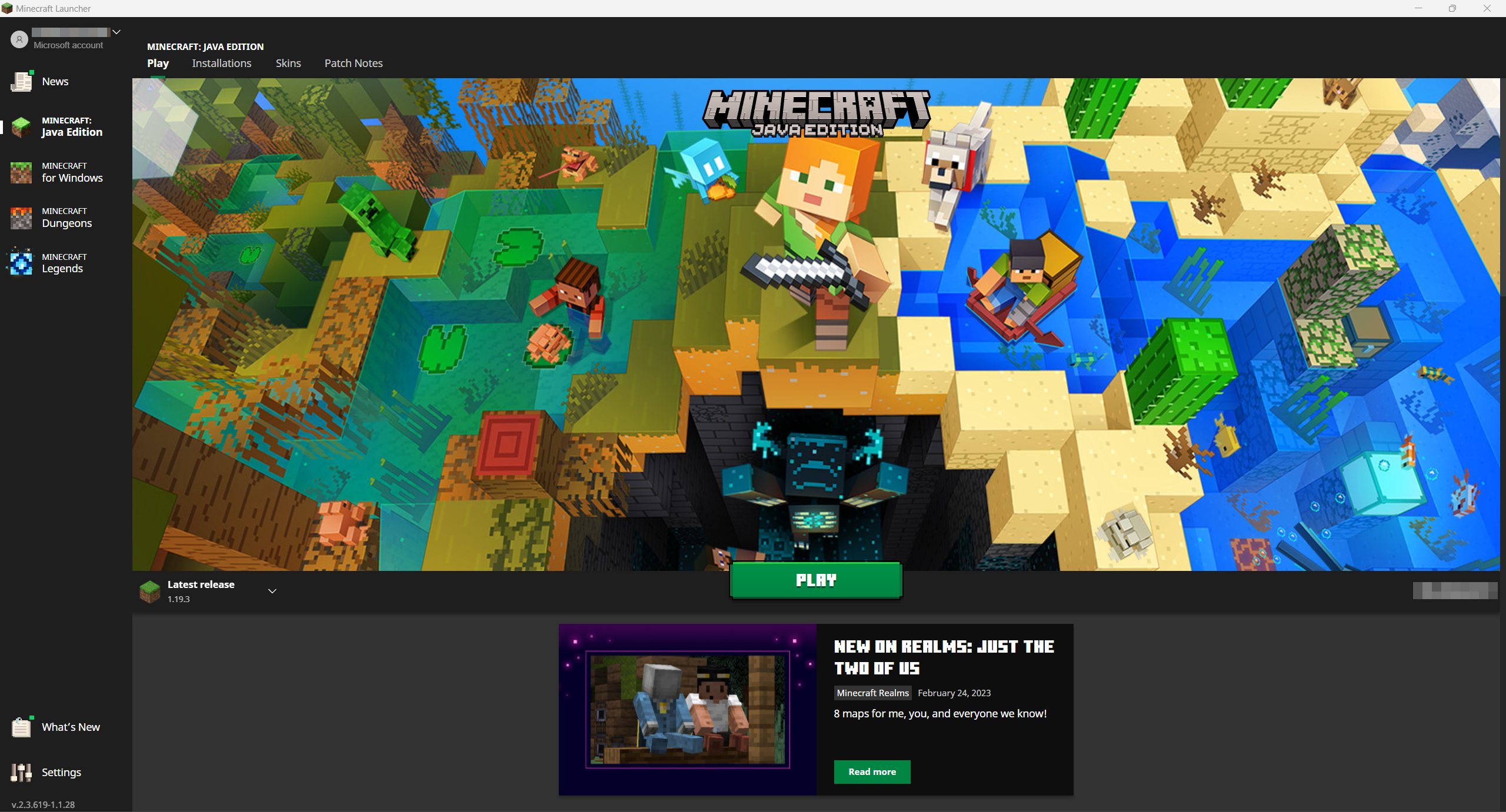
With your mod loader infrastructure in place, the exciting part begins: adding individual mods to transform your server.
Sourcing Reliable Mods
The internet is teeming with Minecraft mods, but quality and safety vary widely. Always download mods from reputable sources.
-
CurseForge: This is the largest and most trusted repository for Minecraft mods. Mods uploaded here typically undergo a review process.
-
Modrinth: A newer, open-source-friendly alternative to CurseForge that is gaining popularity, especially among Fabric users.
-
Official Mod Websites/Forums: Some mod developers host their mods on their own websites or dedicated forums.
Crucial Advice:
-
Version Compatibility: Ensure the mod is explicitly compatible with your specific Minecraft version and your chosen mod loader (Forge or Fabric). A mod for Minecraft 1.19.2 Fabric will not work on a Minecraft 1.20.1 Forge server.
-
Dependencies: Many mods require “dependency mods” to function (e.g., library mods like CoFH Core, Architectury, or Cloth Config). Always check the mod description for required dependencies and download them too.
-
Read Descriptions and Comments: Before downloading, read the mod’s description, user comments, and any installation instructions provided by the author. This can reveal common issues or specific setup steps.
Transferring Mods to the Server
Once you’ve downloaded your .jar mod files and any dependencies, they need to be transferred to your server.
-
Locate the
modsFolder: After your first successful run of the mod loader (Forge or Fabric), amodsfolder will be created in your server’s root directory (the same directory where your server JAR andserver.propertiesare located). -
Upload Mod Files: Using your SFTP/FTP client, upload all your downloaded mod
.jarfiles (and their dependencies) directly into thismodsfolder. Do not extract them unless explicitly instructed by the mod author (which is rare).
Configuring Mods and Launching the Server
Many mods come with their own configuration options, allowing you to fine-tune their behavior.
-
First Launch with Mods: After uploading your mods, start your server using your
start.sh/start.batscript. During this initial launch, the mod loader will process the mods, generate their configuration files, and create any necessary world data. -
Mod Configuration Files: After the server has run for a bit (and ideally been stopped cleanly), you will typically find new configuration files. For Forge, these are often in a
configfolder. For Fabric, they might be inconfigor directly in themodsfolder. These files (often.json,.toml, or.cfg) allow you to adjust mod settings. Always refer to the specific mod’s documentation for details on its configuration options. -
Monitor Console Output: Pay close attention to the server console during startup. It will list the loaded mods and any potential errors or warnings. Common issues like missing dependencies or incompatible mod versions will usually be flagged here.
-
Connect Your Client: Once the server is running without errors, attempt to connect your Minecraft client. Crucially, your client must also have the exact same versions of Forge/Fabric and all the same mods installed as the server to connect successfully to a modded server.
Client-Side Configuration for Modded Servers
The journey isn’t complete until your players can join your modded server. This requires careful client-side setup.
Synchronizing Client and Server Mod Packs
For players to connect to a modded server, their game client needs to be running the exact same set of mods and the same mod loader version as the server.
-
Install the Mod Loader on Client: Players must first install the chosen mod loader (Forge or Fabric) on their Minecraft client. This is done via the same installers used for the server, but by selecting “Install client” instead. This creates a new profile in the Minecraft Launcher.
-
Copy Server Mods to Client: Players then need to obtain the exact mod files (including dependencies) that are on the server and place them into the
modsfolder of their client-side Minecraft installation. The location of this folder is typically%appdata%.minecraftmodson Windows,~/Library/Application Support/minecraft/modson macOS, or~/.minecraft/modson Linux. -
Modpack Launchers: For complex modpacks with many mods, using a dedicated modpack launcher like ATLauncher, Technic Launcher, or the CurseForge App is highly recommended. These tools automate the process of downloading the correct mod loader and all necessary mod files, ensuring perfect synchronization between server and client. You can often export your server-side mod list and import it into these launchers to generate a client-side profile.
Troubleshooting Client Connectivity
If players encounter issues connecting to your modded server:
-
“Mismatching mod channel list” / “Missing mods”: This is the most common error. It means the client does not have the same mods (or the same versions) as the server. Double-check that all mods and their dependencies are present on both sides.
-
“Incompatible FML version” / “Incompatible Fabric Loader version”: The client’s mod loader version is different from the server’s. Ensure both are running the exact same build.
-
Server IP/Port Issues: Verify the server IP address and port are correct and the server is actually running.
-
Firewall: Ensure no local firewalls on the client or server are blocking the connection.
Best Practices and Troubleshooting Common Issues
Maintaining a modded Minecraft server is an ongoing process that benefits from best practices and a readiness to troubleshoot.
Performance Optimization for Modded Servers
Modded servers can be resource-intensive. Here are tips for optimizing performance:
-
Allocate Sufficient RAM: Use the
-Xmxand-XmsJava arguments in your start script to allocate enough RAM (e.g.,java -Xmx8G -Xms4G). Start with more than you think you need, then adjust down if stable. -
Choose Performance Mods: Incorporate mods specifically designed for performance optimization, such as:
-
Server-side: Lithium (Fabric), Phosphor (Fabric), Spark (Forge/Fabric), Chunky (Forge/Fabric)
-
Client-side (but beneficial for overall experience): OptiFine (Forge), Sodium (Fabric), Iris Shaders (Fabric)
-
-
Regular World Pre-Generation: Use a mod like Chunky to pre-generate chunks in your world. This reduces server load during exploration.
-
Limit Player Count: Be realistic about how many players your server hardware can handle with your chosen mods.
-
Monitor Resources: Use server monitoring tools (e.g., htop,
top, or built-in hoster dashboards) to track CPU, RAM, and disk I/O usage. -
Remove Unused Mods: Every mod adds overhead. If a mod isn’t being used or doesn’t add significant value, consider removing it.
Resolving Mod Conflicts and Crashes
Mod conflicts are almost inevitable in complex modpacks.
-
Read Crash Reports: When your server crashes, a
crash-report-*.txtfile is generated in your server directory. This file is your primary debugging tool. Look for lines indicating a specific mod causing the crash or a “ticking entity” error, which often points to a block or item from a mod. -
Binary Search Method: If you have many mods and a persistent crash, remove half your mods, test, and repeat. If it still crashes, the problematic mod is in the remaining half. If it stops crashing, it’s in the half you removed. Continue narrowing it down until you isolate the culprit.
-
Check Mod Documentation: Many mod authors provide troubleshooting sections or known compatibility issues in their documentation.
-
Update Mods: Ensure all your mods are up-to-date. Developers often release patches to fix bugs and resolve conflicts.
-
Mod-Specific Bug Trackers: If you’ve identified a specific mod causing issues, check its GitHub repository or bug tracker for known issues or solutions.
Maintaining Your Modded Server
Ongoing maintenance is key to a healthy modded server.
-
Regular Backups: Implement an automated daily or weekly backup schedule.
-
Monitor Logs: Periodically review server logs (
latest.log) for warnings or errors that might indicate impending issues. -
Stay Updated: Keep your Minecraft server version, mod loader, and individual mods updated to benefit from bug fixes and performance improvements. Always test updates on a separate instance or a backup before deploying to your live server.
-
Community Engagement: Engage with your player community. They might report issues or suggest improvements you wouldn’t otherwise notice.
In conclusion, installing mods on a Minecraft server is a process that demands attention to detail, a methodical approach, and a willingness to learn. By understanding the core components, carefully preparing your server, diligently installing and configuring mods, and embracing best practices for maintenance and troubleshooting, you can transform your Minecraft server into a truly unique and engaging digital world for your community. The effort invested in mastering server-side modding pays dividends in unparalleled creative freedom and a richly enhanced multiplayer experience within the vast landscape of interactive technology.
aViewFromTheCave is a participant in the Amazon Services LLC Associates Program, an affiliate advertising program designed to provide a means for sites to earn advertising fees by advertising and linking to Amazon.com. Amazon, the Amazon logo, AmazonSupply, and the AmazonSupply logo are trademarks of Amazon.com, Inc. or its affiliates. As an Amazon Associate we earn affiliate commissions from qualifying purchases.