
Cyberpunk 2077, CD Projekt RED’s ambitious open-world RPG, captivated millions with its stunning visuals and intricate narrative set in the dystopian Night City. While the vanilla game offers a rich experience, the vibrant modding community has taken customization and enhancement to unprecedented levels. Modding allows players to fix perceived issues, introduce new content, alter gameplay mechanics, and personalize their adventures in ways the developers never envisioned. This guide will walk you through the essential steps and frameworks required to successfully install mods on Cyberpunk 2077, transforming your Night City experience from engaging to truly bespoke.
Preparing for Your Modding Journey: Essential Prerequisites
Before diving into the exciting world of modding, a solid foundation of understanding and preparation is crucial. This initial phase ensures a smoother installation process and mitigates potential issues down the line.
Understanding Modding Risks and Benefits
Modding, while immensely rewarding, comes with inherent risks alongside its numerous benefits. It’s vital to be aware of both before you begin.
Benefits:
-
Enhanced Gameplay: Introduce quality-of-life improvements, combat overhauls, new quests, or deeper role-playing elements.
-
Visual Fidelity: Install high-resolution texture packs, improved lighting, custom character models, or sophisticated Reshade presets to push the game’s aesthetics further.
-
Bug Fixes and Performance: Community-made patches can address minor bugs or optimize performance in specific areas where official patches might fall short.
-
Customization: Personalize your V, vehicles, weapons, and environment to an extraordinary degree.
-
New Content: Discover player-created items, weapons, vehicles, apartments, or even full-fledged side missions.
Risks:
-
Game Instability: Poorly made or conflicting mods can lead to crashes, freezes, or performance drops.
-
Save Corruption: In rare cases, especially with complex script mods, save files can become corrupted, making them unplayable.
-
Compatibility Issues: Game updates can break existing mods, requiring them to be updated by their creators. Trying to use outdated mods can cause severe problems.
-
Security Concerns: Downloading mods from untrusted sources can expose your system to malware or viruses. Always stick to reputable modding hubs.
-
Learning Curve: Modding Cyberpunk 2077, particularly with its various frameworks, can have a steeper learning curve compared to some other games.
Given these risks, backing up your game saves and potentially even your game installation files is paramount. This simple step can save you hours of frustration if something goes wrong.
Gathering Essential Tools and Software
To effectively manage and install mods, you’ll need a few fundamental tools in your digital arsenal.
-
Archive Extractor (e.g., 7-Zip or WinRAR): Most mods are packaged in compressed archives (ZIP, RAR, 7z). An extractor is essential to unpack them. 7-Zip is free and widely recommended.
-
Modding Platforms (e.g., Nexus Mods): The vast majority of Cyberpunk 2077 mods are hosted on Nexus Mods. Create an account, as it’s often required for downloading and tracking mods. It also provides a robust platform for mod authors to share instructions and updates.
-
Game-Specific Modding Frameworks: Unlike some games, Cyberpunk 2077 often requires foundational “framework” mods that allow more complex mods to function. These include:
-
Cyber Engine Tweaks (CET): An essential script extender and debugging console.
-
RED4ext: Another crucial script extender that many complex mods rely on.
-
ArchiveXL: Allows modders to add new archive files to the game, enabling new items, clothes, and vehicles.
-
TweakXL: Enables the creation of new tweak entries in the game’s database, allowing for more extensive content additions.
-
Native Settings UI: Provides a unified in-game menu for configuring various mods.
-
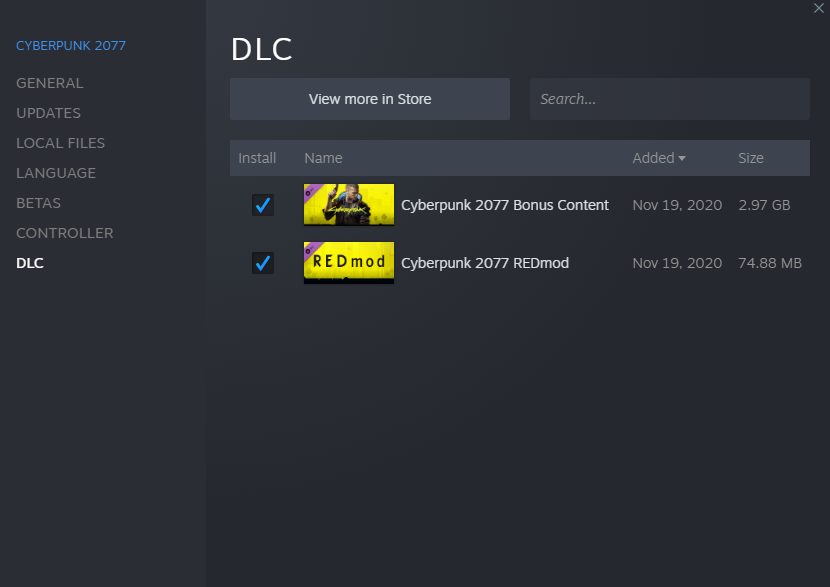
REDMod: CD Projekt RED’s official modding tool, which handles specific types of mods.
-
-
Optional: Mod Manager (e.g., Vortex by Nexus Mods): While not strictly required for all mods, a mod manager like Vortex can greatly simplify the installation, management, and uninstallation of mods, especially for larger mod lists. It helps with conflict resolution and ensures correct deployment.
Backing Up Your Game Files and Saves
Before making any alterations, create backups. This step is non-negotiable for a hassle-free modding experience.
-
Locating Save Files: Cyberpunk 2077 save files are typically found in
C:Users[Your Username]Saved GamesCD Projekt RedCyberpunk 2077. Copy the entireCyberpunk 2077folder to a safe location outside your game directory. -
Backing Up Game Installation (Optional but Recommended): For significant modding endeavors, you might consider making a copy of your entire Cyberpunk 2077 installation folder. This provides a clean slate to revert to if the modding process goes awry. Be mindful of the significant disk space this will consume.
-
Verifying Game File Integrity: Before modding, ensure your game installation is pristine.
-
Steam: Right-click Cyberpunk 2077 in your library > Properties > Local Files > Verify integrity of game files.
-
GOG Galaxy: Select Cyberpunk 2077 > Customize > Manage Installation > Verify / Repair.
-
Epic Games Store: Click the three dots next to Cyberpunk 2077 > Manage > Verify.
This process replaces any corrupted or missing original game files, providing a clean base for modding.
-
The Core Mechanics: Manual vs. Automated Mod Installation
Once your preparations are complete, you can begin installing mods. There are two primary methods: manual installation and automated installation via a mod manager. Each has its advantages and disadvantages.
Manual Installation: The Traditional Approach
Manual installation provides direct control and a deeper understanding of where files go, but it can be tedious and prone to human error, especially with numerous mods.
-
Locating the Game Directory: The first step for any manual installation is finding your Cyberpunk 2077 root directory.
-
Steam:
C:Program Files (x86)SteamsteamappscommonCyberpunk 2077 -
GOG Galaxy:
C:Program Files (x86)GOG GalaxyGamesCyberpunk 2077 -
Epic Games Store: Typically
C:Program FilesEpic GamesCyberpunk 2077(or wherever you installed it).
-
-
Understanding Common Mod File Structures: Mods will often instruct you to place files in specific subfolders within the game directory. Common targets include:
-
archive/pc/mod: This is where many simple texture, mesh, or item replacement mods go. You’ll often create amodfolder if it doesn’t exist. -
r6/scripts: For mods that introduce new scripts or modify existing game logic. -
bin/x64: This directory often houses script extenders like Cyber Engine Tweaks or RED4ext, or their respective plugins. -
red4ext/pluginsorCyberpunk 2077/bin/x64/plugins: Many RED4ext or CET dependent mods will have files that go into these plugin folders.
-
-
The Drag-and-Drop Method:
-
Download the mod archive and extract its contents using 7-Zip.
-
Carefully read the mod’s installation instructions on its download page. This is paramount as every mod can have unique requirements.
-
Identify the main folder within the extracted mod (e.g., “archive,” “bin,” “r6,” or a folder containing these).
-
Drag and drop the contents of the extracted mod folder into your main Cyberpunk 2077 game directory. When prompted, allow files to merge or overwrite existing ones (this is why backups are crucial!).
-
-
Uninstalling Manually: This is where manual installation becomes tricky. You must remember exactly which files you added or replaced. For mods placed in
archive/pc/mod, simply deleting the mod’s specific.archivefile usually suffices. For script mods that overwrite original files, it can be nearly impossible to revert without reinstalling the game or using your backup.
Automated Installation with Mod Managers (e.g., Vortex)
Mod managers abstract away much of the manual file handling, making modding more accessible and less error-prone. Vortex is a popular choice integrated with Nexus Mods.
-
Advantages of Mod Managers:
-
Easier Installation: Download and install mods with a click.
-
Conflict Management: Managers can detect and help resolve conflicts between mods trying to modify the same files.
-
Simpler Uninstallation: Mods can be disabled or uninstalled cleanly, often reverting the game to its previous state.
-
Load Order Management: For games where load order is critical, managers can help organize it.
-
-
Basic Setup and Linking to Cyberpunk 2077 (Vortex Example):
-
Download and install Vortex from Nexus Mods.
-
Launch Vortex and navigate to the “Games” tab.
-
Search for “Cyberpunk 2077” and click “Manage.” Vortex will usually auto-detect the game directory. If not, manually point it to your Cyberpunk 2077 installation.
-
Vortex will prompt you to install an extension for Cyberpunk 2077; confirm this.
-
-
Installing Mods via the Manager:
-
On a mod’s Nexus Mods page, look for the “Mod Manager Download” button. Click it.
-
Vortex will automatically download and stage the mod.
-
In Vortex, navigate to the “Mods” tab. The newly downloaded mod will appear.
-
Click “Install” for the mod.
-
Vortex will then ask you to “Enable” or “Deploy” the mod.
-
-
Deployment and Enabling/Disabling: After installing a mod, you need to “Deploy” it. This is where Vortex copies the mod files into your game directory. You can easily enable or disable mods through Vortex without physically deleting files, allowing for quick troubleshooting.
Decoding Key Cyberpunk 2077 Modding Frameworks
Cyberpunk 2077’s modding scene heavily relies on several foundational frameworks. Understanding their purpose is key to successful modding, as many popular mods require one or more of these to function.
Cyber Engine Tweaks (CET): The Foundational Script Extender
CET is arguably the most crucial modding tool for Cyberpunk 2077. It acts as a script extender, providing an in-game console and a robust API for mod developers to create complex script mods.
-
What it is and why it’s essential: CET injects a DLL into the game process, allowing mods to interact with the game’s engine and extend its functionality. Many mods use CET’s features, from simple quality-of-life adjustments to complex gameplay overhauls or new UI elements. Without CET, a vast number of mods simply won’t work. It also provides an invaluable in-game console for debugging, cheating, or executing custom commands.
-
Installation steps:
-
Download the latest version of Cyber Engine Tweaks from Nexus Mods.
-
Extract the contents of the archive directly into your Cyberpunk 2077 root directory (
Cyberpunk 2077/bin/x64should merge with the extracted files, including thepluginsfolder andversion.dll). -
Launch the game once. CET will detect your settings and create a config file. You might be prompted to bind a hotkey for the in-game console.
-
-
Its in-game console functionality: Pressing the assigned hotkey (usually
~or) brings up the console. This allows you to enter commands, inspect game values, and debug issues. Many mods will provide specific console commands for their functionality.
REDMod: CD Projekt RED’s Official Modding Tool
REDMod is CD Projekt RED’s official modding support solution, designed to integrate modding more cleanly into the game structure, particularly for assets and content.
-
Its purpose and how it differs: REDMod provides a dedicated framework for managing specific types of mods, typically those adding new items, textures, or even simple quests. It aims to reduce conflicts and simplify mod management. It creates a dedicated
redmodfolder within your game directory (Cyberpunk 2077/redmod/archives). -
Installation and usage for REDMod-compatible mods:
-
Ensure you have the latest version of Cyberpunk 2077. REDMod support is often included with major game updates.
-
Download REDMod-compatible mods. These will often have specific installation instructions pointing to the
redmodfolder. -
Place the mod’s
.archivefile (or its containing folder structure) intoCyberpunk 2077/redmod/archives. -
After installing REDMod mods, you often need to launch the game through the launcher (Steam, GOG, Epic) and ensure REDMod is enabled. Some mods might require you to run a
redmod.exetool to ‘deploy’ them.
-
-
Integration with game updates: One of the benefits of REDMod is its intention to provide more stable mod support across game updates, although this isn’t always foolproof.
Understanding Auxiliary Frameworks (ArchiveXL, TweakXL, RED4ext, Native Settings UI)
Beyond CET and REDMod, several other frameworks are vital for enabling specific types of mods.
-
RED4ext: Similar to CET, RED4ext is another essential script extender. Many advanced mods, particularly those requiring deeper interaction with game systems or new UI elements, rely on RED4ext. It’s usually installed by extracting its contents into the
bin/x64folder of your game directory. Its plugins go intoCyberpunk 2077/red4ext/plugins. -
ArchiveXL: This framework allows mods to introduce entirely new items, clothing, weapons, or vehicles into the game by handling new archive files. Without it, the game wouldn’t know how to load these new assets. It’s often installed as a dependency for many content-adding mods, usually by dropping its files into your
bin/x64folder. -
TweakXL: TweakXL works in tandem with ArchiveXL, enabling modders to add new tweak entries to the game’s database. This means new properties, functionalities, or relationships can be defined for these new assets or even existing ones. Like ArchiveXL, it’s typically a dependency installed in
bin/x64. -
Native Settings UI: This framework creates a unified in-game Mod Settings menu. If a mod supports Native Settings UI, you can configure its options directly within the game’s main menu, rather than editing obscure config files. This significantly improves user experience. It’s installed like other script extenders, usually in
bin/x64.
It’s common for a complex mod to list multiple of these frameworks as dependencies. Always install them before installing the mod that requires them.
Navigating Common Mod Types and Advanced Tips
With the core mechanics and frameworks understood, you’re ready to explore different categories of mods and learn how to maintain a stable modded game.
Installing Different Mod Categories
While specific instructions vary, most mods fall into general categories that dictate their installation location.
-
Visual Mods (Textures, Reshades):
-
Textures: Most custom texture or mesh replacements go into
archive/pc/mod. Simply place the.archivefile(s) into this folder. -
Reshades: Reshade is a post-processing injector, not a mod in the traditional sense. Download the Reshade installer, point it to
Cyberpunk2077.exe(inbin/x64), and select your desired effects. Reshade presets (.ini files) are typically placed in thebin/x64folder.
-
-
Gameplay/Script Mods: These mods often require CET, RED4ext, or both.
- Files might go into
bin/x64/plugins,r6/scripts, orred4ext/plugins. Always consult the mod’s specific instructions.
- Files might go into
-
New Content Mods (Items, Vehicles, Apparel): These frequently rely on ArchiveXL and TweakXL.
- Their
.archivefiles usually go intoarchive/pc/mod, and sometimes also into theredmod/archivesfolder if they are REDMod compatible. Accompanying script files might go intobin/x64/pluginsorr6/scripts.
- Their
-
UI Mods: Mods that alter or add user interface elements often place files in
r6/scriptsor leverage CET/RED4ext plugins. Some may also involvearchive/pc/modif they replace UI textures.
Managing Mod Conflicts and Troubleshooting
Mod conflicts are the most common cause of instability in a heavily modded game.
-
Identifying Conflicts: A conflict occurs when two or more mods try to modify the same game file or script. Mod managers like Vortex excel at detecting these. Manually, you’ll often only discover them when the game crashes or exhibits strange behavior.
-
Load Order Considerations: For mods that modify similar aspects, a specific “load order” might be necessary to ensure one mod’s changes take precedence. Mod managers often allow you to define rules for this. For manual installations, the mod that is installed last (overwriting previous files) will take precedence.
-
Reading Mod Descriptions for Compatibility Notes: This cannot be stressed enough. Mod authors often list known conflicts, required dependencies, and specific installation nuances. Read them thoroughly before downloading.
-
Common Issues:
-
Crashes to Desktop (CTD): Often caused by missing dependencies, incompatible mods, or outdated mods after a game patch.
-
Missing Textures/Assets: Can appear as bright pink or black textures, indicating a mod failed to load correctly or is missing files.
-
Game Not Launching: Usually a critical script conflict or a broken foundational mod (like CET).
-
Unplayable Saves: If a mod critically alters game data, removing it can sometimes corrupt saves made while it was active.
-
-
Troubleshooting Steps:
-
Remove Recently Installed Mods: If your game breaks, the first step is to remove the last few mods you installed. Remove them one by one until the issue resolves, helping you pinpoint the culprit.
-
Verify Game Files: After removing troublesome mods, verify your game files through Steam, GOG, or Epic to restore any original files that might have been overwritten or corrupted.
-
Check Mod Updates: Game updates often break mods. Check Nexus Mods for updated versions of your installed mods, especially for foundational frameworks.
-
Read the Bug Reports/Posts: Mod pages on Nexus Mods have sections for bug reports and user posts. Check if others are experiencing similar issues and if solutions have been posted.
-
Reinstall: In severe cases, a complete reinstall of Cyberpunk 2077 might be the only solution. This is where your backups become invaluable.
-
Best Practices for a Stable Modded Experience
To maximize your enjoyment and minimize headaches, adopt these best practices:
-
Read Mod Descriptions Carefully: This is the golden rule of modding. Don’t skip it.
-
Check Mod Requirements and Dependencies: Ensure you have all necessary frameworks (CET, RED4ext, ArchiveXL, etc.) installed and updated before installing dependent mods.
-
Always Download from Reputable Sources: Nexus Mods is the de facto standard for Cyberpunk 2077 modding. Avoid downloading from obscure or unverified sites.
-
Keep Mods Updated, but Be Cautious with Major Game Patches: Update your mods regularly, but be aware that major game patches (e.g., 2.0, 2.1) often break all mods. It’s best to wait for mod authors to update their creations before attempting to play after a major game patch.
-
Engage with Modding Communities: If you encounter issues, don’t hesitate to ask for help on mod pages, dedicated modding forums, or Discord servers. Provide clear descriptions of your problem and what you’ve tried.
-
Install Mods Incrementally: Don’t install 50 mods at once. Install a few, test the game, then add a few more. This makes troubleshooting much easier.

Conclusion
Modding Cyberpunk 2077 offers an unparalleled opportunity to tailor your experience in Night City, extending its longevity and personalizing every aspect of V’s journey. From subtle visual tweaks to transformative gameplay overhauls, the creativity of the modding community ensures that there’s always something new to discover. By understanding the foundational tools, exercising caution with backups, and diligently following best practices, you can unlock a vastly expanded and customized world. Embrace the journey of discovery, troubleshoot patiently, and soon you’ll be enjoying a Night City that is truly your own – choom.
aViewFromTheCave is a participant in the Amazon Services LLC Associates Program, an affiliate advertising program designed to provide a means for sites to earn advertising fees by advertising and linking to Amazon.com. Amazon, the Amazon logo, AmazonSupply, and the AmazonSupply logo are trademarks of Amazon.com, Inc. or its affiliates. As an Amazon Associate we earn affiliate commissions from qualifying purchases.