
In the dynamic world of Minecraft, customization reigns supreme. While the vanilla game offers an expansive universe, the true magic often unfolds with the introduction of modifications, or “mods.” These community-driven enhancements can dramatically alter gameplay, introduce new items, creatures, mechanics, and even entire dimensions, transforming the familiar blocky landscape into an endlessly fresh experience. For many, Aternos stands out as the go-to platform for hosting free Minecraft servers, making the dream of a personalized, shared adventure accessible to all. This guide will meticulously walk you through the process of installing mods on your Aternos server, empowering you to unlock new dimensions of creativity and camaraderie with your friends.
Understanding Aternos and the Allure of Modding
Before diving into the technicalities, it’s crucial to grasp the foundational elements: what Aternos offers and why modding has become an indispensable part of the Minecraft ecosystem. Understanding these aspects sets the stage for a more informed and successful modding journey.
What is Aternos?
Aternos is a widely popular, free-of-charge Minecraft server hosting service. It provides users with an intuitive, user-friendly interface to set up and manage their own Minecraft servers without the need for complex technical knowledge or significant financial investment. Aternos handles the infrastructure, allowing players to focus on the game itself. Its appeal lies in its accessibility, offering features like automatic backups, a vast array of server software options (including vanilla, Spigot, PaperMC, Forge, and Fabric), and robust management tools, making it an ideal choice for casual players and small communities looking to host a private server.
The Transformative Power of Minecraft Mods
Minecraft mods are essentially fan-made software additions that modify the game’s original code to introduce new features or change existing ones. From minor tweaks that improve quality of life (like inventory sorters or mini-maps) to colossal overhauls that introduce complex magic systems, industrial automation, or new biomes and creatures, mods offer an unparalleled degree of customization. They can extend the game’s lifespan almost indefinitely, providing fresh challenges and creative outlets long after players might have exhausted the vanilla content. The sheer variety and ingenuity of the modding community mean there’s always something new to discover, keeping the game perpetually exciting.
Why Mod Your Aternos Server?
Modding your Aternos server transcends mere personal enjoyment; it elevates the shared multiplayer experience. Hosting a modded server allows you and your friends to explore these custom worlds together, tackling new challenges, building intricate contraptions, or embarking on epic quests designed by the modding community. It fosters a unique collaborative environment where players can collectively experience content unavailable in the base game. Furthermore, using Aternos for a modded server offers the significant advantage of centralized management: once mods are installed on the server, all connected players who have the corresponding client-side mods will automatically experience the customized gameplay, simplifying the setup process for a group. It’s about crafting a unique digital playground tailored precisely to your collective preferences.
Essential Preparations Before Mod Installation
Embarking on your modding adventure requires a bit of foresight and preparation. Laying the groundwork properly will prevent many common issues and ensure a smoother installation process. This preparatory phase involves crucial decisions regarding mod loaders and responsible mod sourcing, alongside readying your local Minecraft client.
Choosing Your Mod Loader: Forge vs. Fabric
The first critical decision is selecting a mod loader. Mod loaders are fundamental pieces of software that allow Minecraft to load and run mods. The two dominant players in this space are Forge and Fabric, each with its own ecosystem, strengths, and compatible mods.
-
Forge: Historically the most popular and established mod loader, Forge boasts a massive library of mods, particularly older, more complex, and content-heavy modifications. It’s known for its stability and extensive API, which provides developers with powerful tools to create intricate mods. If you’re aiming for larger, well-known modpacks or mods that introduce significant new mechanics, Forge is often the go-to choice.
-
Fabric: A newer, more lightweight, and modular mod loader, Fabric has gained significant traction for its performance advantages and faster update cycles, often being compatible with new Minecraft versions much sooner than Forge. It’s particularly favored for “utility” mods, performance enhancements (like Sodium, Lithium, Indium), and a growing number of content mods. If performance, quick updates, or a more minimalist modding experience is your priority, Fabric might be a better fit.
Your choice of mod loader will dictate which mods you can install, as mods are typically designed for one specific loader and are rarely cross-compatible. Research which mods you want to play with before committing to a loader.
Sourcing Reliable Mods
The internet is replete with Minecraft mods, but not all sources are created equal. It’s paramount to download mods only from reputable websites to mitigate risks such as malware, outdated versions, or incompatible files.
-
CurseForge: This is undeniably the largest and most trusted repository for Minecraft mods. It hosts an immense collection of Forge and Fabric mods, ensuring they are vetted for malicious content and categorized by game version and mod loader. Each mod page provides descriptions, installation instructions, version history, and user comments, making it an invaluable resource.
-
Modrinth: A rapidly growing alternative, Modrinth also offers a well-curated selection of mods, prioritizing open-source projects and often providing a clean, modern interface. It’s an excellent source, especially for Fabric mods and performance-oriented additions.
Always ensure you download mods that match your chosen mod loader (Forge or Fabric) AND your specific Minecraft version (e.g., 1.19.2, 1.20.1). Mismatched versions are a primary cause of server crashes and mod failures.
Client-Side Readiness
It’s crucial to remember that modding isn’t just a server-side affair. For most mods to function correctly, your local Minecraft client (the game you play on your computer) must also have the corresponding mod loader and mod files installed.
-
Install the Mod Loader Locally: Download and run the Forge or Fabric installer for your specific Minecraft version. This will create a new profile in your Minecraft Launcher (e.g., “forge-1.X.X” or “fabric-loader-1.X.X”).
-
Create a
modsFolder: Navigate to your.minecraftdirectory (usually%appdata%.minecrafton Windows,~/Library/Application Support/minecrafton macOS). Create a folder namedmodsif it doesn’t already exist. -
Copy Mod Files: Place the exact same
.jarmod files you intend to use on your Aternos server into this localmodsfolder. Without these client-side counterparts, you won’t be able to connect to your modded server or experience the modifications correctly. Ensure both your client and server have the identical set of mod files and the same mod loader version.
Step-by-Step Guide: Installing Mods on Your Aternos Server
With your preparations complete, you’re ready to dive into the core process of configuring your Aternos server. This section details the necessary steps to get your modded server up and running.
Setting Up Your Mod Loader on Aternos
The first step on Aternos is to tell your server what software it should run.
-
Access Your Aternos Dashboard: Log in to your Aternos website (aternos.org) and navigate to your server dashboard.
-
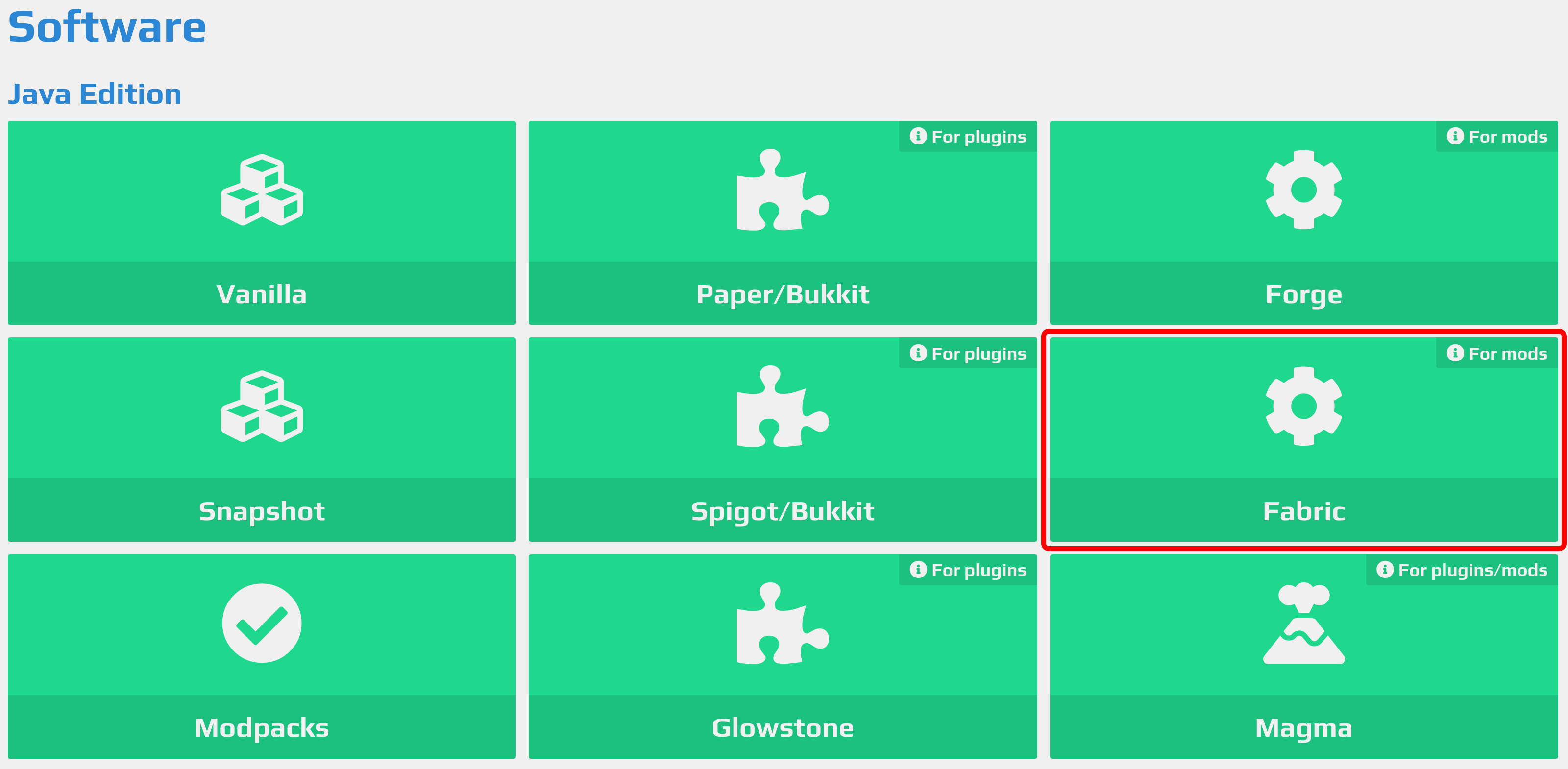
Go to the “Software” Tab: On the left sidebar, click on “Software.”
-
Select Your Mod Loader: You’ll see various software options. Click on either “Forge” or “Fabric,” depending on your earlier decision.
-
Choose the Correct Version: Select the specific Minecraft version that corresponds to your chosen mods and local client (e.g., “Forge 1.20.1”).
-
Install the Software: Click the “Install” button. Aternos will then download and configure the chosen mod loader for your server. This process might take a few moments. Once installed, your server is now ready to accept mod files.

Uploading Mod Files to Aternos
With the mod loader installed, the next step is to upload the actual mod files to your server.
-
Navigate to the “Files” Tab: In the Aternos dashboard, click on “Files” in the left sidebar.
-
Locate or Create the
modsFolder: You should see a file browser interface. Look for a folder namedmods. If it doesn’t exist, click the “New folder” icon (often represented by a folder with a plus sign) and name itmods. -
Enter the
modsFolder: Click on themodsfolder to open it. -
Upload Your Mod Files: Click the “Upload” icon (usually a cloud with an arrow pointing up). A file explorer window will open. Navigate to where you saved your downloaded mod
.jarfiles (the same ones you put in your local.minecraft/modsfolder). Select all the mod.jarfiles and initiate the upload. Do not upload zipped modpacks; only upload individual.jarfiles. -
Verify Upload: Once the upload is complete, you should see all your mod
.jarfiles listed within the Aternosmodsfolder.
Starting and Testing Your Modded Server
With the mod loader and mod files in place, it’s time to bring your server online and test your setup.
-
Return to the “Server” Tab: Go back to the main “Server” tab in your Aternos dashboard.
-
Start the Server: Click the “Start” button. Aternos will begin the boot-up process, which might take longer than a vanilla server due to loading the mod loader and all the mods. Keep an eye on the console for any errors.
-
Monitor the Console: If the server fails to start, the console will often provide crucial error messages indicating what went wrong (e.g., “java.lang.NoClassDefFoundError” often points to missing dependencies or incompatible mods).
-
Connect from Your Client: Once the server shows “Online,” open your Minecraft Launcher. Ensure you select the correct profile (the Forge or Fabric profile you created earlier) and the correct Minecraft version. Start the game.
-
Join the Server: In Minecraft, go to “Multiplayer,” then “Add Server” or “Direct Connect.” Enter your Aternos server address. Join the server. If successful, you should be able to play with your installed mods! Check the in-game mod menu (often accessible via the main menu or specific hotkeys) to confirm all mods are loaded.
Common Pitfalls and Troubleshooting Strategies
Even with careful preparation, modding can sometimes present challenges. Knowing how to identify and resolve common issues is a vital skill for any server administrator.
Server Crashing on Startup
This is arguably the most frequent and frustrating issue.
-
Mod Incompatibility: The most common culprit. Two mods might conflict with each other, or a mod might be incompatible with your chosen Minecraft or mod loader version.
- Solution: Check the Aternos console logs carefully. Error messages often point to a specific mod. If you identify a problematic mod, remove it from the
modsfolder on Aternos and try starting the server again. If you have many mods, try adding them one by one or in small batches to pinpoint the problematic one.
- Solution: Check the Aternos console logs carefully. Error messages often point to a specific mod. If you identify a problematic mod, remove it from the
-
Incorrect Mod Loader Version: You might have installed Forge for 1.20.1 but uploaded a mod built for Forge 1.19.2.
- Solution: Double-check that all mods, the Aternos server software, and your local client are all running the exact same Minecraft version and the exact same mod loader version.
-
Corrupt Mod Files or Missing Dependencies: A mod file might be incomplete, or it might require another mod to function (a “dependency”).
- Solution: Redownload the suspected mod from a reputable source. Read the mod’s description carefully to see if it lists any required dependencies; if so, download and upload those as well.
Mods Not Loading In-Game
If your server starts but you don’t see the mods in action, the issue is likely client-side or a subtle server misconfiguration.
-
Client-Side Issues:
-
Wrong Launcher Profile: Ensure you’re launching Minecraft with the Forge/Fabric profile, not the vanilla one.
-
Missing Client-Side Mods: Did you forget to put the mods in your local
.minecraft/modsfolder? The client needs them too. -
Mismatched Client/Server Mod Lists: The client and server must have the identical set of mods (and versions) for many mods to work.
-
Solution: Verify your client’s launcher profile, check your local
.minecraft/modsfolder, and ensure the mod list exactly mirrors the server’s.
-
-
Mod in Wrong Server Folder: The mods must be in the
modsfolder directly under your main server directory.- Solution: Go to Aternos “Files” and confirm your
.jarfiles are inside/mods/.
- Solution: Go to Aternos “Files” and confirm your
Performance Considerations with Mods
Mods, especially large content mods or numerous small ones, can significantly impact server performance.
-
RAM Usage: Each mod consumes RAM. Aternos has limitations on available RAM for free servers. Too many mods can lead to constant lag, crashes, or an inability to start the server.
- Solution: Be selective with your mods. Start with a few and gradually add more while monitoring performance. Consider removing less essential mods if performance degrades.
-
Server Lag: Certain mods are more resource-intensive than others.
- Solution: If specific mods cause extreme lag, research if there are lighter alternatives or configuration options to reduce their impact. Performance-enhancing mods (like Lithium and Indium for Fabric) can sometimes help, but they won’t magically solve excessive mod loads.
Optimizing Your Modded Aternos Experience
Beyond the initial setup and troubleshooting, there are ongoing practices that can significantly improve your modded Aternos server’s stability and enjoyment.
Managing Mod Compatibility and Updates
The modding landscape is constantly evolving. New Minecraft versions, mod updates, and community developments mean your mod list might need regular attention.
-
Version Control: Stick to a specific Minecraft version for your modded server. Upgrading Minecraft versions often means waiting for all your chosen mods to update, which can take time.
-
Test New Mods: Before adding a new mod to your live server, test it on a separate, temporary server or a local single-player world to ensure compatibility with your existing mods and stability.
-
Monitor Mod Updates: Keep an eye on your mods’ CurseForge or Modrinth pages for updates. Developers often release bug fixes, performance improvements, or new features. When updating, download the new
.jarfile, replace the old one on Aternos, and remember to update your client-side mod as well.
Backing Up Your Server
Data loss is a modder’s worst nightmare. Before making any significant changes (adding/removing many mods, updating Minecraft versions), always perform a server backup.
-
Aternos Backups: Aternos provides a built-in backup system. Utilize it frequently. On your Aternos dashboard, navigate to the “Backups” tab and create a new backup. This ensures you can revert to a stable state if a new mod breaks your server or corrupts your world.
-
Download World Files: For critical data, consider downloading your world folder periodically via the “Files” section in Aternos, providing an additional layer of security.

Community Resources and Support
You’re not alone in your modding journey. The Minecraft and modding communities are vast and incredibly supportive.
-
Aternos Forums: The official Aternos forums are an excellent place to ask questions, find solutions to common problems, and interact with other Aternos users.
-
Mod Developer Communities: Many mod developers have their own Discord servers, GitHub repositories, or forums where you can get specific support for their mods, report bugs, or suggest features.
-
Reddit & Minecraft Wiki: Subreddits like r/Minecraft and r/feedthebeast (for modded Minecraft) are rich sources of information, tips, and troubleshooting advice. The official Minecraft Wiki also contains valuable information on server management.
By following this comprehensive guide, you are well-equipped to transform your Aternos server into a unique, modded experience. Remember, patience and systematic troubleshooting are your best allies in the world of modded Minecraft. Enjoy the limitless possibilities that mods bring to your server and share unforgettable adventures with your friends!
aViewFromTheCave is a participant in the Amazon Services LLC Associates Program, an affiliate advertising program designed to provide a means for sites to earn advertising fees by advertising and linking to Amazon.com. Amazon, the Amazon logo, AmazonSupply, and the AmazonSupply logo are trademarks of Amazon.com, Inc. or its affiliates. As an Amazon Associate we earn affiliate commissions from qualifying purchases.