
In the ever-evolving landscape of web browsers, Microsoft Edge has carved out a significant niche, transforming from its initial iteration into a powerful, feature-rich, and highly compatible browser built on the Chromium engine. For many, integrating Edge into their daily workflow offers a blend of performance, security, and seamless integration with the broader Microsoft ecosystem. Whether you’re a long-time Windows user, a macOS enthusiast, or exploring options on Linux, installing Microsoft Edge is a straightforward process that unlocks a modern browsing experience. This comprehensive guide will walk you through every step, ensuring a smooth transition or upgrade to Microsoft’s flagship browser.
Understanding Microsoft Edge: A Modern Browser for Today’s Internet
Before diving into the installation process, it’s beneficial to understand what Microsoft Edge offers and why it has become a compelling choice for millions of users worldwide. Its journey from a proprietary rendering engine (EdgeHTML) to the widely adopted Chromium platform has been pivotal in its resurgence, bringing a new level of compatibility, speed, and extensibility.
The Evolution of Edge: From EdgeHTML to Chromium
Microsoft Edge first debuted with Windows 10 in 2015, replacing Internet Explorer as Microsoft’s default browser. Initially, it used Microsoft’s own EdgeHTML rendering engine. While innovative in some respects, it struggled with web compatibility compared to the dominant Chromium-based browsers like Google Chrome. Recognizing this challenge, Microsoft made a strategic decision in late 2018 to rebuild Edge from the ground up using Chromium. This shift, completed in early 2020, was a game-changer. By embracing Chromium, Edge gained immediate access to vast web compatibility, a robust extension ecosystem (including the Chrome Web Store), and significantly improved performance and stability. This evolution positioned Edge as a formidable competitor, offering familiar performance with Microsoft’s unique value-adds.
Key Features and Benefits of the Chromium-Based Edge
The new Edge isn’t just a rebranded Chrome; it comes packed with distinctive features designed to enhance user productivity, privacy, and overall browsing pleasure.
-
Performance and Speed: Leveraging the Chromium engine, Edge delivers fast page loading times and smooth navigation, competing directly with the fastest browsers on the market.
-
Enhanced Security and Privacy: Microsoft has heavily invested in privacy features. Edge includes robust tracking prevention (Basic, Balanced, Strict modes), SmartScreen for phishing and malware protection, secure DNS, and a password monitor that alerts you to compromised credentials.
-
Collections: A unique feature allowing users to gather and organize content (web pages, images, text) from across the web into visual boards, making research, shopping, or project planning incredibly efficient.
-
Vertical Tabs: An innovative way to manage numerous open tabs, moving them to the side of the browser window to maximize horizontal viewing space and improve tab organization, especially on widescreen monitors.
-
Integration with Microsoft Services: For users within the Microsoft ecosystem, Edge offers deep integration with services like Microsoft 365, OneDrive, and Windows Hello, providing a seamless and personalized experience. This includes single sign-on capabilities and easy access to documents and files stored in the cloud.
-
Efficiency Features: Features like Sleeping Tabs help optimize system resources by putting inactive tabs to sleep, reducing CPU and RAM usage, which is particularly beneficial for laptop users concerned about battery life.
-
Web Widget: A quick access panel from your desktop (Windows 11) that provides personalized news, weather, and quick search capabilities without opening the full browser.
-
Gaming Features: For gamers, Edge offers specific optimizations like Clarity Boost for Xbox Cloud Gaming and an efficiency mode that reduces resource usage when games are detected.
These features, combined with cross-platform availability (Windows, macOS, Linux, Android, iOS), make Microsoft Edge a versatile and powerful browser for a wide range of users.
Preparing for Installation: System Requirements and Considerations
Before you begin the installation of Microsoft Edge, it’s important to ensure your system meets the necessary requirements and to consider a few preparatory steps for a smooth process.
Checking Compatibility: Operating Systems and Minimum Hardware
Microsoft Edge is designed to be accessible across various platforms, but each has specific minimum requirements:
-
Windows:
-
Windows 10/11: Edge is typically pre-installed or updates automatically. If you’re installing on an older version of Windows 10 (e.g., prior to 2004 update), or performing a fresh install, you can download it.
-
Windows 7/8/8.1: Microsoft Edge is still supported on these versions, though full feature parity with Windows 10/11 might not always be present, and security updates will eventually cease (following the end of support for the OS itself).
-
Processor: 1 GHz or faster.
-
RAM: 1 GB (32-bit) or 2 GB (64-bit).
-
Disk Space: At least 200 MB free.
-
-
macOS:
-
macOS Sierra (10.12) or later.
-
Processor: Intel or Apple M1/M2 chip.
-
RAM: 4 GB.
-
Disk Space: At least 200 MB free.
-
-
Linux:
-
Edge is available for popular distributions like Ubuntu, Debian, Fedora, and openSUSE.
-
Specific package managers (APT, DNF) will be used for installation.
-
Processor: 1.6 GHz or faster.
-
RAM: 1 GB.
-
Disk Space: At least 200 MB free.
-
-
Mobile (Android/iOS): Available via respective app stores, requiring compatible OS versions (typically recent versions of Android or iOS).
Most modern computers running updated operating systems will comfortably meet these requirements.
Pre-installation Checklist: What to Do Before You Install
A quick checklist can prevent common installation headaches:
-
Stable Internet Connection: A reliable connection is crucial for downloading the installer package.
-
Sufficient Disk Space: While Edge itself isn’t huge, ensure you have at least 200-500 MB of free space to accommodate the application and its future updates.
-
Administrative Privileges: On Windows, macOS, and Linux, you’ll typically need administrator rights to install software. Make sure you are logged into an administrator account or have the password ready.
-
Close Other Browsers (Optional but Recommended): While not strictly necessary, closing other browsers might prevent potential conflicts or allow Edge to import settings more smoothly during its initial setup.
-
Backup Bookmarks/Data (If Migrating): If you’re switching from another browser and want to ensure no data is lost during the import process, consider backing up your bookmarks and saved passwords beforehand, though Edge’s import feature is generally reliable.
Step-by-Step Installation Guide
With your system prepared, you’re ready to proceed with the installation. The process is largely consistent across Windows and macOS, with slight variations for Linux.
Downloading the Installer
The first step is always to acquire the official installer.
-
Visit the Official Microsoft Edge Website: Open your current web browser (e.g., Chrome, Firefox, Safari) and navigate to
www.microsoft.com/edge. This is the most secure and reliable source for the latest version. -
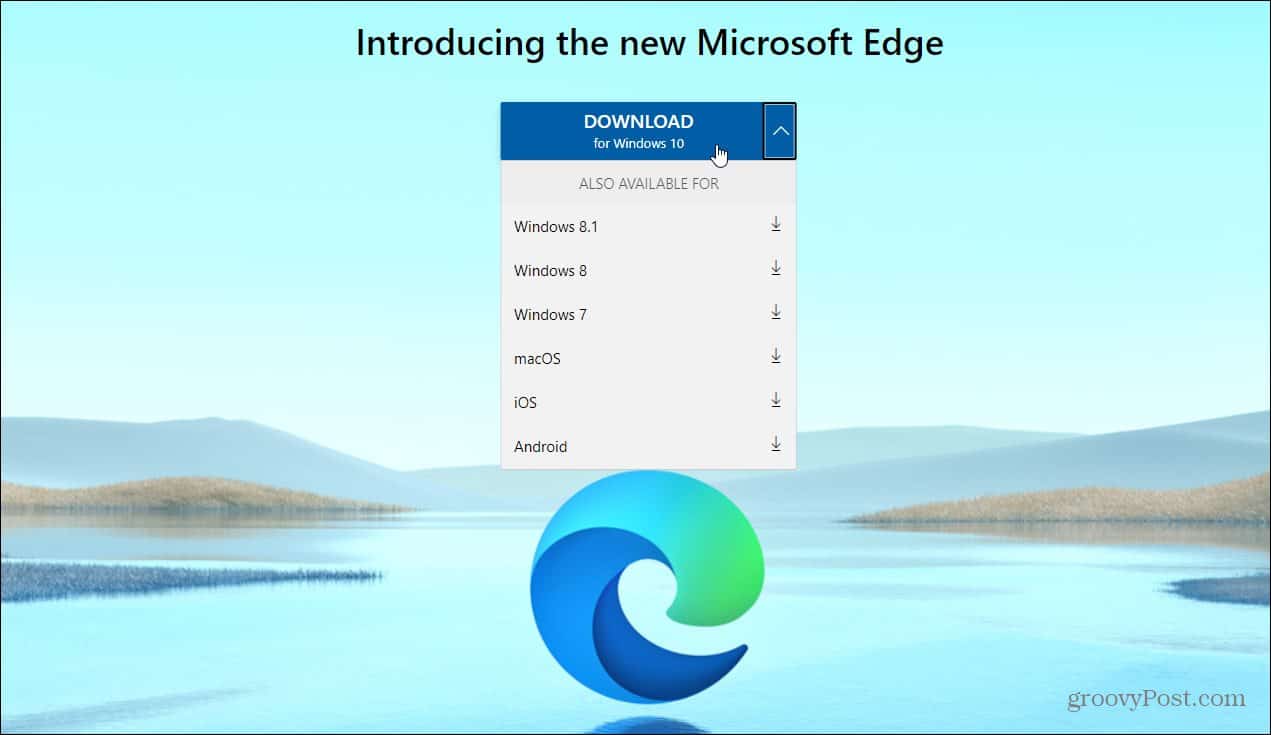
Identify Your Operating System: The website usually detects your operating system automatically and presents the appropriate download option. If not, look for links like “Download for Windows,” “Download for macOS,” or “Download for Linux.”
-
Choose the Correct Version (if applicable): For Windows, you might occasionally be asked to choose between 32-bit and 64-bit versions. Most modern computers are 64-bit. For Linux, you’ll download a
.debpackage for Debian/Ubuntu-based systems or an.rpmpackage for Fedora/openSUSE. -
Click “Download”: Accept the terms and conditions if prompted, then click the download button. The installer file (e.g.,
MicrosoftEdgeSetup.exeon Windows,MicrosoftEdge.pkgon macOS) will begin downloading to your default downloads folder.
Executing the Setup File
Once the download is complete, locate the installer file.
-
Navigate to Your Downloads Folder: Open your file explorer (Windows) or Finder (macOS) and go to your “Downloads” folder, or wherever you saved the file.
-
Double-Click the Installer:
-
Windows/macOS: Double-click the downloaded executable (
.exeor.pkg) file. -
Linux (GUI Installers): If you downloaded a
.debor.rpmpackage and your system is configured for graphical package installations (e.g., through Software Center or GDebi), you can often double-click the file to open the installer.
-
-
Grant Permissions: Your operating system will likely ask for your permission to run the installer, citing “User Account Control” (Windows) or prompting for your password (macOS/Linux). Provide the necessary authorization to proceed.
Following On-Screen Prompts
The installation wizard will guide you through the remaining steps.

-
Windows/macOS:
-
The installer usually starts automatically. You might see a progress bar indicating the download and installation of necessary components.
-
There are typically no complex choices to make. Simply allow the installer to run its course. It will download the full browser files and integrate them into your system.
-
Once complete, you’ll usually see a message confirming successful installation, and Microsoft Edge might launch automatically.
-
-
Linux (Command Line – for more control or if GUI fails):
-
For Debian/Ubuntu (.deb files): Open a terminal and navigate to your downloads directory. Then run:
sudo dpkg -i microsoft-edge-stable_*.deb

sudo apt install -f
The
apt install -fcommand fixes any dependency issues. -
For Fedora/openSUSE (.rpm files): Open a terminal and navigate to your downloads directory. Then run:
sudo rpm -i microsoft-edge-stable_*.rpmOr, using
dnffor Fedora:sudo dnf install microsoft-edge-stable_*.rpm -
After installation, you can usually find Edge in your applications menu.
-
Initial Configuration and First Run
Upon its first launch, Microsoft Edge will guide you through a quick setup process to personalize your experience.
-
Welcome Screen: You’ll be greeted by a welcome screen highlighting key features.
-
Import Data: Edge will likely offer to import your favorites, passwords, browsing history, and other data from your existing default browser (e.g., Chrome, Firefox). This is highly recommended for a seamless transition. You can choose what data to import.
-
Sign In to Microsoft Account: You’ll be prompted to sign in with your Microsoft account. This enables synchronization of your settings, favorites, passwords, and history across all your devices running Edge. It also integrates with other Microsoft services.
-
Choose Your Layout: You can select a layout for your New Tab Page (e.g., Focused, Inspirational, Informational) and customize background images.
-
Set as Default Browser (Optional): Edge will ask if you want to make it your default browser. If you plan to use it as your primary internet access tool, it’s convenient to set it as default. You can always change this later in your operating system settings.
Congratulations! Microsoft Edge is now installed and ready for use.
Post-Installation: Optimizing Your Edge Experience
Once Edge is installed, there’s a world of customization and optimization awaiting you to tailor it perfectly to your workflow and preferences.
Customizing Settings and Appearance
Personalizing Edge can significantly enhance your browsing comfort and efficiency.
-
Themes and Appearance: Go to
Settings > Appearanceto choose from various themes (light, dark, system default), change the browser frame color, and customize font sizes. -
New Tab Page Customization: Click the gear icon on the New Tab Page or go to
Settings > Start, home, and new tabsto adjust the page layout, content, and background image. -
Default Search Engine: While Bing is the default, you can change it to Google, DuckDuckGo, or others in
Settings > Privacy, search, and services > Address bar and search. -
Startup Behavior: Configure Edge to open with a specific page, your previous session, or the New Tab Page in
Settings > Start, home, and new tabs.
Enhancing Security and Privacy
Edge provides extensive tools to safeguard your online activities.
-
Tracking Prevention: Found in
Settings > Privacy, search, and services > Tracking prevention. Choose between “Basic,” “Balanced,” and “Strict” to control how much trackers are blocked. “Balanced” is usually a good starting point. -
InPrivate Browsing: Similar to incognito mode, InPrivate windows don’t save your browsing history, cookies, or site data. Access it via
...(three dots) menu >New InPrivate window. -
SmartScreen Filter: Edge’s built-in SmartScreen helps protect against phishing and malware. Ensure it’s active in
Settings > Privacy, search, and services > Security. -
Password Monitor: This feature in
Settings > Profiles > Passwordschecks your saved passwords against known breaches and alerts you if any are compromised. -
Secure DNS: Enhance your security and privacy by enabling DNS over HTTPS (DoH) in
Settings > Privacy, search, and services > Security.
Managing Extensions
Extensions add functionality and tailor the browser to your specific needs.
-
Accessing Extension Stores: Edge can install extensions from two primary sources:
-
Microsoft Edge Add-ons: The official store (
edge://extensions/) curated by Microsoft. -
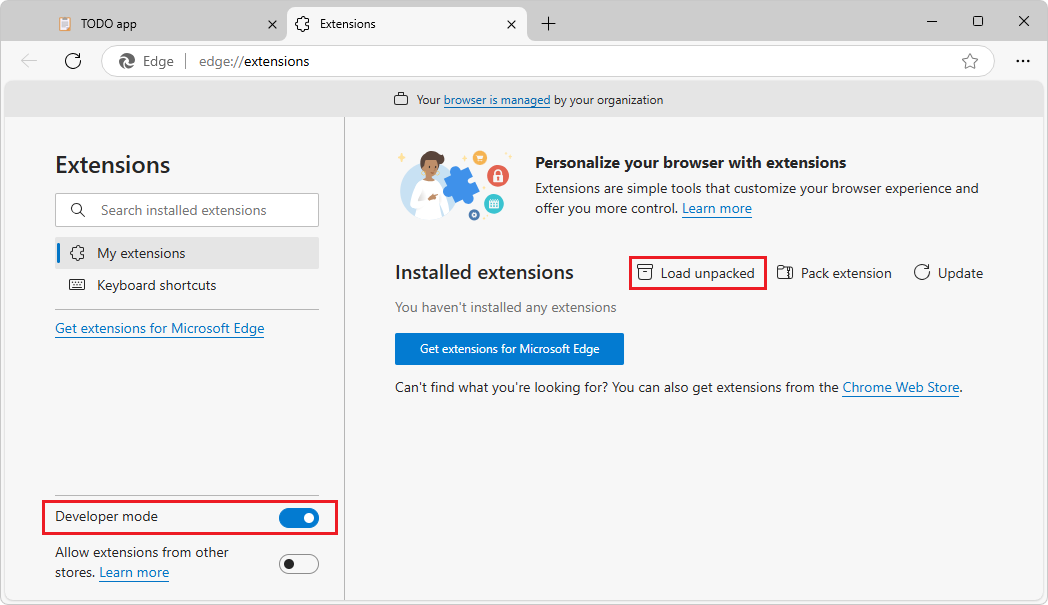
Chrome Web Store: Thanks to its Chromium foundation, Edge is compatible with most extensions from the Chrome Web Store. You can enable this compatibility in
edge://extensions/by toggling “Allow extensions from other stores” at the bottom-left.
-
-
Installing Extensions: Browse the stores, find an extension, and click “Get” or “Add to Chrome.”
-
Managing Installed Extensions: Go to
edge://extensions/to toggle extensions on/off, remove them, or manage their permissions. Be selective; too many extensions can impact performance.
Keeping Edge Updated
Regular updates are crucial for security, performance, and new features.
-
Automatic Updates: Edge typically updates itself in the background. You don’t usually need to intervene.
-
Manual Check for Updates: To ensure you have the very latest version, go to
Settings > About Microsoft Edge. Edge will automatically check for and install any available updates.
Troubleshooting Common Installation Issues
While the installation process is generally smooth, you might occasionally encounter minor issues. Here’s how to address some common problems.
Download Failures
-
Check Your Internet Connection: Ensure your Wi-Fi or Ethernet connection is stable and active. Try opening another website to confirm.
-
Clear Browser Cache: Sometimes, issues with your current browser’s cache can interfere with downloads. Clear your browser’s cache and cookies and try again.
-
Temporarily Disable Firewall/Antivirus: Very rarely, security software might block the download. Try temporarily disabling it (briefly!) and re-downloading. Remember to re-enable it immediately afterward.
-
Try a Different Browser: If your primary browser is having issues, try downloading the Edge installer using another browser.
Installation Errors
-
Insufficient Permissions: Ensure you are logged in as an administrator or have administrator privileges to install software. Re-run the installer by right-clicking and selecting “Run as administrator” (Windows) or providing your password (macOS/Linux).
-
Corrupted Installer File: The downloaded file might be incomplete or corrupted. Delete the existing installer and download a fresh copy from the official Microsoft Edge website.
-
Conflicting Software: Other software, particularly older browser versions or security tools, can sometimes conflict. Temporarily disable any conflicting applications during installation.
-
Restart Your Computer: A simple reboot can often resolve underlying system issues that prevent installations.
-
Check System Requirements: Double-check that your operating system version and hardware meet the minimum requirements for Edge.
-
Review Event Logs (Advanced): For persistent errors, Windows Event Viewer or Linux system logs can provide more detailed error messages that might point to the root cause.
Post-Installation Problems (Edge Not Launching/Crashing)
-
Restart Your Computer: The first and often most effective troubleshooting step.
-
Clear Cache and Data (if Edge launches intermittently): If Edge launches but has issues, try clearing its browsing data from
Settings > Privacy, search, and services > Clear browsing data. -
Repair/Reset Edge (Windows): Go to
Settings > Apps > Apps & features, find “Microsoft Edge,” click...>Advanced options. Here you can “Repair” or “Reset” the browser (reset will remove data). -
Reinstall Edge: If all else fails, uninstall Edge (if possible via your OS’s app management) and then perform a clean installation using the steps above.
Conclusion
Installing Microsoft Edge is a straightforward process that opens the door to a modern, efficient, and secure browsing experience. By following the steps outlined in this guide, from preparing your system and downloading the official installer to configuring it for its first run, you can seamlessly integrate Edge into your digital life. With its robust performance, extensive feature set, and strong emphasis on privacy and security, Edge stands as a compelling alternative or primary browser for navigating the complexities of the internet. Take the time to explore its features, customize its settings, and optimize it for your unique needs; you might find it quickly becomes your preferred way to browse.
aViewFromTheCave is a participant in the Amazon Services LLC Associates Program, an affiliate advertising program designed to provide a means for sites to earn advertising fees by advertising and linking to Amazon.com. Amazon, the Amazon logo, AmazonSupply, and the AmazonSupply logo are trademarks of Amazon.com, Inc. or its affiliates. As an Amazon Associate we earn affiliate commissions from qualifying purchases.