
In the relentless pursuit of faster computing, Solid State Drives (SSDs) have revolutionized storage, replacing traditional hard disk drives (HDDs) with their superior speed and durability. Among SSDs, the M.2 form factor has emerged as a powerhouse, offering unparalleled performance, especially when paired with the NVMe (Non-Volatile Memory Express) protocol. If you’re looking to significantly reduce boot times, accelerate application loading, and improve overall system responsiveness, installing an M.2 SSD is one of the most impactful upgrades you can make to your personal computer.
This guide will demystify the M.2 installation process, taking you from understanding the technology to the practical steps of integrating it into your system, ensuring you can unlock its full potential with confidence. Whether you’re a seasoned PC builder or a first-time upgrader, this walkthrough is designed to be clear, professional, and insightful, empowering you to enhance your digital experience.
Understanding M.2 Technology: Why Upgrade?
Before diving into the installation process, it’s crucial to grasp what an M.2 SSD is and why it stands as a pivotal upgrade for modern computing. The “M.2” designation refers to the physical form factor and connector, while the performance implications are often tied to the underlying interface.
What is M.2 and Why is it Important?
M.2 is a specification for internally mounted computer expansion cards and associated connectors. It’s designed to be a more flexible and smaller form factor than its predecessors, primarily for SSDs, but also used for Wi-Fi and Bluetooth cards. Unlike traditional 2.5-inch SATA SSDs, which require both a data cable and a power cable, M.2 drives plug directly into a dedicated slot on the motherboard, streamlining cable management and offering a more compact solution.
The importance of M.2 lies in its ability to support various interfaces, primarily SATA and PCIe (Peripheral Component Interconnect Express). While M.2 SATA drives offer similar performance to their 2.5-inch SATA counterparts, the real game-changer is M.2 NVMe. NVMe is a communication protocol specifically designed for SSDs that leverages the high-speed PCIe bus. This allows M.2 NVMe drives to achieve sequential read/write speeds that can be many times faster than even the fastest SATA SSDs, pushing the boundaries of storage performance and virtually eliminating data bottlenecks for most users.
SATA vs. NVMe M.2: Choosing the Right Drive
When selecting an M.2 SSD, understanding the difference between SATA and NVMe is paramount:
-
M.2 SATA SSDs: These drives use the traditional SATA 3.0 interface, which has a theoretical maximum throughput of 600 MB/s. They offer a significant speed boost over HDDs but are limited by the SATA protocol. They are typically more affordable and compatible with older M.2 slots that only support SATA.
-
M.2 NVMe SSDs: These drives utilize the PCIe interface, offering vastly superior speeds. Modern NVMe drives can achieve sequential read speeds upwards of 7,000 MB/s and write speeds above 5,000 MB/s, depending on the generation of PCIe (Gen3, Gen4, or Gen5) and the number of lanes supported. This makes them ideal for demanding applications, gaming, video editing, and content creation where large file transfers and rapid data access are critical.
The choice between SATA and NVMe depends on your budget, your motherboard’s capabilities, and your performance needs. For most users building a new system or looking for the best performance, an NVMe M.2 SSD is the clear choice.
Compatibility Check: Ensuring Your System Supports M.2
Before purchasing an M.2 SSD, a crucial step is to verify your system’s compatibility. Not all motherboards support M.2 drives, and even those that do may only support certain types (SATA, NVMe, or both) and specific sizes.
-
Consult Your Motherboard Manual: This is the definitive source of information. It will detail the number of M.2 slots, the supported interface (SATA, PCIe, or both), the maximum length of the M.2 drive (e.g., 2242, 2260, 2280, 22110 – where the last two digits denote length in millimeters), and any potential limitations (e.g., disabling SATA ports when an M.2 drive is installed).
-
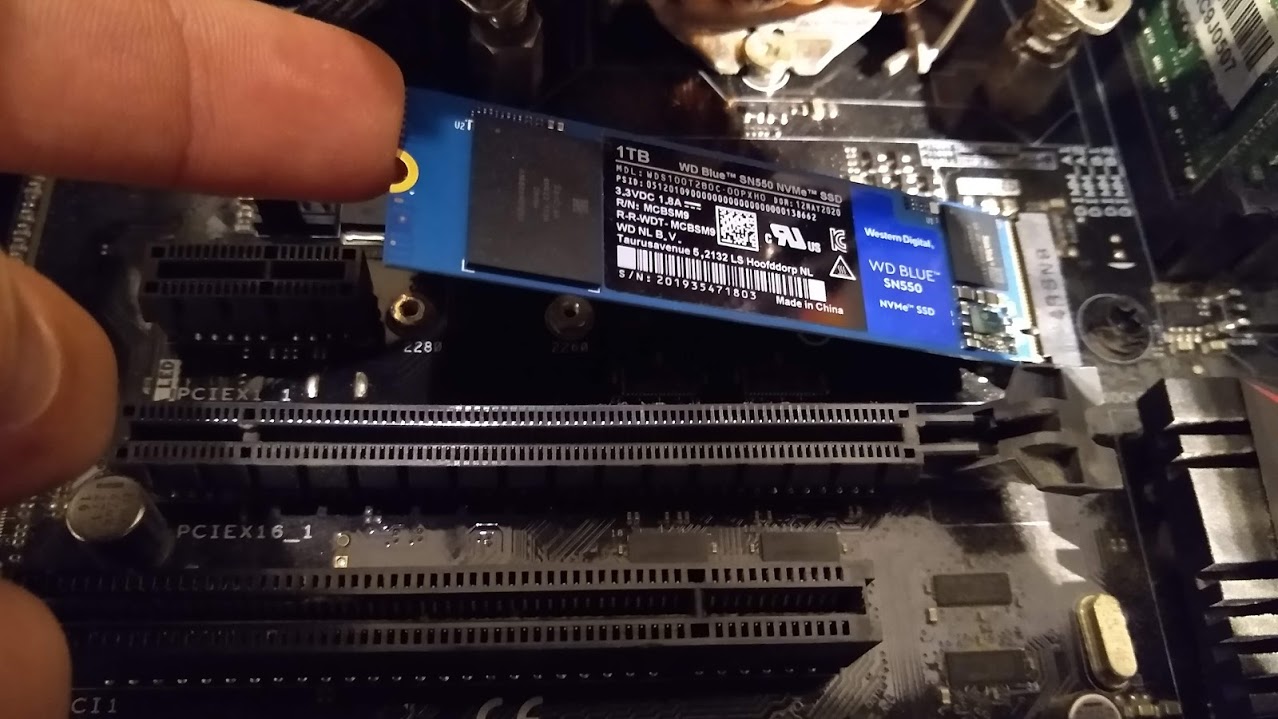
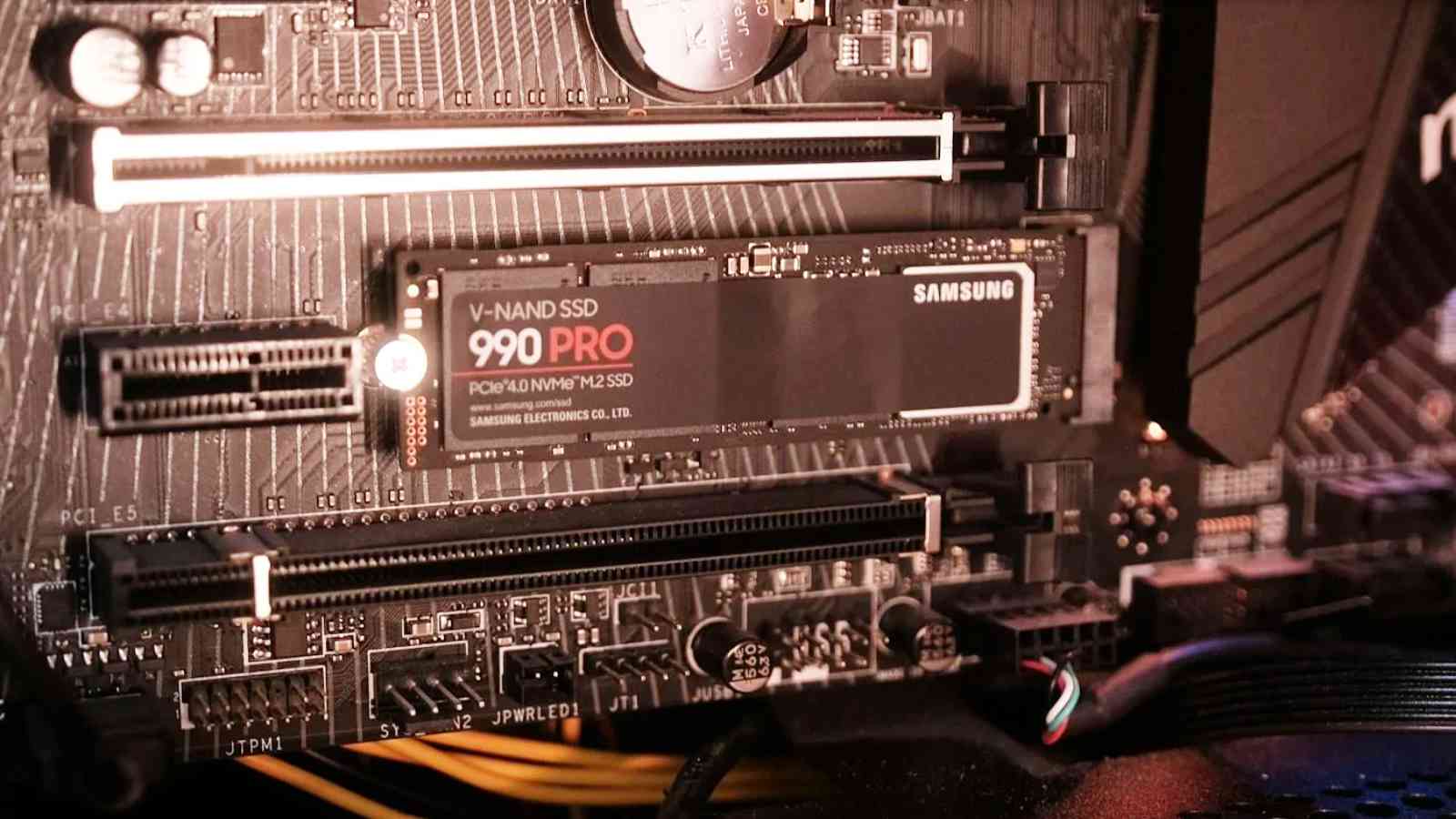
Check for an M.2 Slot: Visually inspect your motherboard for a rectangular slot, usually labeled “M.2” or “PCIe,” often accompanied by a small screw standoff nearby. Modern motherboards often feature heatsinks covering the M.2 slots.
-
NVMe Support: If you plan on using an NVMe drive, ensure your motherboard explicitly supports “PCIe” or “NVMe” M.2 SSDs. An M.2 slot that only supports SATA will not work with an NVMe drive (though an M.2 slot supporting PCIe generally supports NVMe).
-
Operating System Compatibility: Windows 10/11 natively supports NVMe. Older operating systems might require specific drivers, which can complicate the boot process if it’s your primary drive.
Taking the time for this compatibility check will save you potential headaches and ensure a smooth installation process.
Preparing for Installation: Essential Steps Before You Begin
Proper preparation is key to a successful and safe M.2 SSD installation. This involves gathering the necessary tools, safeguarding your existing data, and taking crucial safety precautions.
Gathering Your Tools: What You’ll Need
The installation of an M.2 SSD is relatively simple and requires minimal tools:
-
Phillips Head Screwdriver: A small one, typically #0 or #1, for opening the PC case and securing the M.2 drive. Some motherboards use a smaller screw for the M.2 standoff.
-
Anti-static Wrist Strap (Recommended): To prevent electrostatic discharge (ESD) from damaging sensitive components. If you don’t have one, regularly touch a grounded metal object (like the PC case’s unpainted metal) to discharge static.
-
Flashlight or Headlamp (Optional but Helpful): To illuminate cramped spaces inside the PC case.
-
Your New M.2 SSD: Of course!
-
Motherboard Manual: For reference on M.2 slot locations and specific instructions.
Backing Up Your Data: A Crucial Precaution
Whenever you perform hardware upgrades, especially those involving storage, there’s a remote chance of data loss. It is paramount to back up any critical data from your existing drives before you begin. You can use an external hard drive, cloud storage, or a network-attached storage (NAS) device. This step ensures that even in the unlikely event of an unforeseen issue, your valuable documents, photos, and files remain safe.
Power Down and Disconnect: Safety First
Electrical safety is paramount. Follow these steps to prepare your system:
-
Shut Down Your PC: Perform a full shutdown from your operating system.
-
Unplug the Power Cable: Disconnect the main power cable from the back of your power supply unit (PSU) and the wall outlet.
-
Hold Power Button: Press and hold the PC’s power button for 10-15 seconds. This drains any residual power stored in the capacitors, preventing accidental shocks and component damage.
-
Disconnect Peripherals: Unplug all other cables from the PC, including monitor cables, USB devices, Ethernet, etc., to make it easier to move and work on.
-
Move to a Flat, Clean Surface: Position your PC on a stable, well-lit surface, preferably on a non-conductive mat.
Locating the M.2 Slot on Your Motherboard
With the PC powered down and disconnected, open the side panel of your computer case. Most cases have thumb screws or regular screws holding the side panel in place. Once open, identify the M.2 slot(s) on your motherboard. They are typically horizontal slots, shorter than PCIe x16 slots for graphics cards, and often located near the CPU socket or under the graphics card. As mentioned, many modern motherboards include heatsinks that cover these slots, which you will need to remove.
The Step-by-Step M.2 SSD Installation Process
With preparations complete, you’re ready to physically install your new M.2 SSD. This process is generally straightforward but requires precision and care.
Opening Your PC Case: Accessing the Motherboard
Carefully remove the side panel of your PC case. For most cases, this involves unscrewing a couple of thumb screws or standard Phillips head screws at the rear of the case, then sliding the panel backward and lifting it off. Set it aside in a safe place.
Once the side panel is off, you’ll have full access to your motherboard. Take a moment to re-familiarize yourself with the layout and locate the M.2 slot(s) you identified earlier. If your M.2 slot is covered by a heatsink, you’ll need to unscrew it and gently lift it off. Keep track of these small screws.
Inserting the M.2 Drive: Alignment and Seating
Before inserting the M.2 drive, ensure you’ve touched a grounded metal object or are wearing an anti-static wrist strap.
-
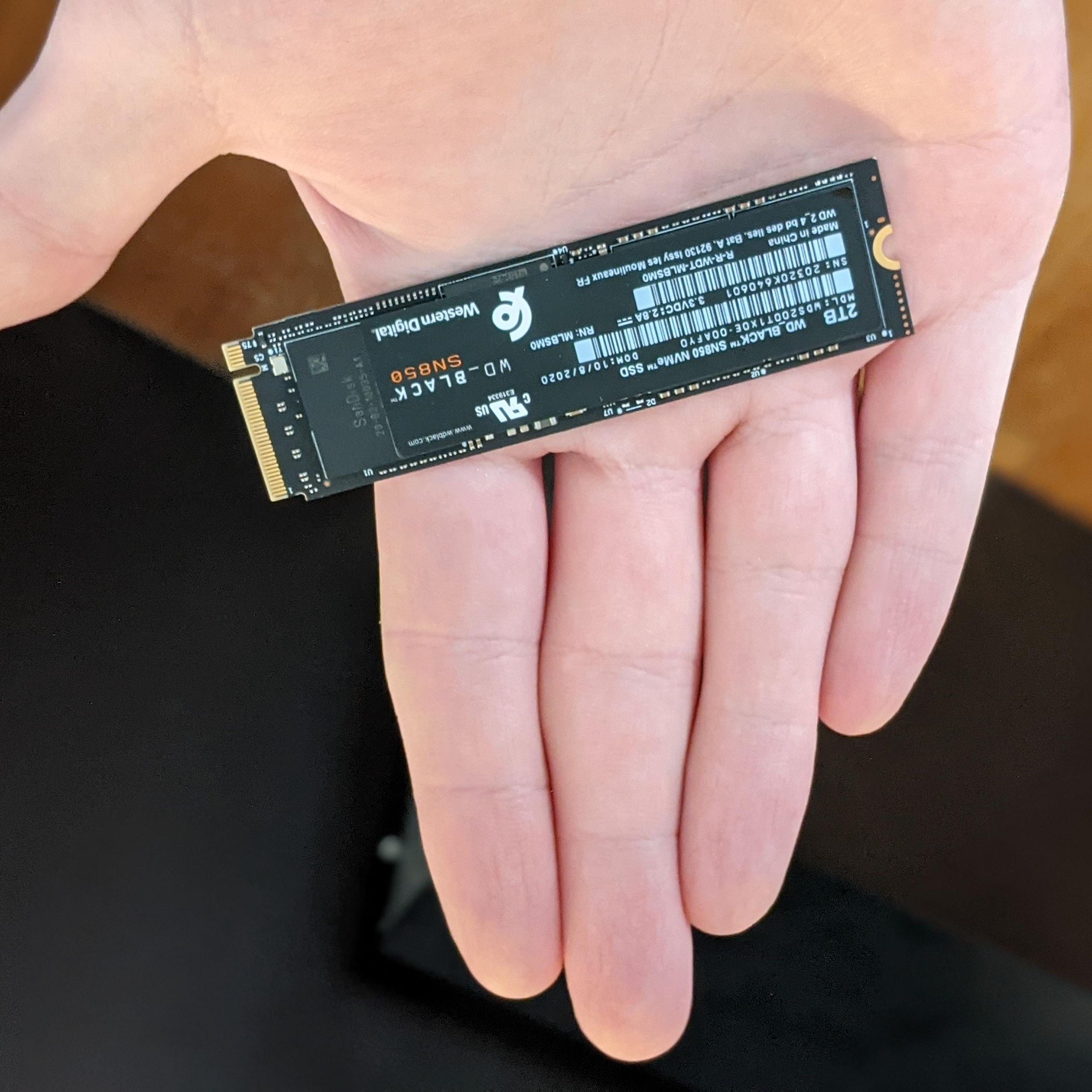
Identify the Notch: Look at the gold-plated connector edge of your M.2 SSD. You’ll notice a small notch (or two) on the connector pins.
-
Align with the Slot: The M.2 slot on your motherboard will have a corresponding key or ridge. Align the notch(es) on the SSD with the key(s) in the slot. M.2 NVMe drives typically have an “M key” with a single notch on the right side (looking at the pins from the front), while M.2 SATA drives often have a “B+M key” with two notches. The slot should match the drive.
-
Insert Gently: Hold the M.2 SSD by its edges (avoid touching the components or connector pins). Insert it into the slot at a slight angle (around 20-30 degrees), pushing it firmly but gently until the connector pins are fully seated and the drive no longer moves freely. It should feel secure.
Securing the SSD: The Standoff and Screw
Once inserted, the M.2 SSD will sit at an upward angle. You need to secure it flat against the motherboard.
-
Locate the Standoff: Near the end of the M.2 slot, you’ll see a small metal standoff with a threaded hole. Some motherboards have multiple standoffs for different M.2 drive lengths (2242, 2260, 2280, 22110). Ensure the standoff is positioned for your drive’s length (usually 2280). If it’s in the wrong position or missing, you may need to move or install it (they usually twist in).
-
Lower the SSD: Gently press down on the end of the M.2 SSD until it’s flat against the standoff.
-
Insert the Screw: Using your Phillips head screwdriver, secure the M.2 drive to the standoff with the small screw provided with your motherboard or the SSD. Be careful not to overtighten, as this can damage the drive or the motherboard. It just needs to be snug.
-
Reinstall Heatsink (If Applicable): If your motherboard came with an M.2 heatsink, place it back over the installed SSD and secure it with its screws. This helps dissipate heat, especially for high-performance NVMe drives.
Reassembling Your PC: Closing Up
With the M.2 SSD securely installed, it’s time to put your PC back together.
-
Replace Side Panel: Carefully slide the side panel back onto your PC case and secure it with the screws you removed earlier.
-
Reconnect Cables: Reconnect all power cables, monitor cables, USB devices, and any other peripherals you unplugged.
-
Power On: Plug your PC back into the wall outlet and turn it on.
Post-Installation Procedures: Getting Your New Drive Ready
Physical installation is only half the battle. After the hardware is in place, you need to configure your operating system to recognize and utilize the new M.2 SSD.
Initial BIOS/UEFI Configuration: Recognizing the Drive
Upon booting your PC, the first step is to enter your system’s BIOS/UEFI (Basic Input/Output System/Unified Extensible Firmware Interface). This is typically done by repeatedly pressing a specific key (like DEL, F2, F10, or F12) immediately after pressing the power button. Consult your motherboard manual for the exact key.
Once in the BIOS/UEFI:
-
Check Storage Devices: Navigate to the “Boot” or “Storage” section. You should see your new M.2 SSD listed among the detected storage devices. If it’s not present, double-check the physical installation and ensure your BIOS/UEFI is set to recognize PCIe/NVMe devices (if applicable).
-
Boot Order (Optional): If you plan to install your operating system on the M.2 drive, you might want to adjust the boot order to prioritize booting from your OS installation media (USB drive or DVD) first.
-
Save and Exit: Save any changes you’ve made and exit the BIOS/UEFI. Your PC will restart.
Initializing and Formatting the Drive in Windows/Linux
After your PC boots into your existing operating system, the new M.2 SSD will likely not appear in “My Computer” or “This PC” yet. You need to initialize and format it.
For Windows:
-
Open Disk Management: Right-click the Start button and select “Disk Management” (or type
diskmgmt.mscin the Run dialog). -
Initialize Disk: A “Initialize Disk” window should pop up automatically for the new M.2 SSD. If not, find the disk (it will likely be labeled “Disk 1,” “Disk 2,” etc., and show as “Unallocated” space). Right-click on it and select “Initialize Disk.”
-
Choose Partition Style: Select “GPT (GUID Partition Table)” for modern systems and drives larger than 2TB. MBR (Master Boot Record) is an older standard. Click “OK.”
-
Create New Simple Volume: Right-click on the “Unallocated” space of the initialized disk and select “New Simple Volume.”
-
Follow Wizard: Go through the wizard, assigning a drive letter, choosing a file system (NTFS for Windows), and giving it a volume label (e.g., “M.2 SSD”). Keep the “Allocation unit size” as default.
-
Finish: Click “Finish,” and your new M.2 SSD will now appear in “This PC” and be ready for use.
For Linux:
-
Identify the Drive: Open a terminal and use
lsblkorfdisk -lto identify your new M.2 drive (e.g.,/dev/nvme0n1or/dev/sda). -
Partition the Drive: Use
gparted,fdisk, orpartedto create a new partition table (GPT recommended) and create partitions.- Example using
fdisk:sudo fdisk /dev/nvme0n1(then usegfor GPT,nfor new partition,wto write changes).
- Example using
-
Format the Partition: Format the created partition with your desired file system (e.g., Ext4, XFS).
- Example:
sudo mkfs.ext4 /dev/nvme0n1p1(for the first partition).
- Example:
-
Mount the Drive: Create a mount point and mount the drive.
-
sudo mkdir /mnt/m2ssd -
sudo mount /dev/nvme0n1p1 /mnt/m2ssd
-
-
Add to fstab (for auto-mounting): Edit
/etc/fstabto automatically mount the drive on boot.
Migrating Your Operating System (Optional but Recommended)
If you installed the M.2 SSD to replace your primary boot drive, you’ll want to migrate your operating system (OS) to it. This involves cloning your existing OS installation to the new M.2 drive. Many SSD manufacturers provide their own cloning software (e.g., Samsung Data Migration, Acronis True Image for Crucial/Western Digital). Alternatively, third-party tools like Macrium Reflect Free are excellent options.
General Cloning Steps:
-
Install Cloning Software: Install your chosen cloning software.
-
Select Source and Destination: Choose your current OS drive as the source and your new M.2 SSD as the destination.
-
Start Cloning: Initiate the cloning process. This can take some time depending on the amount of data.
-
Change Boot Order: After cloning, enter your BIOS/UEFI again and change the boot order to prioritize booting from the new M.2 SSD.
-
Test: Boot into your OS from the M.2 drive. If successful, you can then format your old OS drive for secondary storage or remove it.
Driver Installation and Firmware Updates
While M.2 NVMe drives often work with generic drivers provided by the operating system, installing manufacturer-specific NVMe drivers can sometimes yield slight performance improvements. Check the SSD manufacturer’s website for any recommended drivers.
Additionally, keeping your SSD’s firmware updated is good practice. Manufacturers occasionally release firmware updates to improve performance, fix bugs, or enhance compatibility. Use the manufacturer’s utility software (e.g., Samsung Magician, Western Digital Dashboard) to check for and apply firmware updates.
Troubleshooting Common M.2 Installation Issues
Even with careful planning, sometimes issues arise. Here are solutions to common M.2 installation problems.
Drive Not Detected: Common Causes and Solutions
-
Loose Connection: The most frequent cause. Ensure the M.2 drive is fully seated in its slot and the securing screw is snug.
-
Incorrect Slot: Verify you’ve used an M.2 slot that supports your drive type (SATA vs. NVMe/PCIe). An NVMe drive won’t work in a SATA-only M.2 slot.
-
BIOS/UEFI Settings:
-
Check that the M.2 slot is enabled in your BIOS/UEFI. Some motherboards have options to disable M.2 slots.
-
Ensure your BIOS is set to AHCI mode (for SATA M.2) or that NVMe support is correctly configured.
-
If using an older system with a PCIe adapter card for NVMe, ensure CSM (Compatibility Support Module) is disabled if using UEFI boot.
-
-
Shared Lanes/Ports: Some motherboards share PCIe lanes or SATA ports with M.2 slots. Installing an M.2 drive might disable one or more SATA ports. Check your motherboard manual for these limitations and ensure you haven’t plugged existing drives into a now-disabled port.
-
Driver Issues: If the drive is detected in BIOS but not in the OS, ensure you’ve initialized and formatted it in Disk Management (Windows) or an equivalent tool (Linux). For NVMe drives, generic Windows drivers usually suffice, but manufacturer drivers can sometimes resolve detection issues.
Performance Issues: Optimizing for Speed
If your M.2 NVMe drive isn’t delivering expected speeds:
-
Wrong PCIe Generation: Ensure your motherboard and M.2 slot support the PCIe generation (Gen3, Gen4, Gen5) of your SSD and that it’s operating at the full number of lanes (typically x4). Using a Gen4 drive in a Gen3 slot will limit its speed to Gen3 specifications.
-
Thermal Throttling: High-performance NVMe drives can generate heat. If the drive gets too hot, it will “throttle” its speed to prevent damage. Ensure your M.2 heatsink is properly installed (if your motherboard has one), or consider an aftermarket M.2 heatsink.
-
Drivers and Firmware: As mentioned, update NVMe drivers and SSD firmware.
-
BIOS Settings: Ensure PCIe speeds are set to “Auto” or the highest supported generation in your BIOS.
Space Management and Future Considerations
Even with a fast M.2 drive, diligent space management is crucial for optimal performance, especially for smaller capacity drives used as boot drives. Regularly delete unnecessary files, uninstall unused programs, and consider storing large media files on a secondary, larger HDD or SATA SSD.
Looking ahead, as M.2 technology continues to evolve with faster PCIe generations (like PCIe Gen5), the installation process will remain largely consistent. The primary focus will shift to ensuring optimal thermal management for increasingly hot, higher-performing drives and verifying system compatibility with the latest standards.
By following this comprehensive guide, you are now equipped with the knowledge and steps to successfully install an M.2 SSD, transforming your computing experience with blazing-fast storage. Enjoy the speed!
aViewFromTheCave is a participant in the Amazon Services LLC Associates Program, an affiliate advertising program designed to provide a means for sites to earn advertising fees by advertising and linking to Amazon.com. Amazon, the Amazon logo, AmazonSupply, and the AmazonSupply logo are trademarks of Amazon.com, Inc. or its affiliates. As an Amazon Associate we earn affiliate commissions from qualifying purchases.