
In an increasingly digital world, precision and efficiency are paramount for navigating our myriad tasks, from creative design to intense gaming, and even everyday office work. The humble computer mouse, a device we often take for granted, plays a pivotal role in this interaction. While wired mice offer steadfast reliability, the allure of a wireless mouse, particularly from an industry leader like Logitech, is undeniable. It promises an uncluttered workspace, enhanced portability, and unparalleled freedom of movement. This guide is designed to demystify the installation process for your Logitech wireless mouse, ensuring a smooth, hassle-free setup so you can dive into your digital world without delay. We’ll cover everything from initial preparations to advanced customization and troubleshooting, empowering you to maximize your device’s potential.

The Allure of Wireless Freedom: Why Choose a Logitech Wireless Mouse?
Logitech has long been synonymous with quality, innovation, and user-centric design in the peripherals market. Their wireless mice are a testament to this legacy, offering a blend of advanced technology, ergonomic comfort, and robust performance that wired alternatives simply cannot match. Before we delve into the installation specifics, understanding the inherent advantages of a Logitech wireless mouse can enhance your appreciation for this essential gadget.
Ergonomics and Comfort
One of the primary drivers for opting for a wireless mouse is the freedom from cable drag and the ergonomic benefits it offers. Logitech invests heavily in research and development to create mice that fit naturally in the hand, reducing strain during prolonged use. With no cable to restrict movement or create friction, you can position your hand and wrist in the most comfortable and natural posture, potentially preventing repetitive strain injuries (RSIs). Whether it’s a compact travel mouse or an ergonomic behemoth designed for all-day productivity, Logitech’s range caters to diverse hand sizes and grip styles, prioritizing user comfort above all else. This ergonomic design philosophy extends beyond just the physical shape, often incorporating soft-touch materials, strategically placed buttons, and smooth gliding feet that contribute to an effortless user experience.
Portability and Convenience
The absence of a physical tether makes wireless mice incredibly portable. For those who frequently switch between multiple workstations, travel with a laptop, or present in various meeting rooms, a wireless mouse is an indispensable tool. It can be effortlessly slipped into a laptop bag without the worry of tangled cables or the need to constantly connect and disconnect. Many Logitech wireless mice, especially those designed for travel, feature a small USB receiver that can be stored directly within the mouse body, further enhancing their portability and ensuring you never lose this critical component. The quick setup time, often involving just plugging in a dongle or pairing via Bluetooth, means you’re ready to work or play within seconds, wherever you are. This seamless transition across different environments significantly boosts productivity and convenience for today’s mobile workforce.
Aesthetics and Clutter-Free Desktops
Beyond functionality, a wireless mouse contributes significantly to a clean, minimalist workspace. Cables are notorious for creating visual clutter, especially on desks with multiple devices. Eliminating the mouse cable instantly tidies up your desktop, creating a more organized and aesthetically pleasing environment. This clean setup isn’t just about looks; it can also reduce distractions and foster a more focused work atmosphere. For many, a tidy workspace translates directly to a tidy mind, enhancing productivity and reducing stress. Furthermore, a wireless mouse often pairs beautifully with other wireless peripherals like keyboards, completing a cohesive and modern desktop aesthetic that prioritizes both form and function.
Essential Preparations Before You Begin
While installing a Logitech wireless mouse is generally straightforward, a few preliminary steps can ensure the process goes off without a hitch. Proper preparation not only prevents potential frustrations but also guarantees that your mouse operates at its optimal performance from the very first click.
Unboxing Your Logitech Mouse: What’s Inside?
Upon receiving your new Logitech wireless mouse, the first step is to carefully unbox it and identify all its components. Typically, you will find:
-
The Wireless Mouse Itself: The star of the show, obviously.
-
USB Receiver (Dongle): This small USB device, often referred to as a “Unifying Receiver” by Logitech, is crucial for most 2.4 GHz wireless connections. For Bluetooth models, this might be absent, or it might be an optional accessory for non-Bluetooth-enabled computers.
-
Batteries: Most Logitech wireless mice come with either AA or AAA batteries included to get you started immediately. Some advanced models might feature rechargeable internal batteries.
-
Quick Start Guide/User Manual: This small pamphlet contains essential setup instructions, warranty information, and often links to support websites. While this guide aims to be comprehensive, the manufacturer’s instructions are always a valuable reference.
-
Logitech Branded Stickers or Promotional Material: Less critical for functionality, but a nice extra.
Ensure all these components are present and accounted for before proceeding. It’s also a good idea to keep the packaging until you’re certain everything is working correctly, in case a return or exchange is necessary.
Checking System Requirements
Before attempting installation, it’s wise to quickly verify that your computer meets the basic system requirements for the mouse. While most modern operating systems (Windows, macOS, Linux, Chrome OS) are universally compatible with Logitech mice, checking the packaging or the official Logitech product page for your specific model can prevent unforeseen compatibility issues. Key areas to check include:
-
Operating System Version: Ensure your OS is up-to-date or at least meets the minimum version specified.
-
Available USB Port: For mice using a USB receiver, you’ll need an open USB-A port. If your computer only has USB-C, you might need an adapter.
-
Bluetooth Capability: If you’re installing a Bluetooth-only mouse, your computer must have built-in Bluetooth connectivity.
These checks are usually quick but can save significant troubleshooting time later on.
Powering Up: Battery Installation
For most non-rechargeable Logitech wireless mice, installing the batteries is the very first step to bringing your device to life.
-
Locate the Battery Compartment: This is typically found on the underside of the mouse. Look for a small latch or a slide-off cover.
-
Open the Compartment: Gently slide or lift the cover to reveal the battery bay.
-
Insert Batteries: Take the included AA or AAA batteries (or your own fresh ones) and insert them according to the polarity indicators (+ and -) etched inside the compartment. Incorrect insertion will prevent the mouse from powering on.
-
Close the Compartment: Securely replace the cover until it clicks into place or slides back smoothly.
-
Power On: Many Logitech mice have a small power switch, often on the underside. Flip it to the “On” position. You might see a small LED light briefly illuminate, indicating the mouse has power and is ready for connection. For rechargeable mice, ensure they are fully charged before first use, though many come with a partial charge to allow for immediate setup.
Step-by-Step Installation: Connecting Your Wireless Companion
With your mouse powered up and your system requirements confirmed, it’s time for the core installation process. Logitech offers two primary methods for wireless connectivity: the Unifying Receiver (2.4 GHz wireless) and Bluetooth. Your specific mouse model will dictate which method, or both, is available.
The Unifying Receiver (USB Dongle) Method
This is the most common and often the simplest method for connecting a Logitech wireless mouse. The Unifying Receiver is a tiny USB dongle that creates a dedicated 2.4 GHz wireless connection between your mouse and computer. A key advantage of Logitech’s Unifying technology is that one receiver can connect up to six compatible Logitech devices (mice and keyboards), freeing up valuable USB ports.
-
Locate the USB Receiver: It’s usually found tucked away inside the mouse’s battery compartment or in the packaging.
-
Plug into a USB Port: Insert the Unifying Receiver into an available USB-A port on your computer. For optimal signal strength, try to use a port that’s not obstructed or too far from the mouse. Front USB ports on a desktop tower or direct ports on a laptop are generally good choices.
-
Automatic Recognition: In most modern operating systems (Windows 10/11, macOS), your computer will automatically detect the new hardware and install the necessary generic drivers. You might see a “Device setup” notification appear.
-
Test the Connection: Once the detection is complete, move your mouse around. The cursor on your screen should respond to your movements. If it doesn’t, ensure the mouse’s power switch is on and try moving the receiver to a different USB port.
-
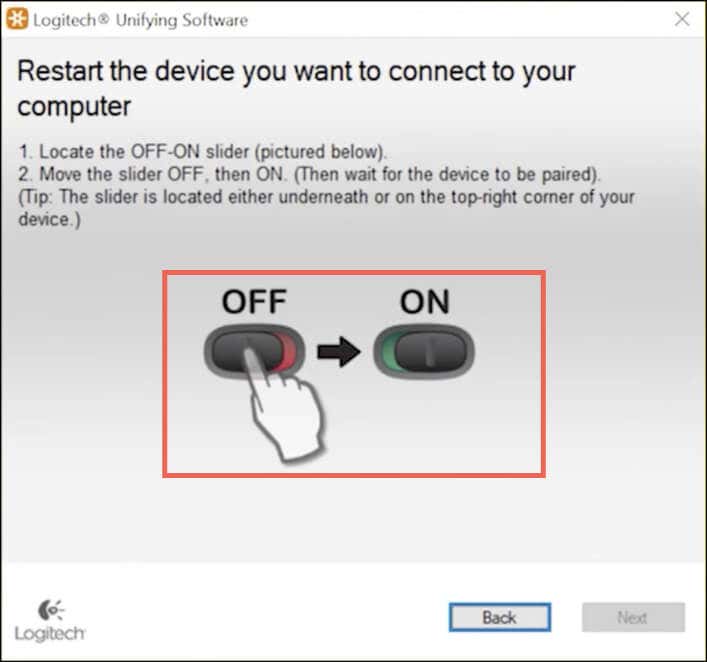
Pairing (If Necessary): While most new Logitech mice are pre-paired with their included receiver, sometimes you might need to manually pair them, especially if you’re using an existing Unifying Receiver with a new mouse, or if the connection is lost.
-
Download and install Logitech Unifying Software from the official Logitech support website.
-
Launch the software and follow the on-screen instructions to pair your mouse. This usually involves turning the mouse off and on, or pressing a specific button.
-
Bluetooth Pairing: A Seamless Connection
Many newer Logitech wireless mice offer Bluetooth connectivity, which is ideal for laptops and tablets that may have limited USB ports or for users who prefer a cable-free and dongle-free setup.
-
Enable Mouse Pairing Mode: On your Logitech Bluetooth mouse, locate the “Connect” or “Pairing” button, usually on the underside. Press and hold this button for a few seconds until an LED indicator light on the mouse starts blinking rapidly. This signifies it’s in discoverable pairing mode. Some Logitech mice have an Easy-Switch button (1, 2, 3) allowing you to switch between multiple paired devices; select an unassigned channel and press until it blinks.
-
Enable Bluetooth on Your Computer:
-
Windows: Go to
Settings>Devices>Bluetooth & other devices. Ensure Bluetooth is turned “On.” ClickAdd Bluetooth or other device>Bluetooth. -
macOS: Go to
System Settings(orSystem Preferences) >Bluetooth. Ensure Bluetooth is turned “On.”
-
-
Scan for Devices: Your computer will start searching for nearby Bluetooth devices.
-
Select Your Mouse: In the list of found devices, your Logitech mouse (e.g., “Logitech MX Master 3S” or similar) should appear. Click on it to initiate the pairing process.
-
Confirm Pairing: Follow any on-screen prompts, which might involve confirming a passkey (though usually not required for mice). Once successfully paired, the mouse’s LED light will typically stop blinking and remain solid for a moment, indicating a stable connection.
-
Test the Connection: Move your mouse around and observe if the cursor responds. If it doesn’t, ensure the mouse is still in pairing mode and your computer’s Bluetooth is active.
Software Installation and Driver Recognition

While most operating systems provide generic drivers that allow basic mouse functionality, Logitech often provides optional software that unlocks the full potential of your device.
-
Logitech Options / Logi Options+: For advanced customization, such as remapping buttons, adjusting scroll speed, creating application-specific profiles, or enabling flow between multiple computers, download and install Logitech Options or the newer Logi Options+ software from the official Logitech support website. These tools are available for both Windows and macOS and greatly enhance the user experience.
-
Driver Updates: Although typically automatic, occasionally you might need to manually update drivers if you experience unusual behavior. This can be done through your operating system’s Device Manager (Windows) or by downloading specific drivers from the Logitech support site. However, for a standard wireless mouse, the generic drivers and Logitech Options software are usually all that’s required.
-
Firmware Updates: Periodically, Logitech releases firmware updates for their mice to improve performance, fix bugs, or add new features. Logi Options+ will usually notify you of available firmware updates and guide you through the process, which often involves keeping the mouse connected and close to the receiver/computer during the update.
Optimizing Your Experience: Customization and Maintenance
Installing your Logitech wireless mouse is just the beginning. To truly make it your own and ensure its longevity, leveraging Logitech’s software and following best practices for maintenance are crucial.
Personalizing Settings with Logitech Options/Logi Options+
The real power of many Logitech mice lies in their customization capabilities, primarily through the Logitech Options or Logi Options+ software. These applications provide a user-friendly interface to tailor your mouse’s behavior to your exact preferences and workflow.
-
Button Customization: Remap any button to perform almost any function – launch applications, execute keyboard shortcuts, navigate web pages, or control media playback. This is particularly useful for mice with multiple side buttons or gesture buttons.
-
Pointer Speed & Scrolling: Fine-tune the cursor speed (DPI) and scroll wheel sensitivity to match your precision needs and comfort. You can even set application-specific speeds, allowing for high precision in design software and faster navigation in web browsers.
-
Gesture Controls: For advanced models like the MX Master series, enable gesture controls by holding a specific button and moving the mouse in different directions to perform actions like switching desktops or maximizing windows.
-
Application-Specific Settings: Create profiles that automatically activate custom settings when you switch to a particular application. For example, your mouse buttons could perform different functions in Photoshop compared to Microsoft Word.
-
Flow Technology (Logitech Options+): This groundbreaking feature allows you to seamlessly move your mouse cursor and even copy-paste text, images, and files between multiple computers (Windows and macOS) connected to the same network, using a single mouse.
Maximizing Battery Life
Wireless freedom comes with the responsibility of battery management. While Logitech mice are known for their impressive battery life, a few tips can help you extend it even further:
-
Turn Off When Not In Use: A simple yet effective tip. If you’re going to be away from your computer for an extended period (overnight, a long meeting), flip the power switch off.
-
Use Quality Batteries: Good quality alkaline batteries tend to last longer. For rechargeable models, use the provided charging cable and avoid over-discharging them.
-
Monitor Battery Level: Logitech Options/Logi Options+ often provides a battery level indicator. Pay attention to it and replace/recharge batteries before they completely drain, which can be inconvenient during crucial tasks.
-
Optimize Polling Rate (Advanced Users): Some gaming mice allow adjustment of the polling rate (how often the mouse reports its position to the computer). Lowering it from 1000 Hz to 500 Hz or 250 Hz can save battery, often without a noticeable difference in responsiveness for non-gaming tasks.
Keeping Your Mouse and Receiver Clean
Dust, grime, and oils from your hands can affect your mouse’s performance and longevity. Regular cleaning is a simple maintenance task that pays dividends.
-
Mouse Body: Use a soft, lint-free cloth, slightly dampened with water or an electronics-safe cleaning solution, to wipe down the mouse body. Pay attention to areas where your hand rests. Avoid harsh chemicals.
-
Optical Sensor: Carefully use a cotton swab or a can of compressed air to clear any dust or debris from the optical sensor on the underside of the mouse. A blocked sensor can lead to erratic cursor movement.
-
Mouse Feet/Skates: Ensure the gliding feet are clean and free of sticky residue. This ensures smooth movement across your mouse pad or desk surface.
-
USB Receiver: If you frequently move the receiver, occasionally wipe it down to prevent dust buildup in the USB port. If using a unifying receiver, ensure the connection points are clear.
Troubleshooting Common Installation Hiccups
Even with the most meticulous preparation, sometimes things don’t go perfectly. Encountering issues during or after installation can be frustrating, but most common problems with Logitech wireless mice have straightforward solutions.
Mouse Not Responding
This is arguably the most common issue, where the cursor remains stubbornly still despite mouse movement.
-
Check Power: Is the mouse powered on? Is the battery inserted correctly and charged (or fresh)? Replace batteries if unsure.
-
Check Receiver Connection: Is the USB receiver securely plugged into a working USB port? Try a different USB port.
-
Range and Obstructions: Is the mouse too far from the receiver or are there large metal objects (like a desktop tower) blocking the signal? Try moving the mouse closer or clearing the path.
-
Re-Pair Mouse (Unifying): If you’re using a Unifying Receiver, launch the Logitech Unifying Software and attempt to re-pair the mouse.
-
Re-Pair Mouse (Bluetooth): Go to your computer’s Bluetooth settings, “forget” or “remove” the mouse, then re-initiate the pairing process from scratch, ensuring the mouse is in pairing mode.
-
Restart Computer: A simple restart can often resolve temporary software glitches that might be preventing detection.
Intermittent Connectivity Issues
Sometimes the mouse works, but the connection drops frequently or the cursor becomes jerky.
-
Interference: Wireless devices operate on radio frequencies, and other devices (Wi-Fi routers, cordless phones, microwaves, other wireless peripherals) can cause interference. Try moving your receiver to a port away from other wireless devices or moving interfering devices further away.
-
Battery Level: A low battery can lead to unreliable connections before completely failing. Replace or recharge.
-
Dirty Sensor: As mentioned in maintenance, a dirty optical sensor can cause erratic tracking. Clean it thoroughly.
-
Driver Issues: While rare, outdated or corrupted drivers can cause problems. Reinstall Logitech Options/Logi Options+ or check Logitech’s support site for specific driver updates.
-
USB Port Issues: A faulty USB port on your computer could be the culprit. Test with another port.
Driver-Related Problems
While largely plug-and-play, driver conflicts or issues can occasionally arise.
-
Device Manager Check (Windows): Open
Device Manager(search for it in the Start Menu). Look under “Mice and other pointing devices” or “Bluetooth” for your Logitech mouse. If you see a yellow exclamation mark, it indicates a driver issue. Right-click and select “Update driver” or “Uninstall device” (then restart the computer to allow it to reinstall automatically). -
Logitech Software Conflict: If you’re experiencing issues after installing Logitech Options/Logi Options+, try temporarily uninstalling it to see if the problem persists with generic drivers. If not, reinstall the software.
-
Operating System Updates: Ensure your operating system is fully updated. Sometimes, OS updates include critical driver fixes or compatibility improvements.
By systematically working through these troubleshooting steps, you can resolve most common issues and get your Logitech wireless mouse back to peak performance swiftly.
Conclusion
Installing a Logitech wireless mouse is generally a straightforward process that rewards you with enhanced freedom, comfort, and productivity. By following the steps outlined in this comprehensive guide—from careful unboxing and essential preparations to selecting the appropriate connection method (Unifying Receiver or Bluetooth), and finally, optimizing your experience with customization software—you can ensure a seamless integration into your digital workflow. Remember, Logitech’s commitment to quality extends beyond hardware, offering robust software solutions and ample support resources to help you make the most of your investment. Embrace the wireless revolution and enjoy the precision, convenience, and uncluttered desktop that a well-installed Logitech wireless mouse brings to your computing experience.
aViewFromTheCave is a participant in the Amazon Services LLC Associates Program, an affiliate advertising program designed to provide a means for sites to earn advertising fees by advertising and linking to Amazon.com. Amazon, the Amazon logo, AmazonSupply, and the AmazonSupply logo are trademarks of Amazon.com, Inc. or its affiliates. As an Amazon Associate we earn affiliate commissions from qualifying purchases.