
In the vast and diverse ecosystem of Linux, users often seek familiar applications to bridge the gap between their everyday computing habits and the robust, open-source environment. Google Chrome, with its ubiquitous presence, extensive feature set, and powerful developer tools, stands as a prime candidate for many Linux desktop users. While Firefox remains a strong native contender, Chrome’s integration with Google services, its vast extension library, and its WebKit/Blink rendering engine are compelling reasons for its adoption.
This comprehensive guide will walk you through the various methods of installing Google Chrome on your Linux distribution, ensuring a smooth and successful integration. We’ll cover the official approaches, delve into repository management for persistent updates, and touch upon universal packaging solutions, all while maintaining a professional and insightful tone.

The Appeal of Google Chrome on Linux
For years, Linux users relied on various browsers, often debating the merits of open-source alternatives versus proprietary solutions. Google Chrome’s arrival on Linux significantly broadened the choices, bringing a host of advantages that make it a top pick for many.
Why Choose Chrome for Your Linux System?
Google Chrome offers a compelling package for Linux users:
-
Feature Richness and Ecosystem Integration: Chrome provides seamless integration with Google’s suite of services (Gmail, Drive, Calendar, Docs, etc.), making it incredibly convenient for users already invested in the Google ecosystem. Syncing bookmarks, history, passwords, and extensions across multiple devices is a core strength.
-
Vast Extension Library: The Chrome Web Store boasts an enormous collection of extensions and themes, allowing users to customize their browsing experience to an unparalleled degree. From productivity tools to security enhancements, the options are virtually endless.
-
Powerful Developer Tools: For web developers, Chrome’s built-in DevTools are indispensable. They offer robust features for inspecting elements, debugging JavaScript, analyzing network performance, and simulating mobile devices, making it a critical tool for development work on Linux.
-
Performance and Standards Compliance: Chrome is known for its speed and adherence to web standards, powered by the Blink rendering engine. This ensures a consistent and high-performance browsing experience across a wide range of websites and web applications.
-
Regular Updates and Security: Google consistently updates Chrome with new features, performance improvements, and critical security patches, ensuring users are always browsing with the latest protections against online threats.
Understanding Linux Distributions and Compatibility
Linux is not a monolithic operating system but rather a family of distributions, each with its own package management system. Understanding these differences is crucial for a successful installation. Google primarily provides Chrome packages for two main families:
-
Debian-based Systems: These include popular distributions like Ubuntu, Linux Mint, Debian itself, and their derivatives. They use
.debpackages and theAPT(Advanced Package Tool) system for software management. -
RPM-based Systems: This category covers distributions like Fedora, CentOS, Red Hat Enterprise Linux (RHEL), and openSUSE. They use
.rpmpackages and package managers likeDNF(for Fedora/RHEL 8+) orYUM(for older RHEL/CentOS) orZypper(for openSUSE).
While some distributions might have Chrome available through unofficial repositories or universal packaging systems like Snap or Flatpak, the most reliable and officially supported methods involve using the .deb or .rpm packages directly from Google.
Pre-Installation Considerations and Preparation
Before embarking on the installation process, it’s wise to take a few preparatory steps to ensure a smooth experience and mitigate potential issues.
System Requirements
Google Chrome is a modern browser, and while it’s designed to be efficient, it does have some basic requirements:
-
Processor: An Intel Pentium 4 or newer, or an AMD Athlon 64 or newer.
-
RAM: At least 512 MB, though 2 GB or more is recommended for optimal performance, especially with multiple tabs or extensions.
-
Disk Space: Approximately 350 MB for the browser itself, plus additional space for user profiles and cache.
-
Operating System: A recent 64-bit Linux distribution. Google officially discontinued 32-bit Chrome support for Linux in 2016.
-
Internet Connection: Required for downloading the installation package and for initial setup/updates.
Ensuring Your System is Up-to-Date
It’s a best practice to update your system’s package list and upgrade any existing packages before installing new software. This ensures that you have the latest dependencies and security patches, which can prevent conflicts or installation errors.
For Debian-based systems (Ubuntu, Mint):
sudo apt update

sudo apt upgrade
For RPM-based systems (Fedora, RHEL/CentOS 8+):
sudo dnf update
For openSUSE:
sudo zypper refresh

sudo zypper update
Backing Up Important Data
While installing a web browser is generally a low-risk operation, it’s always prudent to have recent backups of your critical data, especially if you’re making significant system changes or dealing with complex dependency issues. This ensures peace of mind, though for a Chrome installation, it’s often more of a general good habit than a strict necessity.
Step-by-Step Installation Methods
There are primarily two official and recommended ways to install Google Chrome on Linux: downloading the official package or adding Google’s repository. We’ll also briefly touch on universal packaging.
Method 1: Installing Chrome via the Official .deb/.rpm Package
This is a straightforward method that involves downloading the appropriate package file from Google’s official website and installing it using your system’s package manager.
For Debian/Ubuntu/Mint (using .deb package)
-
Download the .deb package:
Open your web browser (e.g., Firefox) and navigate to the official Google Chrome download page:
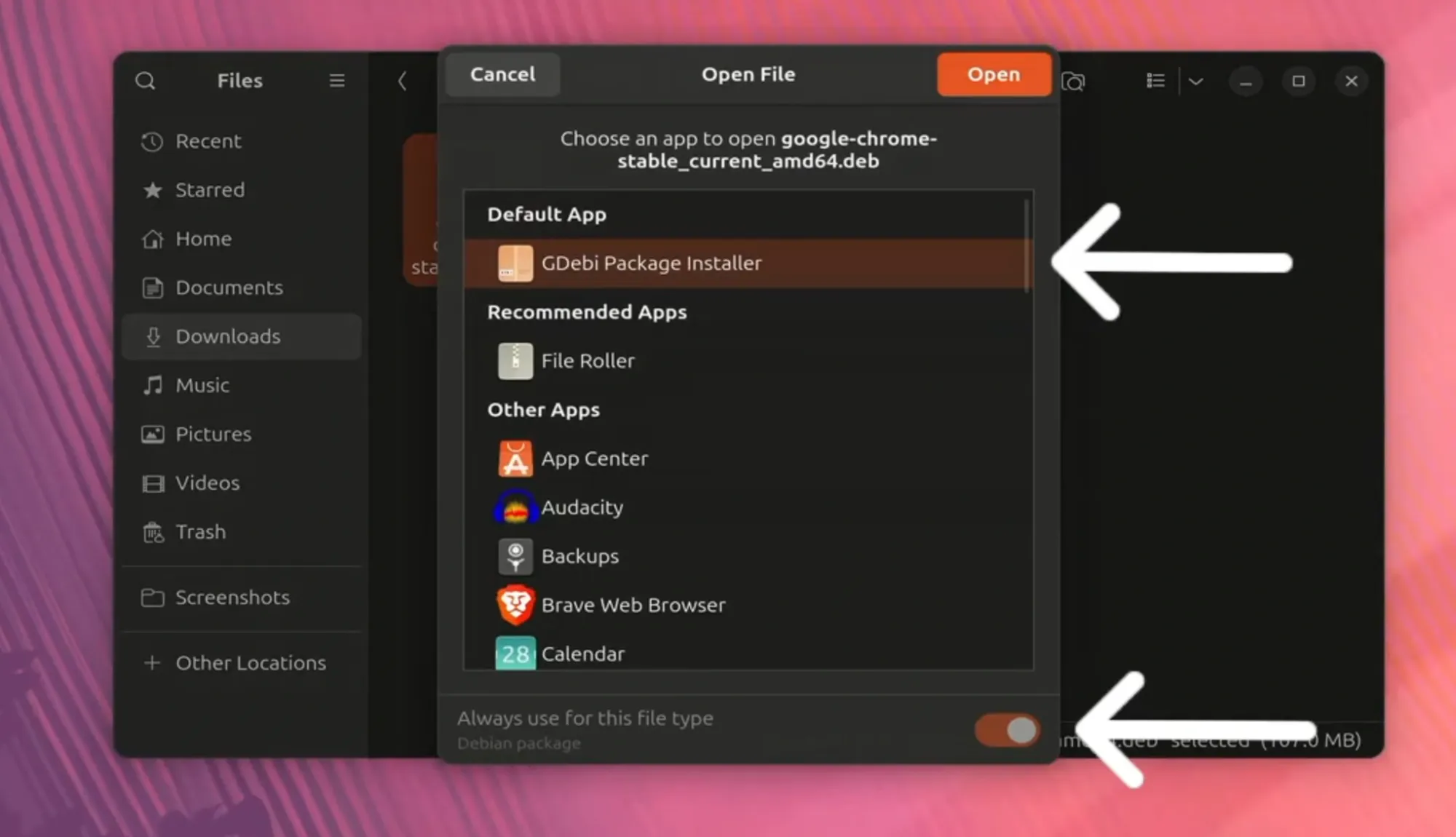
https://www.google.com/chrome/Click “Download Chrome,” and when prompted, select the “64 bit .deb (For Debian/Ubuntu)” option. Save the file to your “Downloads” directory.
Alternatively, you can download it directly from the terminal using
wget:wget https://dl.google.com/linux/direct/google-chrome-stable_current_amd64.deb -
Install the .deb package:
Navigate to the directory where you downloaded the file (usually
~/Downloads) using the terminal.cd ~/DownloadsThen, install the package using
dpkg:sudo dpkg -i google-chrome-stable_current_amd64.debYou might encounter dependency errors after this command. To resolve them, run:
sudo apt --fix-broken installThis command will download and install any missing dependencies, and then properly configure Google Chrome.
For Fedora/CentOS/RHEL/OpenSUSE (using .rpm package)
-
Download the .rpm package:
Go to the official Google Chrome download page:
https://www.google.com/chrome/Click “Download Chrome,” and select the “64 bit .rpm (For Fedora/openSUSE)” option. Save the file.
Alternatively, use
wgetin the terminal:wget https://dl.google.com/linux/direct/google-chrome-stable_current_x86_64.rpm -
Install the .rpm package:
Navigate to your download directory.
cd ~/DownloadsUse your distribution’s package manager to install the
.rpmfile. This command usually handles dependencies automatically.For Fedora/RHEL 8+/CentOS 8+:
sudo dnf install google-chrome-stable_current_x86_64.rpmFor older RHEL/CentOS (or if
dnfisn’t available):sudo yum install google-chrome-stable_current_x86_64.rpmFor openSUSE:
sudo zypper install google-chrome-stable_current_x86_64.rpm
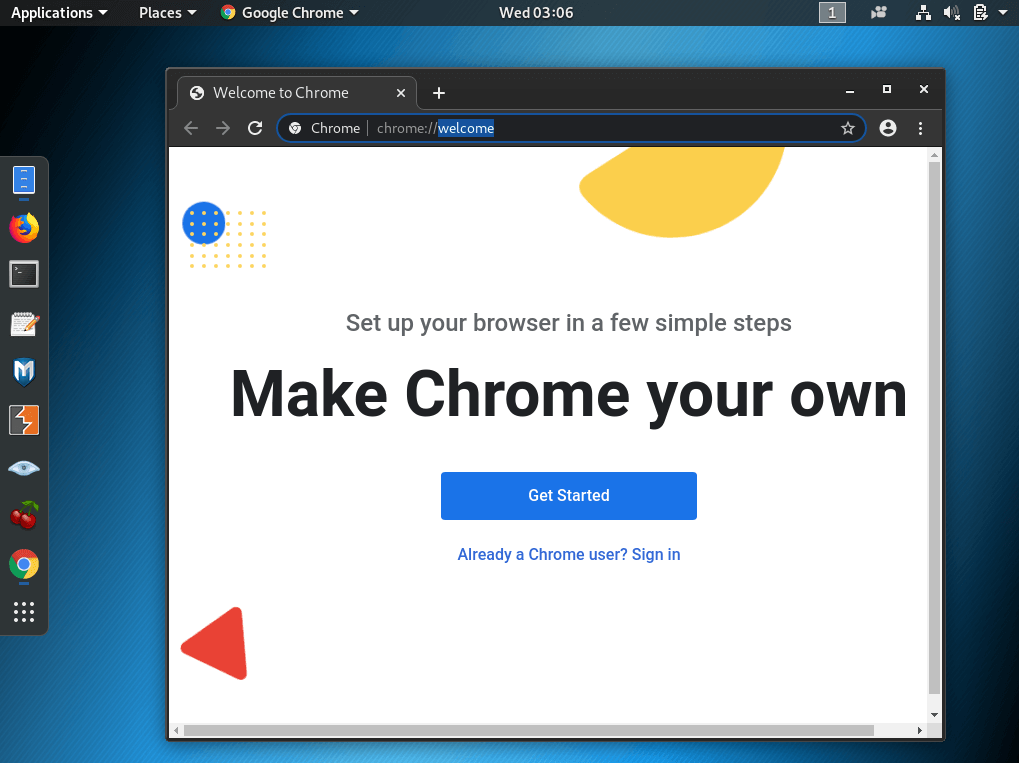
Upon successful installation, Google Chrome will also add its official repository to your system, ensuring you receive future updates automatically through your regular system update process.
Method 2: Adding the Google Chrome Repository
This is often the preferred method as it integrates Chrome into your system’s package management, allowing for automatic updates alongside your other system software. The installation of the .deb or .rpm package (as described above) usually does this automatically. However, you can also add the repository manually.
For Debian/Ubuntu/Mint
-
Import Google’s GPG key: This key authenticates the packages downloaded from Google’s repository.
wget -q -O - https://dl.google.com/linux/linux_signing_key.pub | sudo apt-key add -(Note:
apt-keyis deprecated for new installations on recent Debian/Ubuntu versions. A more modern approach involves placing the key in/etc/apt/trusted.gpg.d/and the source list in/etc/apt/sources.list.d/.)Modern approach (recommended for newer systems):
sudo apt update sudo apt install software-properties-common apt-transport-https wget wget -q -O- https://dl.google.com/linux/linux_signing_key.pub | gpg --dearmor | sudo tee /etc/apt/trusted.gpg.d/google-chrome.gpg > /dev/null echo "deb [arch=amd64] https://dl.google.com/linux/chrome/deb/ stable main" | sudo tee /etc/apt/sources.list.d/google-chrome.list -
Update package list and install Chrome:
sudo apt update

sudo apt install google-chrome-stable
For Fedora/CentOS/RHEL
-
Create the Google Chrome repository file:
sudo nano /etc/yum.repos.d/google-chrome.repoAdd the following lines to the file, then save and exit (Ctrl+X, Y, Enter for Nano):
[google-chrome] name=google-chrome baseurl=https://dl.google.com/linux/chrome/rpm/stable/x86_64 enabled=1 gpgcheck=1 gpgkey=https://dl.google.com/linux/linux_signing_key.pub -
Install Google Chrome:
For Fedora/RHEL 8+/CentOS 8+:
sudo dnf install google-chrome-stableFor older RHEL/CentOS:
sudo yum install google-chrome-stable
Method 3: Using Snap or Flatpak (Universal Package Managers)
Snap and Flatpak are universal package management systems that aim to make software installation simpler across different Linux distributions by bundling applications with their dependencies. While not always the primary method for Chrome, they offer an alternative for those who prefer them. Note that Google officially provides the .deb and .rpm packages, and Snap/Flatpak versions might be community-maintained or have slight differences in integration.
Installing Chrome via Snap
If Snap is enabled on your system (it’s pre-installed on Ubuntu), you can try:
sudo snap install google-chrome
This might install a community-maintained version or a sandbox version.
Installing Chrome via Flatpak
First, ensure Flatpak is installed and the Flathub repository is added:
sudo apt install flatpak (for Debian/Ubuntu)

sudo dnf install flatpak (for Fedora)

flatpak remote-add --if-not-exists flathub https://flathub.org/repo/flathub.flatpakrepo
Then, install Google Chrome:
flatpak install flathub com.google.Chrome
Post-Installation: Verifying and Configuring Chrome
Once the installation commands have run successfully, you’re ready to launch and configure your new browser.
Launching Google Chrome for the First Time
You can launch Google Chrome in a few ways:
-
From the Application Menu: Search for “Google Chrome” in your desktop environment’s application launcher/menu.
-
From the Terminal:
google-chromeor
google-chrome-stableThe first time you launch it, Chrome might ask if you want to make it the default browser and if you want to send usage statistics to Google.
Initial Setup and Syncing
Upon launching Chrome, you’ll be prompted to sign in with your Google account. Doing so will sync your bookmarks, history, extensions, and settings across all your devices where you use Chrome, providing a seamless browsing experience. This is one of Chrome’s most powerful features, especially for users who frequently switch between computers or operating systems.
Keeping Chrome Updated
If you installed Chrome via the official .deb or .rpm package or by adding Google’s repository, Chrome updates will be handled automatically by your system’s package manager alongside other system updates.
-
For Debian-based systems:
sudo apt update && sudo apt upgrade -
For RPM-based systems:
sudo dnf updateorsudo yum updateorsudo zypper update
This ensures that you always have the latest security patches, performance improvements, and features without manual intervention.
Troubleshooting Common Installation Issues
While the installation process is generally straightforward, occasionally you might encounter issues. Here are some common problems and their solutions.
Dependency Problems
-
dpkgerrors (Debian/Ubuntu): Ifsudo dpkg -ireturns errors about missing dependencies, theapt --fix-broken installcommand is your best friend. It automatically identifies and installs the necessary packages.sudo apt --fix-broken install -
Missing libraries (RPM-based):
dnf installoryum installusually handle dependencies well. If you encounter issues, ensure your system is fully updated (sudo dnf update) and try again. Sometimes specific library packages might be missing; you can usually identify these from the error message and install them manually.
Repository Key Errors
If you add the repository manually and receive GPG key errors during apt update or dnf update, it means your system can’t verify the authenticity of the packages. Ensure you’ve correctly imported Google’s GPG key as described in Method 2. Double-check the wget commands and tee operations for typos.
Network or Download Failures
If wget fails or the browser download is interrupted, check your internet connection. Proxy settings or firewalls might also interfere. Ensure that https://dl.google.com is accessible from your system.
Dealing with Different Architectures
As mentioned, Google Chrome officially supports only 64-bit Linux systems. If you are running a 32-bit distribution, you will not be able to install the latest versions of Google Chrome. In such cases, you might need to consider alternative browsers or an older, potentially less secure, version of Chrome (not recommended). Most modern Linux distributions are 64-bit, making this less of an issue for newer installations.
Conclusion
Installing Google Chrome on Linux is a relatively simple process, primarily involving the download of an official .deb or .rpm package or the addition of Google’s dedicated repository. By following the steps outlined in this guide, you can successfully integrate Chrome into your Linux desktop environment, gaining access to its extensive features, robust performance, and seamless integration with the Google ecosystem.
Whether you’re a developer leveraging Chrome’s powerful DevTools, a casual user enjoying its vast extension library, or simply someone who prefers its familiar interface, Chrome offers a polished and capable browsing experience on Linux. Remember to keep your system and Chrome updated to ensure optimal performance, security, and access to the latest web technologies. The open nature of Linux, combined with the versatility of Chrome, provides a powerful and productive computing platform for users across the globe.
aViewFromTheCave is a participant in the Amazon Services LLC Associates Program, an affiliate advertising program designed to provide a means for sites to earn advertising fees by advertising and linking to Amazon.com. Amazon, the Amazon logo, AmazonSupply, and the AmazonSupply logo are trademarks of Amazon.com, Inc. or its affiliates. As an Amazon Associate we earn affiliate commissions from qualifying purchases.