
Microsoft Word is the industry standard for document processing, yet many users limit themselves to the default font library pre-installed on their operating system. Whether you are drafting a professional proposal, designing a creative newsletter, or formatting a book manuscript, the right typography can drastically influence readability and aesthetic appeal. Installing custom fonts allows you to break free from the constraints of standard typefaces and imbue your documents with a unique visual voice.
Understanding Font Formats and Compatibility
Before you begin downloading and installing new typography, it is essential to understand the technical formats supported by Microsoft Windows and macOS, as these determine how Word interacts with your files.
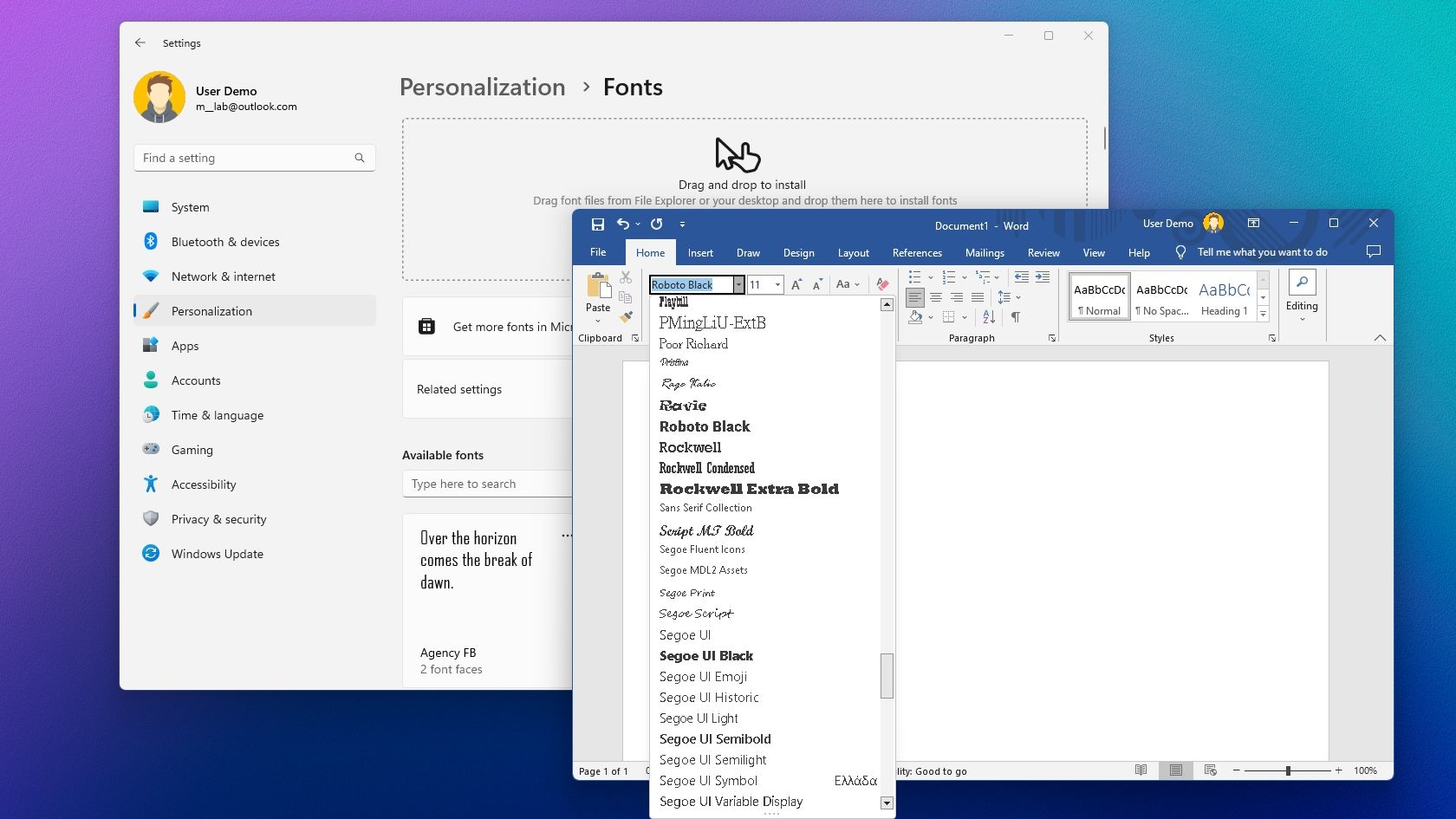
The Standard File Formats: OTF vs. TTF
The two primary formats you will encounter are TrueType (.ttf) and OpenType (.otf).
- TrueType (.ttf): Developed by Apple and Microsoft, this is the most common format. It is highly reliable for general document processing and screen display.
- OpenType (.otf): This is a more modern standard. OpenType fonts often contain advanced typographic features such as ligatures, swashes, and alternate character sets. Because they are cross-platform compatible, they are the preferred choice for professional design work within Word.
System-Wide Installation
When you install a font, it is important to note that you are generally installing it at the operating system level, not specifically into Microsoft Word. Microsoft Word acts as a host; it queries your system’s font folder every time it launches. If the font is successfully registered by your operating system, Word will automatically detect and list it within the font dropdown menu.
How to Install Fonts on Windows
Installing fonts on a Windows-based PC is a straightforward process, though there are nuances depending on whether you are using Windows 10 or Windows 11.
Step-by-Step Installation Process
- Download the Font: Extract the font files from the ZIP folder you downloaded. You are looking for the .ttf or .otf files.
- The Direct Install Method: Right-click the font file and select “Install.” This will automatically copy the file into the
C:WindowsFontsdirectory. - The “Install for All Users” Method: If you are an administrator, it is often better to right-click the font file and select “Install for all users.” This ensures that the font is accessible to every account on the machine and prevents potential permission conflicts when Word attempts to render the font in a collaborative environment.
Managing Your Font Library
As your library grows, keep your system organized. Avoid installing thousands of fonts at once, as a cluttered font cache can occasionally lead to slower Word startup times. Periodically review your font folder and delete typefaces you no longer use.
How to Install Fonts on macOS
The macOS font management system differs slightly from Windows, primarily through the utilization of the “Font Book” application.
Using Font Book
- Locate the File: Once you have downloaded and unzipped your font, double-click the .ttf or .otf file.
- Validation: macOS will automatically open the Font Book preview window. Click the “Install” button.
- Validation Check: Font Book will run a quick validation to ensure the file is not corrupted. If the font is safe, it will be added to your system library and will be immediately available in Microsoft Word for Mac.
Troubleshooting Synchronization
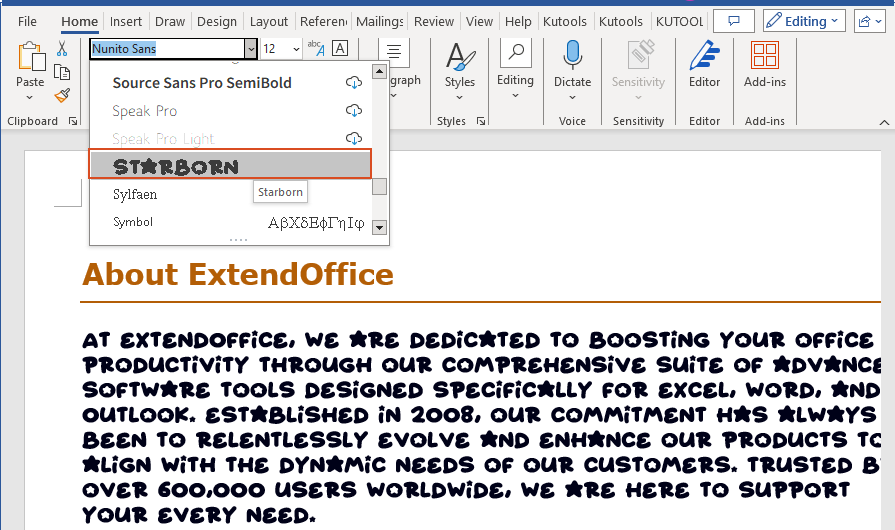
If you have installed a font and it does not appear in Word, try closing and restarting the application. Word only scans the system font directory during its initialization process. If the font still does not appear, use the “Validate Font” feature within Font Book to check for potential structural errors in the font file itself.
Best Practices for Document Typography
Installing a high-quality font is only half the battle. How you utilize that font within Microsoft Word determines the professional quality of your final document.
Embedding Fonts for Portability
One of the most common issues when using custom fonts is the “missing font” problem. If you email a document to a colleague who does not have your specific custom font installed, Word will automatically substitute it with a default system font, often ruining the formatting and layout of your document.
To prevent this, you must embed the font directly into your Word file:
- Go to File > Options.
- Select the Save tab.
- Scroll to the bottom and check the box labeled “Embed fonts in the file.”
- Choose “Embed only the characters used in the document” if you want to keep the file size small, or “Embed all characters” if you expect the recipient to edit the document.
Hierarchy and Pairing
When selecting fonts for a professional document, limit your selection to two, or at most three, distinct typefaces. A common best practice is to pair a bold, high-contrast Serif or Sans-Serif font for headers with a clean, highly legible font for the body text. Using too many varied typefaces creates visual noise and reduces the authority of your document.
Accessibility Considerations
While custom fonts can be visually stunning, prioritize legibility. Avoid overly decorative, script-heavy, or distorted fonts for long-form body text. Ensure that the font you select supports standard punctuation and international characters (such as accents or symbols) if your document requires them. A “complete” font file will contain these character sets, while poorly designed free fonts often omit them, resulting in empty boxes or mismatched characters in your text.
Troubleshooting Common Issues
Even with careful installation, technical hiccups can occur. Here is how to navigate the most common roadblocks when integrating fonts into Word.
Corrupted Font Files
If you attempt to install a font and receive an error message stating the file is invalid, the font file itself may be corrupted. Download the font from a different source or a reputable repository like Google Fonts, which maintains rigorous standards for font file integrity.
Cache Conflicts
Sometimes, the operating system’s font cache becomes outdated. If you have installed a font and Word refuses to recognize it, you may need to clear the cache. On Windows, this involves stopping the Windows Font Cache Service and deleting the .dat files in the SystemProfileAppDataLocal directory. On Mac, restarting the computer or using Font Book to “Resolve Duplicates” usually fixes the issue.

Application Compatibility
Very rarely, an older font file may not be compatible with the current version of Microsoft Office. If you are using a legacy font created decades ago, consider looking for an updated version or a modern alternative that provides the same aesthetic while offering better support for modern software rendering engines.
By following these procedures, you ensure that your documents maintain a polished, professional, and unique appearance. Whether you are creating a minimalist resume, a corporate report, or creative marketing materials, managing your font library with care will distinguish your work and ensure consistent, high-quality results across all your digital platforms.
aViewFromTheCave is a participant in the Amazon Services LLC Associates Program, an affiliate advertising program designed to provide a means for sites to earn advertising fees by advertising and linking to Amazon.com. Amazon, the Amazon logo, AmazonSupply, and the AmazonSupply logo are trademarks of Amazon.com, Inc. or its affiliates. As an Amazon Associate we earn affiliate commissions from qualifying purchases.