
In the vast and ever-evolving landscape of Linux distributions, Debian-based systems stand as a cornerstone for stability, security, and a robust package management system. At the heart of this system are Debian packages, identifiable by their .deb file extension. These packages are the standardized bundles that contain all the necessary files, metadata, and instructions required to install a piece of software on your Debian, Ubuntu, Linux Mint, or other Debian-derived operating systems. Understanding how to effectively install, manage, and troubleshoot these packages is a fundamental skill for any user, from a curious beginner to a seasoned system administrator.
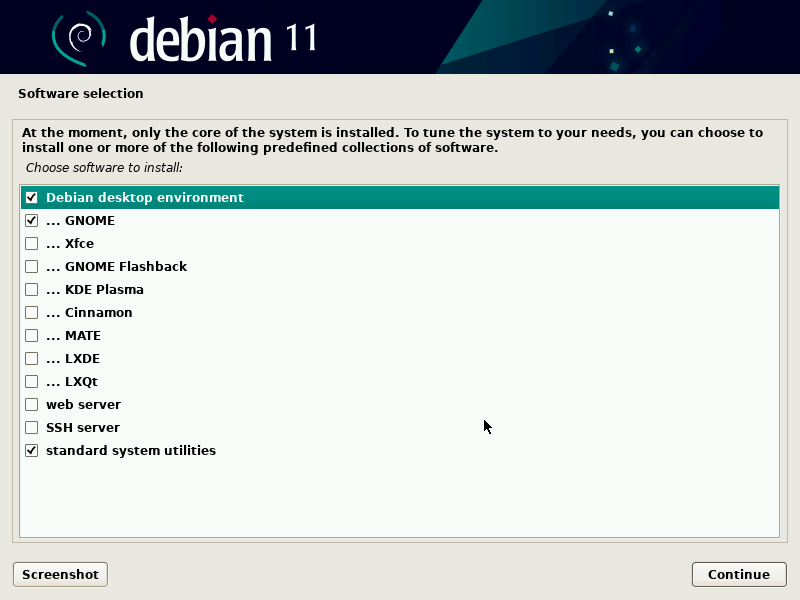
This guide will demystify the process of installing Debian packages, exploring various methods ranging from command-line utilities to graphical interfaces. We’ll delve into the underlying principles, address common challenges like dependency resolution, and equip you with the knowledge to maintain a healthy and functional system. By the end, you’ll not only know how to install a Debian package but also why certain methods are preferred in different scenarios, fostering a deeper understanding of the powerful Debian package management ecosystem.
Understanding the Debian Package Ecosystem
Before diving into the mechanics of installation, it’s crucial to grasp what a Debian package truly is and how the broader package management system works. This foundational knowledge will illuminate the purpose of various tools and strategies we’ll discuss.
What is a .deb Package?
A .deb file is essentially an archive file, similar to a .zip or .tar archive, specifically designed for Debian-based operating systems. It conforms to the ar archive format and contains several components:
-
Control Information: This includes critical metadata about the package, such as its name, version, architecture (e.g.,
amd64,i386), a description, its maintainer, and most importantly, a list of dependencies. Dependencies are other packages that the current package relies on to function correctly. -
Data Archive: This contains the actual program files, libraries, documentation, configuration files, and any other data that makes up the software. These files are typically compressed (often using
gziporxz). -
Maintainer Scripts: These are optional scripts that run at various stages of the package’s lifecycle, such as before installation (
preinst), after installation (postinst), before removal (prerm), and after removal (postrm). They handle tasks like creating user accounts, configuring services, or cleaning up temporary files.
The .deb format provides a standardized and efficient way to distribute software, ensuring that all necessary components are bundled together and can be installed in a predictable manner across compatible systems.
The Role of Package Managers in Debian-based Systems
While a .deb file bundles the software, it’s the package manager’s job to actually install, upgrade, configure, and remove these packages. Debian-based systems employ a sophisticated hierarchy of tools for this:
-
dpkg(Debian Package): This is the foundational, low-level package manager.dpkgcan install, remove, and query individual.debfiles. However,dpkgdoes not automatically handle dependencies. If a package you’re trying to install has dependencies that are not met,dpkgwill fail, requiring you to manually resolve those dependencies. -
APT (Advanced Package Tool): This is the high-level, intelligent front-end to
dpkgand the cornerstone of Debian’s package management. APT simplifies the process significantly by:-
Dependency Resolution: Automatically identifying and installing all necessary dependencies.
-
Repository Management: Managing software repositories (sources of packages) where thousands of applications are stored. APT fetches package information and downloads packages from these repositories.
-
Caching: Maintaining a local cache of package information to speed up operations.
-
Ease of Use: Providing user-friendly commands like
apt install,apt update,apt upgrade, andapt remove.
-
Understanding this distinction is vital. While dpkg is powerful for specific tasks involving individual .deb files, APT is generally the go-to tool for everyday package management due to its ability to handle the complex web of dependencies and interact with remote repositories.
Core Methods for Installing .deb Packages
Installing .deb packages can be approached through several methods, each suited for different scenarios. We’ll cover the most common and effective ways.
Method 1: Installing via dpkg (The Low-Level Tool)
As mentioned, dpkg is the basic tool for installing individual .deb files. It’s useful when you have a specific .deb file downloaded locally and want to install it without involving remote repositories for that particular package.
Syntax:
sudo dpkg -i /path/to/your/package-name.deb
-
sudo: Necessary for executing commands with root privileges, as package installation modifies system files. -
dpkg: The Debian package manager command. -
-ior--install: The option to install a package. -
/path/to/your/package-name.deb: The absolute or relative path to the.debfile you wish to install.
Example:
If you’ve downloaded Google Chrome as google-chrome-stable_current_amd64.deb to your Downloads directory:
cd ~/Downloads

sudo dpkg -i google-chrome-stable_current_amd64.deb
Limitations: The primary limitation of dpkg is its inability to resolve dependencies automatically. If google-chrome requires other packages (libraries, etc.) that are not already installed on your system, dpkg will throw an error listing the missing dependencies. This leads to a broken installation state. While you could manually download and install each dependency with dpkg, this quickly becomes cumbersome.
Method 2: Leveraging APT (Advanced Package Tool) for Seamless Installation
APT is the preferred method for installing packages from official or added repositories, and it can also brilliantly resolve dependencies for locally installed .deb files.
Installing Packages from Repositories:
This is the most common use case for APT.
-
Update Package Lists: Before installing any new software, it’s good practice to update your local package list cache to ensure you’re working with the latest information about available packages and their versions from your configured repositories.
sudo apt update -
Install the Package: Once the lists are updated, you can install a package by its name. APT will automatically find the latest stable version, download it, and install all its dependencies.
sudo apt install package-nameExample: To install
vlcmedia player:sudo apt install vlcAPT will prompt you to confirm the installation and list all packages that will be installed (including dependencies).
Installing Locally Downloaded .deb Files with APT (Dependency Resolution Magic):
This is where APT truly shines when dealing with local .deb files. If you’ve used dpkg and it failed due to missing dependencies, or if you simply prefer a robust installation method for a local file, APT can help.
-
Install the
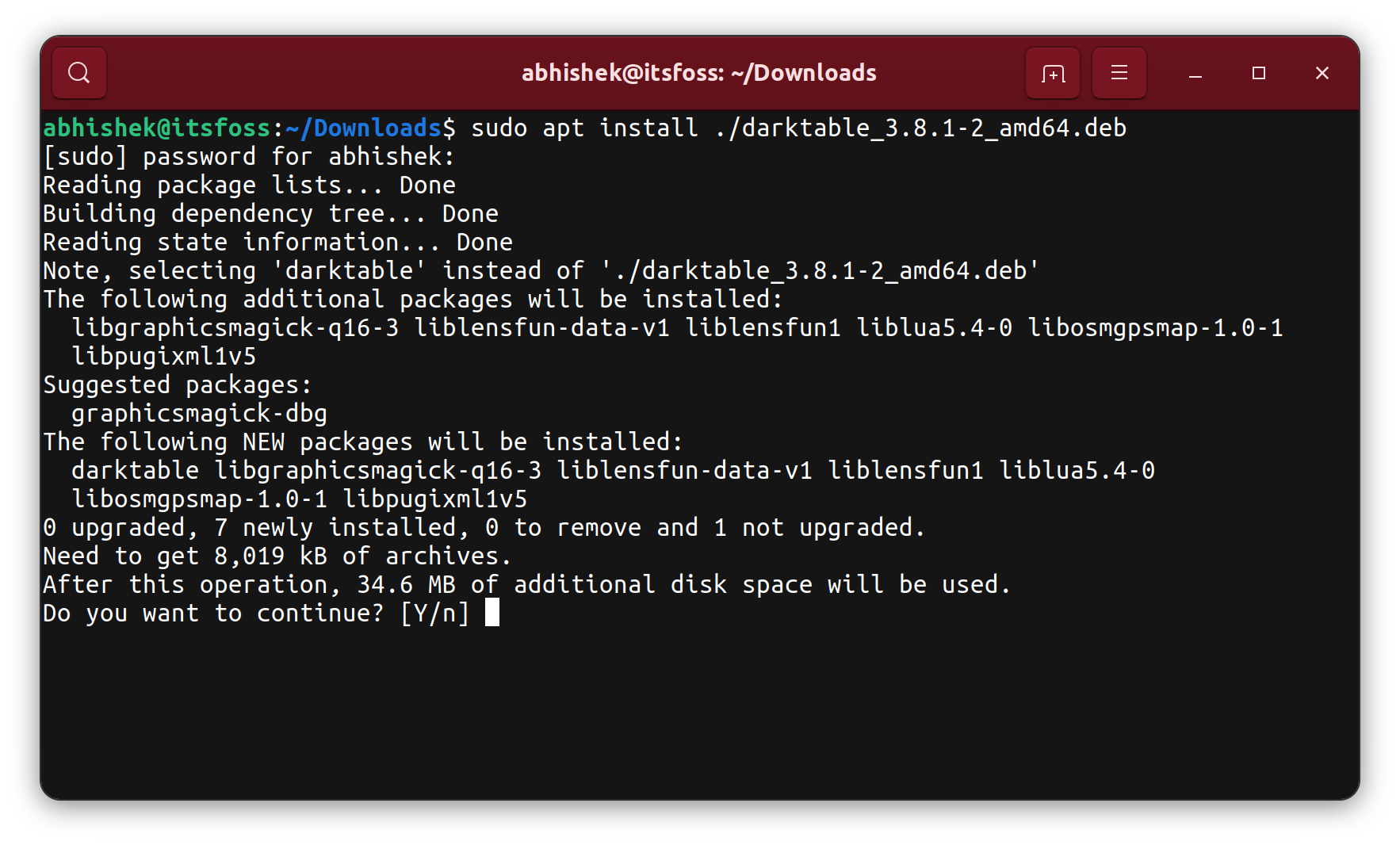
.debfile usingapt:sudo apt install /path/to/your/package-name.debExample: Using the Google Chrome example:
sudo apt install ~/Downloads/google-chrome-stable_current_amd64.debUnlike
dpkg -i,apt install(when given a path to a.debfile) will attempt to install the package and automatically download and install any missing dependencies from your configured repositories. This is the recommended command-line method for installing local.debfiles.
Method 3: Graphical Installation with GDebi or Software Center
For users who prefer a graphical user interface (GUI), there are convenient tools that simplify .deb package installation.
-
GDebi Package Installer: GDebi is a lightweight application specifically designed to install
.debfiles. It provides a simple GUI that shows you the package’s description and, crucially, its dependencies. If dependencies are missing, GDebi will prompt you to install them (by leveraging APT behind the scenes).-
Installation: If GDebi isn’t pre-installed, you can get it with
sudo apt install gdebi. -
Usage: After installation, you can usually right-click a
.debfile in your file manager and choose “Open With GDebi Package Installer.” Alternatively, open GDebi and navigate to the.debfile.
-
-
Software Center (e.g., Ubuntu Software, GNOME Software): Many modern Debian-based desktops include a “Software Center” or “App Store”-like application. These tools often have the capability to open and install
.debfiles directly. When you double-click a.debfile, it might automatically open in the Software Center, which will then display information about the package and offer an “Install” button, handling dependencies seamlessly.
These graphical tools are excellent for beginners or anyone who prefers a visual workflow, offering a less intimidating way to manage packages.
Managing Dependencies and Common Installation Scenarios
Dependency management is the most intricate part of package installation. While APT simplifies this greatly, understanding how to address specific scenarios is crucial.
Resolving Dependency Issues: APT to the Rescue
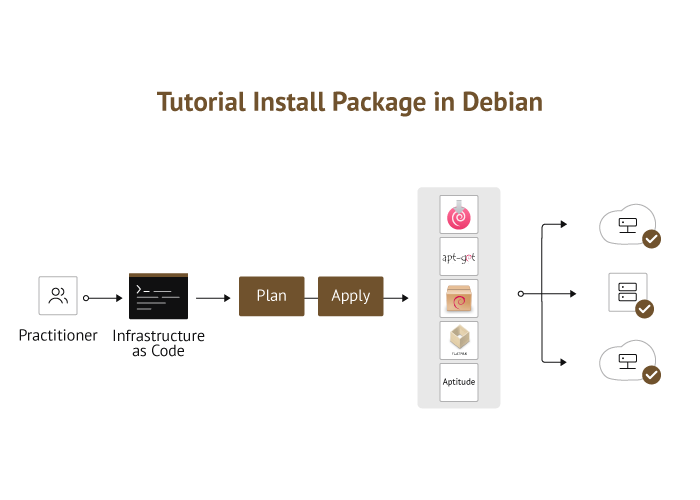
If you did attempt to install a .deb file using dpkg -i and it failed due to unmet dependencies, your system might be in a “broken” state regarding that package. APT provides a powerful command to fix this:
sudo apt --fix-broken install
or the older equivalent:
sudo apt-get install -f
This command tells APT to scan your system for broken dependencies and attempt to fix them by installing any missing packages that are required. It’s a lifesaver after a failed dpkg installation.
Installing Packages from Third-Party Repositories
While apt install package-name works for packages in your default repositories, sometimes software isn’t available there, or you need a newer version. This is where third-party repositories come in.
-
Adding PPA (Personal Package Archive) on Ubuntu/Mint: PPAs are common on Ubuntu and its derivatives for getting newer software versions or niche applications.
sudo add-apt-repository ppa:some/ppa

sudo apt update

sudo apt install package-from-ppa
Always be cautious when adding PPAs, as they are not officially maintained by Debian/Ubuntu and can introduce instability or security risks.
-
Adding Standard Repositories: For other Debian-based systems, or if a software vendor provides a specific repository, you’ll often add a line to
/etc/apt/sources.listor create a new file in/etc/apt/sources.list.d/.# Example for Visual Studio Code wget -qO- https://packages.microsoft.com/keys/microsoft.asc | gpg --dearmor > packages.microsoft.gpg sudo install -D -o root -g root -m 644 packages.microsoft.gpg /etc/apt/keyrings/packages.microsoft.gpg sudo sh -c 'echo "deb [arch=amd64,arm64,armhf signed-by=/etc/apt/keyrings/packages.microsoft.gpg] https://packages.microsoft.com/repos/code stable main" > /etc/apt/sources.list.d/vscode.list' rm packages.microsoft.gpg sudo apt update sudo apt install codeThis process usually involves adding a GPG key for repository authentication, then adding the repository line, and finally running
apt updatebefore installation.
Handling Manually Downloaded .deb Files
When you download a .deb file from a website (e.g., Google Chrome, Slack, etc.), always prefer to install it using sudo apt install /path/to/file.deb over sudo dpkg -i. This ensures that any dependencies are automatically handled. If the software vendor provides its own repository after the initial .deb installation, future updates will be managed by apt update and apt upgrade.
Beyond Installation: Package Maintenance and Troubleshooting
Effective package management extends beyond just installation. It involves maintaining your system, understanding how to remove software, and troubleshooting common issues.
Removing and Purging Debian Packages
You can remove installed packages using APT:
-
sudo apt remove package-name: This command removes the package’s executable files and libraries, but it generally leaves behind configuration files. This is useful if you think you might reinstall the package later and want to preserve your settings. -
sudo apt purge package-name: This command removes the package and all its configuration files, providing a cleaner uninstallation. This is ideal when you want to completely remove all traces of a program.
After removing packages, it’s often a good idea to clean up orphaned dependencies (packages that were installed as dependencies for other software but are no longer needed) and cached .deb files:
sudo apt autoremove      # Removes automatically installed packages that are no longer needed

sudo apt clean           # Clears out the local repository of downloaded package files
Updating and Upgrading Your System
Keeping your system updated is paramount for security and stability.
-
sudo apt update: This command refreshes the package lists from your configured repositories, telling your system what new versions of packages are available. It does not install anything. -
sudo apt upgrade: Afterapt update, this command installs the newer versions of all installed packages on your system. It will not remove existing packages or install new ones unless they are required dependencies. -
sudo apt full-upgrade(orsudo apt dist-upgrade): This command performs a more aggressive upgrade, intelligently handling dependency changes, potentially removing old packages and installing new ones to fulfill new dependencies. This is often used for significant distribution upgrades.
Regularly running sudo apt update && sudo apt upgrade is a best practice.
Common Errors and Troubleshooting Tips
Even with robust tools, you might encounter issues.
-
“Unmet dependencies” error: As discussed,
sudo apt --fix-broken installis your primary tool here. Ensure your internet connection is active and repositories are correctly configured. -
“Unable to locate package” error: This usually means:
-
The package name is misspelled.
-
The package is not available in your currently configured repositories. You might need to add a new repository or enable a disabled one.
-
You haven’t run
sudo apt updaterecently.
-
-
“Signature verification failed” or GPG key errors: This indicates an issue with repository authentication. When adding third-party repositories, ensure you’ve correctly imported their GPG key. Incorrect keys can prevent
apt updatefrom working for that repository. You might need to re-add the key or consult the repository’s documentation. -
“E: dpkg was interrupted, you must manually run ‘sudo dpkg –configure -a’ to correct the problem.”: This happens when a
dpkgoperation was interrupted. Follow the instruction and run the command to fix the broken state.
For more complex issues, checking log files (e.g., /var/log/apt/term.log) or searching online forums and documentation with the exact error message can provide solutions.
Best Practices for Debian Package Management
To ensure a smooth and secure experience with your Debian-based system, consider these best practices:
Prioritizing Official Repositories
Whenever possible, prefer installing software from the official Debian/Ubuntu repositories. These packages are thoroughly tested, stable, and receive security updates directly from the distribution maintainers. Third-party repositories, while sometimes necessary, introduce potential risks if not carefully vetted.
Keeping Your System Updated
Regular updates (at least weekly) are crucial for security patches, bug fixes, and performance improvements. Make sudo apt update && sudo apt upgrade a routine.
Understanding Package Versions
Sometimes you need a specific version of a package. While apt generally installs the latest stable version, you can specify a version during installation (e.g., sudo apt install package-name=version-number). Be aware that this can sometimes lead to dependency conflicts if the specified version is significantly older or newer than what your system expects.
Backups
Before making major system changes, especially involving adding new repositories or installing critical software from unofficial sources, consider backing up your system or at least your /etc/ directory (where configuration files reside).
By adhering to these guidelines and understanding the tools at your disposal, you can confidently navigate the world of Debian package management, keeping your system secure, stable, and equipped with the software you need. The ability to install and manage packages effectively is not just a technical skill; it’s a gateway to fully leveraging the power and flexibility of the Linux ecosystem.
aViewFromTheCave is a participant in the Amazon Services LLC Associates Program, an affiliate advertising program designed to provide a means for sites to earn advertising fees by advertising and linking to Amazon.com. Amazon, the Amazon logo, AmazonSupply, and the AmazonSupply logo are trademarks of Amazon.com, Inc. or its affiliates. As an Amazon Associate we earn affiliate commissions from qualifying purchases.