
The Sims 3, a venerable title in the life simulation genre, continues to captivate players worldwide. While the base game offers immense creative freedom, a vibrant community of modders and creators has expanded its horizons exponentially through custom content (CC). From intricate clothing and hairstyles to revolutionary gameplay mechanics and architectural marvels, CC allows players to personalize their virtual worlds in unprecedented ways. However, for many, the technical process of integrating this content can appear daunting. This guide demystifies the installation process, offering a professional, insightful, and engaging walkthrough to seamlessly enhance your Sims 3 experience.
Understanding Custom Content and Its Ecosystem
Before diving into the installation specifics, it’s crucial to grasp what custom content is and the various forms it takes within The Sims 3 ecosystem. This foundational knowledge will empower you to navigate download sites and manage your game files effectively.
The Allure of Custom Content: Enhancing Your Gameplay
Custom content acts as a digital toolkit, enabling players to transcend the limitations of the original game design. It encompasses a vast array of user-created modifications, including:
-
Create-A-Sim (CAS) Items: Hair, makeup, clothing, accessories, and genetic modifications that allow for unparalleled character customization.
-
Build/Buy Mode Items: Furniture, decorations, architectural elements (doors, windows, roofs), and landscaping objects, transforming home building and interior design.
-
Gameplay Mods: Script modifications that alter game mechanics, add new interactions, fix bugs, or introduce entirely new features, significantly deepening the gameplay experience.
-
Worlds and Lots: Player-designed neighborhoods and pre-built homes or community lots that offer new settings for your Sims’ lives.
Integrating CC can inject new life into an aging game, addressing personal preferences, enhancing realism, or simply providing more aesthetic choices than the official expansions. It transforms The Sims 3 from a fixed product into a dynamic, user-extensible platform.
Decoding Custom Content File Types: .sims3pack vs. .package
The Sims 3 community primarily uses two distinct file formats for custom content, each requiring a different installation approach:
-
.sims3packFiles: These are official Sim-package files designed to be installed via The Sims 3 Launcher. They are essentially self-contained installers that package objects, Sims, lots, and sometimes even entire worlds. Think of them as miniature DLC files. They were EA’s intended method for distributing user-created content through The Sims 3 Exchange. While generally straightforward, they can sometimes be more prone to creating bloat in the game’s installation directory if not managed properly. -
.packageFiles: These are raw data files that directly modify or add content to the game. They are the backbone of most advanced mods and many smaller items like individual pieces of clothing or objects..packagefiles offer greater flexibility and often superior performance compared to.sims3packfiles for larger quantities of content. However, they require a specific folder structure and a game modification framework to be recognized by The Sims 3. Most serious modders and CC users prefer.packagefiles due to their efficiency and ease of management once the initial framework is set up. Understanding the distinction between these two formats is the first critical step toward successful custom content installation.
Essential Preparations: Setting Up Your Sims 3 Environment
Before you begin downloading and installing custom content, proper preparation of your game environment is paramount. Skipping these steps can lead to frustrating technical issues, game instability, or even data loss. A systematic approach ensures a smooth and secure modding experience.
Backing Up Your Game Saves and Data
This is the golden rule of modding any game: Always back up your save files and critical game data. Custom content, particularly script mods, can sometimes conflict with your game or even introduce unexpected bugs. A backup provides a safety net, allowing you to revert to a stable state if something goes wrong.
To back up your Sims 3 data:
-
Navigate to
DocumentsElectronic ArtsThe Sims 3. -
Copy the entire
The Sims 3folder to a safe location on your hard drive (e.g., another drive, a cloud storage service, or a dedicated “Sims 3 Backups” folder). -
Pay particular attention to the
Saves,Library, andInstalledWorldsfolders within yourThe Sims 3directory, as these contain your progress, creations, and downloaded worlds.
Perform this backup before any major CC installation session or significant game modification.
The Critical Role of the Mods Folder and Framework
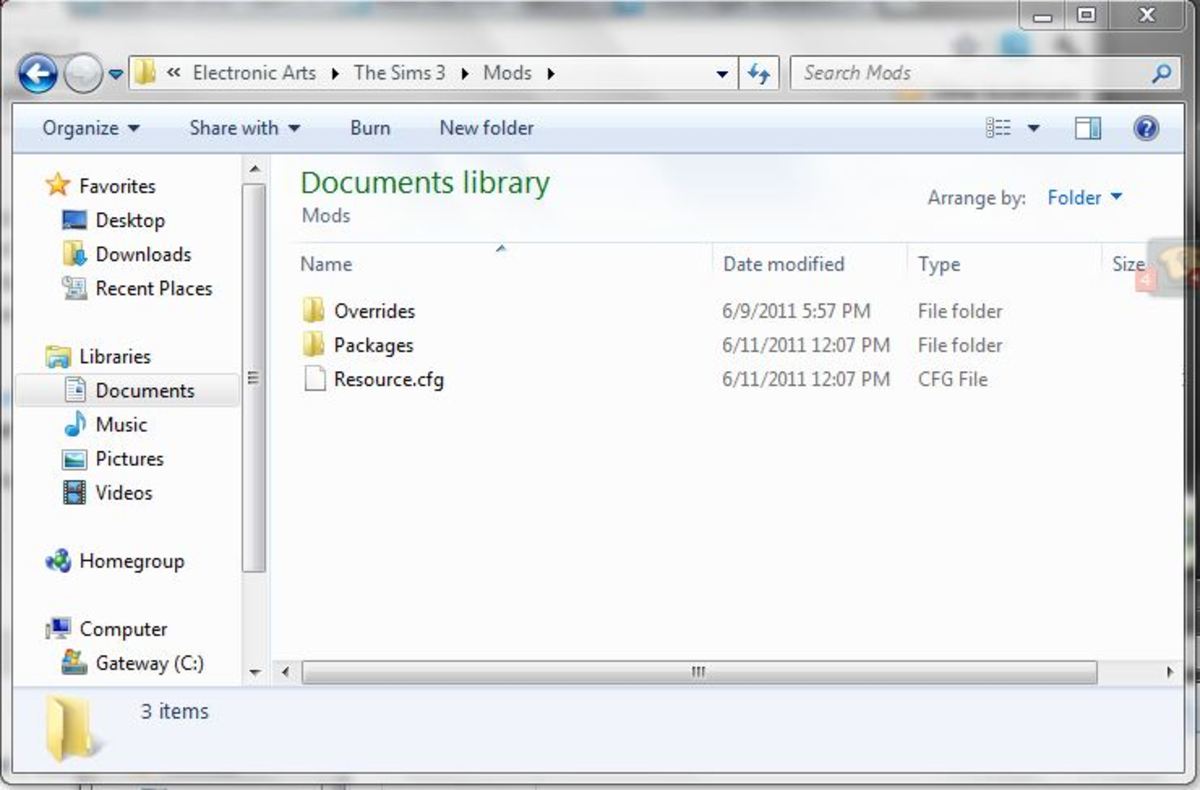
For .package files, The Sims 3 requires a specific folder structure and a “Resource.cfg” file to tell the game where to look for custom content. This setup is often referred to as the “Mods Framework.” Without it, .package files will not load.
To set up the Mods Framework:
-
Locate your Sims 3 installation directory: This is typically
C:Program Files (x86)Electronic ArtsThe Sims 3orC:Program Files (x86)Origin GamesThe Sims 3(for Origin/EA App versions). -
Create a
Modsfolder: Inside the mainThe Sims 3directory, create a new folder namedMods. -
Create a
Packagesfolder: Inside theModsfolder, create another new folder namedPackages. This is where most of your.packagecustom content will reside. -
Place the
Resource.cfgfile: You need aResource.cfgfile in yourModsfolder. This file is crucial as it instructs the game to load content from thePackagesfolder. Many modding communities or sites like Mod The Sims offer a pre-madeResource.cfgfile for download. If you download a Framework starter pack, it will usually include this file. Ensure its content correctly points to yourPackagesfolder (e.g.,Priority 500PackedFile Packages/*.packagePackedFile Mods/Packages/*.packageetc.). A common and robustResource.cfglooks something like this:Priority 500 PackedFile Packages/*.package PackedFile Mods/Packages/*.package PackedFile Mods/Packages/*/*.package PackedFile Mods/Packages/*/*/*.package PackedFile Mods/Packages/*/*/*/*.package PackedFile Mods/Packages/*/*/*/*/*.packageThis configuration ensures that the game searches deep within subfolders of your
Packagesdirectory, which is excellent for organization. -
Test the Framework: A good way to test if your framework is working is to download a simple, known-working
.packagemod (e.g., NRaas Overwatch) and place it in yourPackagesfolder. Launch your game; if the mod’s effects are present, your framework is correctly installed.
Recommended Tools: Archivers and Cleaners
A few essential software tools can significantly enhance your custom content management:
-
7-Zip or WinRAR: Many custom content downloads come compressed in
.zip,.rar, or.7zarchives. A powerful file archiver is indispensable for extracting these files. 7-Zip is a free, open-source, and highly recommended option. -
Custard (DCCache Cleaner):
.sims3packfiles installed via the Launcher convert into.dbcand.ebcfiles in yourDCBackupandDCCachefolders. Over time, these folders can become bloated with unnecessary files, impacting game performance. Tools like Custard can help identify and remove problematic or redundant.sims3packinstallations and clean the cache. -
Sims 3 Dashboard (Mod Conflict Detector): This invaluable tool scans your
.packagefiles for conflicts and corrupted content. It can identify “corrupt” or “bad” CC that might be causing game crashes or performance issues, allowing you to remove them safely. -
Delphy’s Sims 3 Pack Multi-Extractor: While the Launcher handles
.sims3packfiles, this tool allows you to extract the raw.packagefiles contained within a.sims3pack. This is useful for troubleshooting, consolidating content into your Mods folder, or if you prefer to manage everything as.packagefiles.
Having these utilities ready will streamline your workflow and aid in troubleshooting.
Installing Custom Content: Step-by-Step Methods
With your game environment prepared, you can now proceed to the actual installation of custom content. The method you use will depend entirely on the file type you have downloaded.
Using the Sims 3 Launcher for .sims3pack Files
This is the simplest method for installing .sims3pack files, as it’s the official route designed by EA.
-
Download and Place: Download the
.sims3packfile. Typically, you don’t need to do anything specific with it immediately; most modern browsers will download it to your defaultDownloadsfolder. However, some players prefer to move all.sims3packfiles toDocumentsElectronic ArtsThe Sims 3Downloadsbefore launching the game, which can sometimes make them appear in the Launcher more reliably. -
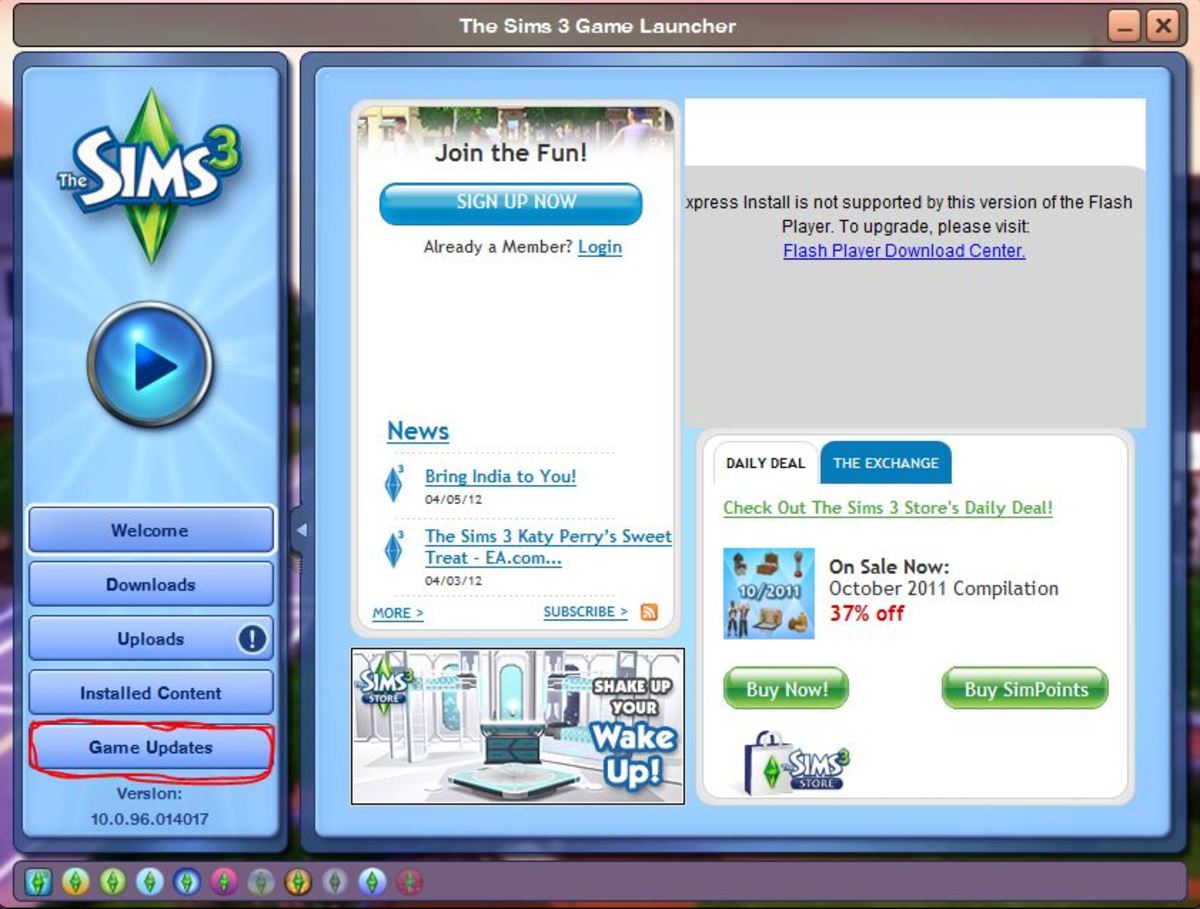
Open The Sims 3 Launcher: Double-click on The Sims 3 game icon to open the Launcher.
-
Navigate to the Downloads Tab: In the Launcher, click on the “Downloads” tab. You should see your newly downloaded
.sims3packfiles listed there. -
Install Selected Content: Select the items you wish to install by checking the box next to them. Then, click the “Install” button at the bottom of the Launcher window.
-
Monitor Installation: The Launcher will process the files. A progress bar will indicate the installation status. Once complete, the item will move from the “Downloads” tab to the “Installed Content” tab.
-
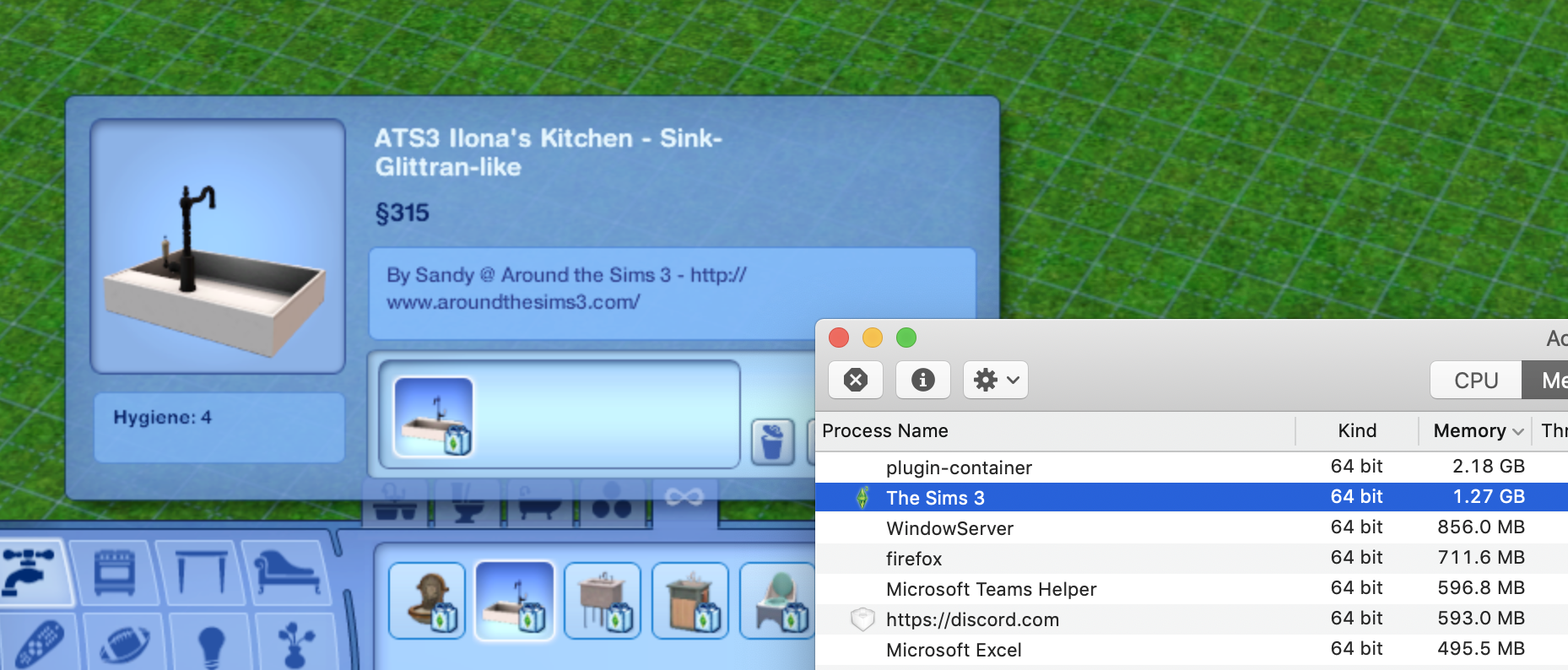
Verify in Game: Launch The Sims 3 and check if your new custom content is available (e.g., new clothing in CAS, new furniture in Build/Buy mode).
Important Note: Over-reliance on the Launcher for .sims3pack files, especially if they are poorly made, can lead to increased game load times, stability issues, and a bloated DCCache folder. It’s advisable to regularly clean your DCCache using tools like Custard.
Manual Installation for .package Files: The Mods Folder Approach
This method is preferred by many advanced users for its flexibility and performance benefits. It requires the Mods Framework you set up earlier.
-
Download and Extract: Download the
.packagefile(s). Often, they come compressed in a.zip,.rar, or.7zarchive. Use 7-Zip or WinRAR to extract the.packagefile(s) from the archive. -
Place in
PackagesFolder: Move the extracted.packagefile(s) into yourDocumentsElectronic ArtsThe Sims 3ModsPackagesfolder. If you’ve organized yourPackagesfolder with subfolders (e.g.,ModsPackagesCASHair,ModsPackagesBuildBuyFurniture), place the content in the appropriate subfolder. YourResource.cfg(if set up correctly with deep scanning lines) will ensure they are loaded. -
Launch and Verify: Launch The Sims 3. Your
.packagecustom content should now be present in the game. If you’ve installed a mod, you might see a confirmation message, or its effects will be immediately noticeable.
This method generally results in faster game loading and better performance, as the game loads these files directly rather than processing through the Launcher’s installation routine.
Advanced Installation: Merging Package Files
For users with a vast collection of .package files, merging them can significantly improve game performance. Each .package file, no matter how small, adds a slight overhead to the game’s loading process. By combining multiple smaller .package files into one larger one, the game has fewer individual files to read, potentially reducing load times and improving stability.
Tools like S3PE (Sims 3 Package Editor) or Delphy’s Multi-Installer (often used for merging) allow you to consolidate your .package files.
-
Select Files: Choose a logical group of
.packagefiles (e.g., all hairstyles, all furniture from a specific creator, or all script mods). -
Merge: Use the merging tool to combine these selected files into a single, larger
.packagefile. -
Replace Originals: Delete the original, individual
.packagefiles and replace them with the newly merged.packagefile in yourModsPackagesfolder.
Caution: Always keep original unmerged files backed up, and only merge non-conflicting content. Never merge core mods or essential framework files. Test your game thoroughly after merging to ensure stability. This advanced technique is for users comfortable with technical file manipulation.
Managing and Troubleshooting Your Custom Content
Even with careful installation, custom content can sometimes lead to issues. Effective management and troubleshooting are crucial skills for any Sims 3 player utilizing CC.
Identifying and Resolving Conflicts
Conflicts are the most common issue with custom content. They occur when two or more pieces of CC try to modify the same game resource, or when poorly made CC corrupts game data. Symptoms include:
-
Game crashes to desktop (CTDs).
-
Infinite loading screens.
-
Graphical glitches or missing textures (e.g., “blue Sims”).
-
Objects or interactions not working correctly.
-
Specific items not appearing in-game.
Troubleshooting Steps:
-
The 50/50 Method: This is the most effective way to find conflicting
.packagefiles.-
Remove half of your
.packagefiles from theModsPackagesfolder. -
Launch the game.
-
If the problem persists, the conflict is in the remaining half. Remove half of those files.
-
If the problem is gone, the conflict is in the half you removed. Put those back and remove half of them.
-
Repeat this process until you isolate the single problematic file.
-
-
Check for “Bad CC”: Use the Sims 3 Dashboard tool to scan your
.packagefiles for known conflicts or corruptions. This can quickly identify problematic files. -
DCCacheCleaning: If you suspect issues from.sims3packcontent, use Custard to clean out yourDCCacheandDCBackupfolders, then reinstall your.sims3packcontent selectively. -
Resource.cfg Verification: Ensure your
Resource.cfgfile is correctly formatted and placed. An incorrectResource.cfgcan prevent any.packagecontent from loading. -
Delete Cache Files: After adding or removing CC, it’s good practice to delete your game’s cache files before launching. These are found in
DocumentsElectronic ArtsThe Sims 3:-
CASPartCache.package -
compositorCache.package -
scriptCache.package -
simCompositorCache.package -
socialCache.package
Deleting these forces the game to regenerate them with the updated content, preventing old cached data from causing conflicts.
-
Tools for Custom Content Management (Dashboard, Delphy’s Organizer)
Beyond just cleaning, several tools assist in active CC management:
-
Sims 3 Dashboard: As mentioned, invaluable for conflict detection and identifying corrupt files. It provides a visual interface to manage and delete detected issues.
-
Delphy’s Sims 3 Custom Content Organizer: This tool helps categorize and organize your
.packagefiles into logical subfolders, making it easier to manage large collections and perform the 50/50 method. It can also assist with merging smaller files. -
Game Launcher’s “Installed Content” Tab: While not a standalone tool, regularly reviewing this tab can help identify and uninstall problematic
.sims3packcontent.
Leveraging these tools can save countless hours of manual troubleshooting and keep your game running smoothly.
Dealing with Lag and Performance Issues
A common side effect of extensive custom content, especially unoptimized items, is a decline in game performance. Lag, stuttering, and increased loading times can detract significantly from the playing experience.
Strategies to Mitigate Performance Issues:
-
Optimize Your
.packageFiles: Use tools like S3PE to open.packagefiles and remove unnecessary resources (e.g., extra language files, duplicate textures). -
Merge Small
.packageFiles: As discussed, merging can reduce the number of files the game needs to load. -
Avoid “Bad” CC: Some creators release content that is poorly optimized, has too many polygons, or contains errors. Research creators and read comments on download sites to identify reputable sources.
-
Limit
.sims3packUsage: Prioritize.packagefiles over.sims3packwhere possible, and regularly clean yourDCCache. -
Install NRaas Mods: The NRaas suite of mods (especially Overwatch, ErrorTrap, and MasterController) are performance enhancers and bug fixers that address many underlying game issues, improving stability and reducing lag even without CC.
-
Graphics Card Optimization: Ensure your graphics drivers are up-to-date, and configure your graphics card settings for optimal performance with The Sims 3. This often involves reducing anti-aliasing or texture quality if issues persist.
-
RAM Upgrade: The Sims 3 is a 32-bit application, limiting its RAM usage, but having ample system RAM (8GB or more) generally benefits overall system performance, including when running demanding games.
Best Practices for a Seamless Custom Content Experience
To enjoy the full benefits of custom content without the associated headaches, adopt these best practices from the outset. They represent the accumulated wisdom of the Sims 3 modding community.
Sourcing Reliable Custom Content
The internet is vast, and not all custom content is created equal.
-
Reputable Websites: Stick to well-known and respected Sims 3 modding communities and content creator sites. Mod The Sims, The Sims Resource (TSR), and individual creator blogs with good reputations are excellent starting points.
-
Read Comments and Descriptions: Always read the description of the CC and the comments section. Users often report issues, conflicts, or quality concerns that can save you future frustration.
-
Avoid Ad-Heavy/Shady Sites: Be wary of sites filled with excessive pop-up ads or those that look professionally questionable. They might host outdated, broken, or even malicious files.
-
Check for Compatibility: Ensure the CC is compatible with your current game version and installed expansion packs. Some mods require specific EPs to function.
Organizing Your Downloads for Future Management
A well-organized digital library of your downloaded custom content is invaluable for troubleshooting and future updates.
-
Dedicated Downloads Folder: Create a central folder on your computer (e.g.,
C:Sims 3 CC Downloads) where you save all downloaded.zip,.rar,.sims3pack, and extracted.packagefiles before you install them into your game. -
Subfolder Structure: Within this central folder, organize your downloads into logical subfolders (e.g.,
CASHair,BuildBuyFurniture,ModsNRaas,ModsScriptMods,CreatorNameItems). -
Rename Files: Rename downloaded files to be descriptive (e.g., “CreatorNameItemNameHair.package” instead of “a1b2c3d4.package”). This helps identify files quickly.
-
Keep Readmes: Retain any
readme.txtfiles or installation instructions that come with mods, as they often contain critical information.
Regular Maintenance and Updates
Custom content is not a “set it and forget it” affair.
-
Periodic Cleaning: Regularly use tools like Custard and Sims 3 Dashboard to clean your cache files and check for conflicts.
-
Update Mods: Keep important script mods (like those from NRaas) updated. Mod authors frequently release updates to fix bugs, improve compatibility with new game patches, or add features. Check their sites periodically.
-
Test New CC Incrementally: When installing new custom content, especially large batches or new script mods, add them in small groups. Test your game after each addition to quickly identify if a new piece of CC is causing an issue.
-
Delete Unused Content: If you no longer use a piece of custom content, remove it from your
ModsPackagesfolder and uninstall it from the Launcher. Less content generally means better performance and fewer potential conflicts.
By diligently following these technical guidelines, you transform the potentially frustrating process of custom content installation into a rewarding enhancement of your Sims 3 experience. With a stable foundation and meticulous management, your Sims 3 game will remain vibrant, personalized, and robust for years to come.
aViewFromTheCave is a participant in the Amazon Services LLC Associates Program, an affiliate advertising program designed to provide a means for sites to earn advertising fees by advertising and linking to Amazon.com. Amazon, the Amazon logo, AmazonSupply, and the AmazonSupply logo are trademarks of Amazon.com, Inc. or its affiliates. As an Amazon Associate we earn affiliate commissions from qualifying purchases.