
In the dynamic world of iOS and macOS development, efficiency and robust project management are paramount. As applications grow in complexity, developers frequently rely on third-party libraries and frameworks to accelerate development, implement advanced features, and maintain a clean, modular codebase. Manually managing these external dependencies can quickly become a daunting, error-prone, and time-consuming task. This is where Cocoapods steps in – an indispensable dependency manager that has revolutionized how developers integrate and manage libraries in their Swift and Objective-C projects.
Cocoapods simplifies the process of adding, updating, and removing external libraries, ensuring that your project’s dependencies are consistently met, correctly linked, and version-controlled. For any serious iOS or macOS developer, mastering Cocoapods isn’t just a skill; it’s a foundational necessity for modern development workflows. This guide will walk you through the entire process of installing Cocoapods, preparing your environment, and integrating it seamlessly into your Xcode projects, empowering you to build more sophisticated and maintainable applications with ease.

Understanding Cocoapods: The Backbone of Modern Cocoa Development
Before diving into the installation process, it’s crucial to grasp what Cocoapods is and why it holds such a pivotal position in the Apple development ecosystem. A clear understanding of its role will highlight the immense value it brings to your development workflow.
What is Cocoapods?
Cocoapods is a dependency manager for Swift and Objective-C Cocoa projects. It has over 100,000 libraries and can help you scale your projects structurally. Essentially, it’s a tool that automates the process of finding, downloading, and linking external libraries (known as “pods”) into your Xcode project. When you specify the libraries your project needs in a simple text file called a Podfile, Cocoapods takes care of the rest, creating an Xcode workspace that correctly integrates all your chosen dependencies. This automation saves countless hours and prevents common integration headaches, allowing developers to focus on writing application-specific code rather than wrestling with build settings.
Why is Dependency Management Crucial?
The complexity of modern software development necessitates modularity and reusability. Developers rarely “reinvent the wheel,” instead leveraging existing, well-tested libraries for common functionalities like networking, image loading, or user interface components. Without a dependency manager, integrating these libraries involves:
-
Manual copying: Dragging framework files into your project.
-
Manual configuration: Adjusting build settings, framework search paths, and linker flags.
-
Version control headaches: Ensuring all team members use the same version of a library.
-
Update challenges: Manually downloading and replacing files when a library updates.
-
Transitive dependencies: Dealing with libraries that depend on other libraries.
These manual processes are error-prone, time-consuming, and scale poorly as project complexity increases. Dependency managers like Cocoapods resolve these issues by:
-
Automating integration: Seamlessly adding libraries to your project.
-
Version control: Specifying exact versions or ranges for dependencies.
-
Conflict resolution: Helping manage incompatible library versions.
-
Simplified updates: Updating all pods with a single command.
-
Reproducible builds: Ensuring every developer and CI/CD server builds the project identically.
Cocoapods vs. Other Dependency Managers
While Cocoapods is the most established and widely used dependency manager for Cocoa projects, it’s worth noting the existence of others. Apple introduced Swift Package Manager (SPM) as a native solution, which has gained significant traction, especially for Swift-only projects. Carthage is another decentralized alternative that focuses on providing binary frameworks without modifying Xcode projects directly. Each has its strengths and ideal use cases, but Cocoapods remains a powerhouse due to its extensive library ecosystem, mature toolchain, and robust community support, particularly for projects that might involve Objective-C or have a long history with existing pod dependencies. Understanding Cocoapods, therefore, equips you with a versatile tool that remains highly relevant.
Prerequisites for a Smooth Cocoapods Installation
Before you can install Cocoapods, your system needs to meet a few basic requirements. These are typically already present on a development machine, but a quick check ensures a hassle-free installation process.
Confirming Ruby Installation
Cocoapods is built as a Ruby Gem, which means it relies on Ruby, a dynamic, open-source programming language. macOS comes with Ruby pre-installed, but it’s often an older version and sometimes requires sudo privileges for global gem installations. For a cleaner, more controlled environment, many developers opt to use a Ruby version manager like rbenv or RVM to install and manage multiple Ruby versions. However, for most users, the system Ruby is sufficient, especially for initial setup.
To check your Ruby version, open your Terminal application (Applications > Utilities > Terminal) and type:
ruby -v
You should see an output like ruby 2.6.10p210 (2022-04-12 revision 67958) [universal.x86_64-darwin22]. As long as you have Ruby 2.x or later, you’re generally good to go.
Installing Xcode Command Line Tools
Cocoapods, like many development tools, depends on the Xcode Command Line Tools. These include compilers, debuggers, and other utilities necessary for building software. Even if you have Xcode installed, the command-line tools might not be automatically present or fully updated.
You can install or update them by running the following command in your Terminal:
xcode-select --install
A pop-up window will appear, prompting you to install the tools. Click “Install” and agree to the terms. This process might take a few minutes depending on your internet connection. If you get a message saying the command line tools are already installed, you can proceed.
System Permissions and RubyGems Configuration
When installing RubyGems (like Cocoapods), permissions can sometimes be an issue, especially if you’re using the system Ruby and trying to install gems globally. Running sudo (Super User DO) grants administrative privileges for a single command. While often necessary, excessive use of sudo can lead to permission issues in the long run.
A common recommendation is to install gems into your user’s directory rather than globally, which avoids sudo and potential conflicts. You can configure gem to do this by setting your GEM_HOME environment variable, but for a straightforward Cocoapods installation with the system Ruby, using sudo is generally acceptable and the most common approach. We’ll utilize sudo in the next section for simplicity.
Step-by-Step Installation of Cocoapods
With your environment prepared, installing Cocoapods itself is a straightforward process involving a single command.
Installing Cocoapods via Gem
Open your Terminal and execute the following command:
sudo gem install cocoapods
You will be prompted to enter your administrator password. Type it in (it won’t show characters as you type) and press Enter.
This command tells RubyGems to download and install the Cocoapods gem globally on your system. The installation process might take a few moments as it downloads various components. You’ll see progress indicators in your Terminal.
Note for users with specific Ruby environments (e.g., rbenv or RVM):
If you are using rbenv or RVM, you typically do not need sudo. Instead, you would run:
gem install cocoapods
This installs Cocoapods into your user-specific Ruby environment, which is generally preferred for cleanliness and avoiding system-wide permission issues. Ensure your chosen Ruby version is active.
Verifying the Installation
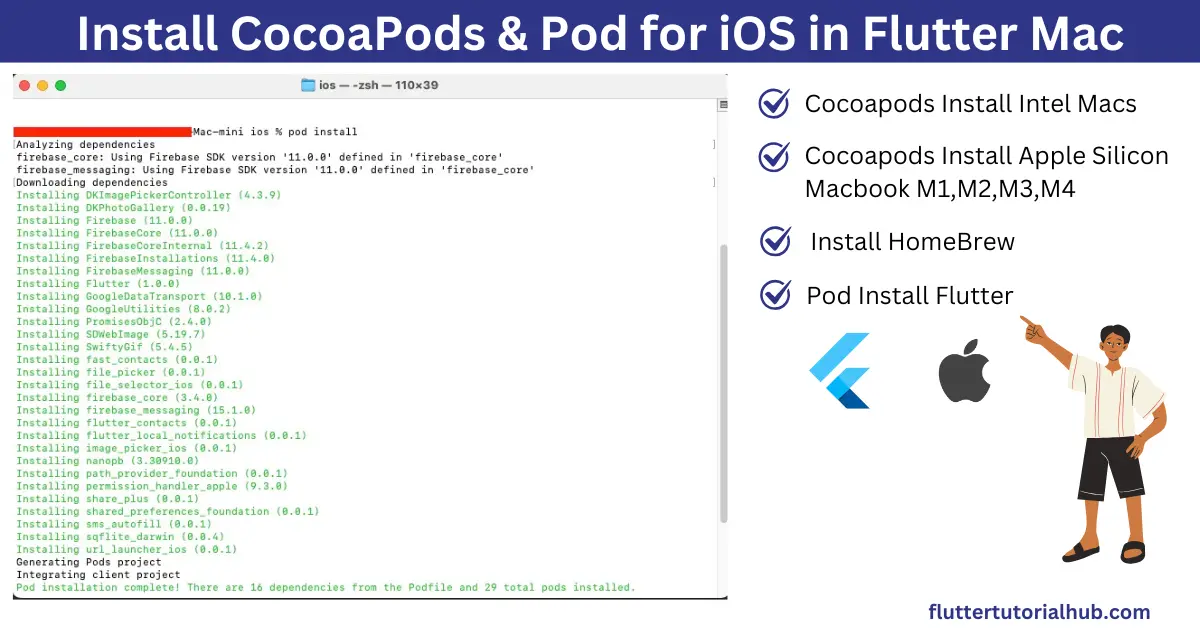
Once the installation completes, it’s good practice to verify that Cocoapods has been installed correctly and is accessible from your command line.
Run the following command in your Terminal:
pod --version
This should output the version number of Cocoapods that you just installed (e.g., 1.12.1). If you see a version number, congratulations, Cocoapods is successfully installed on your system! If you encounter an error like command not found, it might indicate an issue with your shell’s PATH variable or an incomplete installation.
Handling Potential Installation Issues
While the installation is generally smooth, you might encounter a few common issues:
-
ERROR: While executing gem ... (Gem::FilePermissionError): This indicates thatgemdoesn’t have the necessary permissions to write to the installation directory. If you didn’t usesudo(and aren’t using a Ruby version manager), try thesudo gem install cocoapodscommand. -
Slow installation or network errors: RubyGems fetches packages from remote servers. Ensure you have a stable internet connection. If you’re in certain regions, you might need to configure a RubyGems source mirror for faster downloads or to bypass connectivity issues.
-
Old Cocoapods version: If
pod --versionshows an unexpectedly old version, you might have multiple installations or your shell’s PATH is prioritizing an older executable. You might need to uninstall previous versions (sudo gem uninstall cocoapods) or ensure your PATH is correctly configured. -
“command not found” after installation: This typically means the directory where Cocoapods was installed isn’t in your shell’s
PATH. Close and reopen your Terminal, or trysource ~/.bash_profileorsource ~/.zshrc(depending on your shell) to reload your environment variables.
Integrating Cocoapods into Your Xcode Project
Installing Cocoapods is just the first step. The real power comes from integrating it into your Xcode projects to manage dependencies.
Initializing Cocoapods in a Project
Navigate to your Xcode project’s root directory in the Terminal. This is the directory that contains your .xcodeproj or .xcworkspace file.
cd /path/to/YourProject
Once inside your project directory, initialize Cocoapods:
pod init
This command creates a new file named Podfile in your project’s root directory. The Podfile is where you declare all the third-party libraries your project will use.
Defining Your Dependencies with a Podfile
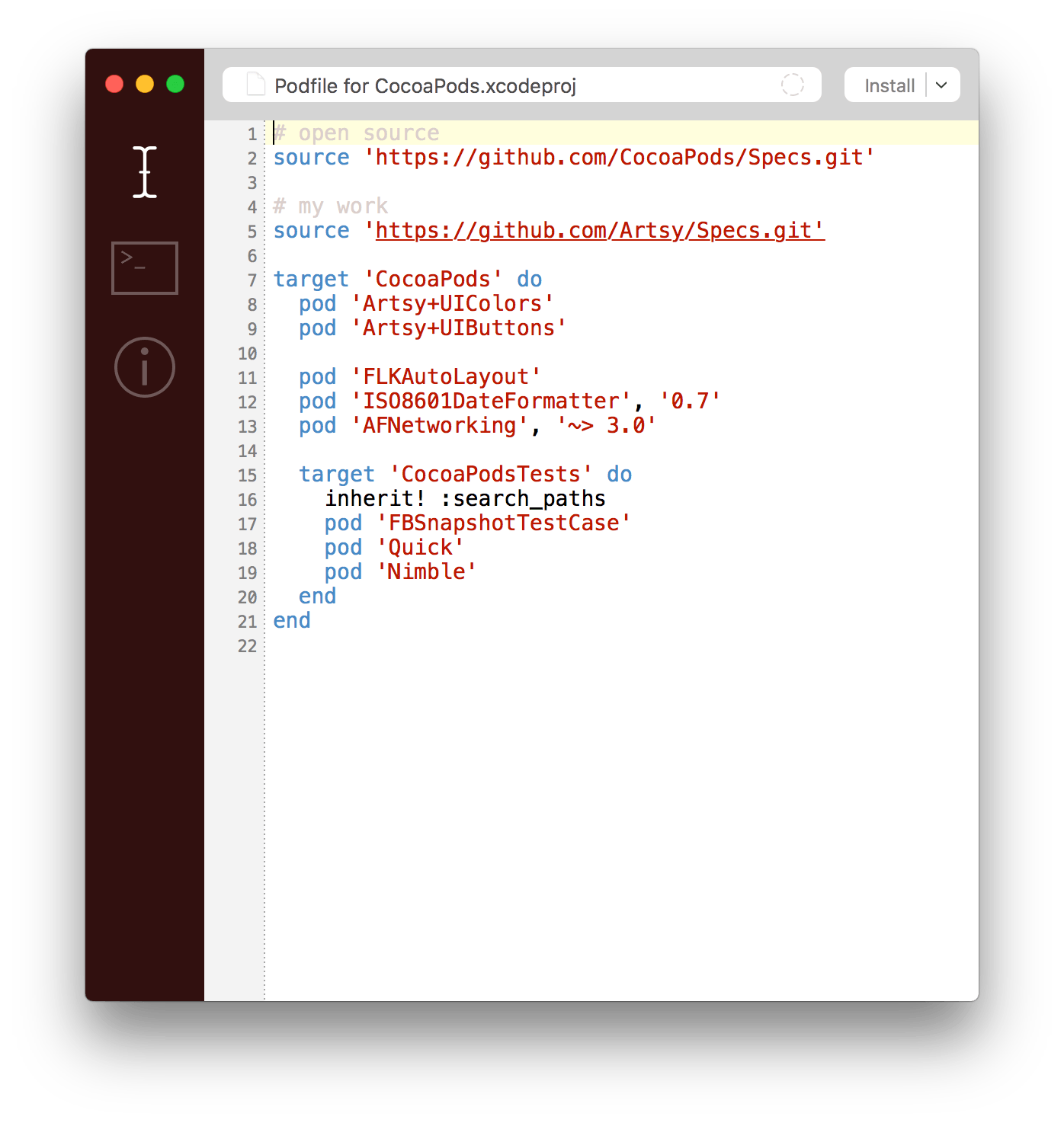
Open the Podfile in a text editor (e.g., open -e Podfile in Terminal). It will look something like this:
# Uncomment the next line to define a global platform for your project

# platform :ios, '13.0'


target 'YourProjectName' do

  # Comment the next line if you don't want to use dynamic frameworks

  use_frameworks!


  # Pods for YourProjectName


  # Add your pods here

  # pod 'AFNetworking', '~> 4.0'

  # pod 'Kingfisher', '~> 7.0'


end
-
platform :ios, '13.0': Specifies the minimum iOS deployment target for your project. Uncomment and adjust this as needed. -
target 'YourProjectName': This block defines dependencies for your main application target. -
use_frameworks!: This directive is crucial for modern Swift projects as it tells Cocoapods to use dynamic frameworks. -
pod 'LibraryName', '~> X.Y': This is where you list your dependencies. For example, to add Alamofire (a popular networking library) and SwiftyJSON (for JSON parsing):pod 'Alamofire', '~> 5.6' pod 'SwiftyJSON', '~> 5.0'The
~> X.Ynotation means “compatible with version X.Y and greater, but less than X.(Y+1)”. You can specify exact versions or broader ranges depending on your needs.
Save and close the Podfile after adding your desired pods.
Installing Pods into Your Project
With your Podfile configured, return to the Terminal (still in your project’s root directory) and run the install command:
pod install
Cocoapods will read your Podfile, download the specified libraries, integrate them into your Xcode project, and create a new .xcworkspace file. You’ll see a log of the pods being installed and configured.
Opening Your Workspace and Building
Crucially, from now on, you must open your project using the newly created .xcworkspace file, not the original .xcodeproj file. The workspace correctly links all your pods with your main project, ensuring everything compiles and runs correctly.
Navigate to your project directory in Finder and double-click the .xcworkspace file, or open it from Xcode’s “Open Other…” menu. Build your project (Cmd+B) to ensure all dependencies are correctly compiled. If there are no errors, you’ve successfully integrated Cocoapods and your chosen libraries!
Maintaining and Troubleshooting Your Cocoapods Environment
Cocoapods is not a “set it and forget it” tool. Regular maintenance and knowing how to troubleshoot common issues are vital for a smooth development experience.
Updating Cocoapods and Your Project’s Pods
-
Updating Cocoapods (the tool itself): Periodically, new versions of Cocoapods are released with bug fixes, performance improvements, and support for new Xcode features. To update Cocoapods to the latest version, run:
sudo gem install cocoapods(Or
gem install cocoapodsif using a Ruby version manager). -
Updating your project’s pods: To update the libraries within a specific project to their latest compatible versions (as defined by your
Podfile), navigate to your project directory in Terminal and run:pod updateThis command will check for newer versions of your declared pods that still satisfy the version constraints in your
Podfileand update them. If you want to update a specific pod, you can specify its name:pod update Kingfisher.
Common Installation and Usage Troubleshooting Tips
-
Pods-YourProjectName-frameworks.sh: No such file or directory: This error often occurs if you open the.xcodeprojfile instead of the.xcworkspacefile. Always use the.xcworkspaceafter runningpod install. -
Build failures after
pod installorpod update:-
Clean Build Folder: In Xcode, go to
Product > Clean Build Folder(orShift+Cmd+K). This often resolves caching issues. -
Delete Derived Data: Go to
Xcode > Settings... > Locations > Derived Dataand click the arrow to navigate to the Derived Data folder. Delete the folder associated with your project. -
pod deintegrateandpod install: If issues persist, you can completely remove Cocoapods integration from your project (pod deintegrate), then deletePodfile.lockandPodsfolder, and re-runpod install.
-
-
Podfile.lockconflicts in Git: ThePodfile.lockfile ensures that all developers on a team use the exact same versions of pods. Always commitPodfile.lockto your version control. If conflicts arise during merges, resolve them carefully, typically by picking one version or runningpod installafter merging if the changes are simple. -
CDN: trunk URLerrors: Cocoapods uses a CDN (Content Delivery Network) for its podspecs. If you encounter issues connecting, ensure your network is stable. You can sometimes addsource 'https://github.com/CocoaPods/Specs.git'to the top of yourPodfileas a fallback, but the CDN is generally faster and more reliable.
Best Practices for Dependency Management with Cocoapods
-
Commit everything: Always commit your
Podfile,Podfile.lock, and the.xcworkspacefile to your version control system (e.g., Git). This ensures consistency across your development team and CI/CD environments. -
Be specific with versions: Use specific version numbers or tight version constraints (e.g.,
~> 5.6.0) in yourPodfileto prevent unexpected breaking changes when updating. -
Regularly update: While being specific with versions, don’t let your pods become too stale. Periodically run
pod update(especially when starting a new feature branch or after major Xcode updates) to benefit from bug fixes and new features in libraries. -
Understand
pod installvs.pod update:-
pod install: Installs new pods and respects versions inPodfile.lockfor existing pods. Use this when you (or a teammate) first clone a project or add new pods. -
pod update: Updates existing pods to the latest compatible version according to yourPodfileconstraints. Use this when you explicitly want to update dependencies.
-
-
Review
Podfile.lockchanges: Before committing, review changes toPodfile.lockto understand which pod versions have changed.
By following these guidelines and understanding the core mechanics of Cocoapods, you transform what could be a complex web of manual integrations into a streamlined, automated, and robust dependency management system. Cocoapods empowers you to leverage the vast open-source ecosystem, building more powerful and maintainable applications with greater confidence and efficiency.
aViewFromTheCave is a participant in the Amazon Services LLC Associates Program, an affiliate advertising program designed to provide a means for sites to earn advertising fees by advertising and linking to Amazon.com. Amazon, the Amazon logo, AmazonSupply, and the AmazonSupply logo are trademarks of Amazon.com, Inc. or its affiliates. As an Amazon Associate we earn affiliate commissions from qualifying purchases.