
In an increasingly globalized world, the ability to communicate across linguistic divides is more crucial than ever. For many, this includes engaging with the Chinese language, whether for business, education, travel, or personal interest. While spoken Mandarin or Cantonese can be learned through various methods, effective written communication necessitates a reliable and efficient way to input Chinese characters into digital devices. This comprehensive guide delves into the technological landscape of Chinese input methods, offering insights and step-by-step instructions to empower users across various operating systems. Far beyond mere instructions, we explore the why and how behind these digital tools, examining their underlying technologies and the significant impact they have on cross-cultural digital interaction.
The Imperative for Chinese Input in a Connected World
The ascent of China as a global economic and cultural force has amplified the need for non-native speakers to interact with its complex writing system. Learning to input Chinese characters isn’t merely a technical skill; it’s a gateway to deeper understanding, enhanced communication, and expanded opportunities.
Global Communication and Cultural Immersion
For businesses operating in or with China, communicating directly in Chinese fosters trust and rapport. Emails, documents, and presentations in the local language demonstrate respect and professionalism, often proving decisive in negotiations and partnerships. For individuals, mastering Chinese input facilitates deeper engagement with Chinese social media, news, and entertainment, providing an authentic window into its rich culture. It enables direct communication with friends, colleagues, and family members, breaking down geographical and linguistic barriers. From online shopping on Taobao or JD.com to navigating apps like WeChat and Weibo, Chinese input is indispensable for full digital immersion.
Educational and Professional Advantages
Students of Chinese language benefit immensely from having robust input capabilities. It allows them to complete assignments, conduct research, and communicate with instructors and native speakers without friction. Beyond the classroom, professionals in fields such as international trade, diplomacy, technology, and academia often find Chinese proficiency, including input skills, to be a significant asset, opening doors to niche roles and career advancement. The ability to quickly and accurately input Chinese characters can differentiate a candidate in a competitive job market, signifying not just language knowledge but also technological adaptability and a commitment to cross-cultural competency.
Understanding Chinese Script: Simplified vs. Traditional
Before diving into installation, it’s crucial to understand the two main forms of written Chinese: Simplified Chinese and Traditional Chinese. Simplified Chinese (简体字, jiǎntǐzì) is primarily used in mainland China, Singapore, and Malaysia. It was introduced in the 1950s to promote literacy by simplifying character strokes. Traditional Chinese (繁體字, fántǐzì) is used in Hong Kong, Macau, and Taiwan, and among many overseas Chinese communities. Most modern input methods allow users to switch between generating simplified or traditional characters, but choosing the appropriate default for your primary communication needs is a key initial consideration. Understanding this distinction informs not only your software settings but also your communication strategy.
Decoding Chinese Input Methods: A Technological Overview
The technology behind Chinese input methods is sophisticated, designed to bridge the gap between a phonetic (or structural) input and the visual complexity of thousands of unique characters. Each method offers a distinct approach, catering to different user preferences and learning curves.
Pinyin Input: The Phonetic Gateway
Pinyin (拼音, pīnyīn) is the most widely adopted input method for Mandarin Chinese. It’s a romanization system that represents Chinese pronunciations using the Latin alphabet. Users type the Pinyin spelling of a character or word, and the input method editor (IME) presents a list of matching Chinese characters or phrases. This relies on an extensive internal dictionary and intelligent algorithms to predict the most likely characters based on context and frequency. For instance, typing “nihao” would likely bring up “你好” (hello). Pinyin’s popularity stems from its intuitive nature for those familiar with the Roman alphabet, making it the preferred choice for most learners and many native speakers who grew up with Pinyin education. Advanced Pinyin IMEs feature smart phrase recognition, self-learning capabilities, and even fuzzy Pinyin (allowing for common pronunciation errors), making the input process remarkably efficient. The underlying technology involves sophisticated natural language processing (NLP) to parse phonetic input and map it to a vast character set, often employing statistical models and machine learning to refine predictions.
Wubi Input: Structure and Speed
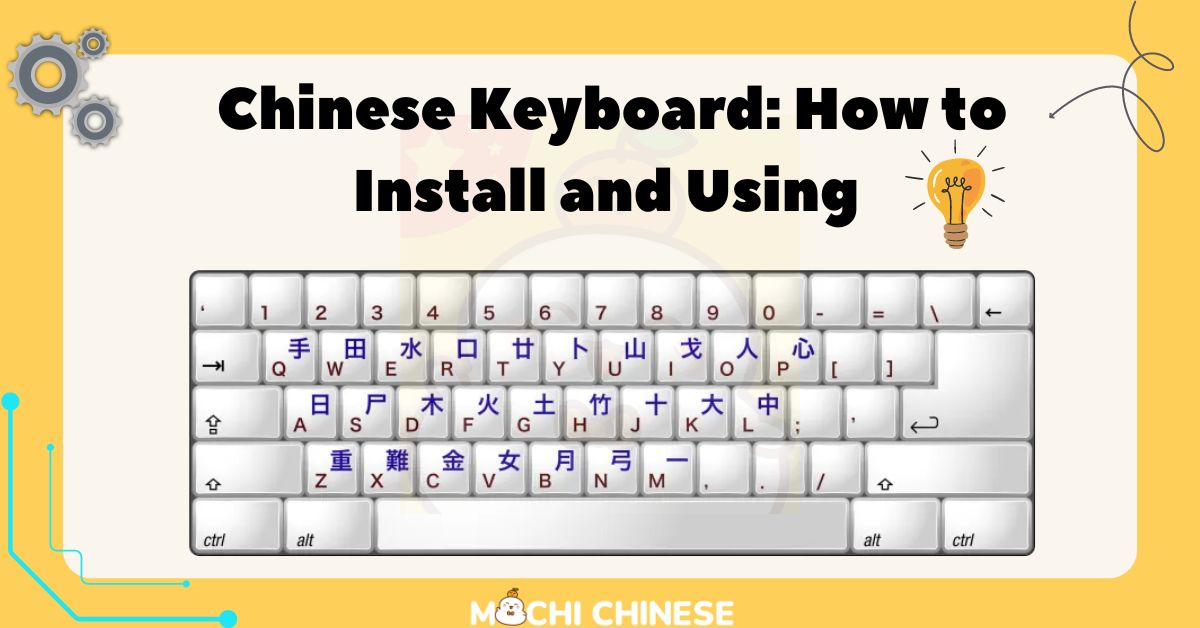
Wubi (五笔, wǔbǐ) is a character-based input method that relies on the structural components of Chinese characters. Instead of pronunciation, users type codes corresponding to the radical components of a character. This method requires users to memorize the keystrokes for various character components, which are often derived from the stroke order and shape of the radicals. While it has a steeper learning curve than Pinyin, Wubi can be significantly faster for experienced typists because it often requires fewer keystrokes per character and produces fewer homophone ambiguities, as it doesn’t rely on pronunciation. It’s particularly popular among professional typists and native speakers who prioritize speed and accuracy. The technology behind Wubi involves a complex mapping system that associates each of the tens of thousands of Chinese characters with a unique, multi-key sequence based on its internal structure, a testament to intricate character decomposition algorithms.
Handwriting and Voice Input: Intuitive Alternatives
For those who find typing challenging, or for specific use cases, handwriting and voice input offer intuitive alternatives. Handwriting input, available on many touch-enabled devices and with specialized tablets, allows users to draw characters directly on the screen. The software then uses character recognition algorithms to convert the drawn strokes into digital text. This is particularly useful for learning new characters or when the Pinyin is unknown. Voice input leverages speech-to-text technology, converting spoken Chinese into written characters. This method is becoming increasingly accurate with advancements in AI and deep learning, making it a viable option for hands-free typing or for those who prefer speaking over typing. The underlying AI models for both methods involve complex pattern recognition, neural networks trained on vast datasets of character strokes and spoken language, and real-time processing to provide immediate feedback. These methods highlight the convergence of AI and human-computer interaction in language technology.
Third-Party vs. Native Solutions
Most major operating systems include native Chinese input methods (e.g., Microsoft Pinyin, Apple’s Pinyin IME). These are generally robust and well-integrated. However, a thriving ecosystem of third-party IMEs exists, offering enhanced features, customization options, and often superior predictive text. Popular examples include Sogou Pinyin (搜狗输入法), Baidu IME (百度输入法), and Google Pinyin Input. These third-party solutions often leverage larger linguistic databases, advanced machine learning for prediction, and offer cloud synchronization of user dictionaries, providing a more personalized and efficient typing experience. Choosing between native and third-party often comes down to balancing system integration with advanced feature sets and personal preference.
Step-by-Step Installation Across Major Operating Systems
Installing Chinese input is typically a straightforward process, integrated into the language and keyboard settings of your device. While the exact steps may vary slightly between versions, the core principles remain consistent.
Windows (10/11): Integrating Microsoft Pinyin
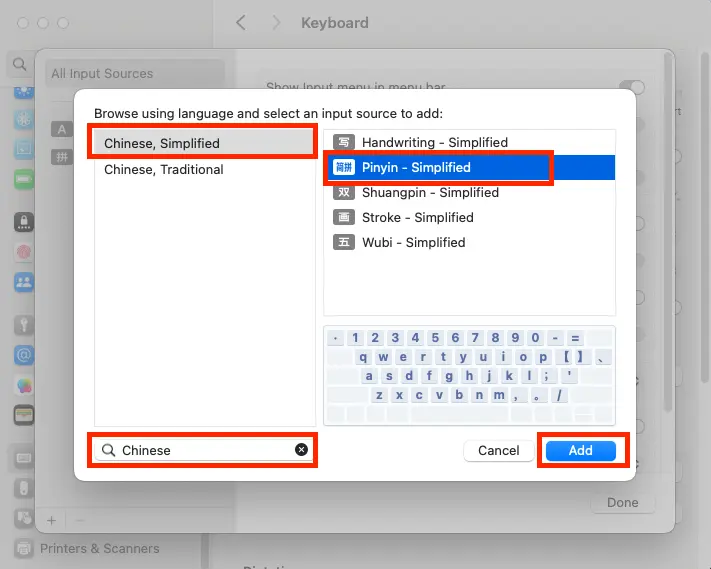
Windows has robust built-in support for Chinese input.
-
Access Settings: Click the Start button, then select “Settings” (the gear icon).
-
Navigate to Language: Go to “Time & Language,” then select “Language & Region” (Windows 11) or “Language” (Windows 10).
-
Add a Language: Click “Add a language” under “Preferred languages.”
-
Search for Chinese: Type “Chinese” in the search bar. You’ll typically see options like “Chinese (Simplified, China)” and “Chinese (Traditional, Taiwan).” Select the one you need (e.g., “Chinese (Simplified, China)”).
-
Install Language Pack: Check the “Basic typing” option. You might also want to select “Speech” and “Handwriting” if those features are desired. Click “Install.” This will download and install the necessary language pack, including the Microsoft Pinyin IME.
-
Configure Input Method: Once installed, click on “Chinese (Simplified, China)” in your “Preferred languages” list and select “Options.” Here, you can add or remove specific input methods (e.g., Microsoft Pinyin, Wubi, Microsoft Wubi). You can also configure settings like character set (Simplified/Traditional output), appearance, and dictionary management.
-
Switching Input: To switch to Chinese input, use the language bar in the taskbar (usually bottom right) or press
Windows key + SpacebarorAlt + Shift(legacy shortcut, configurable). Once selected, start typing Pinyin, and character suggestions will appear.
macOS: Adding Simplified or Traditional Chinese Input
Apple’s macOS offers seamless integration for Chinese input methods.
-
Open System Settings: Click the Apple menu in the top-left corner, then select “System Settings” (macOS Ventura and later) or “System Preferences” (earlier versions).
-
Go to Keyboard: In System Settings, scroll down and click “Keyboard.” In System Preferences, click “Keyboard” icon.
-
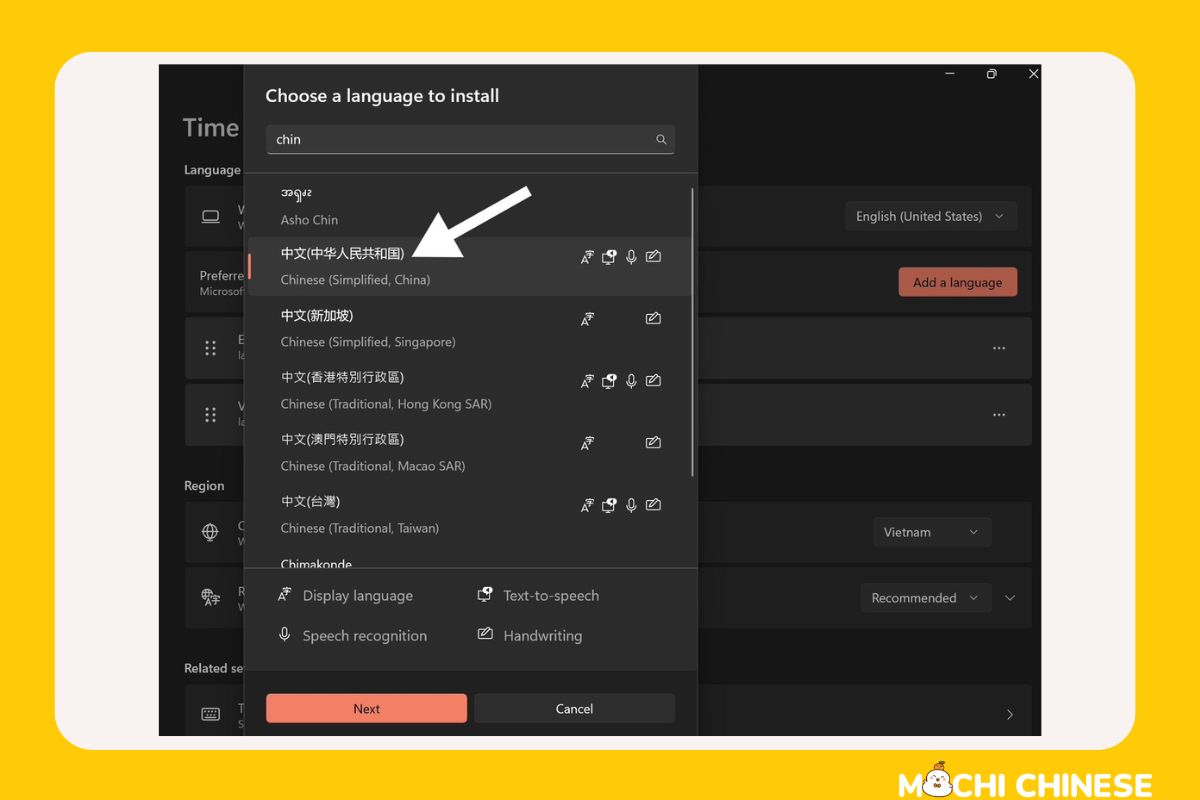
Add Input Source: Click the “Input Sources” tab (or “Text Input” > “Input Sources” in newer macOS versions). Click the “+” button at the bottom left.
-
Select Chinese: In the sidebar, scroll down or search for “Chinese (Simplified)” or “Chinese (Traditional).” Expand the option and choose your desired input method (e.g., “Pinyin – Simplified,” “Wubi – Simplified,” or “Handwriting – Simplified”).
-
Add Input Method: Click “Add.”
-
Switching Input: Use the Input menu (a flag or character icon) in the menu bar at the top right of your screen, or press
Command + Spacebar(default Spotlight shortcut, may need remapping if conflicting) orControl + Spacebarto cycle through input sources. Start typing Pinyin, and choose from the character candidates.
Linux (e.g., Ubuntu): Leveraging IBus/Fcitx Frameworks
Linux distributions often rely on input method frameworks like IBus (Intelligent Input Bus) or Fcitx (Flexible Input Method Framework) to manage various language inputs.
-
Install Input Method Framework (if not present):
-
For IBus:
sudo apt update && sudo apt install ibus ibus-pinyin(for Pinyin) -
For Fcitx:
sudo apt update && sudo apt install fcitx fcitx-pinyin(for Pinyin)
-
-
Configure Input Methods (GUI):
-
Ubuntu (GNOME Desktop): Go to “Settings” > “Keyboard” > “Input Sources.” Click the “+” button, search for “Chinese,” and add your preferred input method (e.g., “Chinese (Intelligent Pinyin)” for IBus, or “Pinyin” for Fcitx if it’s configured as your default IME).
-
KDE Plasma: Go to “System Settings” > “Input Devices” > “Keyboard” > “Advanced” or “Input Method.” Configure Fcitx or IBus from there.
-
-
Set Environment Variables (if needed): Ensure your
~/.profileor~/.bashrccontains lines like:export GTK_IM_MODULE=ibus export QT_IM_MODULE=ibus export XMODIFIERS=@im=ibus # Or for Fcitx: # export GTK_IM_MODULE=fcitx # export QT_IM_MODULE=fcitx # export XMODIFIERS=@im=fcitx -
Reboot or Log Out/In: Apply changes.
-
Switching Input: Use the input method switcher (often
Ctrl + Spaceor a specific icon in the system tray).
Mobile Ecosystems (iOS/Android): On-the-Go Input
Mobile devices have made Chinese input remarkably accessible.
-
iOS (iPhone/iPad):
-
Go to “Settings” > “General” > “Keyboard” > “Keyboards.”
-
Tap “Add New Keyboard…”
-
Scroll down and select “Chinese (Simplified)” or “Chinese (Traditional).”
-
Choose your desired layout (e.g., “Pinyin – QWERTY,” “Handwriting,” “Stroke”).
-
To switch, tap the globe icon on your keyboard until Chinese input appears.
-
-
Android:
-
Go to “Settings” > “System” > “Languages & input” > “On-screen keyboard” (or “Virtual keyboard”).
-
Select your active keyboard (e.g., Gboard, SwiftKey).
-
Go to “Languages” and tap “Add keyboard.”
-
Select “Chinese (Simplified)” or “Chinese (Traditional)” and choose your desired layout (e.g., “Pinyin,” “Handwriting,” “Wubi”).
-
To switch, tap the globe icon or long-press the spacebar on your keyboard.
-
Optimizing Your Chinese Input Experience
Installation is just the first step. To truly master Chinese input, understanding how to optimize and customize your IME is essential for speed and accuracy.
Customizing Dictionaries and Phrase Learning
Modern IMEs are intelligent, but they can be made even smarter through customization. Most Pinyin input methods allow you to add custom phrases and words to your dictionary. If you frequently use specialized terminology (e.g., medical, legal, or specific proper nouns not common in general dictionaries), adding them manually significantly improves prediction accuracy. Over time, IMEs also “learn” your typing habits, prioritizing characters and phrases you use frequently. Cloud synchronization features, common in third-party IMEs, ensure your personalized dictionary and learning data follow you across devices, creating a consistent and highly efficient typing experience. This learning capability is a direct application of machine learning, where the IME continuously refines its predictive models based on user interaction.
Keyboard Shortcuts and Switching Methods
Efficiently switching between languages and input methods is key to productivity. While Alt + Shift or Windows key + Spacebar are common on Windows, and the globe icon or Control + Spacebar on macOS/mobile, explore your IME’s specific shortcuts. Many IMEs offer quick keys to switch between Pinyin, English, or even different character sets (Simplified/Traditional) within the same Chinese input mode. Learning these shortcuts minimizes mouse clicks and interruptions to your typing flow. For instance, some IMEs allow you to quickly switch to English input by pressing Shift without changing the overall language, which is useful for typing mixed English and Chinese text.
Enhancing Productivity with Predictive Text
Predictive text is where the intelligence of modern IMEs truly shines. Beyond suggesting single characters, advanced Chinese IMEs can predict entire phrases or even short sentences based on the context of your input. For example, typing “zhongyang” might immediately suggest “中央电视台” (CCTV) or “中央政府” (central government) depending on your prior usage and the context. Leverage these suggestions by quickly selecting them rather than typing out each character. This feature significantly boosts typing speed, especially for common expressions and idioms. Furthermore, many IMEs now support cloud-based dictionaries and real-time trending phrase suggestions, ensuring your input is always up-to-date with current language usage. This relies on large language models and real-time data processing to offer relevant and timely suggestions.
Troubleshooting Common Issues and Advanced Usage
While installing and using Chinese input is generally smooth, users might occasionally encounter issues or seek more advanced functionalities. Understanding common pitfalls and exploring additional features can greatly enhance the overall experience.
Input Method Not Appearing or Functioning
If your Chinese input method isn’t showing up or isn’t working correctly, several factors could be at play:
-
Reboot: Often, a simple restart of your device or logging out and back in can resolve temporary glitches, especially after initial installation or updates.
-
Check Language Settings: Double-check that the language pack is fully installed and the specific input method is enabled in your system’s language settings.
-
Conflicting Software: Sometimes, other keyboard utilities or system optimizers might interfere. Try temporarily disabling them.
-
Driver Issues (less common): On some Linux systems or with specific hardware, outdated or missing drivers could impact input device functionality.
-
IME Specific Settings: Some IMEs have a “repair” or “reset” option within their configuration panel.
-
Verify Input Method Framework (Linux): Ensure IBus or Fcitx (whichever you’re using) is correctly configured and running. Use
ibus-daemon -drxorfcitx -rin the terminal to restart them.
Character Encoding and Display Problems
Occasionally, you might encounter square boxes or garbled text instead of Chinese characters. This typically indicates a character encoding issue or a missing font.
-
Font Installation: Ensure you have Chinese fonts installed on your system. Modern operating systems usually include them by default (e.g., Microsoft YaHei, DengXian on Windows; PingFang SC on macOS). If not, you may need to manually install a free Chinese font.
-
Encoding in Applications: Check the encoding settings within the specific application you are using (e.g., text editor, web browser). Most modern applications default to UTF-8, which supports Chinese characters, but older files or programs might use legacy encodings that need to be manually adjusted.
-
Web Browsers: If seeing garbled text online, try adjusting the character encoding in your browser’s view options, though this is rarely necessary with modern browsers.
Exploring Specialized Input Tools and Features
Beyond standard Pinyin and Wubi, the world of Chinese input offers niche tools for specific needs:
-
Structured Pinyin: For those learning the tones, some IMEs allow inputting tone marks directly (e.g.,
a1,a2,a3,a4forā,á,ǎ,à). -
Handwriting Input with Stylus: For artists or educators, specialized tablets and software that pair with a stylus can provide a highly natural handwriting experience, converting drawn characters to digital text.
-
Traditional Chinese Input: Users needing Traditional Chinese can often select “Traditional Chinese” as an output option within their Simplified Chinese Pinyin IME, or install a dedicated Traditional Chinese Pinyin IME (e.g., from Taiwan).
-
Phrasebooks and Dictionaries: Many IMEs integrate direct access to online dictionaries or phrasebooks, allowing quick lookups without leaving the input interface.
-
Cloud-Based IMEs: These IMEs leverage cloud computing for more powerful prediction engines, larger dictionaries, and cross-device synchronization, providing an advanced and personalized typing experience. They often include features like trending phrase suggestions and a vast, constantly updated vocabulary.
The ability to seamlessly input Chinese characters is a fundamental technical skill in today’s interconnected world. By understanding the diverse methods, their underlying technological principles, and mastering the installation and optimization processes across various platforms, users can confidently bridge language barriers and fully engage with the rich digital landscape of the Chinese language. As technology continues to evolve, these input methods will only become more intuitive and powerful, further solidifying their role as indispensable tools for global communication.
aViewFromTheCave is a participant in the Amazon Services LLC Associates Program, an affiliate advertising program designed to provide a means for sites to earn advertising fees by advertising and linking to Amazon.com. Amazon, the Amazon logo, AmazonSupply, and the AmazonSupply logo are trademarks of Amazon.com, Inc. or its affiliates. As an Amazon Associate we earn affiliate commissions from qualifying purchases.