
In the intricate ecosystem of modern operating systems, security features are the silent guardians that work tirelessly to protect user data and system integrity. Among these, User Account Control (UAC) stands as a foundational pillar in Windows, a mechanism often encountered but perhaps not always fully understood by the average user. Introduced with Windows Vista and significantly refined in subsequent versions, UAC is a critical security technology designed to mitigate the risk of unauthorized changes to your computer. It empowers users to make informed decisions about actions that require administrative privileges, effectively creating a barrier against malicious software and accidental system modifications.
At its core, UAC ensures that applications and tasks always run with standard user permissions unless an administrator explicitly grants elevated privileges. This “least privilege” principle is a cornerstone of robust cybersecurity, significantly reducing the attack surface for malware and preventing unauthorized access to critical system areas. This article delves into the purpose, mechanism, benefits, and practical management of UAC, demystifying a feature that is central to the security posture of every Windows user.
The Core Purpose and Mechanism of UAC
User Account Control isn’t merely an occasional pop-up; it’s an intelligent system designed to enforce a crucial security principle: every application should run with the minimum necessary privileges. This approach drastically reduces the potential damage if an application is compromised or attempts unauthorized actions.
Elevating Privileges and the Standard User Token
The genius of UAC lies in its “split token” model. When an administrator logs into a Windows machine, two access tokens are generated for that user: a full administrative token and a filtered, standard user token. By default, all applications and tasks that the administrator runs operate with the standard user token. This means that even an administrator’s programs run with limited privileges, preventing them from making system-wide changes without explicit permission.
When an action requires administrative rights – such as installing software, changing system settings, or modifying critical files – Windows detects this need. Instead of automatically granting these rights, UAC intercepts the request and prompts the user for consent. If approved, only then is the administrative token used for that specific task, elevating its privileges temporarily. This ensures that a malicious program, even if executed by an administrator, cannot silently gain full control over the system without the user’s explicit consent at the UAC prompt.
The UAC Prompt: Your Gatekeeper
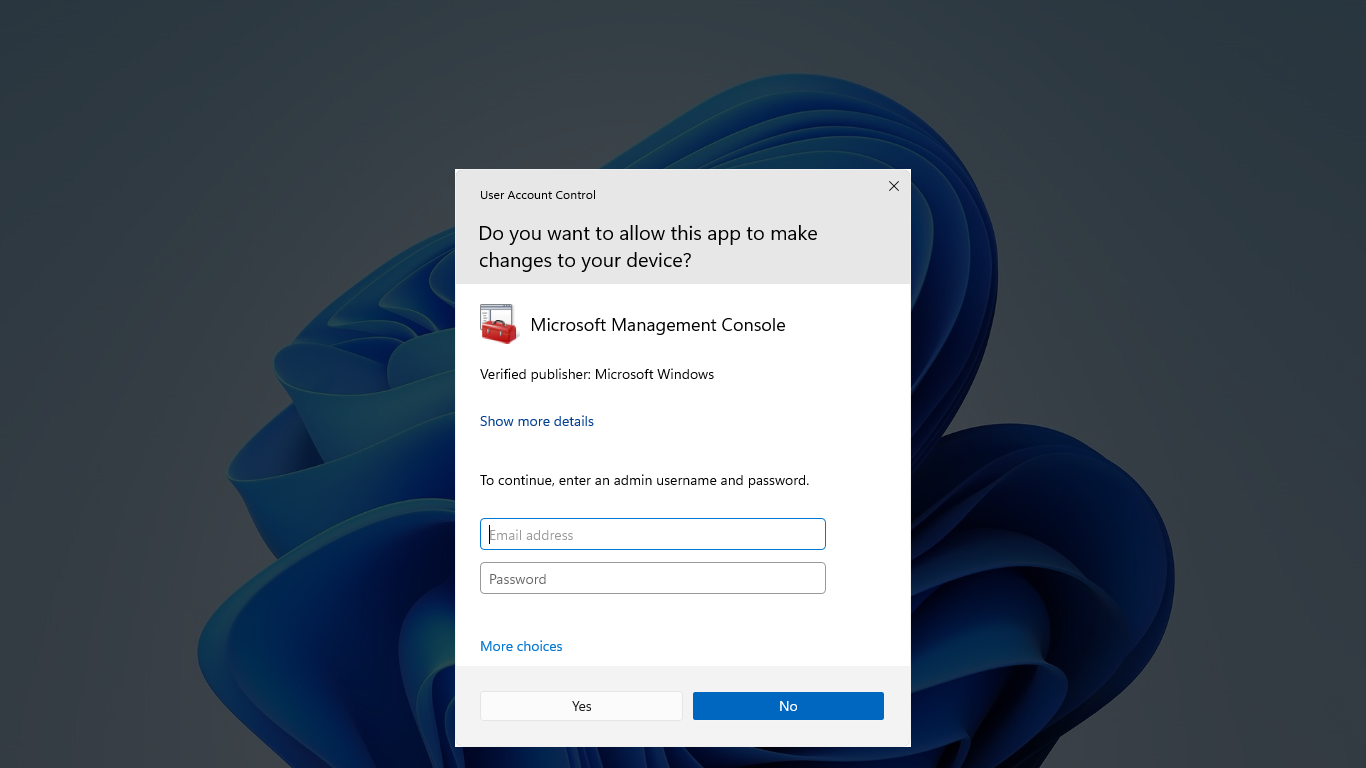
The most visible aspect of UAC is the prompt itself – a dialogue box that appears, often dimming the rest of the desktop, asking for permission to proceed with an action that requires administrative privileges. This prompt is designed to be difficult for malware to bypass or spoof. When the desktop dims, it’s a security measure called the “secure desktop,” which prevents other applications from interfering with or mimicking the UAC dialogue, ensuring that only the legitimate UAC process can receive your input.
The UAC prompt typically displays information about the program requesting administrative rights, including its name, publisher, and the location of its executable file. This information is vital, as it allows users to verify whether the request is legitimate and comes from a trusted source. For standard users, the prompt will require an administrator password to proceed, while for administrators, it’s often a simple “Yes/No” or “Allow/Deny” confirmation. This gatekeeper function ensures that no critical system change happens without the direct knowledge and approval of a user with administrative authority.
Preventing Malware and Unauthorized Changes
UAC plays a significant role in blocking the spread and impact of malware. Many types of malicious software, such as viruses, worms, and ransomware, attempt to gain administrative privileges to install themselves deeply into the system, modify system files, or disable security software. By requiring explicit consent for such actions, UAC acts as a first line of defense. Even if a user inadvertently clicks on a malicious executable, UAC can prevent it from immediately compromising the entire system.
Beyond malware, UAC also protects against accidental changes. It prevents users from unintentionally deleting critical system files, altering registry settings, or making configurations that could destabilize the operating system. This protective layer ensures that only intentional, authorized modifications are applied, maintaining the stability and security of the Windows environment.
Understanding UAC’s Security Benefits
While sometimes perceived as an inconvenience, UAC’s contribution to overall system security is immense. Its benefits extend beyond merely blocking unauthorized actions, fostering a more secure computing environment.
Mitigating Privilege Escalation Attacks
One of the most dangerous types of cyberattacks is “privilege escalation,” where an attacker or malicious program gains higher-level access than initially authorized. UAC directly counters this threat. By running applications with standard user privileges by default, UAC limits the scope of damage if an application is exploited. Even if a vulnerability allows an attacker to take control of a running process, that process still only has standard user rights. To escalate to administrative privileges, it would still need to trigger and be approved by the UAC prompt, giving the user a chance to deny the elevation. This makes it significantly harder for malware to establish persistent footholds or execute system-wide destructive actions.
Encouraging Best Security Practices
UAC subtly nudges users and developers towards better security practices. For users, it encourages vigilance. When a UAC prompt appears, it’s a signal to pause, review the request, and make an informed decision. This constant reinforcement helps users develop a habit of scrutinizing actions that could impact system security. For software developers, UAC encourages designing applications that run effectively with standard user privileges, rather than demanding administrative rights unnecessarily. This “least privilege” design philosophy results in more secure applications that pose less risk to the operating system.
Protecting System Integrity
Windows relies on the integrity of its core system files, registry keys, and critical configuration settings. Any unauthorized modification to these components can lead to system instability, security vulnerabilities, or complete failure. UAC creates a protected barrier around these critical areas. Applications running with standard user privileges cannot write to protected directories like Program Files, Windows, or the HKEY_LOCAL_MACHINE branch of the registry. Only when an action is explicitly elevated through the UAC prompt can these protected resources be modified. This ensures that the operating system’s foundational components remain untampered with, preserving the stability and security of your Windows installation.
Navigating and Customizing UAC Settings
While UAC is a crucial security feature, Windows provides flexibility for users to adjust its notification levels according to their comfort and security requirements. Understanding these settings is key to managing your system effectively.

Accessing UAC Settings
You can modify UAC settings through the Control Panel or by searching directly in Windows. The easiest way is to type “UAC” or “User Account Control” into the Windows search bar and select “Change User Account Control settings.” This will open a dedicated window with a slider that controls the notification level.
Understanding the Notification Levels
The UAC settings slider offers four distinct notification levels, each balancing security with user experience:
-
Always notify (highest security): This is the most restrictive setting. You will be notified whenever programs try to install software or make changes to your computer, and whenever you make changes to Windows settings. The desktop will dim, and you must approve the action. This provides the highest level of security but can be the most frequent in terms of prompts.
-
Notify me only when apps try to make changes to my computer (recommended): This is the default and generally recommended setting. You will be notified only when programs try to install software or make changes to your computer. You will not be notified when you make changes to Windows settings yourself. The desktop dims. This offers a strong balance between security and minimizing interruptions.
-
Notify me only when apps try to make changes to my computer (do not dim my desktop): Similar to the recommended setting, you are notified when programs try to make changes. However, the desktop does not dim. This is a less secure option because other running applications could potentially interfere with or spoof the UAC prompt. It’s generally not advisable.
-
Never notify (lowest security): This setting effectively disables UAC. You will not be notified when programs try to install software or make changes, nor when you make changes to Windows settings. This is highly discouraged for most users, as it leaves your system vulnerable to malware and accidental changes, completely bypassing the “least privilege” principle.
When to Adjust UAC Levels (and When Not To)
For the vast majority of users, the default “Notify me only when apps try to make changes to my computer (recommended)” setting is the optimal choice. It provides robust protection without excessive interruptions.
There are very few legitimate reasons to lower UAC settings:
-
Testing/Development Environments: Developers or system administrators might temporarily lower UAC in a controlled testing environment to streamline certain processes, but this should never be done on a production or daily-use machine.
-
Legacy Applications: Extremely old or poorly designed applications might struggle with UAC enabled, requiring it to be lowered. However, updating such applications or finding modern alternatives is a much safer long-term solution.
Conversely, raising UAC to “Always notify” can be beneficial for users who require the absolute highest level of vigilance, perhaps in highly sensitive environments, or for those who want to be notified of every administrative action, including their own.
It’s critical to understand the security implications of each setting. Lowering UAC significantly weakens your system’s defenses, making it much easier for malware to gain control. The inconvenience of a UAC prompt is a small price to pay for the substantial security it provides.
Common Misconceptions and Best Practices
Despite its critical role, UAC is often misunderstood, leading to user frustration or, worse, a false sense of security. Addressing these misconceptions and adopting best practices is essential for leveraging UAC effectively.
UAC is Not an Antivirus
A common misconception is that UAC can replace antivirus software. This is fundamentally incorrect. UAC is a gatekeeper for administrative actions; it doesn’t scan for, detect, or remove malware. It won’t stop you from downloading a malicious file, nor will it clean up an infection once it has taken root. Its primary function is to prevent unauthorized escalation of privileges, thereby limiting the damage that malware can cause. A comprehensive security strategy always requires a robust antivirus solution, firewalls, and regular software updates in addition to UAC.
The “Annoyance” Factor vs. Security
Many users initially find UAC prompts annoying, especially if they are frequently installing software or making system changes. This perception often leads to the temptation to disable UAC entirely. However, equating the prompts with mere annoyance overlooks their fundamental security purpose. Each UAC prompt represents an attempt by an application to gain higher privileges – an action that, if malicious, could severely compromise your system. The “annoyance” is a small price to pay for the significant protection it offers against privilege escalation attacks and accidental system modifications. Disabling UAC means removing a vital layer of defense, making your system dramatically more vulnerable.
Verifying the Source of Prompts
The most crucial best practice when a UAC prompt appears is to read it carefully. Don’t just blindly click “Yes” or “Allow.”
-
Check the program name: Is it an application you just launched or are expecting to interact with?
-
Verify the publisher: Does it show a trusted publisher (e.g., Microsoft, Adobe, your hardware vendor), or is it “Unknown”? Be extremely cautious with “Unknown” publishers unless you are absolutely certain of the source and legitimacy.
-
Review the requested action: Does the prompt’s description align with what you intended to do (e.g., “Install a new program” vs. something vague or unexpected)?
If anything about the prompt seems suspicious, deny the request. This vigilance is your best defense against social engineering attacks or malware attempting to trick you into granting administrative rights.
Running as Standard User
While UAC helps mitigate risks even for administrators, the most secure practice is to operate your daily computing tasks using a standard user account. An administrator account should only be used when absolutely necessary for system-wide changes, requiring you to explicitly enter the administrator password at the UAC prompt (if logged in as a standard user). This practice provides an additional layer of separation, making it even harder for malware to gain administrative control, as it would require both a UAC prompt and the entry of an administrator password.

Conclusion
User Account Control is far more than just a nuisance pop-up; it is a meticulously designed security feature integral to the safety and stability of the Windows operating system. By enforcing the principle of least privilege, UAC acts as a vigilant gatekeeper, preventing unauthorized applications and malicious software from making critical changes without explicit user consent. It bolsters your system’s defenses against privilege escalation attacks, encourages secure computing habits, and protects the integrity of your core system files.
While it may occasionally introduce an extra step, the security benefits of UAC far outweigh any perceived inconvenience. Understanding its function, knowing how to interpret its prompts, and keeping it enabled at the recommended settings are fundamental aspects of maintaining a robust cybersecurity posture in the Windows environment. Embrace UAC not as an obstacle, but as an indispensable ally in your ongoing effort to safeguard your digital world.
aViewFromTheCave is a participant in the Amazon Services LLC Associates Program, an affiliate advertising program designed to provide a means for sites to earn advertising fees by advertising and linking to Amazon.com. Amazon, the Amazon logo, AmazonSupply, and the AmazonSupply logo are trademarks of Amazon.com, Inc. or its affiliates. As an Amazon Associate we earn affiliate commissions from qualifying purchases.