
In today’s dynamic business landscape, mastering your finances is not just a best practice—it’s a cornerstone of survival and growth. For countless small and medium-sized businesses, QuickBooks Online has emerged as the go-to cloud-based solution for simplifying complex financial tasks. Moving beyond traditional desktop accounting, QuickBooks Online offers unparalleled flexibility, accessibility, and automation, transforming how entrepreneurs manage their books. This guide will walk you through the essential steps and functionalities, empowering you to leverage QuickBooks Online to its fullest potential and achieve true financial mastery for your business.
Setting Up Your Financial Foundation for Success
The journey to effective financial management with QuickBooks Online begins with a meticulous setup. A well-configured system ensures accurate data, reliable reports, and a streamlined workflow from day one. This initial phase lays the groundwork for all future financial operations, making it crucial to get right.
Initial Company Setup and Chart of Accounts
Upon first logging into QuickBooks Online, you’ll be prompted to enter essential company information. This includes your business name, industry, legal structure, and start date for your books. Providing accurate details here ensures that QuickBooks Online tailors its features and default settings to best suit your specific business needs.
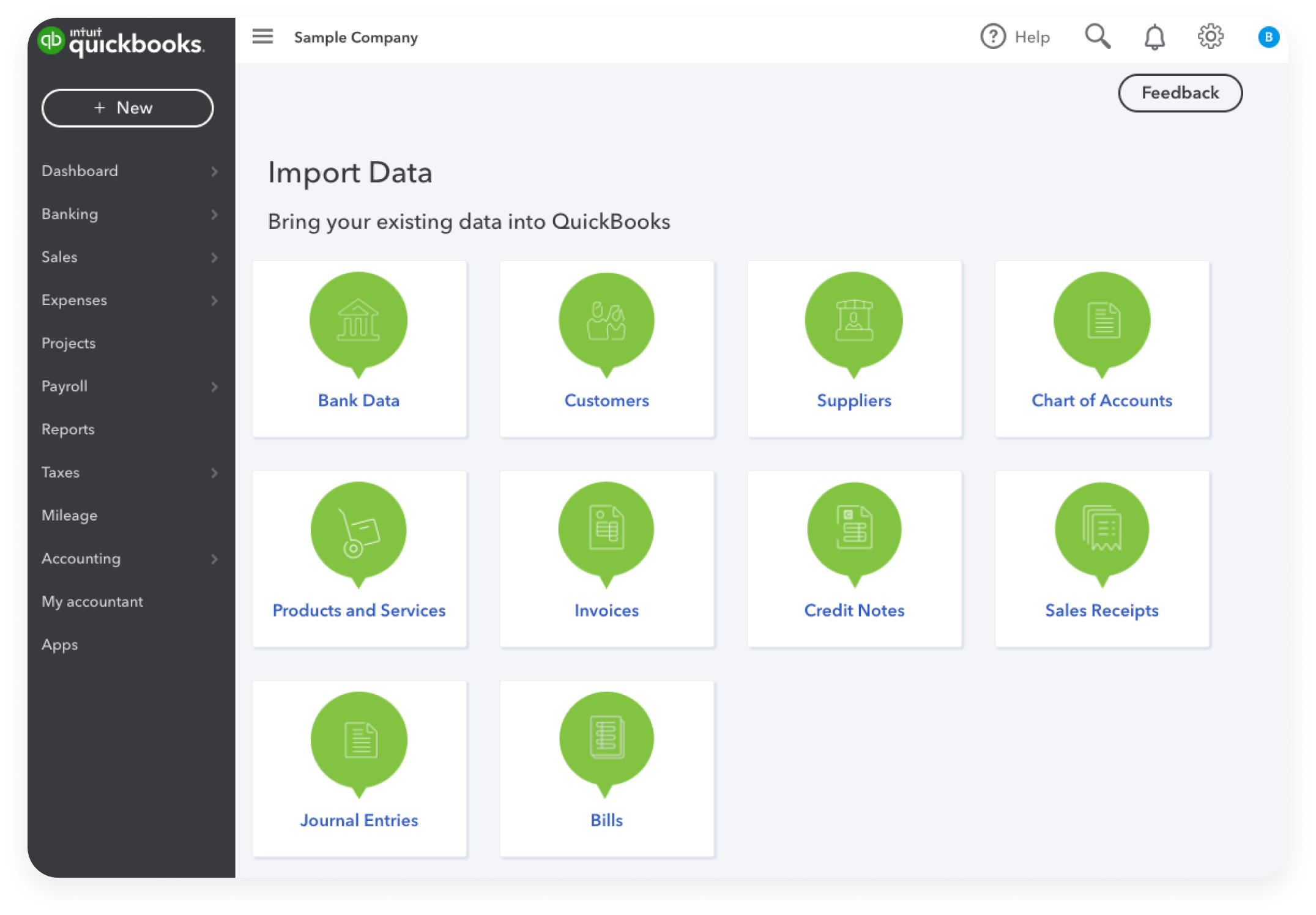
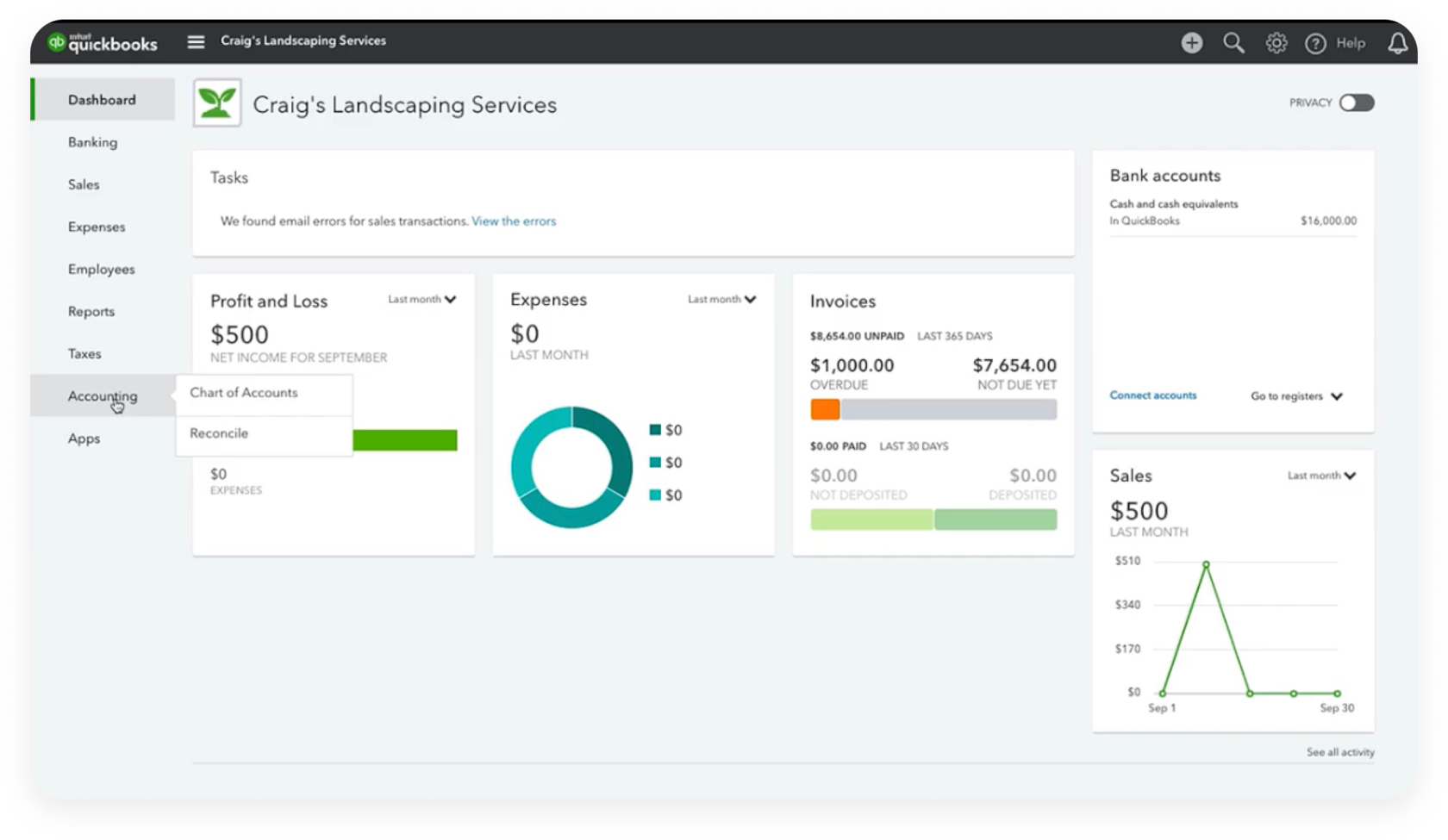
Crucially, you’ll engage with the Chart of Accounts. This is the backbone of your accounting system, a categorized list of all the accounts your business uses to record financial transactions. QuickBooks Online provides a default chart of accounts based on your industry, but it’s vital to customize it to reflect your unique revenue streams, expense categories, assets, liabilities, and equity accounts. A well-organized chart of accounts is critical for generating insightful financial reports and simplifying tax preparation. Take the time to review, add, or rename accounts to match your business operations precisely. For instance, if you operate an e-commerce store, you might add specific income accounts for different product lines or specific expense accounts for platform fees.
Connecting Bank Accounts and Credit Cards
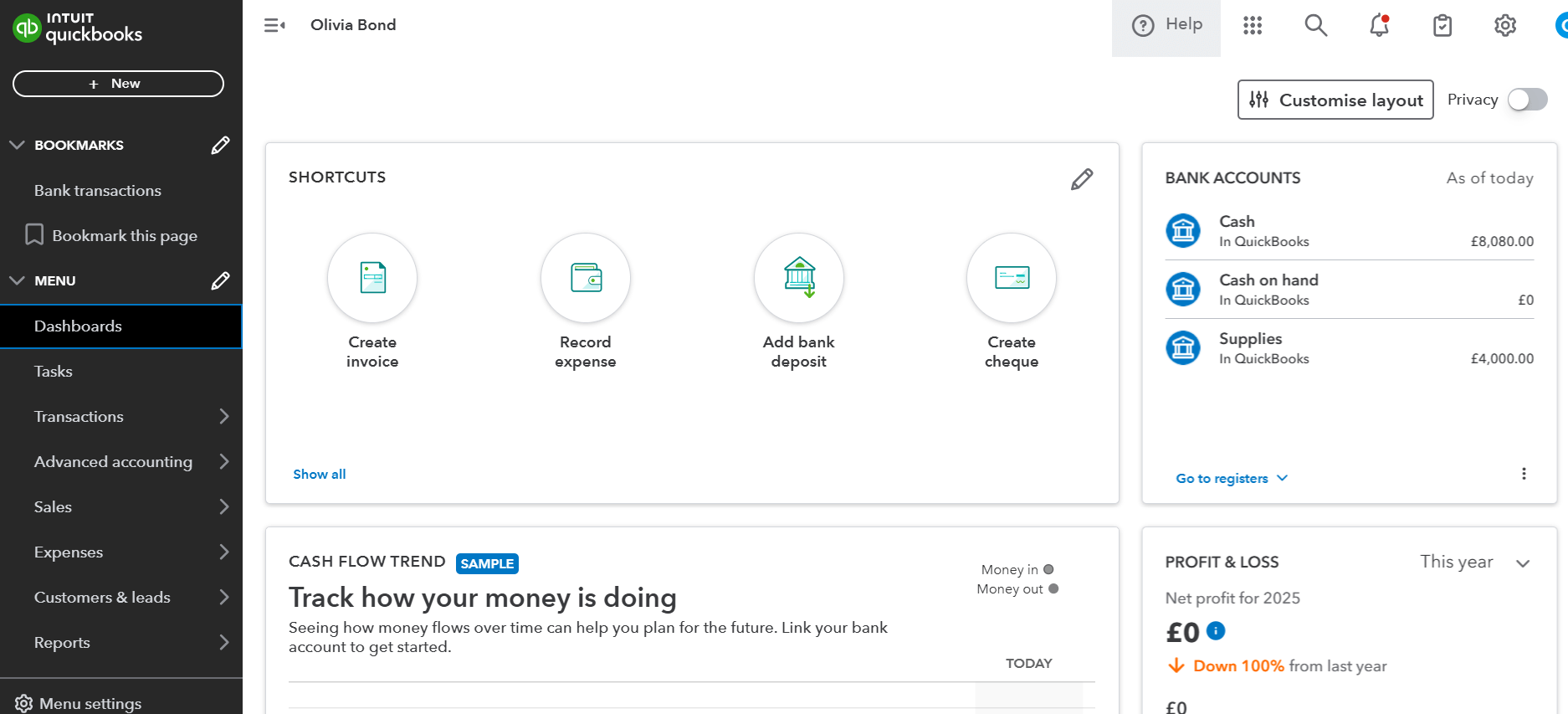
One of the most powerful features of QuickBooks Online is its ability to directly connect with your bank accounts and credit cards. This automation capability is a game-changer for financial efficiency and accuracy. By linking these accounts, QuickBooks Online automatically imports your transactions, eliminating manual data entry and significantly reducing the potential for errors.
The process typically involves selecting your financial institution, entering your online banking credentials, and choosing which accounts to connect. Once connected, transactions will flow into QuickBooks Online, ready for categorization and reconciliation. This real-time synchronization provides an up-to-date view of your cash flow and makes the reconciliation process much faster and more accurate. This feature alone can save hours of manual data entry and ensure that your financial records always mirror your actual bank balances.
Customizing Financial Settings for Your Business
QuickBooks Online offers a myriad of customizable settings that allow you to fine-tune the software to your specific business requirements. Delving into these settings can dramatically enhance your user experience and the accuracy of your financial data.
Key areas to customize include:
-
Sales Forms: Personalize your invoices, sales receipts, and estimates with your company logo, branding colors, and custom fields to create a professional and consistent brand image. You can also set default payment terms and messages.
-
Expenses: Define expense categories, set up recurring expenses, and integrate with payment apps or receipt capture tools to streamline expense tracking.
-
Currencies: If your business deals with international clients or suppliers, you can enable multi-currency features to manage transactions in different denominations.
-
Users: Control access levels for your team members, granting specific permissions to bookkeepers, accountants, or other employees based on their roles.
-
Automated Reminders: Set up automated reminders for overdue invoices, upcoming bills, or financial reports, ensuring you stay on top of your financial obligations.
Thoroughly exploring and configuring these settings will tailor QuickBooks Online to your operational flow, making it a truly intuitive and efficient financial tool.
Mastering Core Financial Transactions
Once your foundation is solid, the real work of managing your day-to-day financial transactions begins. QuickBooks Online excels at simplifying these often-complex processes, from invoicing clients to tracking expenses and managing payroll.
Streamlining Invoicing and Sales Tracking
Generating invoices and tracking sales are fundamental to any business. QuickBooks Online makes this process intuitive and efficient. You can easily create professional invoices directly from the platform, customizing them with your branding and specific line items for products or services rendered.
Key features include:
-
Customizable Invoices: Create professional-looking invoices, sales receipts, and estimates tailored to your brand.
-
Recurring Invoices: For subscription-based services or regular clients, set up recurring invoices to be automatically generated and sent.
-
Online Payments: Integrate with payment gateways like QuickBooks Payments (or others) to allow clients to pay invoices directly online, accelerating cash flow.
-
Sales Tracking: Monitor the status of invoices (sent, viewed, paid), track overdue payments, and generate reports to analyze sales performance and identify your most profitable customers or services.
Efficient invoicing not only ensures you get paid on time but also provides valuable insights into your sales patterns and customer relationships.
Efficient Expense Management and Bill Pay
Managing expenses is just as crucial as managing income. QuickBooks Online provides robust tools to track every dollar spent, helping you monitor profitability and prepare for tax season.
-
Categorization: When bank transactions are imported, you can easily categorize them to the correct accounts in your Chart of Accounts. QuickBooks Online’s smart categorization learns from your past actions, suggesting appropriate categories for similar transactions.
-
Receipt Capture: Use the QuickBooks Online mobile app to snap photos of receipts, which are then attached to transactions, eliminating paper clutter and ensuring you have proof for every expense.
-
Bill Management: Enter bills as they arrive, schedule payments, and track outstanding payables. You can pay vendors directly through QuickBooks Online using various methods, ensuring you never miss a due date and maintain good vendor relationships.
-
Project Costing: If you manage projects, you can assign expenses directly to specific projects, allowing you to accurately calculate project profitability.
Diligent expense management provides a clear picture of where your money is going, helping you identify areas for cost reduction and improve your bottom line.
Managing Payroll (If Applicable)
For businesses with employees, payroll management can be one of the most time-consuming and complex financial tasks, fraught with compliance risks. QuickBooks Online offers integrated payroll solutions that simplify this process significantly.
Depending on your subscription level, QuickBooks Payroll can help you:
-
Run Payroll: Quickly process weekly, bi-weekly, or monthly payroll for all employees, calculating wages, deductions, and taxes accurately.
-
Tax Filings: Automatically calculate, file, and pay federal and state payroll taxes, helping you stay compliant with tax regulations.
-
Direct Deposit: Offer direct deposit to your employees, a convenient and secure way to pay salaries.
-
W-2s and 1099s: Generate year-end tax forms like W-2s for employees and 1099s for contractors, streamlining tax season preparations.
-
Benefit Tracking: Track employee benefits, deductions, and contributions, ensuring accurate records for all compensation components.
Integrating payroll with your accounting system in QuickBooks Online provides a holistic view of your labor costs and ensures that payroll data flows seamlessly into your financial reports.
Gaining Insights Through Financial Reporting
The true power of QuickBooks Online extends beyond mere data entry; it lies in its ability to transform raw financial data into actionable insights through comprehensive reporting. Understanding your financial reports is paramount to making informed business decisions.
Understanding Your Profit & Loss (Income Statement)
The Profit & Loss (P&L) statement, also known as the Income Statement, is arguably the most frequently reviewed financial report. It provides a clear picture of your company’s financial performance over a specific period (e.g., month, quarter, year) by detailing your revenues, costs of goods sold, and operating expenses.
QuickBooks Online makes it easy to generate a P&L report with various customization options. By analyzing your P&L, you can:
-
Identify trends in revenue growth or decline.
-
Monitor your gross profit margin.
-
Spot areas where expenses might be escalating.
-
Understand your net profit (or loss) for the period.
Regularly reviewing your P&L helps you assess the financial health and operational efficiency of your business, guiding strategic decisions on pricing, cost control, and sales efforts.
Deciphering the Balance Sheet
While the P&L tells you about performance over time, the Balance Sheet offers a snapshot of your company’s financial position at a specific point in time. It presents your assets (what your business owns), liabilities (what your business owes), and owner’s equity (the owner’s stake in the company). The fundamental accounting equation is Assets = Liabilities + Equity.
QuickBooks Online generates a clear balance sheet that allows you to:
-
Assess your company’s liquidity (ability to meet short-term obligations).
-
Evaluate your solvency (ability to meet long-term obligations).
-
Understand the composition of your assets and how they are financed.
-
Track changes in owner’s equity over time.
A healthy balance sheet indicates financial stability and serves as a critical document for securing loans, attracting investors, or planning for future expansion.
Monitoring Cash Flow and Budgeting
Cash flow is the lifeblood of any business. The Statement of Cash Flows report within QuickBooks Online details how cash is generated and used by your business across operating, investing, and financing activities. Unlike the P&L, which focuses on profitability, the cash flow statement specifically tracks the movement of actual cash.
Key insights from the cash flow report include:
-
Whether your operations are generating enough cash to sustain the business.
-
How much cash is being used for investments (e.g., buying equipment) or generated from them (e.g., selling assets).
-
The impact of borrowing or repaying debt on your cash position.
Furthermore, QuickBooks Online allows you to create and track budgets. By setting financial targets for income and expenses, you can compare actual performance against your budget. This variance analysis is invaluable for course correction, identifying areas where you’re overspending or underperforming on revenue, and making proactive financial adjustments.
Optimizing for Accuracy and Tax Readiness
Beyond daily transactions and regular reporting, QuickBooks Online plays a crucial role in maintaining the integrity of your financial data and preparing your business for tax season. These ongoing practices ensure that your records are not only accurate but also fully compliant.
Bank Reconciliation: Ensuring Data Integrity
Bank reconciliation is a critical accounting process that involves comparing your bank statement with the transactions recorded in QuickBooks Online. This process ensures that your books accurately reflect your bank balance and helps identify any discrepancies, errors, or missing transactions.
QuickBooks Online streamlines bank reconciliation significantly:
-
Automated Matching: Leveraging connected bank feeds, QuickBooks Online automatically suggests matches between imported bank transactions and your recorded entries.
-
Easy Review: You can quickly review, approve, or categorize unmatched transactions directly within the reconciliation module.
-
Error Detection: It helps you spot bank errors, unrecorded transactions (like bank fees or interest earned), or even potential fraud.
Performing regular (monthly) bank reconciliations is paramount for maintaining the accuracy of your financial statements, preventing fraud, and ensuring that your cash balance in QuickBooks Online is always reliable.
Preparing for Tax Season with QuickBooks Online
Tax season can be a daunting period for business owners, but QuickBooks Online significantly simplifies the preparation process. By maintaining accurate and organized records throughout the year, you’ll have all the necessary information at your fingertips when it’s time to file.
Key ways QuickBooks Online aids tax preparation:
-
Categorized Transactions: All your income and expenses are meticulously categorized, making it easy to identify deductible expenses and taxable income.
-
Standard Tax Reports: Generate essential reports like the Profit & Loss statement and Balance Sheet, which are crucial for tax filing.
-
Expense Tracking: Easily retrieve detailed records for all deductible business expenses, potentially reducing your tax liability.
-
Mileage Tracking: The mobile app often includes mileage tracking, allowing you to log business travel for tax deductions.
-
Direct Accountant Access: You can grant your accountant direct access to your QuickBooks Online account, allowing them to review your books, make adjustments, and pull necessary reports without needing physical files.
Proactive use of QuickBooks Online throughout the year transforms tax season from a chaotic scramble into a manageable, data-driven process.
Leveraging Accountants and Bookkeepers
While QuickBooks Online is designed for user-friendliness, the complexities of accounting and tax law often necessitate professional expertise. One of the greatest advantages of QuickBooks Online is its collaborative nature, making it easy to work with financial professionals.
-
Accountant Access: You can invite your accountant or bookkeeper to access your QuickBooks Online account directly. This secure access allows them to review your transactions, make necessary adjustments, reconcile accounts, and prepare financial statements or tax returns without needing you to export or send data manually.
-
Expert Guidance: Professionals can help you optimize your chart of accounts, ensure compliance, provide strategic financial advice, and navigate complex tax situations.
-
Time-Saving: Outsourcing specific accounting tasks to a professional using QuickBooks Online frees up your time to focus on core business operations, while ensuring your financial records are maintained to a high standard.
Leveraging the expertise of an accountant or bookkeeper alongside QuickBooks Online creates a powerful synergy that ensures financial accuracy, compliance, and strategic growth for your business.
Conclusion
QuickBooks Online is far more than just accounting software; it’s a comprehensive financial management platform that empowers business owners to take control of their finances. From setting up your initial chart of accounts and streamlining daily transactions like invoicing and expense tracking, to generating insightful financial reports and simplifying tax preparation, QuickBooks Online provides the tools you need for financial mastery. By understanding and actively utilizing its features, you can ensure accurate record-keeping, gain profound insights into your business’s health, make informed decisions, and ultimately, steer your company towards sustained success and profitability. Embrace QuickBooks Online not just as a tool, but as your strategic partner in navigating the intricate world of business finance.
aViewFromTheCave is a participant in the Amazon Services LLC Associates Program, an affiliate advertising program designed to provide a means for sites to earn advertising fees by advertising and linking to Amazon.com. Amazon, the Amazon logo, AmazonSupply, and the AmazonSupply logo are trademarks of Amazon.com, Inc. or its affiliates. As an Amazon Associate we earn affiliate commissions from qualifying purchases.