
In the modern era of fragmented digital media, the shift from linear television to over-the-top (OTT) streaming platforms has redefined how consumers interact with content. Paramount Plus stands as a significant pillar in this ecosystem, offering a massive library of on-demand content and live sports via a sophisticated software architecture. Subscribing to such a service is more than a simple transaction; it involves choosing the right technical pathway, ensuring device compatibility, and optimizing the software settings for the best possible user experience. This guide provides an exhaustive technical breakdown of how to subscribe to Paramount Plus across various platforms and how to manage the underlying technology for a seamless viewing experience.
Navigating the Paramount Plus Technical Infrastructure
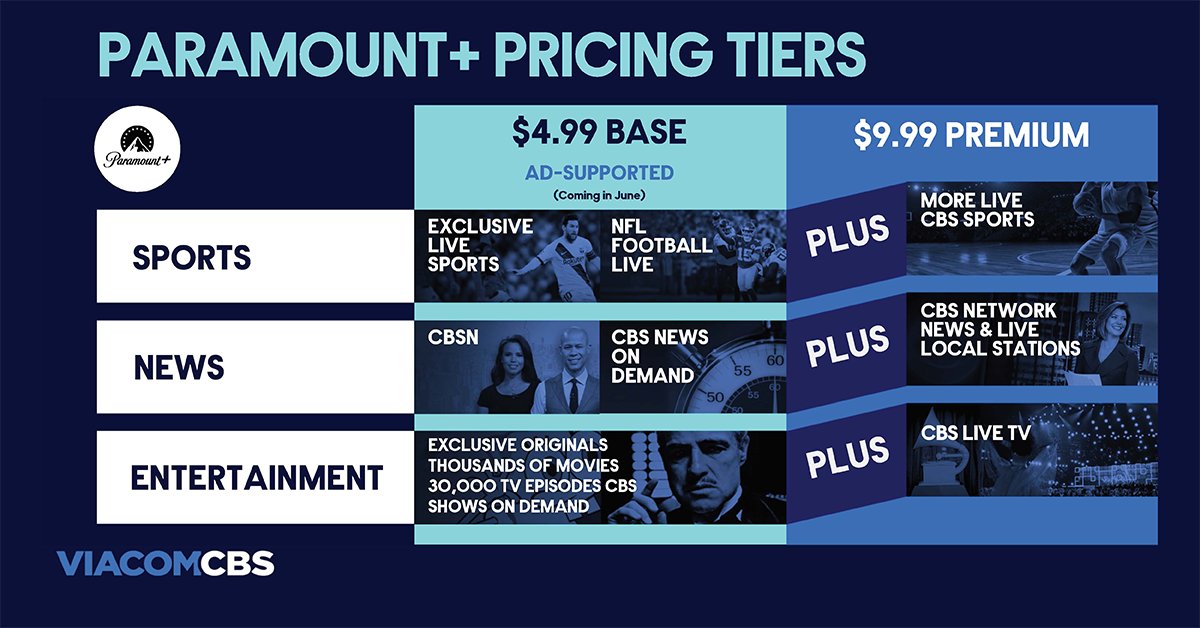
Before initiating a subscription, it is essential to understand the technical requirements and the service tiers available. Paramount Plus operates on a multi-tier subscription model that dictates the features available to the end-user, including ad-frequency, resolution caps, and access to live local feeds.
Hardware and Software Requirements
To run the Paramount Plus application effectively, your hardware must meet specific criteria. On desktop environments, the service requires modern browsers—specifically the latest versions of Chrome, Firefox, Safari, or Edge. These browsers utilize HTML5 players to stream content, eliminating the need for legacy plugins like Silverlight or Flash.
For mobile devices, the application is optimized for iOS 14.0 or later and Android 5.0 (Lollipop) or later. The technical demand on the device increases when streaming high-definition content, necessitating a stable processor and sufficient RAM to handle data buffering. On the television side, the service supports a wide array of smart TV operating systems, including Android TV, Samsung Tizen, LG WebOS, and specialized streaming hardware such as Roku, Amazon Fire TV, and Apple TV (4th Generation and later).
Bandwidth and Network Optimization
Connectivity is the backbone of any streaming subscription. Paramount Plus utilizes adaptive bitrate streaming, which adjusts the quality of the video in real-time based on the user’s internet speed. For a standard definition (SD) stream, a minimum of 1.5 Mbps is required. However, for a consistent High Definition (HD) experience, the service recommends at least 4.0 Mbps. If you are subscribing to the “Paramount+ with SHOWTIME” plan to access 4K UHD content, a minimum stable connection of 25 Mbps is necessary to prevent buffering and maintain the integrity of the 2160p resolution.
Detailed Subscription Pathways for Every Device
The process of subscribing varies depending on the gateway you use. Each platform handles billing and authentication through different APIs, which can impact how you manage your account in the future.
Subscribing via Desktop (Web Browser)
The most direct method is through the official Paramount Plus website. This method is often preferred by those who want to manage their billing directly through the provider rather than a third-party app store.
-
Direct Navigation: Navigate to the official website and select the “Try it Free” or “Sign Up” button.
-
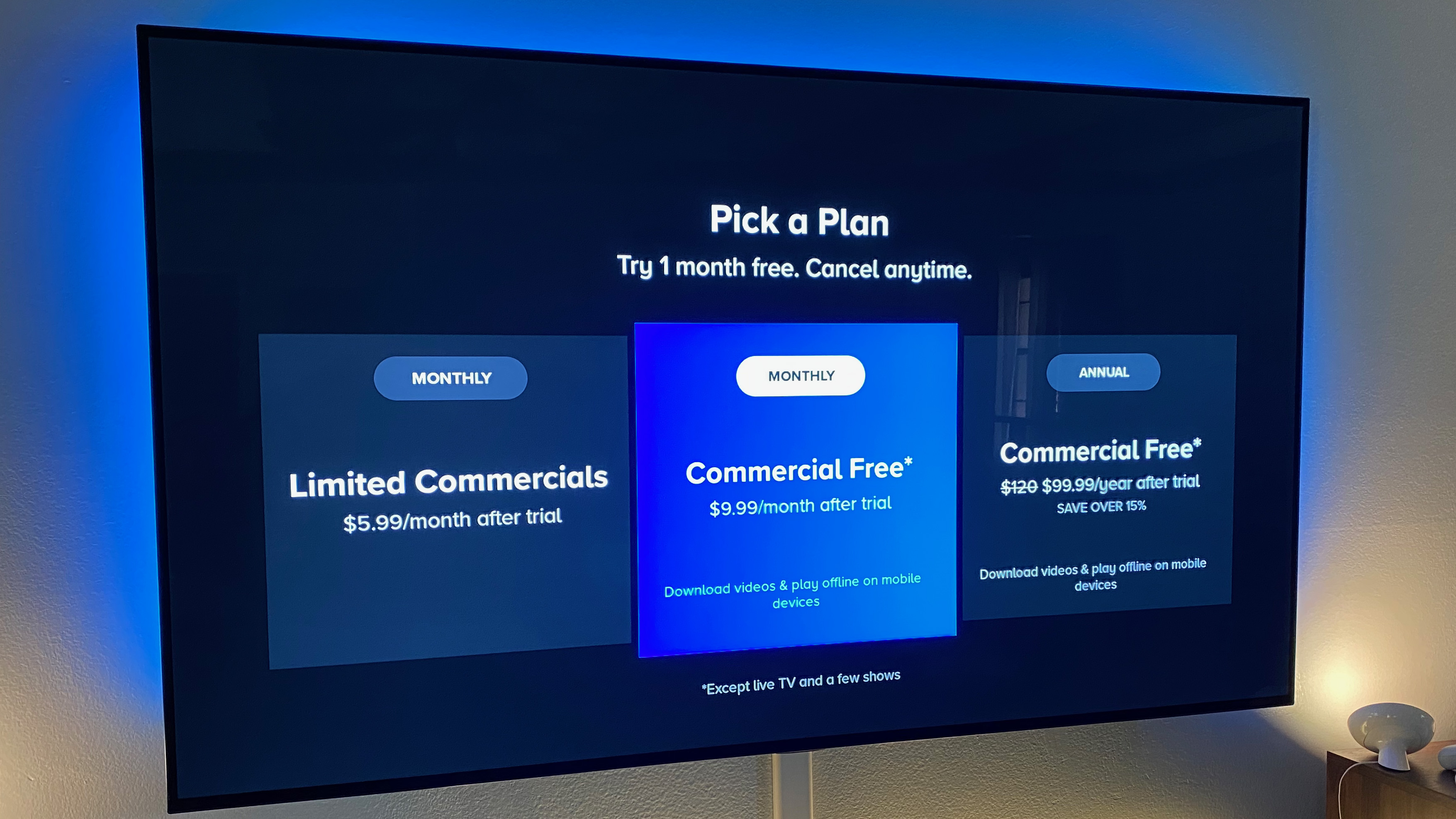
Tier Selection: You will be prompted to choose between the “Paramount+ Essential” plan (ad-supported) or the “Paramount+ with SHOWTIME” plan (ad-free with live TV).
-
Account Creation: Enter your credentials—name, email, and a secure password. From a digital security standpoint, it is recommended to use a unique, complex password to protect your payment information.
-
Payment Processing: Enter your credit card details or link a PayPal account. The web interface uses encrypted SSL protocols to ensure that your financial data is transmitted securely to their billing servers.
Mobile and Tablet Integration (iOS and Android)
Subscribing through a mobile device integrates the service with your Apple ID or Google Play Store account.
-
Application Installation: Download the Paramount Plus app from the App Store or Google Play Store.
-
In-App Purchase (IAP): Once the app is launched, follow the sign-up prompts. The subscription will be processed as an “In-App Purchase.”
-
Technical Advantage: The primary benefit here is centralized billing. Your subscription is managed by the OS provider’s ecosystem, making it easy to cancel or change tiers through your phone’s subscription settings without re-entering credit card data into the app itself.
Connected TV Devices (Roku, Fire Stick, Apple TV)
For those using specialized streaming hardware, the subscription process is often optimized for remote control navigation.
-
Channel/App Addition: Search for Paramount Plus in the device’s app store (e.g., Roku Channel Store or Amazon Appstore).
-
Authentication: You can either sign up directly on the TV or use a “second-screen” authentication method. This involves a QR code or an alphanumeric code displayed on the TV that you enter into a web browser on your phone to link the device to your newly created account.
-
System Integration: Subscribing through platforms like Amazon Prime Video Channels or Apple TV Channels is another technical alternative. In this scenario, Paramount Plus content is integrated directly into the host’s UI, utilizing the host’s player and recommendation algorithms rather than the standalone Paramount Plus app.

Optimizing Your Viewing Experience: Bitrates, Resolution, and Audio
Once the subscription is active, the focus shifts to technical optimization. Subscribing is only the first step; configuring the software to match your hardware’s capabilities is crucial for achieving high-fidelity playback.
High Dynamic Range (HDR) and 4K Configuration
If you have subscribed to the premium tier and possess a 4K HDR-capable television, you must ensure your hardware chain supports these features. This includes using HDMI 2.0 or 2.1 cables and ensuring that “Ultra HD Deep Color” (or the equivalent setting) is enabled on your TV’s HDMI port. Paramount Plus supports Dolby Vision and HDR10, which provide a wider color gamut and higher contrast ratios.
Audio Bitstreams and Surround Sound
For home theater enthusiasts, the subscription provides access to advanced audio codecs. Many titles on Paramount Plus are encoded with Dolby Atmos or 5.1 Surround Sound. To utilize these, your device must be connected to a compatible soundbar or AV receiver via HDMI ARC/eARC. Within the app settings, users should ensure that audio output is set to “Auto” or “Bitstream” to allow the external hardware to decode the high-quality audio signals.
Data Management and Offline Downloads
On mobile devices, the app allows for the management of data consumption. Users can go into the settings menu to restrict streaming to Wi-Fi only, preventing accidental cellular data overages. Additionally, premium subscribers have the technical ability to download content for offline viewing. This involves a local encryption process where the video file is stored in a hidden partition on the device’s storage, accessible only through the Paramount Plus app, and subject to periodic license renewals via an internet handshake.
Account Security and Data Management Protocols
Managing a digital subscription requires an understanding of security and privacy settings. Paramount Plus provides several tools to help users control their digital footprint and secure their accounts.
Profile Management and Personalization
The platform allows for the creation of up to six individual profiles. Technically, these profiles act as sub-accounts within the primary database entry, each with its own “Continue Watching” metadata and recommendation algorithm. For households with children, the “Kids Mode” profile allows for the implementation of content filters based on age ratings (TV-Y, G, PG, etc.), which are enforced by the app’s content management system.
Security Best Practices
While the subscription process is straightforward, maintaining account integrity is a continuous task. It is advisable to periodically review the devices logged into your account. Most streaming platforms, including Paramount Plus, provide a “Sign Out of All Devices” option in the account settings. This is a vital security feature if you suspect your credentials have been compromised or if you have logged in on a public or shared device.
Billing Cycles and Tier Transitions
The technical transition between subscription tiers (e.g., moving from Essential to with SHOWTIME) usually takes effect at the start of the next billing cycle if downgrading, or immediately if upgrading (with a prorated charge). Understanding the billing API of your chosen platform—whether it’s direct, through Apple, or via a cable provider—is key to managing these transitions without losing access to the service.
Technical Troubleshooting and Connectivity Solutions
Even with a successful subscription, technical hurdles such as authentication errors, playback stutters, or app crashes can occur.
Resolving Authentication Loops
One common technical issue is the “authentication loop,” where the app fails to recognize a valid subscription. This is often caused by corrupted cache files or mismatched tokens between the device and the server. Clearing the app cache (on Android/Fire TV) or deleting and reinstalling the app (on iOS/Roku) forces the device to request a new authentication token from the Paramount Plus servers, typically resolving the issue.
Fixing Playback and Buffering Issues
If playback is inconsistent, the problem usually lies in the network stack. Users should perform a “cold boot” of their streaming device and router to clear the DNS cache and re-establish a clean handshake with the ISP. Furthermore, switching from a 2.4GHz Wi-Fi band to a 5GHz band—or better yet, using a wired Ethernet connection—can significantly reduce latency and jitter, which are the primary causes of buffering in high-bitrate streaming.
Update Cycles and Compatibility
Streaming apps receive frequent updates to patch security vulnerabilities and improve UI performance. Ensuring that your device’s firmware and the Paramount Plus app are both updated to their latest versions is critical. Incompatible versions can lead to API errors where the app cannot communicate effectively with the backend database, resulting in a “Service Unavailable” message.
By understanding the technical nuances of the Paramount Plus ecosystem—from the initial API handshake during sign-up to the intricacies of bitrate management and hardware compatibility—users can ensure that their subscription provides the highest possible return on investment. The transition from a simple viewer to a technically proficient user allows for a superior streaming experience that leverages the full power of modern digital distribution.
aViewFromTheCave is a participant in the Amazon Services LLC Associates Program, an affiliate advertising program designed to provide a means for sites to earn advertising fees by advertising and linking to Amazon.com. Amazon, the Amazon logo, AmazonSupply, and the AmazonSupply logo are trademarks of Amazon.com, Inc. or its affiliates. As an Amazon Associate we earn affiliate commissions from qualifying purchases.