
The smartphone has evolved far beyond a mere communication device; it is now a powerful personal assistant, entertainment hub, and, increasingly, a sophisticated financial tool. At the heart of this financial transformation lies the digital wallet, an indispensable application for modern Android users. Moving past the era of fumbling for physical cards and cash, Android wallets offer a seamless, secure, and integrated way to manage payments, loyalty programs, tickets, and even identification. This guide delves into the mechanics, benefits, and future of using a digital wallet on your Android device, empowering you to navigate the digital payment landscape with confidence and efficiency.
The Evolution of Digital Wallets on Android
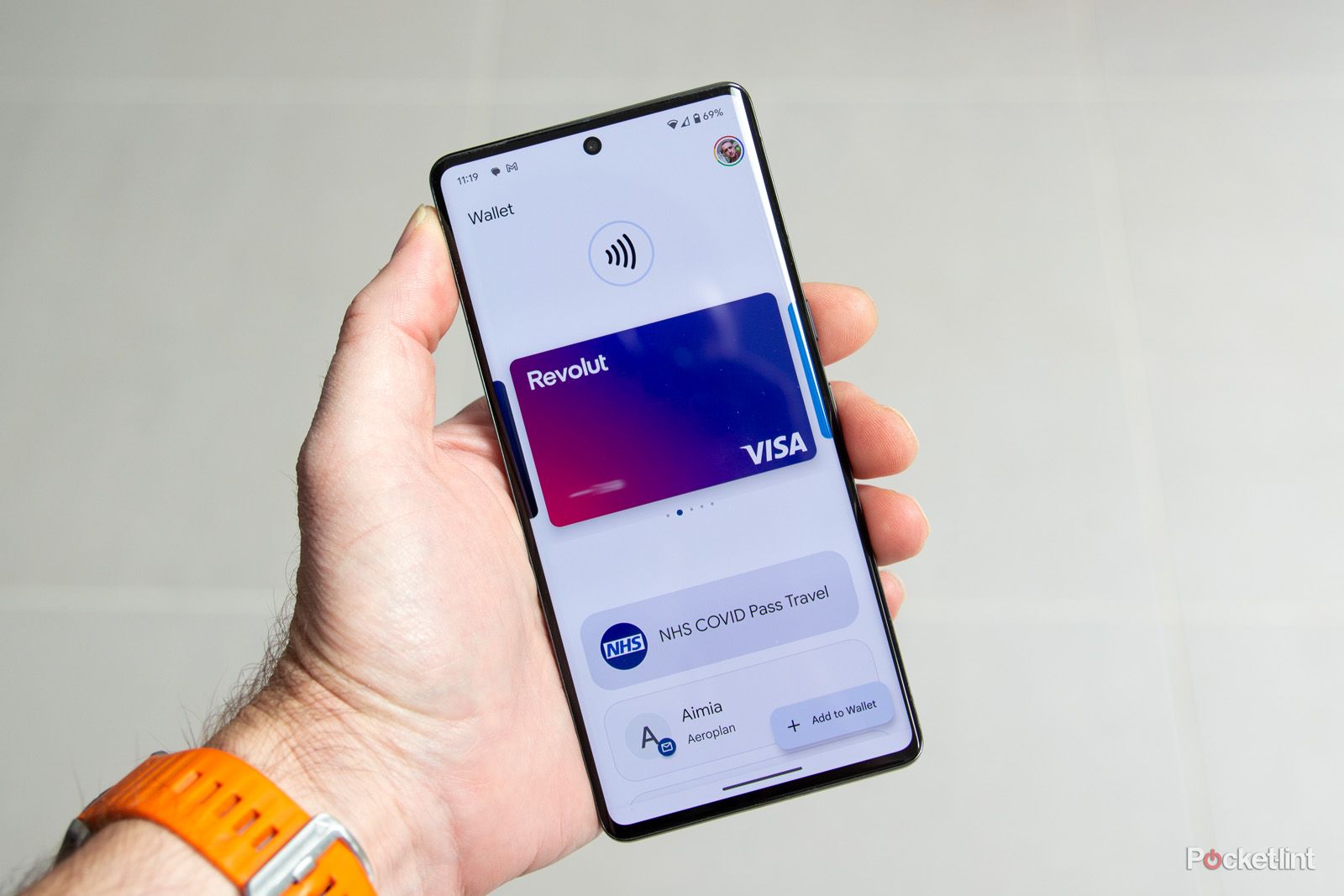
The journey of digital wallets on Android devices is a testament to rapid technological advancement, transforming the way we interact with our money and personal information. What began as a niche feature has blossomed into a ubiquitous utility, reshaping consumer behavior and expectations.
From NFC to Comprehensive Payment Platforms
Early iterations of mobile payments on Android were primarily powered by Near Field Communication (NFC) technology. This allowed users to make secure, contactless payments by simply tapping their phone on a compatible payment terminal. While groundbreaking, these initial steps were often limited to basic card emulation. Over time, the concept of a “wallet” expanded beyond just payment cards. Developers began integrating loyalty cards, gift cards, and even public transport passes. This integration marked a pivotal shift from a single-purpose payment tool to a multi-faceted digital repository for various aspects of a user’s financial and personal life. The goal became clear: centralize all essential cards and documents into one easily accessible, secure digital location.
Key Players in the Android Wallet Ecosystem
The Android ecosystem hosts several prominent digital wallet solutions, each vying for user preference through unique features and integrations.
-
Google Wallet (formerly Google Pay): As the default and most widely integrated option for Android devices, Google Wallet offers extensive functionality. It supports credit and debit cards from a vast array of banks, facilitates in-app and online purchases, and manages loyalty cards, event tickets, boarding passes, and even digital car keys on supported vehicles. Its deep integration with the Android OS and Google’s services makes it a seamless experience for most Android users.
-
Samsung Wallet (formerly Samsung Pay): Predominantly available on Samsung Galaxy devices, Samsung Wallet distinguishes itself with its innovative Magnetic Secure Transmission (MST) technology, alongside NFC. MST allows Samsung devices to emulate a traditional credit card’s magnetic stripe, making it compatible with older payment terminals that don’t support NFC. This broader acceptance footprint was a significant advantage in its early days. Samsung Wallet also offers robust features for cards, loyalty programs, and digital keys.
-
Bank-Specific Apps: Many financial institutions have developed their own mobile banking apps that include digital wallet functionalities. While these often leverage Google Wallet or Apple Pay for tap-to-pay features, they can offer deeper integration with specific bank accounts, enhanced security features, and tailored rewards programs.
-
Third-Party Payment Apps: Beyond the major players, numerous third-party apps like PayPal, Venmo, or regional payment solutions offer wallet-like features, primarily for peer-to-peer transactions or online shopping, often integrating with the device’s default digital wallet for broader utility.
The competition among these players has driven innovation, leading to more secure, user-friendly, and feature-rich digital wallet experiences across the Android platform.
Why Digital Wallets Are Revolutionizing Transactions
The ascendancy of digital wallets is not just a matter of convenience; it represents a fundamental shift in how we approach transactions and personal data management.
-
Enhanced Security: Digital wallets employ advanced encryption, tokenization, and biometric authentication (fingerprint, facial recognition) to protect sensitive data. When you make a payment, your actual card number is not transmitted to the merchant; instead, a unique, encrypted token is used, significantly reducing the risk of fraud.
-
Unparalleled Convenience: The ability to make payments, board a flight, or redeem loyalty points with a single tap of your phone or smartwatch streamlines daily activities. No more rummaging through a bulky physical wallet; everything you need is securely stored in one place.
-
Organization and Accessibility: Digital wallets serve as a central hub for all your cards, tickets, and passes. This digital organization makes it easier to track transactions, manage loyalty points, and quickly access necessary documents.
-
Integration with Smart Ecosystems: As smart homes, smart cars, and wearable technologies become more prevalent, digital wallets are evolving to become integral parts of these interconnected ecosystems, offering functions like unlocking doors or starting vehicles.
By addressing critical aspects of security, convenience, and functionality, digital wallets have cemented their role as essential tools for the modern Android user, pushing the boundaries of what’s possible in the realm of personal finance and identity management.
Setting Up Your Android Wallet: A Step-by-Step Tutorial
Embarking on your digital wallet journey on Android is a straightforward process, designed for user-friendliness while prioritizing security. This section guides you through the essential steps to get your wallet up and running, from installation to securing your valuable information.
Downloading and Initializing the Wallet App
For most Android users, the primary digital wallet application will be Google Wallet. It often comes pre-installed on newer Android devices. If not, or if you prefer a different solution like Samsung Wallet (for Samsung devices), the process is simple:
-
Locate the App: Search for “Google Wallet” (or “Samsung Wallet”) in the Google Play Store.
-
Install/Open: If not installed, tap “Install.” If already installed, tap “Open.”
-
Initial Setup: Upon opening for the first time, the app will guide you through a welcome sequence. You might be prompted to sign in with your Google account (for Google Wallet) or Samsung account (for Samsung Wallet). This links your digital wallet to your primary device identity.
-
Security Confirmation: The app will likely confirm that you have a screen lock set up (PIN, pattern, fingerprint, or face unlock). This is a crucial security measure, as it prevents unauthorized access to your wallet if your phone is lost or stolen.
Adding Payment Methods (Credit/Debit Cards, Bank Accounts)
This is the core functionality of your digital wallet – linking your financial instruments.
-
Tap “Add to Wallet”: Look for a prominent button or icon (often a ‘+’ sign or “Add to Wallet”) to begin adding items.
-
Select “Payment Card”: Choose the option to add a credit or debit card.
-
Scan or Enter Details:
-
Scan: Position your card within the phone’s camera frame. The app uses OCR (Optical Character Recognition) to automatically detect the card number, expiry date, and sometimes your name.
-
Manual Entry: If scanning fails or you prefer, manually type in the card number, expiration date, and CVV/CVC code.
-
-
Cardholder Name and Billing Address: Confirm or enter your cardholder name and billing address as registered with your bank.
-
Verification: This is a critical security step. Your bank will need to verify that you are the legitimate cardholder. This usually involves:
-
SMS Code: A code sent to your registered phone number.
-
Email Code: A code sent to your registered email address.
-
Bank App Notification: A direct notification through your bank’s mobile app.
-
Calling Your Bank: In some rare cases, you might need to call your bank directly.
-
-
Set as Default: Once verified, you can choose whether this card should be your default payment method for quick transactions.
-
Repeat: Add any other credit or debit cards you wish to use.
Incorporating Loyalty Cards, Tickets, and IDs
Beyond payments, your Android wallet can store a variety of other digital items.
-
Select “Loyalty Card,” “Transit Pass,” “Event Ticket,” or “ID”: From the “Add to Wallet” menu, choose the relevant category.
-
Scan or Search:
-
Loyalty Cards: Many apps allow you to scan the barcode or QR code of your physical loyalty card. Alternatively, you can search for the merchant and log in with your loyalty program credentials.
-
Tickets/Passes: Often, after purchasing event tickets or transit passes online, you’ll see an option to “Add to Google Wallet” (or similar) directly from the confirmation email or web page. Tapping this will import the digital pass.
-
Digital IDs: This is an emerging feature, currently available in limited regions. If supported, you’ll follow a secure enrollment process, often requiring a photo of your physical ID and a selfie for verification.
-
-
Confirm Details: Review the imported details to ensure accuracy.
Essential Security Measures for Your Digital Wallet
While digital wallets are inherently secure, user vigilance enhances protection significantly.
-
Screen Lock: Always maintain a robust screen lock (PIN, pattern, password, fingerprint, or face unlock) on your Android device. This is the first line of defense.
-
Biometric Authentication: Enable fingerprint or face unlock for transactions whenever possible. This adds an extra layer of security, requiring your unique biometric data for each purchase or access to sensitive information.
-
Strong Passwords: Ensure your Google/Samsung account has a strong, unique password and consider enabling two-factor authentication (2FA) for these accounts.
-
Device Updates: Keep your Android operating system and wallet app consistently updated. Software updates often include critical security patches that protect against new threats.
-
Remote Wipe: Familiarize yourself with Android’s “Find My Device” feature. In case your phone is lost or stolen, you can remotely locate, lock, or erase its data, including your digital wallet information.
-
Beware of Phishing: Be cautious of suspicious emails or messages asking for your wallet credentials or personal information. Always verify the source.
-
Public Wi-Fi: Exercise caution when making transactions over unsecured public Wi-Fi networks. Consider using a VPN or sticking to your mobile data.
By meticulously following these setup instructions and embracing best security practices, you can fully leverage the convenience of your Android wallet while keeping your financial and personal data safe and sound.
Mastering Daily Transactions with Your Android Wallet
Once your Android wallet is set up, its true power lies in streamlining your everyday transactions. From quick taps at the checkout to managing online purchases, your digital wallet transforms how you interact with merchants and personal finance.
Making Contactless Payments (NFC)
The most iconic use of your Android wallet is making quick, secure contactless payments in physical stores.
-
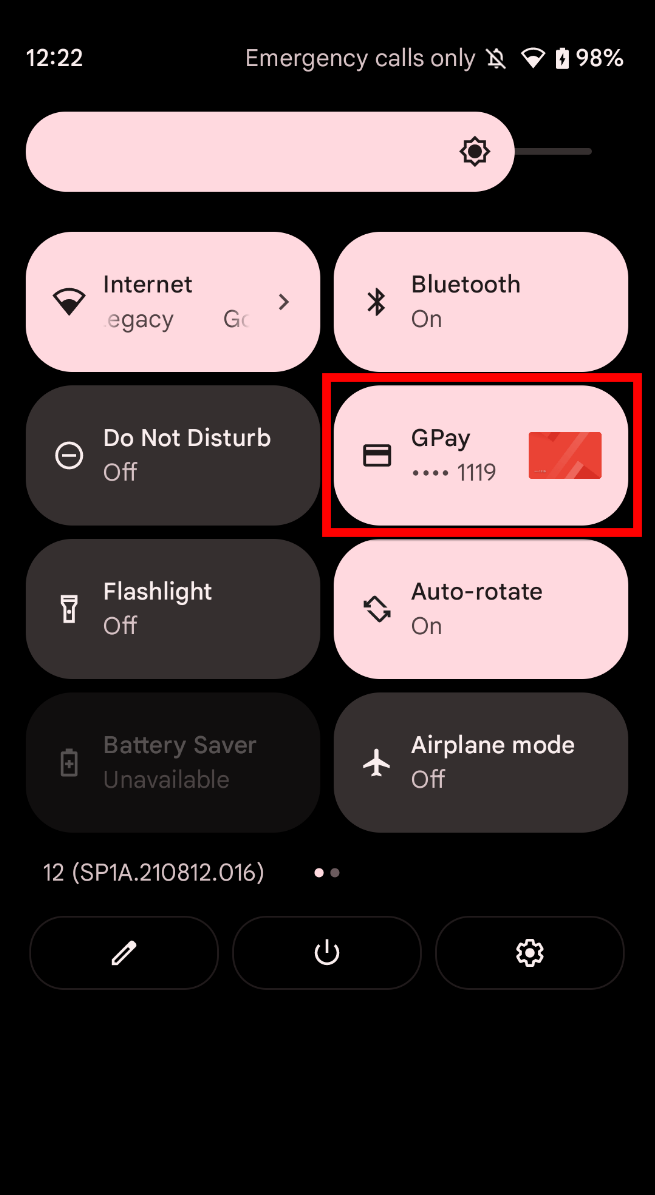
Look for the Symbols: At the checkout, look for the contactless payment symbol (four curved lines resembling a Wi-Fi signal) or the Google Wallet/Samsung Wallet logo on the payment terminal.
-
Unlock Your Phone (if required): Depending on your phone’s settings and the transaction amount, you may need to unlock your phone using your fingerprint, face ID, PIN, or pattern. For smaller transactions, a simple screen-on might suffice.
-
Tap and Pay: Hold the back of your Android phone near the contactless reader on the payment terminal. You’ll usually hear a beep or see a confirmation message on your phone screen and the terminal, indicating a successful transaction.
-
Confirm Default Card: If you have multiple cards, the default card will be used. To use a different card, open your wallet app before tapping, select the desired card, and then tap your phone.
-
Receipt: Collect your digital or physical receipt as usual. The transaction will also appear in your wallet app’s history.
This process is remarkably fast and more secure than swiping a physical card, as it uses tokenization to protect your actual card number.
Online Purchases and In-App Payments
Your Android wallet extends its utility seamlessly to the digital realm, making online shopping and in-app purchases quicker and safer.
-
Online Checkouts: When shopping on websites via your Android browser, look for “Pay with Google Wallet” or “Pay with Samsung Wallet” options at checkout. Selecting this will pre-fill your payment and shipping details stored in your wallet, eliminating the need to manually type in card numbers.
-
In-App Purchases: Many apps integrate directly with Google Wallet for purchasing digital content, subscriptions, or services. When prompted for payment within an app, you can select your digital wallet as the payment method, and confirm the purchase with your screen lock or biometric authentication.
-
Security: For both online and in-app transactions, your digital wallet uses tokenization, meaning your actual card number is never shared with the merchant, adding a layer of security comparable to physical contactless payments.
This integration provides a consistent and secure payment experience across physical and digital storefronts, simplifying the checkout process significantly.
Peer-to-Peer Transfers and Money Management
While the primary Android wallet apps like Google Wallet focus on merchant transactions, their broader ecosystem allows for peer-to-peer (P2P) transfers and basic money management.
-
Google Pay/Google Wallet Integration: While Google Wallet is focused on tap-to-pay and storing items, the broader Google Pay functionality (which often overlaps or is integrated) allows for sending and receiving money directly from contacts. You can link your bank account or debit card to facilitate these transfers.
-
Third-Party Apps: For more dedicated P2P transfers, apps like PayPal, Venmo, or Cash App are widely used. These apps often integrate with your bank account or debit card, providing a straightforward way to send and request money from friends and family. While not strictly part of the “Android Wallet” app itself, they leverage your phone’s payment capabilities.
-
Transaction History: Your digital wallet app provides a convenient log of your recent transactions. This can help you track spending, monitor activity, and quickly identify any unauthorized charges, contributing to better personal money management.
Leveraging Loyalty Programs and Digital Coupons
One of the often-underestimated benefits of an Android wallet is its ability to centralize and activate loyalty programs and digital coupons.
-
Automatic Loyalty Points: When you have a loyalty card stored in your wallet and use a linked payment card for a purchase at that merchant, your loyalty points can sometimes be applied automatically without needing to present the physical card.
-
Easy Access: For programs that require scanning, having the digital loyalty card readily available in your wallet app means you’ll never miss out on points or rewards because you left your physical card at home.
-
Digital Coupons and Offers: Google Wallet and similar apps can also store digital coupons or offers. Some merchants provide scannable coupons directly to your wallet, which can be redeemed at checkout with a simple tap or scan.
-
Reminders: Some wallet apps can even provide location-based reminders for specific loyalty programs or coupons when you are near a participating store, ensuring you never miss a saving opportunity.
By streamlining loyalty programs and integrating digital offers, your Android wallet not only simplifies payments but also helps you maximize savings and rewards with minimal effort.
Beyond Payments: Advanced Features and Future Trends
The utility of Android wallets is rapidly expanding beyond basic payment functionalities, morphing into comprehensive digital identity and access platforms. This evolution is driven by continuous innovation in mobile technology, security, and consumer demand for seamless digital experiences.
Digital IDs and Driver’s Licenses
One of the most significant emerging features for Android wallets is the integration of official identification. Several U.S. states and countries globally are beginning to support digital driver’s licenses and state IDs directly within Google Wallet or similar applications.
-
Secure Storage: These digital IDs are stored with robust encryption and require biometric authentication to access, making them highly secure.
-
Privacy-Enhancing Features: Unlike physical IDs, which often reveal all your personal information, digital IDs can be designed to share only the necessary information for a specific transaction (e.g., just your age for an age-restricted purchase, without showing your address).
-
Verification: Law enforcement and approved businesses can use secure readers to verify the authenticity of a digital ID, further streamlining processes where physical ID presentation is typically required.
-
Future Impact: This capability promises to reduce the bulk in our physical wallets and offer enhanced privacy and security benefits in an increasingly digital world.
Public Transit Cards and Event Tickets
Android wallets are becoming invaluable for managing various passes and tickets, simplifying travel and entertainment experiences.
-
Seamless Transit: Many metropolitan areas now allow users to add their public transit cards directly to their Android wallet. This means you can tap your phone on a reader to board buses, trains, or subways, eliminating the need for separate physical cards or paper tickets.
-
Event Entry: Concert tickets, airline boarding passes, and movie tickets can all be stored in your digital wallet. This not only provides a convenient single location for all your event access but also often includes useful features like gate change notifications for flights or seat assignments for events.
-
Dynamic Updates: Digital passes often receive real-time updates directly in your wallet, such as changes to flight gates, delays, or event schedules, providing a dynamic and responsive user experience.
Integrating with Smartwatches and Other Devices
The convenience of Android wallets extends beyond your phone to a growing ecosystem of connected devices, most notably smartwatches.
-
Wearable Payments: Smartwatches running Wear OS by Google or Samsung’s Tizen/Wear OS offer direct integration with Google Wallet or Samsung Wallet. This allows you to make contactless payments directly from your wrist, often without needing to take out your phone. This is particularly convenient during exercise, when carrying a phone might be cumbersome.
-
Access Control: Future integrations could see Android wallets on wearables used for smart home access (unlocking doors), vehicle access, or even corporate ID badges, further blurring the lines between physical and digital keys.
-
Multi-Device Synchronization: Your wallet items (cards, tickets, IDs) are typically synchronized across all your logged-in Android devices, ensuring consistency and accessibility regardless of which device you’re using.
The Future of Biometric Security and Blockchain Integration
The horizon for Android wallets includes even more sophisticated security and functionality.
-
Advanced Biometrics: Beyond fingerprint and facial recognition, research into vein pattern recognition, iris scanning, and behavioral biometrics (how you type, walk, or hold your phone) could offer even more robust and seamless authentication methods.
-
Blockchain Technology: While still in nascent stages for mainstream consumer wallets, blockchain could revolutionize digital identity and asset management. Imagine securely storing verifiable credentials, digital ownership titles, or even cryptocurrency directly within your Android wallet, leveraging the immutable and decentralized nature of blockchain for enhanced security and transparency. This could lead to self-sovereign identity solutions, where individuals have greater control over their personal data.
-
Hyper-Personalization: Expect wallets to become even smarter, offering hyper-personalized deals, intelligent recommendations based on spending habits, and proactive reminders for bill payments or subscription renewals, all while maintaining user privacy through on-device processing.
As technology continues to advance, the Android wallet is poised to become an even more indispensable tool, seamlessly integrating into every facet of our digital and physical lives, offering unparalleled convenience, security, and control.
Troubleshooting and Best Practices for a Secure Experience
While Android wallets are designed for reliability and security, occasional issues can arise. Moreover, maintaining robust security practices is paramount to protecting your sensitive financial and personal data. This section provides solutions to common problems and outlines best practices for a consistently smooth and secure digital wallet experience.
Common Issues and Quick Fixes
Even with advanced technology, hiccups can occur. Here are some common problems Android wallet users face and how to address them:
-
“Tap to Pay Not Working”:
-
NFC Enabled? Ensure NFC is turned on in your phone’s settings (Settings > Connected devices > Connection preferences > NFC).
-
Default Payment App? Verify that Google Wallet (or Samsung Wallet) is set as your default payment app (Settings > Connected devices > Connection preferences > NFC > Contactless payments > Default payment app).
-
Phone Case Interference: Some thick or metallic phone cases can block NFC signals. Try removing the case.
-
Phone Position: Ensure the top back of your phone (where the NFC antenna is usually located) is held flat against the payment terminal. Hold it steady for a few seconds.
-
Terminal Compatibility: Double-check that the payment terminal actually supports contactless payments (look for the NFC symbol).
-
Software Glitch: Restart your phone. If the issue persists, clear the cache for your wallet app (Settings > Apps > Wallet app > Storage & cache > Clear cache).
-
-
Card Not Adding/Verification Issues:
-
Internet Connection: Ensure you have a stable internet connection during the card addition and verification process.
-
Correct Details: Double-check that all card details (number, expiry, CVV, billing address, cardholder name) are entered precisely as they appear on your physical card and are registered with your bank.
-
Bank Support: Not all banks and card types are supported. Check your bank’s website or contact them to confirm compatibility with Google Wallet/Samsung Wallet.
-
Verification Method: If you’re not receiving verification codes, check your registered phone number/email with your bank. You might need to try a different verification method or contact your bank directly.
-
-
Transaction Declined:
-
Insufficient Funds: Ensure there are sufficient funds or credit limit available on the selected card.
-
Card Expired: Check if the card in your wallet has expired.
-
Bank Block: Sometimes banks flag unusual transactions as potential fraud. Check your banking app for alerts or call your bank.
-
Terminal Error: The issue might be with the merchant’s payment terminal. Try another payment method or ask the merchant.
-
-
Loyalty Card/Ticket Not Appearing:
-
Correct Import: Ensure you followed the correct steps to import the item. For tickets, look for an “Add to Google Wallet” button after purchase.
-
App Updates: Make sure your wallet app is updated to the latest version.
-

Protecting Your Digital Wallet from Threats
Maintaining the security of your digital wallet is a shared responsibility between you and the technology provider. Adhering to these best practices significantly mitigates risks:
-
Always Use a Strong Screen Lock: This cannot be overemphasized. A robust PIN, pattern, or biometric lock (fingerprint, face unlock) is your primary defense against unauthorized access if your phone falls into the wrong hands.
-
Enable Biometric Authentication for Transactions: For an added layer of security, configure your wallet app to require your fingerprint or face scan for every transaction, even small ones. This prevents “shoulder surfing” or accidental purchases.
-
Keep Your OS and Apps Updated: Software updates frequently include crucial security patches that protect against newly discovered vulnerabilities. Always install Android system updates and wallet app updates promptly.
-
Use “Find My Device”: Familiarize yourself with Android’s “Find My Device” feature (findmydevice.google.com). In case of loss or theft, you can remotely locate, lock, or, as a last resort, wipe all data from your phone, protecting your wallet contents.
-
Beware of Phishing and Malicious Apps: Only download apps from the Google Play Store. Be suspicious of unsolicited emails or texts asking for your wallet credentials, card numbers, or personal information. Never click on dubious links or provide sensitive data to unverified sources.
-
Strong Google/Samsung Account Security: Your digital wallet is tied to your Google or Samsung account. Use a strong, unique password for these accounts and enable two-factor authentication (2FA) for an extra layer of protection.
-
Review Transaction History Regularly: Periodically check your wallet app’s transaction history and cross-reference it with your bank statements. This helps you quickly identify and report any unauthorized activity.
-
Avoid Rooting Your Device (for wallet usage): Rooting your Android device can bypass security mechanisms, making it vulnerable to malware and compromising the secure environment required for digital wallet functionality. Most digital wallet apps will refuse to work on a rooted device for this reason.
-
Public Wi-Fi Caution: Be wary of making sensitive transactions over unsecured public Wi-Fi networks. These networks can be susceptible to snooping. Use your mobile data or a trusted VPN for financial transactions in public.
By proactively managing these security measures and understanding how to troubleshoot common issues, you can ensure your Android wallet remains a convenient, efficient, and above all, secure tool for managing your digital life. The future of payments and personal identification is undoubtedly digital, and mastering your Android wallet puts you at the forefront of this technological revolution.
aViewFromTheCave is a participant in the Amazon Services LLC Associates Program, an affiliate advertising program designed to provide a means for sites to earn advertising fees by advertising and linking to Amazon.com. Amazon, the Amazon logo, AmazonSupply, and the AmazonSupply logo are trademarks of Amazon.com, Inc. or its affiliates. As an Amazon Associate we earn affiliate commissions from qualifying purchases.