
In an increasingly digital world, access to a vast ecosystem of applications, entertainment, and digital content is not just a luxury, but often a necessity. For billions of users worldwide, Google Play stands as the quintessential gateway to this digital universe, specifically tailored for Android devices. Far more than a mere app store, Google Play is a comprehensive digital distribution service that curates, hosts, and delivers a staggering array of content, from productivity tools and immersive games to blockbuster movies, insightful books, and captivating audiobooks. If you’ve ever wondered how to unlock the full potential of your Android device, understanding Google Play is your first, most crucial step. This guide will demystify the platform, walking you through its functionalities, helping you navigate its rich offerings, and empowering you to make the most of your digital experiences.
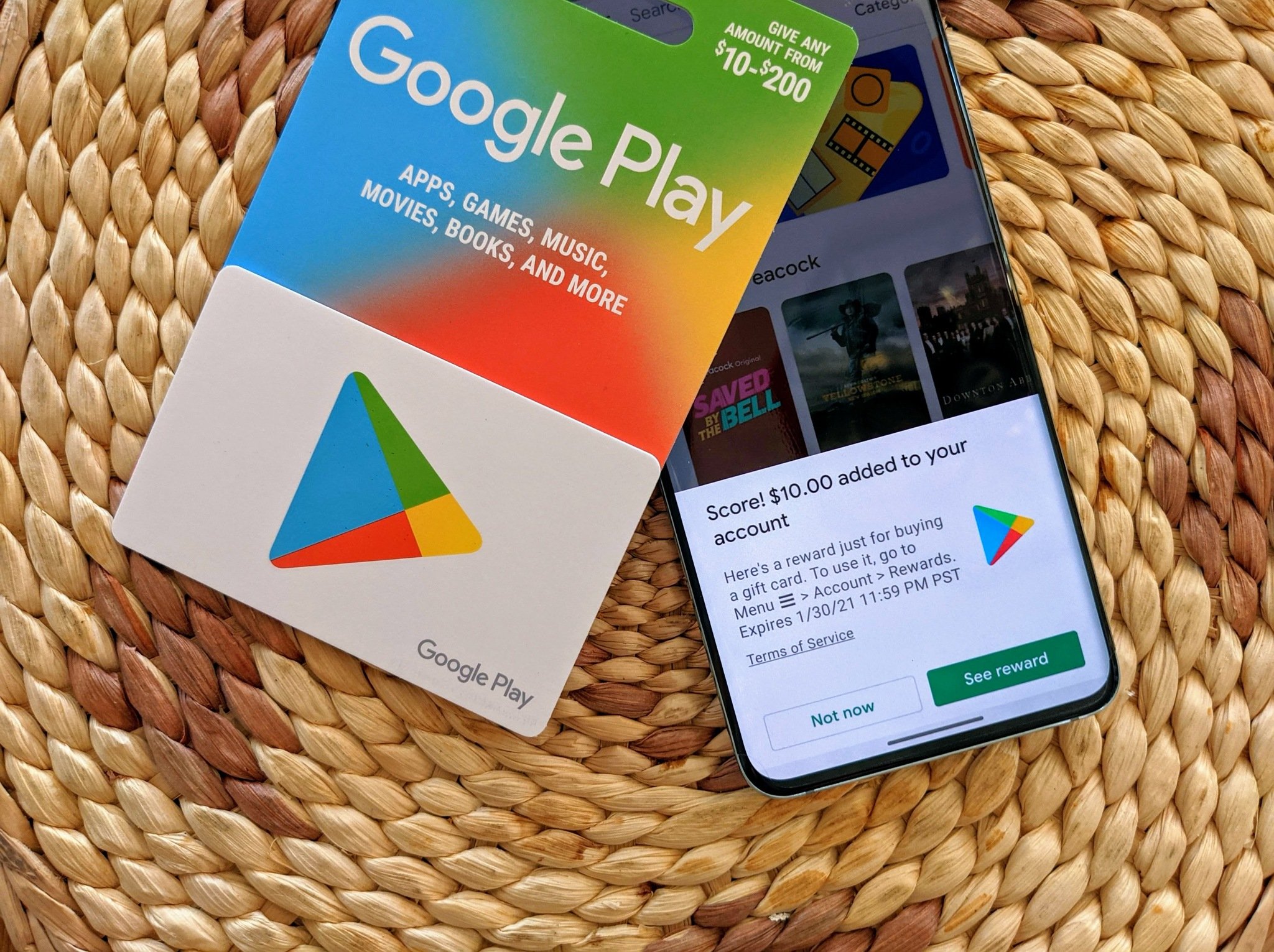
Unveiling Google Play: Your Digital Entertainment Hub
At its core, Google Play serves as the official app store for the Android operating system, but its scope extends far beyond just applications. It represents Google’s centralized marketplace for all forms of digital content accessible on Android devices, Chrome OS, and even via web browsers.
More Than Just an App Store
While initially conceived as the “Android Market” primarily for apps, Google Play has evolved into a sprawling ecosystem encompassing multiple content types. It’s the go-to destination for discovering new software, but also a robust platform for entertainment and knowledge. This multifaceted nature means that a single Google account grants you access to a rich tapestry of digital goods, transforming your device into a versatile tool for work, play, learning, and relaxation. From sophisticated photo editing suites to casual games that pass the time, from Oscar-winning films to best-selling novels, everything is meticulously organized and readily available.
The Ecosystem Advantage
Google Play isn’t an isolated island; it’s intricately woven into the broader Google ecosystem. Your Google account serves as the universal key, linking your Play Store purchases, app data, subscriptions, and preferences across all your Android devices. This seamless integration ensures that if you buy a movie on your phone, it’s instantly available to watch on your tablet or smart TV. Similarly, app progress can often be synced via your Google account, allowing for a consistent experience regardless of which device you’re currently using. This interconnectedness is a significant advantage, fostering convenience and continuity in your digital life, making the process of managing your content library remarkably fluid and user-friendly.
Navigating the Google Play Interface: A User’s Guide
Getting started with Google Play is remarkably intuitive, designed to welcome users of all technical proficiencies. Understanding its basic layout and initial setup procedures will quickly get you on your way to discovering new content.
Initial Setup and Account Linking
To begin using Google Play, you’ll need an active Google account. If you’ve ever set up an Android phone, you’ve likely already linked one. If not, the process is straightforward:
-
Open the Google Play Store app: Look for the colorful triangular icon on your device’s home screen or app drawer.
-
Sign in or create an account: If you’re not already signed in, the app will prompt you to enter your Google account credentials or create a new one. This account will be tied to all your purchases, app history, and settings within Google Play.
-
Accept terms of service: Review and accept Google’s terms of service to proceed.
Once signed in, you’re ready to explore.
Understanding the Layout
The Google Play Store app is organized for easy discovery and navigation:
-
Home Screen: Typically displays personalized recommendations, popular apps, new releases, and curated collections.
-
Navigation Bar (bottom or side): Features dedicated sections for “Games,” “Apps,” “Movies & TV,” “Books,” and sometimes “Audiobooks” (which might be nested under Books). Tapping these categories allows you to browse specific content types.
-
Search Bar (top): The most efficient way to find specific apps, games, or content. Type in keywords, app names, or developer names.
-
Profile Icon (top right): Tapping your profile picture opens a menu with access to “Manage apps & device,” “Offers & notifications,” “Payments & subscriptions,” “Play Protect,” “Library & devices,” and “Settings.” This menu is your command center for managing your entire Play experience.
Essential Settings and Preferences
Customizing your Google Play experience through its settings can significantly enhance usability:
-
Network preferences: Decide whether apps should auto-update only over Wi-Fi, over any network, or not at all. This helps manage data usage. You can also specify app download preferences.
-
Authentication: Set up fingerprint or password authentication for purchases to prevent unauthorized buys.
-
Parental controls: Configure restrictions on content based on age ratings, protecting younger users from inappropriate material.
-
Theme: Switch between light, dark, or system default themes for visual comfort.
-
Google Play Protect: Ensure this is active to constantly scan your device for harmful apps, providing a crucial layer of security.
Discovering and Acquiring Content: A World at Your Fingertips
The true power of Google Play lies in its vast repository of digital content. Understanding how to find, acquire, and manage these different types of media is key to a fulfilling user experience.
Apps & Games: Productivity to Entertainment
This is arguably the most well-known section of Google Play, housing millions of applications and games designed to enhance every aspect of your digital life.
-
Downloading and Installing:
-
Use the search bar or browse categories to find an app or game.
-
Tap on the desired item to view its details page, which includes screenshots, a description, reviews, and ratings.
-
Tap the “Install” button. The app will download and automatically install on your device. Free apps are instantly available; paid apps will require payment verification.
-
-
In-App Purchases and Subscriptions: Many apps offer additional content or features through in-app purchases (one-time buys) or subscriptions (recurring payments). These are processed securely through Google Play using your linked payment method.
-
Updates and Uninstallation:
-
Updates: To keep your apps secure and functional, regularly update them. Go to your Profile Icon > “Manage apps & device” > “Updates available” to update individual apps or “Update all.”
-
Uninstallation: To remove an app, navigate to its detail page in the Play Store and tap “Uninstall,” or long-press its icon on your home screen/app drawer and select “Uninstall” or drag it to the uninstall area.
-
Google Play Movies & TV: Cinematic Experiences
This section allows you to buy or rent movies and TV shows, from new releases to classic blockbusters.
-
Renting vs. Buying:
-
Rent: Typically for a limited time (e.g., 48 hours once you start watching), offering a cost-effective way to enjoy content once.
-
Buy: Grants you permanent access to the content across your linked devices, allowing you to watch it as many times as you like.
-
-
Watching Offline: Many purchased or rented titles can be downloaded to your device for offline viewing, perfect for travel or areas with limited internet access. Look for the download icon on the movie’s detail page or within your library.
Google Play Books & Audiobooks: Your Personal Library
For avid readers and listeners, this section is a treasure trove of digital literature.

-
Reading and Listening Offline: Similar to movies, purchased books and audiobooks can be downloaded to your device for offline access, ensuring your library is always with you, even without an internet connection.
-
Highlighting and Notes: The Google Play Books app offers features like highlighting text, adding notes, and dictionary lookups, enhancing the digital reading experience.
Managing Your Google Play Journey: Control and Customization
Effective management of your account, purchases, and subscriptions is crucial for a smooth and secure Google Play experience. This control center empowers you to tailor the platform to your personal needs and preferences.
Payment Methods and Subscriptions
Handling your financial interactions with Google Play efficiently is vital.
-
Adding and Managing Payment Options: Go to your Profile Icon > “Payments & subscriptions” > “Payment methods.” Here, you can add credit/debit cards, link PayPal, or use Google Play credit. You can also set a default payment method. Google Play processes all transactions securely.
-
Monitoring and Canceling Subscriptions: In the same “Payments & subscriptions” menu, navigate to “Subscriptions.” This section provides a clear overview of all your active subscriptions through Google Play, allowing you to easily view renewal dates, manage payment methods for each, or cancel unwanted services with a few taps. This transparency helps you avoid unexpected charges.
Family Library and Parental Controls
Google Play offers robust features to share content with family members and ensure a safe environment for younger users.
-
Sharing Purchased Content: The “Family Library” allows up to five family members to share eligible purchased apps, games, movies, TV shows, and books without each person having to buy them individually. To set it up, go to your Profile Icon > “Library & devices” > “Family Library.”
-
Setting Restrictions for Younger Users: “Parental controls” (found in “Settings” under your Profile Icon) enable you to restrict content based on age ratings for apps, games, movies, and books. You can also require password authentication for purchases, preventing children from making unauthorized buys, even for free content. This is an essential tool for creating a safe and age-appropriate digital space for children.
Enhancing Security and Privacy
Maintaining your digital security and privacy is paramount, and Google Play provides tools to help you achieve this.
-
App Permissions Management: Before installing an app, the Play Store details the permissions it requests (e.g., access to your camera, microphone, contacts). After installation, you can review and revoke specific permissions for any app via your device’s system settings. Go to Settings > Apps > [App Name] > Permissions to manage. Be judicious about granting permissions, especially to apps from unknown developers.
-
Google Play Protect: This built-in security feature continuously scans your device and apps for malware and other security threats. It automatically removes harmful apps and warns you about potential privacy risks. To check its status or run a manual scan, go to your Profile Icon > “Play Protect.” Keeping Play Protect active and regularly checking its reports contributes significantly to your device’s overall security posture.
Advanced Tips for a Superior Google Play Experience
Beyond the basics, several advanced features and strategies can help you maximize your enjoyment and efficiency on Google Play. These tips will help you discover new content, save money, and troubleshoot common issues like a seasoned pro.
Leveraging Wishlists and Early Access
These features are designed to help you keep track of interesting content and even get a sneak peek at future releases.
-
Saving Items for Later: When you come across an app, game, movie, or book that piques your interest but you’re not ready to acquire, tap the three-dot menu icon on its detail page and select “Add to wishlist.” This creates a personalized list you can refer back to, ensuring you don’t forget potentially great content. Access your wishlist from your Profile Icon > “Library & devices” > “Wishlist.”
-
Trying Out New Apps Before Official Launch: The “Early Access” program allows users to try out beta versions of apps and games before they are officially released. This gives you a chance to experience cutting-edge features and provide feedback to developers. You can often find Early Access titles highlighted on the Google Play home screen or through a dedicated section in the Games or Apps categories. Participation helps shape the final product while offering you an exclusive preview.
Exploring Deals, Promos, and Google Play Points
Google Play regularly offers ways to save money and earn rewards for your digital content consumption.
-
Finding Discounts and Freebies: Keep an eye on the “Offers & notifications” section (accessible via your Profile Icon) for personalized deals, temporary price drops on paid apps or games, and free content promotions. Many developers also run limited-time sales, so checking the app’s detail page can reveal ongoing discounts. Sometimes, popular paid apps are offered for free for a limited period, so regular browsing can yield pleasant surprises.
-
Earning Rewards: Google Play Points is a loyalty program that rewards you for every purchase made on Google Play, including apps, games, in-app items, movies, and books. You earn points that can be redeemed for Google Play credit, exclusive in-app items, or discounts. The more you spend, the higher your level (Bronze, Silver, Gold, Platinum), and the more benefits and rewards you receive. Enroll in Play Points via your Profile Icon > “Play Points.”

Troubleshooting Common Issues
While Google Play is generally reliable, occasional hiccups can occur. Knowing how to address them can save you frustration.
-
Download Problems: If an app isn’t downloading or installing, try these steps:
-
Check internet connection: Ensure you have a stable Wi-Fi or mobile data connection.
-
Clear Play Store cache and data: Go to your device’s Settings > Apps > Google Play Store > Storage > Clear Cache and Clear Data.
-
Restart device: A simple reboot often resolves temporary glitches.
-
Check storage space: Ensure you have enough free space on your device for the download.
-
-
Payment Errors: If a purchase fails:
-
Verify payment method: Ensure your credit card details are correct and up-to-date, or that your PayPal account is linked properly.
-
Check funds: Confirm there are sufficient funds or credit available.
-
Contact bank/card issuer: Sometimes, transactions are declined by your bank due to security protocols.
-
Try another payment method: If available, attempt the purchase with an alternative payment option.
For persistent issues, Google Play’s support resources (accessible via the “Help & feedback” option in the Profile Icon menu) offer extensive FAQs and contact options for further assistance.
-
By familiarizing yourself with these various facets of Google Play, you transform your device from a mere piece of hardware into a dynamic portal of endless possibilities. From daily utilities to engaging entertainment, and from profound knowledge to casual diversion, Google Play truly puts a world of digital content right at your fingertips. Happy exploring!
aViewFromTheCave is a participant in the Amazon Services LLC Associates Program, an affiliate advertising program designed to provide a means for sites to earn advertising fees by advertising and linking to Amazon.com. Amazon, the Amazon logo, AmazonSupply, and the AmazonSupply logo are trademarks of Amazon.com, Inc. or its affiliates. As an Amazon Associate we earn affiliate commissions from qualifying purchases.