
In the modern computing landscape, the Graphics Processing Unit (GPU) has evolved from a simple component used for rendering desktop windows into the powerhouse of the machine. Whether you are a competitive gamer, a professional video editor, or a developer working with large language models and AI, your NVIDIA GPU is likely the most critical piece of hardware in your system. However, even the most powerful RTX 40-series card is only as effective as the software that communicates with it. This software is the driver.
Updating your NVIDIA drivers is not merely a routine maintenance task; it is a critical step in ensuring system security, unlocking hardware potential, and maintaining compatibility with the latest software releases. As NVIDIA continues to push the boundaries of what is possible with technologies like DLSS (Deep Learning Super Sampling), Frame Generation, and Ray Reconstruction, staying current with driver updates has never been more important.
Understanding the Importance of Regular Driver Updates
The relationship between your hardware and your operating system is governed by drivers. These files act as a translator, telling the Windows or Linux kernel how to utilize the specific architecture of the GPU to render frames, process CUDA cores, or manage video encoding. Without an optimized driver, a high-end GPU might perform like a card from five years ago, or worse, cause the system to crash frequently.
Performance Gains and Gaming Optimization
NVIDIA releases “Game Ready Drivers” specifically timed to coincide with the launch of major AAA titles. These updates often include day-one optimizations that can increase frame rates by 10% to 20% compared to older versions. These optimizations involve specific tweaks to how the GPU handles shaders, memory allocation, and texture streaming for a particular game engine. For competitive players, these updates often include reductions in system latency via NVIDIA Reflex, providing a measurable advantage in response times.
Security Patches and System Stability
Beyond performance, security is a paramount concern. GPUs have high-level access to system memory, and vulnerabilities in driver code can lead to “escalation of privilege” attacks where malicious software gains control of the computer. NVIDIA regularly patches these vulnerabilities through driver updates. Furthermore, stability updates fix the dreaded “TDR” (Timeout Detection and Recovery) errors, which result in the “Display driver stopped responding and has recovered” message or the infamous Blue Screen of Death (BSOD).
Support for Creative Software and AI Tools
For professionals, NVIDIA offers the “Studio Driver” branch. While the hardware remains the same, these drivers are rigorously tested against creative suites like Adobe Premiere Pro, DaVinci Resolve, Blender, and Autodesk Maya. These updates ensure that hardware-accelerated rendering remains stable and that new features—such as AI-driven rotoscoping or noise reduction—function correctly without crashing the application during a critical export.
Method 1: Using NVIDIA GeForce Experience and the NVIDIA App
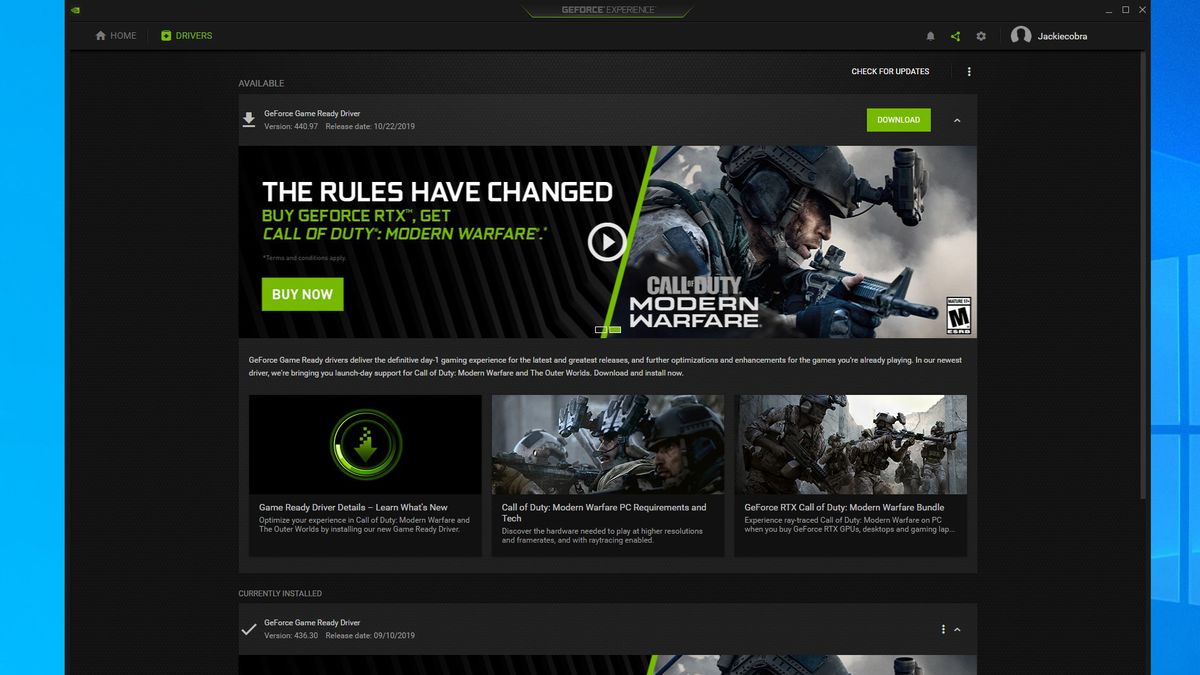
For the vast majority of users, the most efficient way to manage updates is through NVIDIA’s proprietary software suite. Recently, NVIDIA has been transitioning from the classic “GeForce Experience” to a more streamlined, unified “NVIDIA App.” Both tools serve the same primary function: automating the update process.
Automatic Notifications and One-Click Installation
When you install GeForce Experience or the new NVIDIA App, the software runs a background service that periodically checks NVIDIA’s servers for new driver versions compatible with your specific hardware. When an update is found, you receive a desktop notification.
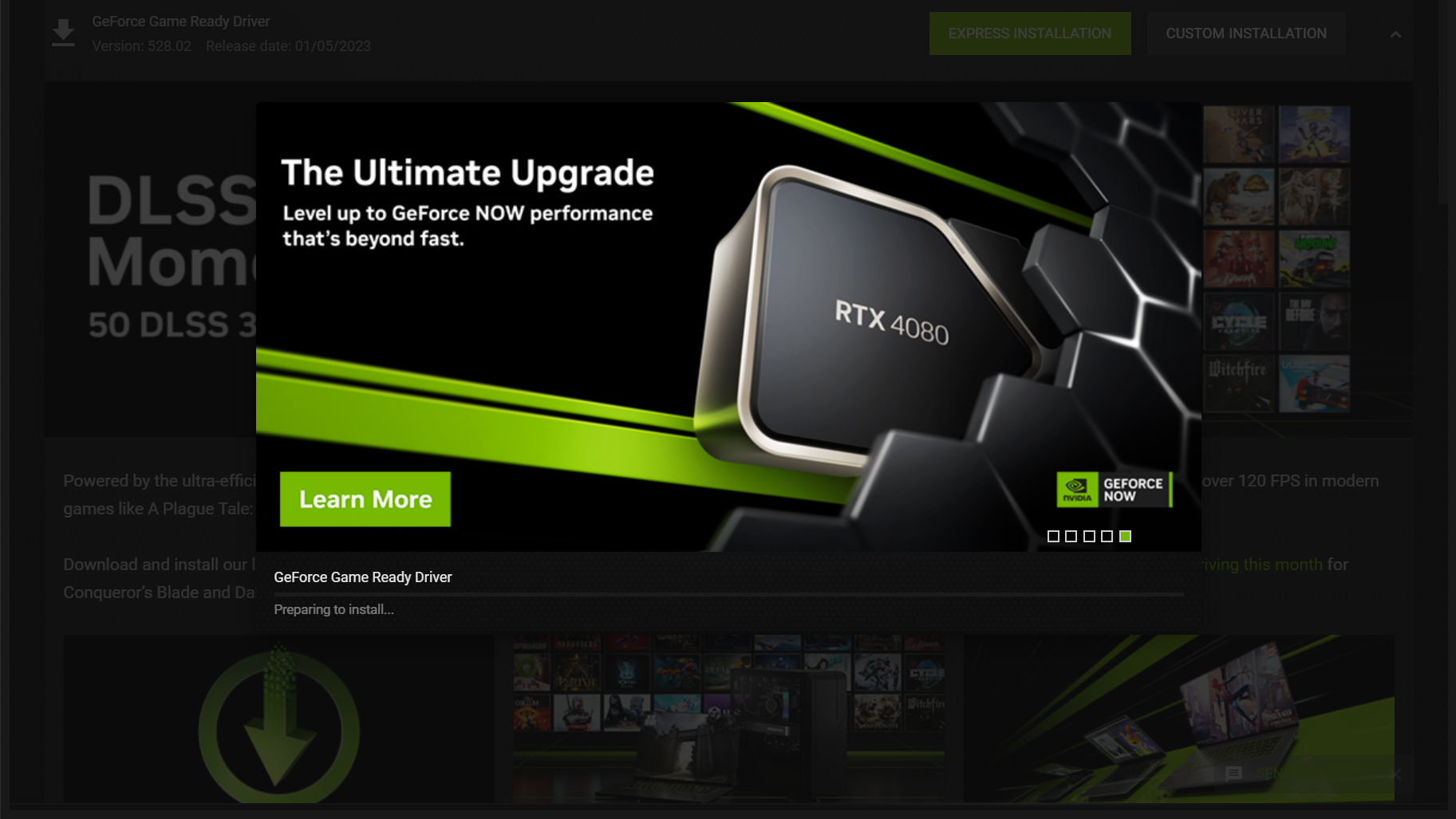
To update, you simply open the application, navigate to the “Drivers” tab, and click “Download.” This eliminates the need to know your specific GPU model or operating system version, as the software detects these parameters automatically. Once the download is complete, you are presented with two options: Express Installation and Custom Installation.
Express vs. Custom Installation
The Express Installation is designed for convenience. It replaces the old driver files with new ones while keeping your existing settings, such as resolutions and refresh rates, intact. However, if you have been experiencing glitches, the Custom Installation is preferable. Within the Custom menu, you can select “Perform a clean installation.” This checkbox instructs the installer to delete all previous profiles and reset the NVIDIA Control Panel to factory defaults, which often resolves persistent software conflicts.
Troubleshooting GeForce Experience Issues
Sometimes, the GeForce Experience app itself can encounter errors, such as failing to connect to NVIDIA servers or getting stuck in a login loop. In these instances, ensuring that the “NVIDIA Display Container LS” service is running in the Windows Services manager is a common fix. If the app remains unresponsive, the manual method remains the most reliable fallback.
Method 2: Manual Installation via the NVIDIA Website
Power users and system administrators often prefer the manual method. This approach gives you total control over which version of the driver you install and ensures that no unnecessary background telemetry services are bundled into the process.
Identifying Your GPU Model
Before downloading a manual driver, you must know your hardware. If you are unsure, right-click the “Start” button and select “Device Manager.” Expand the “Display adapters” section to see your card’s name (e.g., NVIDIA GeForce RTX 3070 Ti). Knowing whether you are on a Desktop or a Notebook (Laptop) is also vital, as laptop drivers are often tuned for specific thermal and power constraints.
Game Ready Drivers vs. Studio Drivers
When you visit the NVIDIA Driver Downloads page, you will be asked to choose a “Download Type.”
-
Game Ready Drivers (GRD): Best for gamers who want support for the latest titles and experimental features.
-
Studio Drivers (SD): Best for content creators who value stability above all else. These drivers are updated less frequently but undergo extensive testing with professional software.
The Step-by-Step Download Process
-
Navigate to the official NVIDIA driver site.
-
Select your Product Type (GeForce, RTX/Quadro, etc.), Product Series, and specific Product.
-
Choose your Operating System (Windows 10 and 11 usually share a driver package).
-
Download the .exe installer.
-
Run the installer as an Administrator.
-
The installer will perform a “System Compatibility Check” before allowing you to proceed. If it fails, it usually means you have downloaded the 32-bit version for a 64-bit system or a mobile driver for a desktop card.
Advanced Maintenance: Using Display Driver Uninstaller (DDU)
There are times when a standard update or even a “Clean Installation” through the NVIDIA menu is insufficient. If you are moving from an AMD card to an NVIDIA card, or if you are experiencing repeated driver crashes despite updating, you likely have corrupted registry entries or “ghost” files from old installations.
When a Simple Update Isn’t Enough
Windows often tries to manage drivers automatically through Windows Update. This can result in a conflict where Windows installs an older, basic driver while you are trying to install the latest version from NVIDIA. This “double-installation” can cause stuttering in games and flickering on the desktop.
How to Safely Use DDU
Display Driver Uninstaller (DDU) is a third-party niche tool that has become an industry standard for tech enthusiasts. It is designed to be used in Safe Mode.
-
Download DDU and the latest NVIDIA driver package.
-
Disconnect your internet (to prevent Windows Update from automatically installing a generic driver).
-
Boot your PC into Safe Mode.
-
Run DDU and select “NVIDIA” from the device type.
-
Click “Clean and restart.”
DDU will scrub every trace of NVIDIA from the registry and the system folders.
Performing a Truly Clean Installation
Once the computer restarts and you are back in normal Windows (still disconnected from the internet), run the NVIDIA driver installer you downloaded earlier. This ensures that the new driver is being written to a completely “blank slate,” free from any legacy configuration files that could cause instability.
Optimizing Your Settings Post-Update
After successfully updating your drivers, the process isn’t quite finished. To get the most out of your hardware, a quick trip to the NVIDIA Control Panel is necessary to ensure the update hasn’t reverted your preferred settings.
Navigating the NVIDIA Control Panel
Right-click your desktop and select “NVIDIA Control Panel.” Under “Manage 3D Settings,” check the “Power management mode.” For desktop users, setting this to “Prefer maximum performance” can prevent the GPU from down-clocking during intensive tasks. Additionally, ensure that your “Refresh Rate” under the “Change resolution” tab is set to the highest possible value for your monitor; updates can sometimes reset a 144Hz monitor back to 60Hz.
Enabling Modern Features
Many of NVIDIA’s best features must be enabled on a per-game or global basis. If you have an RTX card, ensure that “Hardware-accelerated GPU scheduling” is enabled in your Windows Display settings, as this is a prerequisite for DLSS 3 Frame Generation. Within the NVIDIA Control Panel, you should also verify that G-Sync or FreeSync is enabled to prevent screen tearing.
Managing Power and Thermals
For those using laptops or small-form-factor PCs, the latest drivers often include updated “Max-Q” profiles. These profiles manage the balance between fan noise, heat, and performance. In the “System Outlook” section of the new NVIDIA App, you can now monitor your GPU’s clock speed and temperature in real-time, allowing you to verify that the new driver hasn’t introduced any thermal throttling issues.
By following these steps, you ensure that your NVIDIA hardware remains at the cutting edge of performance. Whether through the ease of the NVIDIA App or the precision of a DDU-assisted manual install, keeping your drivers updated is the single most effective way to protect your investment and enhance your digital experience.
aViewFromTheCave is a participant in the Amazon Services LLC Associates Program, an affiliate advertising program designed to provide a means for sites to earn advertising fees by advertising and linking to Amazon.com. Amazon, the Amazon logo, AmazonSupply, and the AmazonSupply logo are trademarks of Amazon.com, Inc. or its affiliates. As an Amazon Associate we earn affiliate commissions from qualifying purchases.